Low Stock
The warning that a product is running out arrives as a card and a filter on the Inventory page, and never as an interruption. Where to read it, the three different fixes it calls for, and how often to look.
On this page
Low stock is the warning you get before a product sells out, while there is still time to do something about it. Tanqory works it out from the Available count, so there is no alert to configure and nothing to switch on: the signal is already in the admin, waiting to be looked at.
That is the catch. Nothing here interrupts you. Low stock is a list you have to go and read, which makes this less a feature to set up than a habit to keep.
Before you begin
- You have the View products permission.
- Track quantity is on for the products you want to watch. An untracked product has no count, so it can never be called low. See Track Quantity.
- Open Products and open Inventory.
Where the signal appears
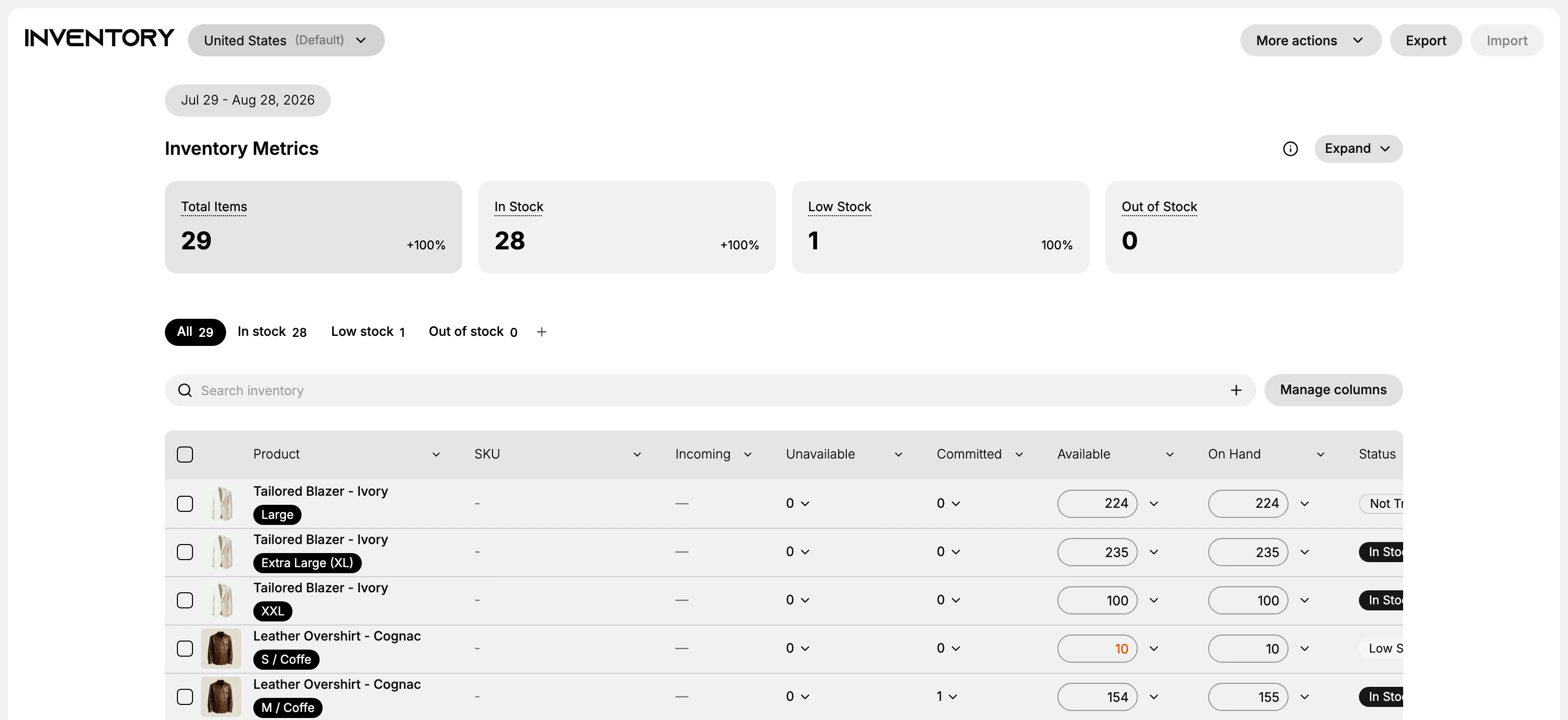
The Inventory page carries it twice. The Low Stock card at the top is the count, telling you how many items are running low, and the Low stock filter below turns that number into the list of which ones. The card is the glance; the filter is the work.
The Products list carries the same filter, which is useful when you are already in the catalog and would rather not change screens to see whether the product in front of you is running out.
The counts follow the location selector at the top of the page. Pick a location and the cards and tabs both narrow to it, so a store with stock in two places reads low stock one location at a time.
What to do when something is low
Filtering to Low stock gives you the list. Each product on it needs one of three responses, and choosing the right one matters more than it looks, because each leaves a different record behind.
- You need more stock than you own. Reorder from a supplier with a purchase order, which records what you asked for and lets the quantity land as Incoming while it is on its way. See Create a Purchase Order.
- You already own enough, elsewhere. Move units in with a transfer. Nothing needs buying; the stock is in the wrong place. See Create an Inventory Transfer.
- The product is not really low. The count is wrong, not the shelf. Correct it with an adjustment and give the reason, so the history explains itself later. See Adjust Inventory Quantities.
The third case is the one to be honest about. Editing a number is the quickest way to clear an item off this list, and if the shelf is genuinely empty it is also the way to keep selling something you cannot ship.
Making it a habit
Decide when you will read the list rather than promising yourself you will watch it. Once a week suits most stores; a store with fast-moving products is better off checking whatever it sells out of soonest, since those are the products that go from comfortable to zero between two checks.
The value of reading it early is the room it buys. A product caught at low stock can be reordered at a normal price on a normal delivery; the same product caught at zero costs you the sales in between, and often a rush fee as well.
Best practices
- Check the Low stock filter on a regular cadence so you act before items reach zero rather than after.
- Reorder with a purchase order, or move stock with a transfer, rather than editing the count, so the change keeps a record.
- Watch your fastest sellers most closely, since they fall low soonest.
Common mistakes
- Waiting for Out of stock instead of acting while items are still Low stock.
- Leaving Track quantity off, so a product never shows as low and quietly oversells.
- Editing the count to clear the flag when a reorder or transfer is what is actually needed.
If something goes wrong
- A product you expected is not in Low stock. Confirm Track quantity is on, and that its Available count is genuinely low.
- The number looks wrong rather than low. Record an adjustment to correct it.
- The list is empty and you doubt it. Compare the Low Stock card with the filter tab, since both carry the same number.
- Permission denied. Your role lacks the View products permission.
Next steps
Related articles
Still stuck?
- Ask Tanqory AIAsk in your own words. It answers from these articles and links the ones it used.
- Ask in your adminThe assistant in your Tanqory admin answers and makes the change for you once you confirm.
- Contact TanqoryWrite to our privacy, security or legal teams, or talk to sales about a plan or a move.