Return and Refund Policy
The Return and refund policy editor is where you write the policy that tells customers how returns and refunds work. You can start from a template, generate it, or write your own, from Settings, Policies.
On this page
The Return and refund policy is the page that tells customers how returns and refunds work at your store. As the editor explains, it appears in your store footer and during checkout to set clear expectations, build trust, and reduce disputes. You write it in a rich-text editor and can begin from a template, have it generated, or start from scratch. You reach it from Settings, then Policies, then the Return and refund policy entry under Written policies. A policy has legal weight, so review the wording with your own legal advisor before you publish it.
What's in the editor
| Control | What it does |
|---|---|
| Use template | Fills the editor with a standard return and refund policy to adjust |
| Generate with AI | Drafts the policy for you as a starting point |
| Start from scratch | Gives you an empty editor to write your own |
| Policy content editor | A rich-text editor for the wording, with formatting, links, and lists |
Before you begin
- Your role includes Manage returns and exchanges.
- Open Settings > Policies in the admin sidebar, then under Written policies select Return and refund policy.
Steps
1. Open the Return and refund policy editor
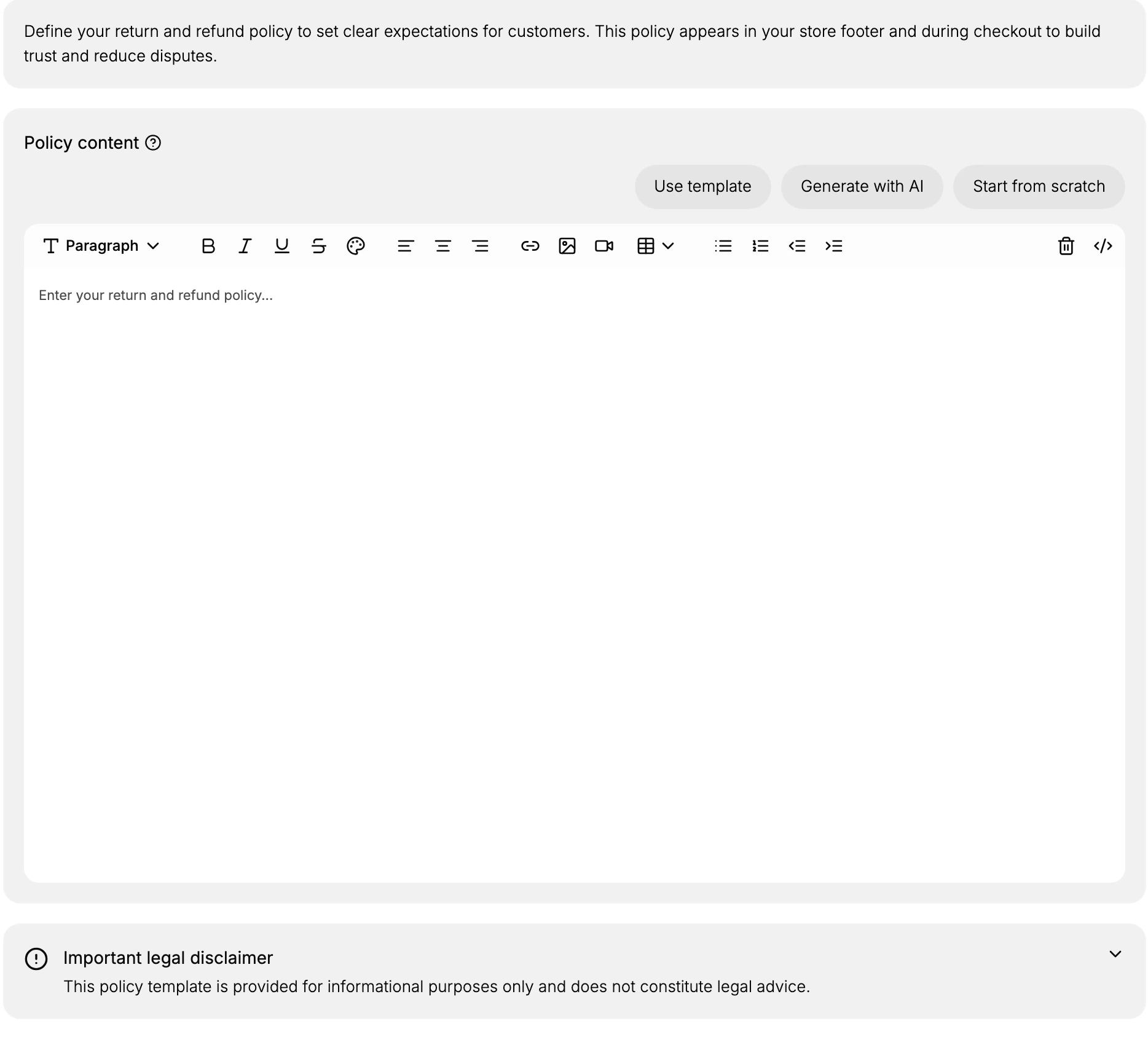
From the admin, open Settings, then Policies. Under Written policies, select Return and refund policy. The editor opens with a note that the policy appears in your store footer and during checkout, a Policy content area, and an Important legal disclaimer.
2. Choose how to start the policy
Under Policy content you have three ways to begin. Use template fills the editor with a standard return and refund policy you can adjust. Generate with AI drafts one for you as a starting point. Start from scratch leaves the editor empty for you to write your own. A template or generated draft is the fastest start, but read every line, since you are responsible for what the policy says.
3. Write and format the policy
The Policy content editor is a rich-text editor with the placeholder to enter your return and refund policy. Its toolbar lets you set headings and paragraphs, apply bold, italic, and other formatting, add links, images, and lists, so you can lay the policy out clearly. Cover the points customers look for, such as the return window, the condition items must be in, who pays return shipping, and how refunds are issued.
4. Review the disclaimer and set the policy live
The Important legal disclaimer states that the policy template is provided for informational purposes only and does not constitute legal advice. Read it, and have your policy reviewed by a legal advisor for your business and regions. Once your policy is set, it appears in your store footer and during checkout, where customers can read it before they buy.
Best practices
- Have your legal advisor review it. The editor's own disclaimer notes it is not legal advice, so confirm the wording fits your business and the regions you sell to.
- Cover the questions customers ask. State the return window, the condition items must be in, who pays return shipping, and how and when refunds are issued.
- Write it clearly. Use headings and short paragraphs so customers can find the part they need quickly.
- Keep it current. Update the policy whenever your real return process changes so the published page always matches how you operate.
If something goes wrong
- The policy is not showing to customers. A policy appears in the footer and at checkout once it is set, so confirm you saved it.
- A template does not fit your store. Start from a template or a generated draft, then edit it, or use Start from scratch to write your own.
- You cannot edit the policy. Your role may not allow managing settings. Ask an owner or admin.
Next steps
- Return Rules to set the windows and conditions this policy describes.
- The Return Process for how a return runs from request to refund.
- Create a Return for handling one on an order.
Related articles
- Use the Policy Editor for the editor this page shares with your other policies.
- Store Policies Overview
- Privacy Policy
- Customer Notifications
Still stuck?
- Ask Tanqory AIAsk in your own words. It answers from these articles and links the ones it used.
- Ask in your adminThe assistant in your Tanqory admin answers and makes the change for you once you confirm.
- Contact TanqoryWrite to our privacy, security or legal teams, or talk to sales about a plan or a move.