Store Policies Overview
Store policies are the six statements your store makes to customers, and the Policies page is where all of them are written. This covers what each one is for, the three values the status column can hold, and why a policy marked Automated is not the same as a policy that is finished. It also covers where the saved policies appear, since checkout links them for you and the storefront menu does not.
On this page
Store policies are the statements your store makes to customers about how you handle returns, privacy, and the terms of buying from you. Tanqory keeps them in one place and links them from the footer of checkout, and you can also add them to your online store menu, so a customer can read them before and during a purchase. Setting them is what turns an unstated promise into something a customer can see and rely on, and one of them, contact information, is marked required. This article covers the Policies page and the set of policies you can write there; each policy that needs more explanation has its own article.
The policies you can write
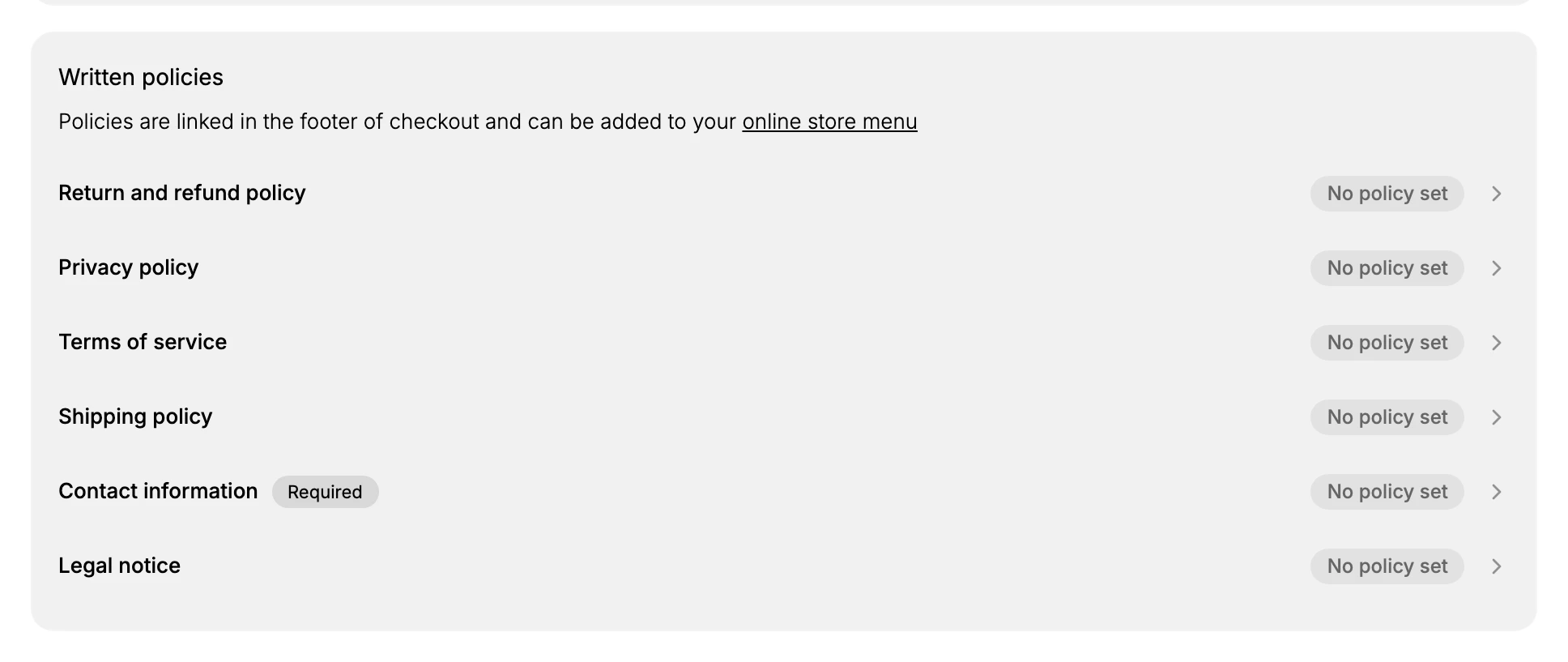
The Written policies section lists the policies Tanqory supports. Each starts at "No policy set" until you write it.
- Return and refund policy, which tells customers whether and how they can return an order.
- Privacy policy, which explains what customer data you collect and how you use it. Privacy Policy covers what belongs in it.
- Terms of service, the terms a customer agrees to by buying from you. Terms of Service goes through them.
- Shipping policy, which sets expectations for delivery. Shipping Policy takes the shipping side of this.
- Contact information, marked Required, so customers can reach you. Contact Information Policy sets out what to put there.
- Legal notice, for any additional legal statement your region asks for.
The status beside each policy
The status column tells you where each policy stands, and it carries three values.
| Status | What it means |
|---|---|
| No policy set | Nothing has been written. The policy's page on your storefront still opens, but a customer landing on it reads This policy isn't available. |
| Automated | The policy holds text that came from a starting draft rather than being written from scratch, such as one begun with Use template or Generate with AI. It is live and customers can read it. |
| Required | Shown against Contact information, marking it as the one policy Tanqory expects every store to provide |
Automated is worth a second look rather than treating it as finished. A draft arrives with bracketed placeholders in it, such as the store name and a contact email, and those placeholders are published exactly as they appear. Open anything marked Automated and read it through as a customer would, so you find them before a customer does.
Before you begin
- Have the policy text ready, ideally reviewed by someone qualified, since these are legal statements.
- Expect to work through them one at a time. Each policy has its own editor, and the page shows which ones are still unset.
- Open Settings > Policies in the admin sidebar, which is where every written policy is managed.
Working through them
The Written policies section is the part you work through, and it lists every policy with its status so you can see at a glance which are still empty. Selecting a row opens that policy's editor, which behaves the same way whichever policy you picked; Use the Policy Editor covers it once for all six.
Order matters only at the start. Contact information is the one marked Required, so it is the one to write first, and after that you write whichever policies apply to your store. A policy's status changes from No policy set the moment you save it.
Where a saved policy appears is the part worth checking rather than assuming. Checkout links every one of them for you, automatically. Your storefront navigation does not, and takes only what you add to your online store menu, which Menus explains.
The two places a policy shows up behave differently, and only one of them is automatic. Checkout links every saved policy for you, while the storefront menu carries only what you put there, so a policy can be live at checkout and missing from your navigation at the same time with nothing reporting the gap.
Verify the result
- Each policy you wrote shows as set on the Policies page rather than No policy set.
- The policy links appear in the checkout footer and open the text you wrote.
- Any policy you added to your online store menu opens from the storefront.
Best practices
- Have your policies written or reviewed by someone qualified for your region, since these are legal statements a customer can hold you to.
- Make each policy match what your store actually does, because a policy that promises more than you deliver is worse than a shorter honest one.
- Write the required contact information first, so customers always have a way to reach you even before the other policies are ready.
- Revisit your policies when your practices change, such as when you start using a new service that handles customer data.
Common mistakes
- Assuming an unset policy is harmless. The Policies page shows which policies have no text yet, and those are the ones a customer hits an empty link for at exactly the moment they were deciding whether to trust you.
- Doing them all in one sitting from templates. Each policy needs to match a different part of how you actually operate, so a batch of lightly edited templates tends to produce statements you cannot honor.
- Leaving placeholders in the text. Templates arrive with bracketed fields for details such as your contact email and address. They have to be replaced before you save.
- Forgetting they are customer-facing. These are not internal documents: they are linked in the footer of checkout, which is where they are read.
Next steps
Related articles
Still stuck?
- Ask Tanqory AIAsk in your own words. It answers from these articles and links the ones it used.
- Ask in your adminThe assistant in your Tanqory admin answers and makes the change for you once you confirm.
- Contact TanqoryWrite to our privacy, security or legal teams, or talk to sales about a plan or a move.