Shipping Policy
What to tell customers about delivery times, shipping costs and international orders, written in an editor that can start from a template, draft one for you, or leave you a blank page. Saving it publishes it to checkout.
On this page
The Shipping policy is the page that tells customers how shipping works at your store. As the editor explains, it communicates delivery timeframes, shipping costs, and international shipping options, which helps manage customer expectations and reduce support inquiries. You write it in a rich-text editor and can begin from a template, have it generated, or start from scratch. You reach it under Settings, in Policies, then the Shipping policy entry under Written policies. Set clear expectations here so customers know what to expect before they buy.
Before you begin
- You know your real delivery timeframes, what you charge for shipping, and whether you ship internationally. The editor names those three things as what the policy is for, so without them there is nothing to write.
- Your shipping rates are already set up, so the costs you publish match what checkout will actually charge; Set Up Shipping Rates covers them.
- You are ready for customers to read it. The Written policies section states that policies are linked in the footer of checkout and can be added to your online store menu, so saving publishes it.
- Your role includes the Edit shipping policy permission, which lets you write and publish the store's shipping policy.
- Go to Settings > Policies in the admin.
What's in the editor
| Control | What it does |
|---|---|
| Use template | Loads a standard shipping policy into the editor for you to adjust |
| Generate with AI | Writes a draft for you, with details left as placeholders in square brackets to replace |
| Start from scratch | Empties the editor at once, with no confirmation, so anything unsaved in it is gone |
| Policy content editor | A rich-text editor for the wording, with formatting, links, and lists |
| Translate | Opens the store's Language settings to offer the policy in the other languages you sell in |
Steps
1. Open the Shipping policy editor
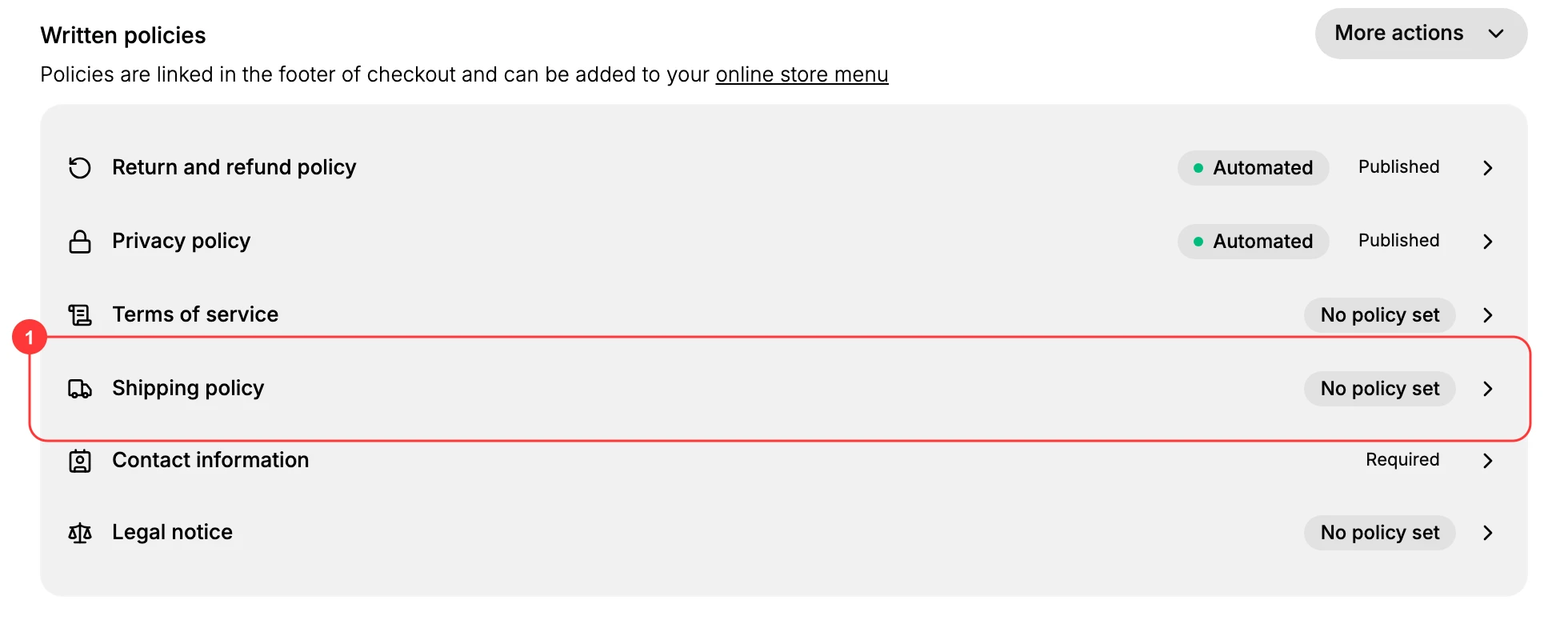
From the admin, open Settings, then Policies. Under Written policies, select Shipping policy (1), which reads No policy set until you write one.
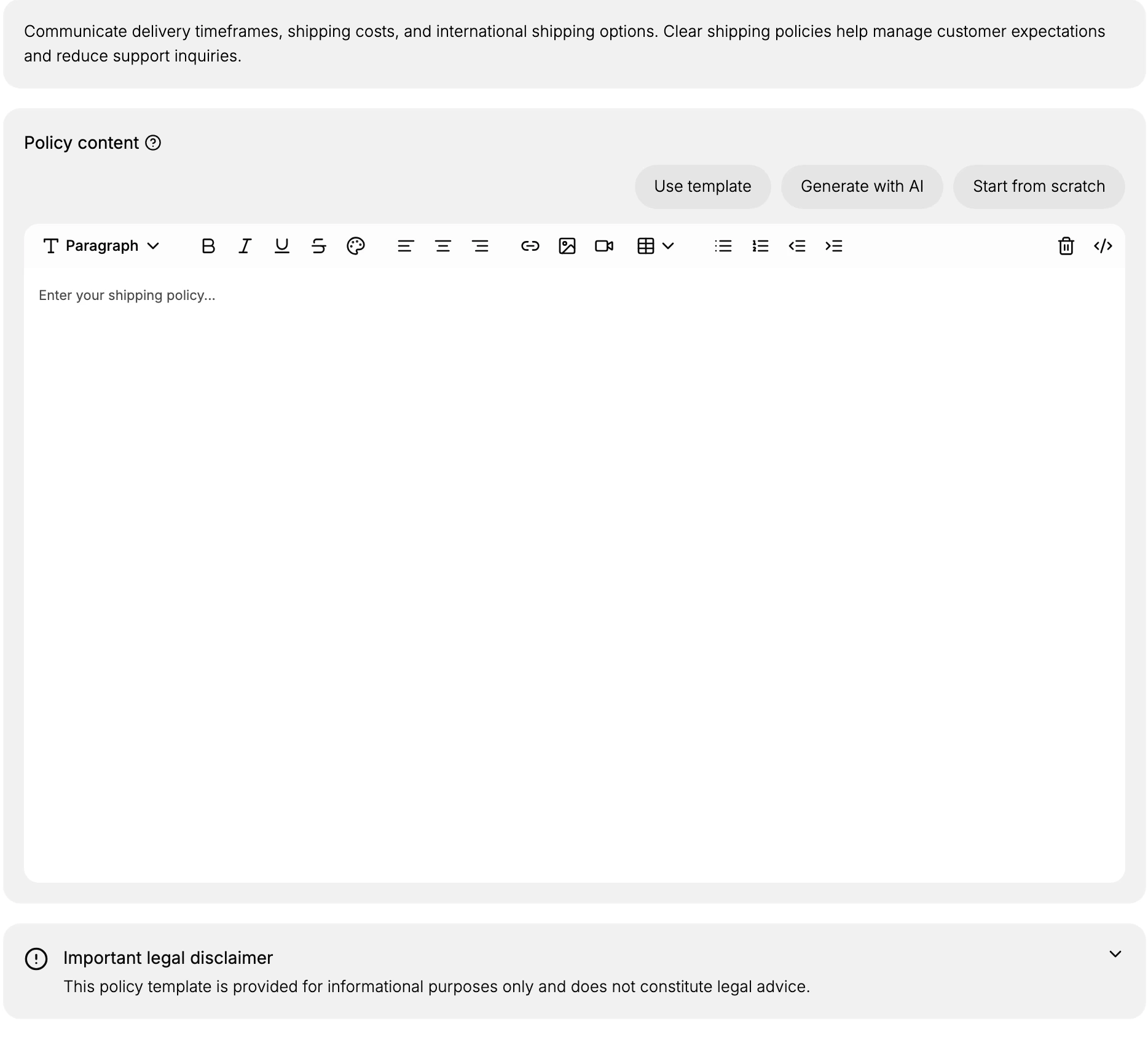
The editor opens with a note describing what the policy covers, a Policy content area, and an Important legal disclaimer.
2. Choose how to start the policy
Under Policy content you have three ways to begin.
Use template loads a standard policy for you to edit rather than write.
Generate with AI writes a draft into the editor. What comes back is a full policy in your own store's voice, but with the specifics left as placeholders in square brackets, such as the store name and the number of business days you take to process an order. Those brackets are the work: a policy published with them still in it tells a customer nothing and looks unfinished.
Start from scratch empties the editor immediately. There is no confirmation and no undo prompt, so press it only when you mean to lose what is there.
Whichever you choose, read every line before saving. The policy is what a customer will hold you to.
3. Write and format the policy
The Policy content editor is a rich-text editor with the placeholder to enter your shipping policy. Its toolbar lets you set headings and paragraphs, apply formatting, and add links and lists, so you can lay the policy out clearly. Cover the points customers ask about, such as how long delivery takes, what shipping costs, whether you ship internationally, and any regions you do not ship to.
4. Review the disclaimer and set the policy live
The Important legal disclaimer states that the policy template is provided for informational purposes only and does not constitute legal advice. Read it, and adjust the policy to match how you really ship. Then save: the bar at the top of the editor appears as soon as you change anything and carries Discard and Save. Once saved, the policy is published. The Written policies section states that policies are linked in the footer of checkout and can be added to your online store menu, so this is what a customer reads before they buy.
Verify the result
- Back on the Policies page, the Shipping policy row no longer reads No policy set; a policy that is set shows a status such as Published, the way Return and refund and Privacy do in the list.
- The policy is reachable from the footer of your checkout, where the Written policies note says it is linked, so it is worth opening your own checkout to confirm it reads the way you meant.
Version history
Each time you save, that published wording is kept in Version history, below the editor, which holds every published version of the policy for two years. It reads No versions yet until your first save. This means you can see what the policy said at an earlier point, rather than losing the previous wording each time you update it.
Offer the policy in other languages
If you sell in more than one language, Translate at the top of the editor opens the store's Language settings for this policy, where you can provide its wording in each language. The policy itself is still written and saved in this editor; translation is managed in the Language area.
Best practices
- State real timeframes and costs. Customers plan around delivery times and shipping fees, so publish figures you can meet.
- Be clear about international shipping. Say which countries you ship to and any added costs or times, so international customers know what to expect.
- Write it clearly. Use headings and short paragraphs so customers can find the part they need quickly.
- Keep it current. Update the policy whenever your carriers, rates, or coverage change so it always matches your real process.
If something goes wrong
- The policy is not showing to customers. Confirm you saved it. The editor has no Save button until you make a change; editing the content raises a bar at the top carrying Discard and Save, and leaving the page without saving discards what you typed.
- A template does not fit your store. Start from a template or a generated draft, then edit it, or use Start from scratch to write your own.
- You cannot edit the policy. Your role may not allow managing settings. Ask an owner or admin.
Next steps
Related articles
Still stuck?
- Ask Tanqory AIAsk in your own words. It answers from these articles and links the ones it used.
- Ask in your adminThe assistant in your Tanqory admin answers and makes the change for you once you confirm.
- Contact TanqoryWrite to our privacy, security or legal teams, or talk to sales about a plan or a move.