Create a Shipping Profile
A custom shipping profile lets you set different shipping rates and rules for specific products, instead of the general rates every other product uses. You give it a name for your own reference, add the products it covers, choose the fulfillment locations, and add shipping zones and rates. Products you do not add to a custom profile keep using the General shipping profile.
On this page
A custom shipping profile lets you charge different shipping for specific products, rather than the one set of rates the General profile applies to everything else. You use one when some products need their own rates or destinations, such as oversized or fragile items that cost more to ship. When you create a profile, you name it, add the products it covers, set which locations fulfill them, and add the zones and rates those products ship under. Any product you do not add to a custom profile keeps using the General profile. You create one from Settings, under Shipping and delivery, in the Shipping section, by choosing to create a custom profile.
What a custom profile is for
The General profile already covers all your products with one set of rates. A custom profile is for the exceptions: a group of products that should be priced or restricted differently. As the page explains, products not assigned to a custom profile use the general shipping rates, so a custom profile only affects the products you put in it.
Before you begin
- Your role includes Shipping settings, the permission that lets you change the store's shipping configuration.
- You know which products need different shipping and what rates or destinations they should have.
- Open Settings > Shipping and delivery, select the Shipping section to expand it, and choose Create a custom profile under CUSTOM.
Steps
1. Open Create shipping profile
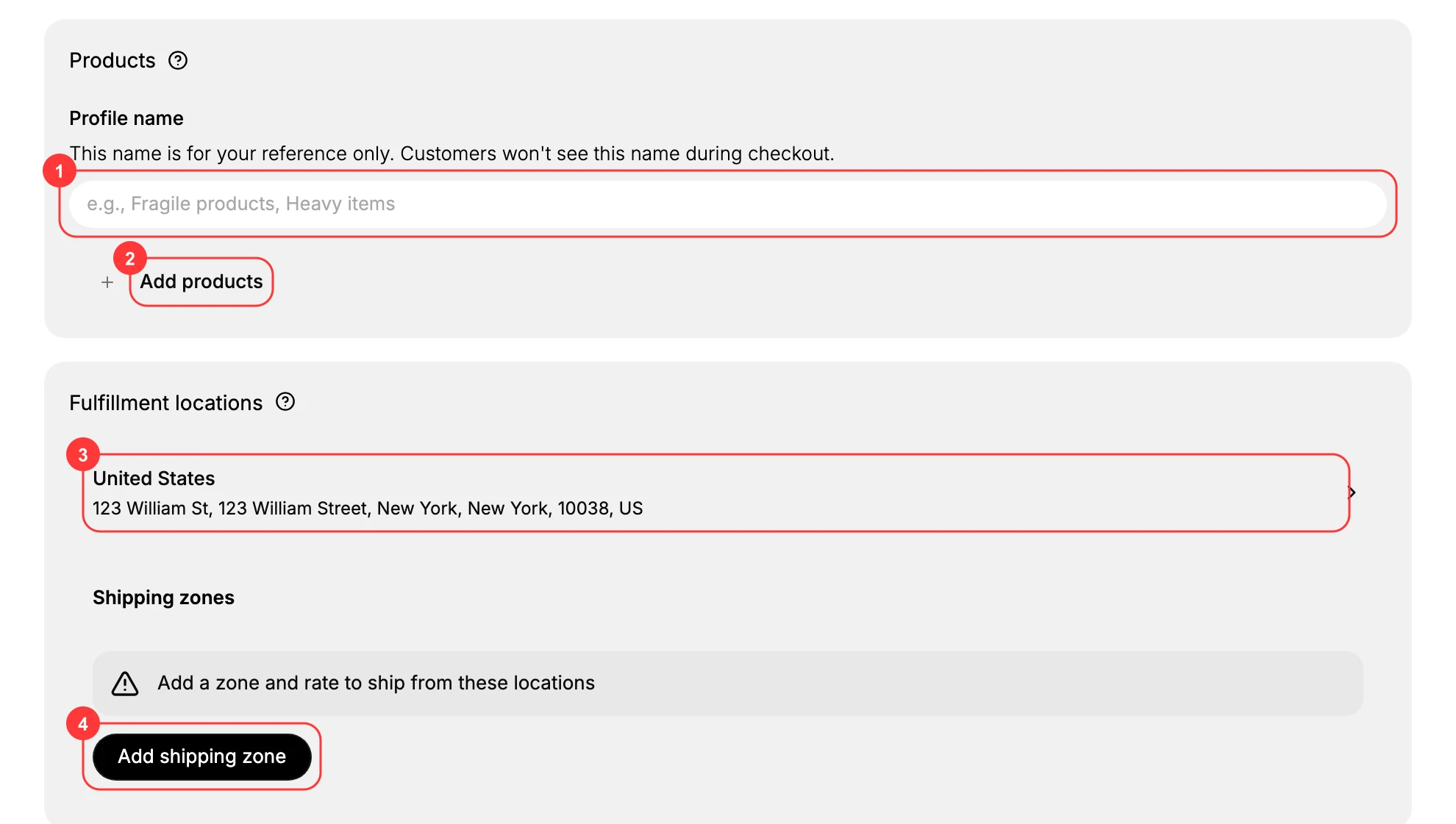
In the Shipping section, choose to create a custom profile. This opens the Create shipping profile page, which explains that a custom profile defines specific rates and rules for selected products, while everything else uses the general rates.
2. Name the profile
Under Products, enter a Profile name (1). The page says underneath that the name is for your reference only and that customers will not see it during checkout, and the field itself suggests the idea with the example text Fragile products, Heavy items. Name it for what it groups rather than what it charges, so it still reads correctly after you change the rates.
3. Add the products it covers
Select Add products (2) to choose the products this profile applies to. These are the only products the profile's rates affect; everything you do not add stays on the General profile. Add the products that need the different shipping you are setting up here.
4. Confirm the fulfillment locations
The Fulfillment locations section shows the locations (3) these products can ship from. Confirm the locations are the ones that actually hold and ship these products, since the zones and rates are set up per location.
5. Add shipping zones and rates
Under Shipping zones, the profile warns that you need to add a zone and rate to ship from these locations. Select Add shipping zone (4) to add the destinations, then add a rate to each zone so customers there have a shipping option. The details are covered in Create and Edit Shipping Zones and Set Up Shipping Rates. Without a rate, customers for this profile cannot complete checkout.
6. Save the profile
There is no Save button on the page until you change something. As soon as you type a name or add anything, a bar appears carrying Discard and Save. Leaving the page without saving discards the profile entirely, so nothing is created by opening this page and looking around.
Save once the profile has its name, its products, and at least one zone with a rate. The products you added then ship under this profile's rates instead of the general ones, and you can change it later. Editing is covered in Edit a Shipping Profile.
Best practices
- Only move the exceptions. Keep most products on the General profile and use a custom profile just for the products that genuinely need different shipping.
- Name for the group, not the rate. A name like Fragile products stays meaningful even if you change the rates later.
- Add a rate to every zone. A zone without a rate blocks checkout for that profile's products, so give each zone at least one rate.
- Match locations to the products. Set the fulfillment locations to where these products actually ship from so rates and routing are correct.
If something goes wrong
- A product still uses the old rates. Confirm it was added to this profile; products not added stay on the General profile.
- Customers cannot check out for these products. A zone in the profile likely has no rate; add a rate to that zone.
- You cannot create a profile. Your role may not allow managing store settings. Ask an owner or admin.
Next steps
Related articles
Still stuck?
- Ask Tanqory AIAsk in your own words. It answers from these articles and links the ones it used.
- Ask in your adminThe assistant in your Tanqory admin answers and makes the change for you once you confirm.
- Contact TanqoryWrite to our privacy, security or legal teams, or talk to sales about a plan or a move.