General Shipping Profile
The General profile is the default every product ships under unless you move it to a custom profile. This explains what it holds, its fulfillment locations, shipping zones and rates, and why a zone left without a rate quietly blocks checkout for customers there.
On this page
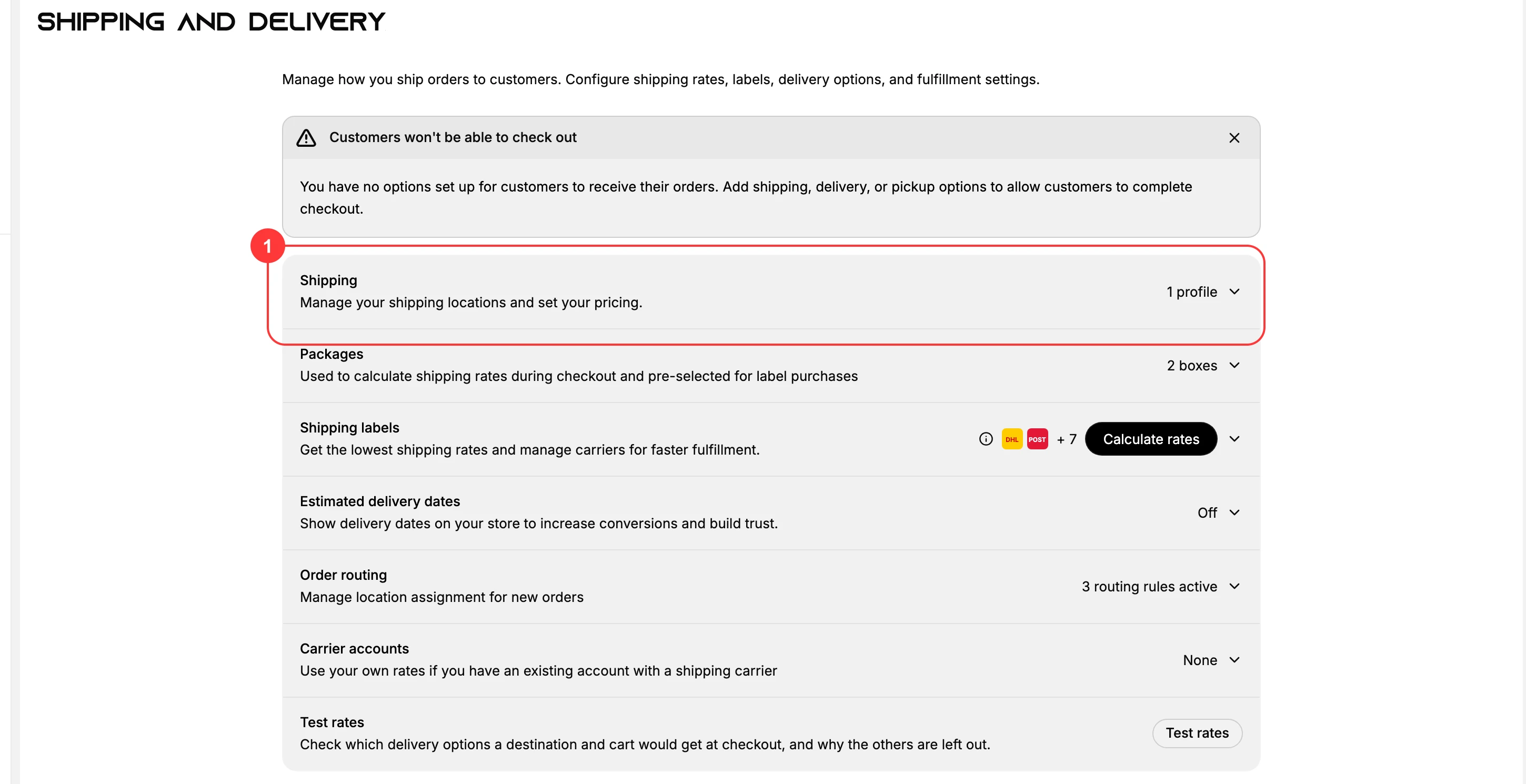
The General shipping profile is the default profile in your store, and it automatically includes every product that is not assigned to a custom profile. It is where you decide, for those products, which locations fulfill them, which destinations you ship to, and what shipping the customer pays. Getting it set up matters because a destination with no rate cannot be checked out, so this profile is what lets customers actually pay for shipping and complete an order. You open it from Settings > Shipping and delivery, under the Shipping section (1); the steps are in Before you begin below.
Before you begin
- You have your locations set up, so the profile has somewhere to ship from. A new profile opens with No fulfillment locations selected, and until you add one the products in it cannot ship at all.
- You know which destinations you sell to, since each one needs a zone and each zone needs a rate before anyone there can pay.
- Your role includes Shipping settings, the permission that lets you change the store's shipping configuration.
- Go to Settings, open Shipping and delivery, select the Shipping section to expand it, then select General shipping rates.
What the profile contains
The General profile page is organized into a few sections, each covering one part of how these products ship.
| Section | What it controls |
|---|---|
| Products | Which products the profile covers: all products not in another profile |
| Fulfillment locations | Which of your locations fulfill these products |
| Shipping zones | The destinations you ship to, grouped into zones such as United States |
| Rates | What the customer pays in each zone, added per zone |
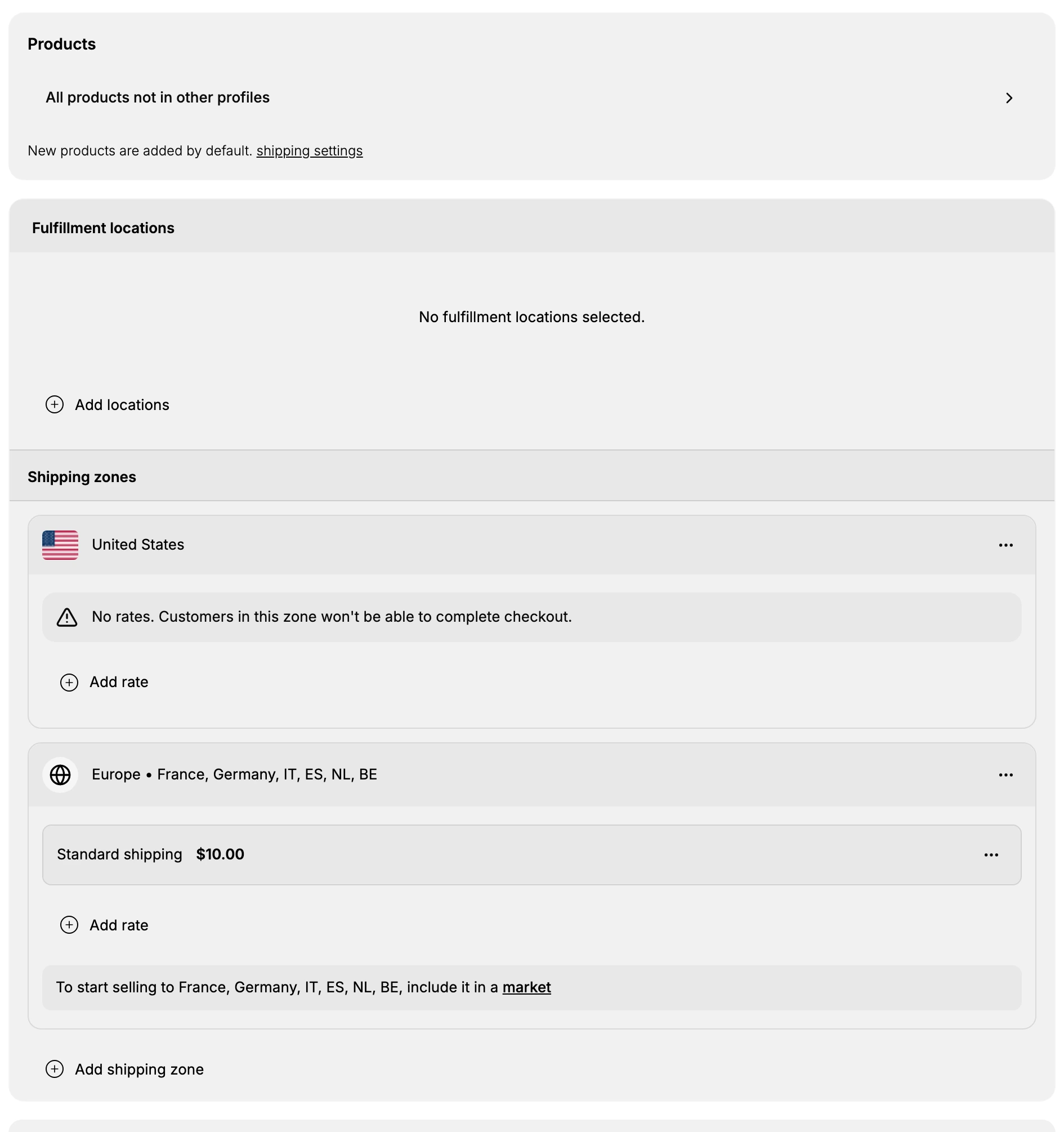
If a profile has no rates, the page warns that customers will not be able to complete checkout for products in it, which is why adding at least one rate to a zone is the key step.
Products
The Products section shows that the profile covers all products not in other profiles, and that new products are added to it by default. So unless you move a product into a custom profile, it ships under the General profile. This keeps a single, consistent set of rates for most of your catalog.
Fulfillment locations
Fulfillment locations are the locations these products can ship from. If none are selected, the profile shows an option to add locations. The locations you choose here tie the profile to where stock actually ships from, which you manage in Locations.
Any location you have not added appears below under Shipping not available from these locations, which explains that shipping options will not be available at checkout when an order would ship from there. Each location is listed with its address and an Inactive marker, and carries its own Add rates action, so you can fix a location from that list rather than scrolling back up.
Shipping zones and rates
Shipping zones are the destinations you ship to, grouped so you can price them together, such as a United States zone. Each zone lists its rates, and while a zone has no rate it warns that customers there cannot complete checkout. You add a rate to a zone with Add rate, and you add another destination group with Add shipping zone. The details of each are covered in Set Up Shipping Rates and How Shipping Zones Work.
Shipping to more places
Below the zones, Start shipping to more places explains that adding countries or regions to a market is how you start selling there and manage localized settings, including shipping zones. It counts the places still outside any market, 235 countries and regions on this store, and offers Go to Markets to add them. This is the route to selling somewhere the profile cannot yet reach.
Custom profiles
The General profile applies one set of rules to most of your products. When a specific product needs different shipping, such as an oversized or fragile item, you create a custom profile for it, and it is then handled by that profile instead of this one. Creating one is covered in Create a Shipping Profile.
Best practices
- Add a rate to every zone you sell to. A zone with no rate blocks checkout for customers there, so make sure each has at least one rate.
- Keep most products in the General profile. Use it for your standard shipping and reserve custom profiles for the few products that genuinely need different rates.
- Set fulfillment locations deliberately. Choose the locations that actually ship these products so rates and routing are accurate.
- Expand through markets. To ship to new countries, add them to a market first, then set their zones and rates.
If something goes wrong
- Customers cannot complete checkout. The profile or a zone likely has no rate; add a rate to the zone the customer is in.
- A product uses the wrong rates. It may be assigned to a custom profile; check which profile the product belongs to.
- You cannot change these settings. Your role may not allow managing store settings. Ask an owner or admin.
Next steps
Related articles
Still stuck?
- Ask Tanqory AIAsk in your own words. It answers from these articles and links the ones it used.
- Ask in your adminThe assistant in your Tanqory admin answers and makes the change for you once you confirm.
- Contact TanqoryWrite to our privacy, security or legal teams, or talk to sales about a plan or a move.