Set Up Shipping Rates
A zone cannot quote a price until it has a rate. This covers adding one to a zone: a flat amount or free, or a carrier-quoted price, with conditional pricing that varies the charge by order weight or total.
On this page
A shipping rate is the price a customer pays to have an order delivered, and it is the piece that makes a zone work. A zone on its own only says which countries you ship to; the rate is what puts an actual shipping option and price in front of the customer at checkout. A zone with no rate shows the warning that customers in it cannot complete checkout, because there is nothing to quote, so adding at least one rate per zone is what turns a defined destination into a place you can actually sell to.
Rates are added inside a shipping profile, on the zone they belong to. Each zone can hold more than one rate, which is how you offer a choice such as a standard option and a faster paid option side by side. This article covers adding a rate to an existing zone. If you have not created the zone yet, start with Create and Edit Shipping Zones.
How the price is decided
The Rate type control at the top of the dialog sets how the price is decided, and it offers two choices.
Use flat rate is an amount you set yourself, either a fixed price or free, and it is what this guide covers.
Use carrier to calculate rates hands the pricing to a shipping carrier, which quotes the cost live at checkout from the account you connect with it. This option needs a carrier account, which is a plan feature, so a store without one prices shipping with flat rates. Carrier Accounts covers connecting a carrier, and Third-Party Calculated Rates covers turning the quoted rates on at checkout.
Before you begin
- Your role includes Shipping settings, the permission that lets you change the store's shipping configuration.
- The zone you want to price already exists in a shipping profile.
- You know the price, or the delivery estimate wording, you want the customer to see.
- Open Settings > Shipping and delivery in the admin sidebar, open the Shipping section, then open the profile and zone you want to price.
Add a rate to the zone
Open Settings, then Shipping and delivery. In the Shipping section (1), select your profile to open it.
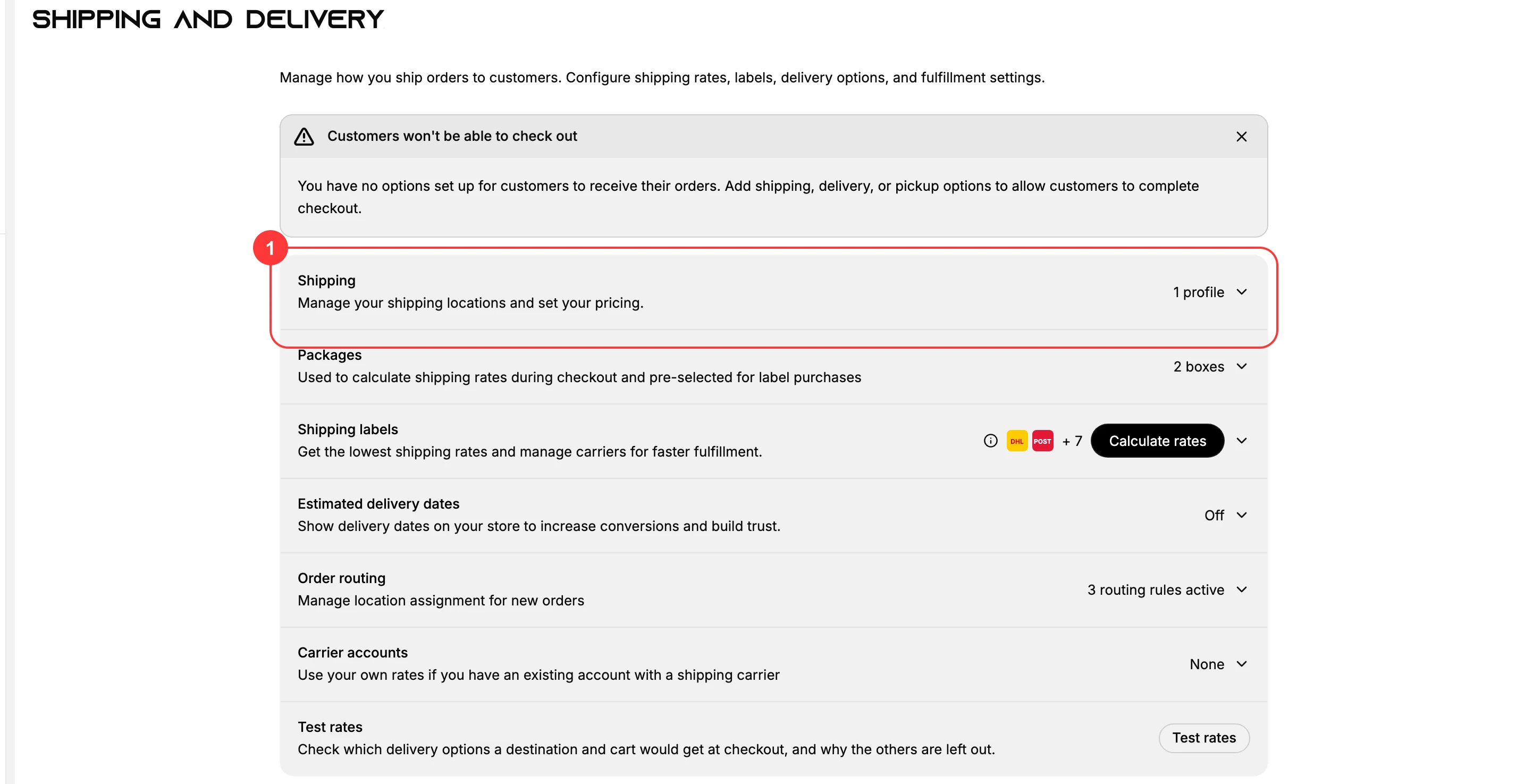
In the Shipping zones section of your profile, find the zone you want to price and select Add rate on its card. A zone showing "No rates. Customers in this zone won't be able to complete checkout." is exactly the one that needs this. The Add rate dialog opens.
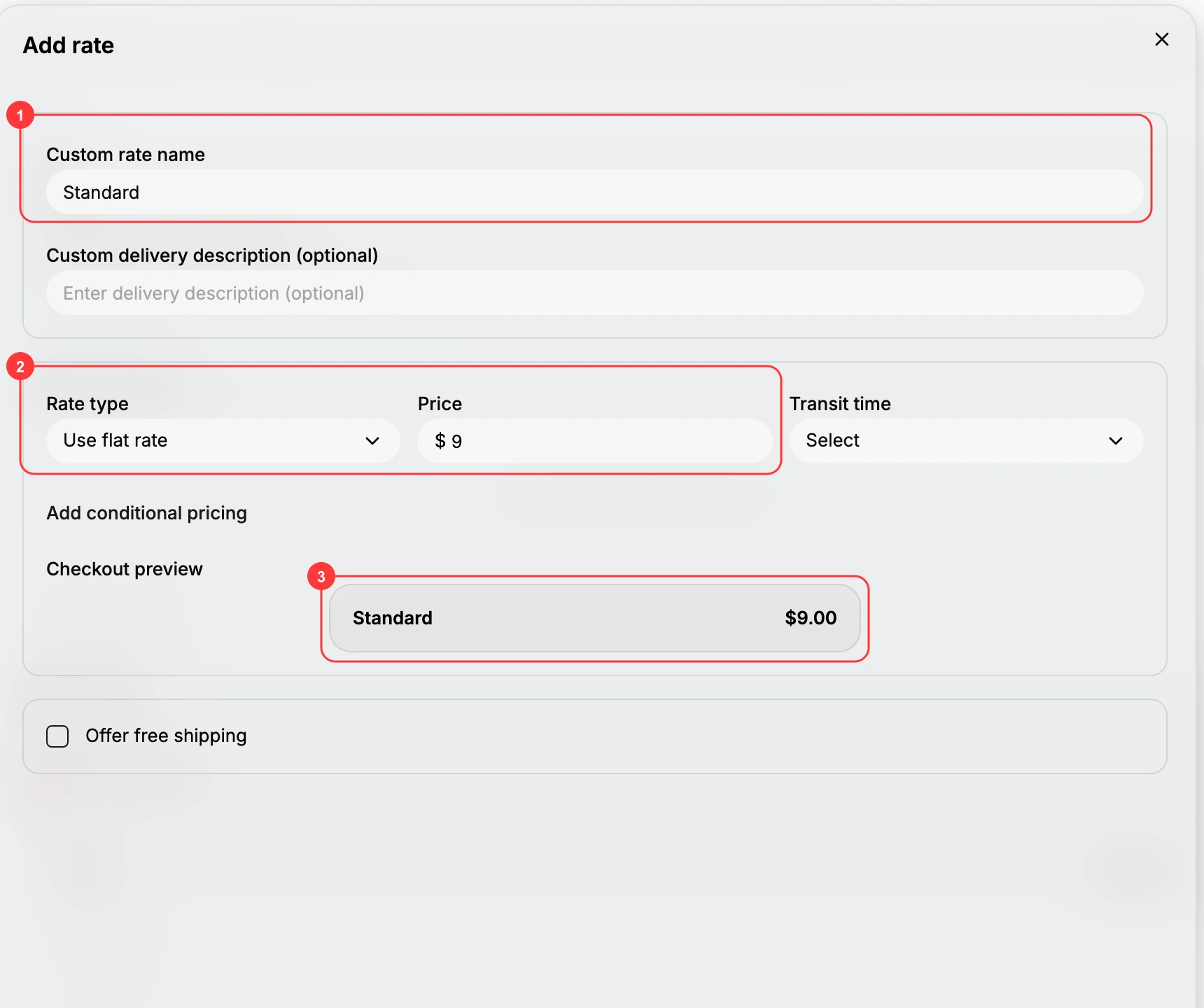
1. Name the rate
Enter a Custom rate name (1), the label the customer sees at checkout, such as Standard or Express. Add a Custom delivery description if you want an estimate like "3 to 5 business days" shown alongside the name.
2. Set the price
Rate type reads Use flat rate, a price you set yourself. Enter the Price (2), which starts at 0, or use Free to charge nothing. Transit time is optional, and it is shown to the customer next to the rate.
3. Add conditional pricing (optional)
Leave this alone to charge one price every time. To make the price depend on the order, select Add conditional pricing and choose one basis:
- Based on item weight gives a Minimum weight and Maximum weight, in kilograms.
- Based on order price (1) gives a Minimum price and Maximum price (2).
Leaving the maximum empty reads as No limit, so a tier can start at a minimum and have no upper end. This is how you build tiers such as a heavier parcel costing more, or free shipping once an order passes a set total. Remove conditional pricing clears the condition and returns the rate to a single price.
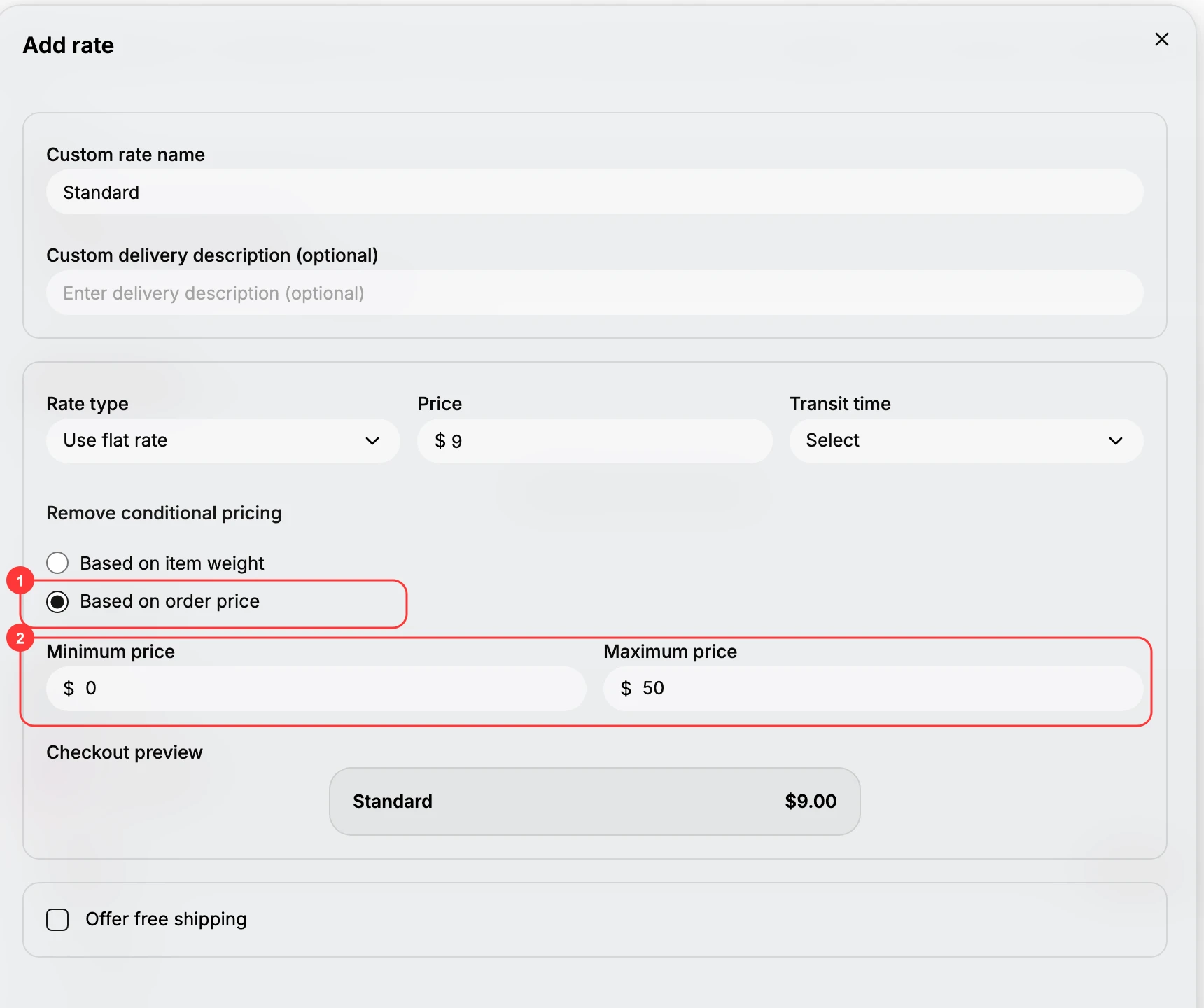
4. Check the preview and save
The Checkout preview (3) shows the rate as the customer will see it, with its name and price, and a separate Offer free shipping option sits below. When it reads the way you want, select Done. The rate is saved to the zone, the "No rates" warning clears, and the price can be quoted at checkout for that zone's destinations.
5. Add more rates for more options
To offer a choice, such as a standard rate and a faster paid rate, select Add rate again on the same zone and repeat. Each rate you add appears at checkout as a separate option the customer can choose between.
Verify the result
- The zone lists the rate you added, and the "No rates" warning is gone.
- A test checkout to an address inside the zone shows the rate, with its name and price, as a shipping option.
- If you set a condition, the rate only appears when the cart meets it, for example once the order passes your free-shipping total.
Best practices
- Give each rate a name the customer understands, since Custom rate name is what they read at checkout, not an internal label.
- Offer a paid option alongside any conditional or free rate, so a customer who does not meet the condition still has a way to check out.
- Add a delivery description when you can, because an estimate like "3 to 5 business days" sets expectations and reduces questions after the order.
- Review your flat prices against what shipping actually costs you, so a rate does not quietly sell below cost as your parcels or carriers change.
If something goes wrong
- A rate does not appear at checkout: confirm the customer's country is in this zone and that the rate's condition, if any, is met by the cart.
- A carrier-calculated rate returns nothing: confirm the carrier connection and that products have the weights or dimensions the carrier needs.
- The currency is not what you expected: it follows the market the zone belongs to, so check that market's currency.
Next steps
Related articles
Still stuck?
- Ask Tanqory AIAsk in your own words. It answers from these articles and links the ones it used.
- Ask in your adminThe assistant in your Tanqory admin answers and makes the change for you once you confirm.
- Contact TanqoryWrite to our privacy, security or legal teams, or talk to sales about a plan or a move.