Free Shipping
Free shipping is an ordinary rate with its price set to Free, added to a zone like any other. This covers both ways to offer it, on every order or only once an order passes a total you set, and how to choose between them.
On this page
Free shipping is a shipping rate that costs the customer nothing at checkout. You offer it either on every order, or only once an order reaches an amount you set, such as free shipping on orders over a certain total. It is set up like any other rate: you add a rate to a zone in a shipping profile and set its price to Free, optionally with a condition. This article covers making a rate free, and Set Up Shipping Rates covers the full rate form and how rates fit into a zone.
Decide who gets free shipping
Making a rate free takes two clicks. Deciding who gets it free is the part worth thinking about, and there are only two answers.
| Type | What it does |
|---|---|
| Always free | Every order in the zone ships free |
| Free over an order total | The rate is free only when the order reaches a minimum price you set |
Always free is the simpler setup when delivery is already built into your prices, or when your parcels are cheap enough that the cost does not matter. It is one rate, with nothing to maintain and nothing for a customer to misread.
Free over a total is what most stores settle on, because it pays for itself. A small order covers its own delivery, and a customer close to the threshold often adds something to reach it. The cost is that you now have a number to get right, and a second rate to keep beside it.
Before you begin
- Your role includes Shipping settings, the permission that lets you change the store's shipping configuration.
- The zone you want to offer free shipping in already exists in a shipping profile. Create and Edit Shipping Zones covers making one.
- You know whether free shipping should always apply, or only above a set order total.
- Open Settings > Shipping and delivery, select the Shipping section to expand it, then open the profile and the zone you want to add the rate to.
Set up free shipping
In the Shipping zones section of your profile, find the zone and select Add rate to open the Add rate dialog.
Enter a Custom rate name that says what it is. This is the label the customer reads at checkout, so Free shipping beats Standard.
Then, in Price, select Free. The Checkout preview updates to show the rate as Free, which is exactly what the customer will see.
If you are giving it on everything, that is the whole job. Select Done and the rate is saved to the zone.
Setting the threshold
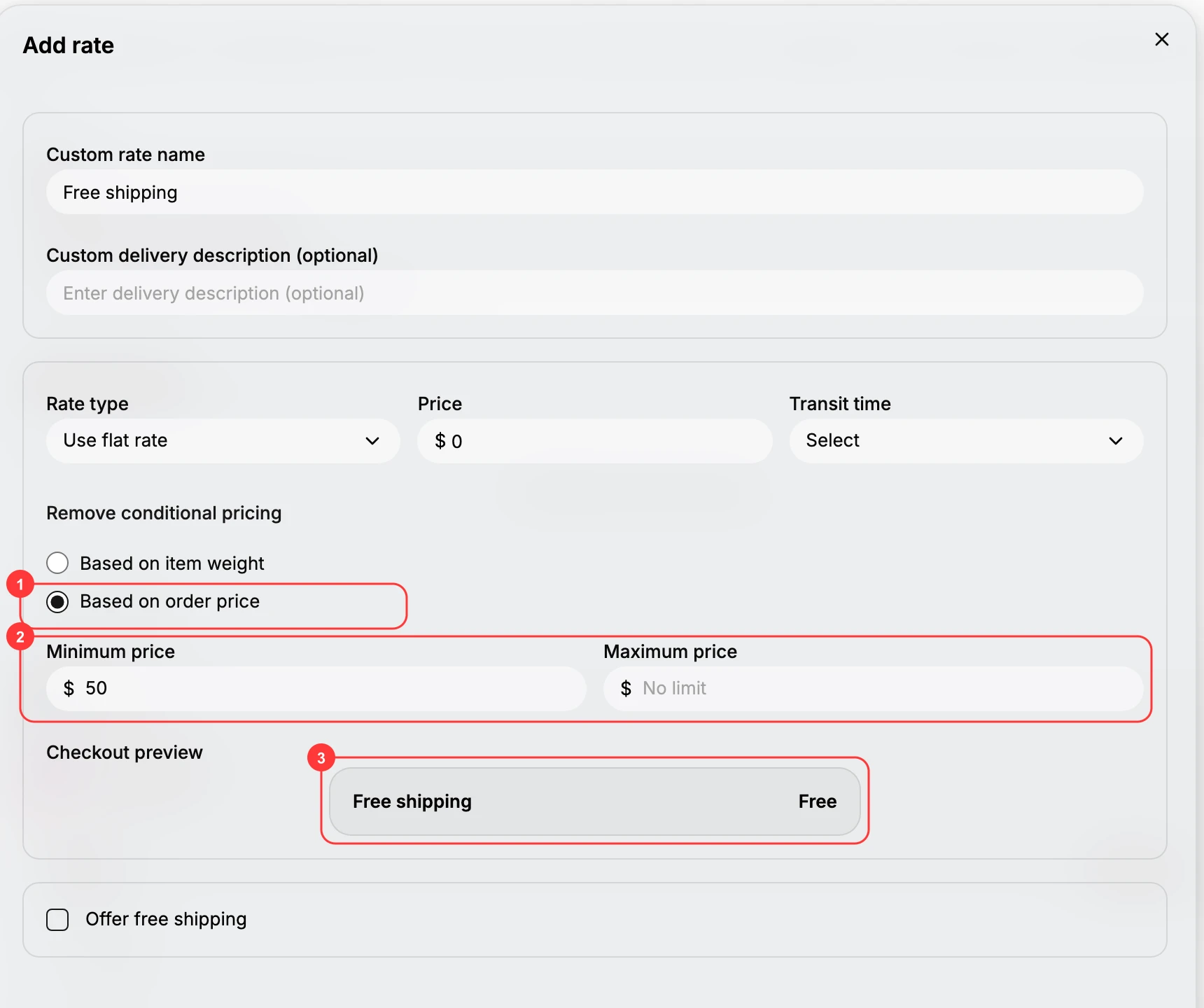
For free shipping only above an amount, select Add conditional pricing and choose Based on order price (1). Enter a Minimum price (2), the total the cart has to reach before this rate is offered, and leave Maximum price empty, where it reads No limit, so the rate keeps applying however large the order gets.
Check the Checkout preview (3), which shows the rate as the customer will meet it, then select Done. The rate is saved to the zone and is offered only to carts that reach the minimum.
The number itself is a margin question rather than a shipping one. Set it high enough that paying for delivery still leaves a worthwhile sale, but low enough that customers can realistically reach it. A threshold nobody reaches is a rate that never appears.
One thing to settle before you save: the zone still needs a rate for orders below the threshold. If the conditional rate is the only one there, a customer under the minimum is offered nothing and cannot check out. Add a paid rate alongside it with a second Add rate on the same zone.
Best practices
- Name it so it reads as free. A name like Free shipping tells the customer what they are getting at checkout.
- Check the preview. The Checkout preview shows exactly what the customer will see, so confirm it reads Free before saving.
If something goes wrong
- Free shipping does not appear at checkout. Confirm the customer's country is in this zone, and that any order-price condition is met by the cart.
- It is free when it should not be. Check the condition; without a condition the rate is always free, so add a Based on order price minimum if you meant free only over a total.
- You cannot change these settings. Your role may not allow managing store settings. Ask an owner or admin.
Next steps
Related articles
Still stuck?
- Ask Tanqory AIAsk in your own words. It answers from these articles and links the ones it used.
- Ask in your adminThe assistant in your Tanqory admin answers and makes the change for you once you confirm.
- Contact TanqoryWrite to our privacy, security or legal teams, or talk to sales about a plan or a move.