Weight-Based Shipping
A weight-based rate charges shipping according to how much the order weighs, by giving a rate a weight range it applies to. You set a rate with a Minimum and Maximum weight, so it is offered only when the cart weight falls in that band. Adding several rates with different weight bands and prices builds tiered pricing that scales with weight.
On this page
Weight-based shipping charges the customer according to how heavy their order is, rather than a single flat price. You set it up by giving a rate a weight range, so the rate is offered only when the order's weight falls within that band. This suits stores whose products vary a lot in weight, where one flat rate would overcharge light orders or undercharge heavy ones. A weight-based rate is a normal rate with conditional pricing set to item weight, and Set Up Shipping Rates has the full rate form. The weight it checks comes from your products' and packages' weights, which you keep in Packages and on each product.
How weight-based rates work
A weight-based rate is a rate that only applies within a weight range. You give the rate a price and a Minimum and Maximum weight, and at checkout it is offered only when the order weight sits in that range. The weight it measures comes from the weights you keep on your products and on the package the order ships in, so those figures are what decide which band an order falls into. To charge more for heavier orders, you add more than one rate, each covering a different weight band at a different price, so the customer is quoted the rate whose band their order falls into.
| Part | What it does |
|---|---|
| Price | The amount charged for orders in this weight band |
| Minimum weight | The lowest order weight the rate applies to, in kilograms |
| Maximum weight | The highest order weight the rate applies to. Left empty it reads No limit, so the band runs upwards without end |
Before you begin
- Your role includes Shipping settings, the permission that lets you change the store's shipping configuration.
- The zone you want to price by weight already exists in a shipping profile. Create and Edit Shipping Zones covers making one.
- Your products and packages have weights set, since that is what the rate measures against.
- Open Settings > Shipping and delivery, select the Shipping section to expand it, then open the profile and the zone you want to price by weight.
Set up a weight-based rate
In the Shipping zones section of your profile, find the zone and select Add rate to open the Add rate dialog.
1. Name the rate and set its price
Enter a Custom rate name the customer will understand, such as Standard shipping, and set the Price you charge for this weight band. This is the amount quoted when an order's weight falls in the range you set next.
2. Turn on conditional pricing by weight
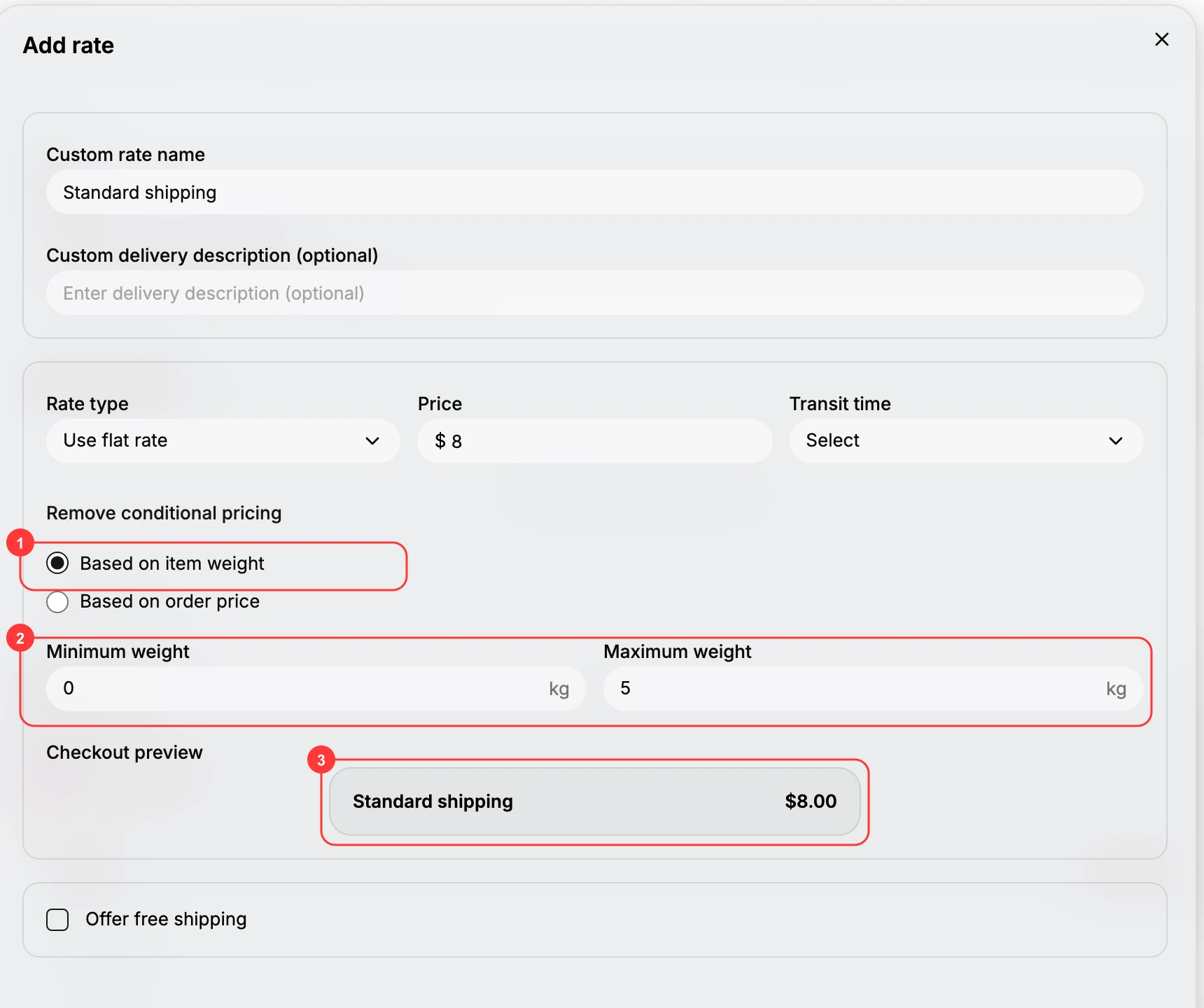
Select Add conditional pricing, then choose Based on item weight (1). This reveals the weight range the rate applies to.
3. Set the weight band
Enter a Minimum weight and a Maximum weight (2) in kilograms, such as 0 to 5. The rate is then offered only when the order weight sits inside that range.
4. Check the preview and save
Confirm the Checkout preview (3) reads as you intend, then select Done. The rate is saved to the zone.
Covering the whole range
One band is rarely enough. A single rate covering 0 to 5 kilograms prices light orders correctly and leaves every heavier order with nothing to quote, which looks to the customer like a store that does not ship to them.
So a weight-based setup is a set of rates, not a rate. Add the next one with Add rate on the same zone, give it the band above the first and a higher price, and repeat until the range is covered. Each order is quoted the rate whose band it falls into.
Two things decide whether the set holds together.
The bands must meet. A gap between one band's maximum and the next one's minimum is an order weight that matches no rate. Run them edge to edge, 0 to 5 then 5 to 10, rather than leaving a hole you will only find when someone complains.
The last band must not end. Leave the final rate's Maximum weight empty, where it reads No limit, so however heavy an order is there is still a price for it. This is the single most common way a weight-based zone quietly stops selling.
Best practices
- Keep product and package weights accurate. The rate measures against them, so wrong weights put orders in the wrong band.
- Price each band to its cost. Set each band's price to roughly what shipping that weight costs you, so heavier orders pay their share.
- Use round bands. Simple ranges such as 0 to 5 and 5 to 10 kilograms are easier to work with and to check.
If something goes wrong
- No rate appears for a heavy order. A band may not cover that weight; check for a gap and add or extend a band with no maximum.
- The wrong price shows. Confirm the order weight and which band it falls into, and that your product and package weights are correct.
- You cannot change these settings. Your role may not allow managing store settings. Ask an owner or admin.
Next steps
Related articles
Still stuck?
- Ask Tanqory AIAsk in your own words. It answers from these articles and links the ones it used.
- Ask in your adminThe assistant in your Tanqory admin answers and makes the change for you once you confirm.
- Contact TanqoryWrite to our privacy, security or legal teams, or talk to sales about a plan or a move.