Packages
Saving the boxes and envelopes you really ship in, so their size and weight price the rate at checkout and fill themselves in when you buy a label. Choosing a default, and keeping the list matching your packaging.
On this page
Packages are the box, envelope, or soft-package sizes you ship your orders in. When you save a package, its dimensions and weight are used to calculate shipping rates at checkout, and the package is pre-selected when you buy a shipping label, so you do not re-enter the same sizes each time. Keeping your real packages saved here makes rate quotes more accurate and label buying faster. You manage them in Settings, under Shipping and delivery, in the Packages section.
What a saved package defines
Each package records the details a carrier needs to price and label a shipment.
| Field | What it sets |
|---|---|
| Package type | Whether it is a box, an envelope, or a soft package |
| Dimensions | Length, width, and height, in the unit you choose such as centimeters |
| Weight | The empty package weight, in the unit you choose such as kilograms |
| Package name | A label so you can recognize it in lists |
| Default | Whether this package is used for rate calculations and pre-selected for labels |
Before you begin
- Your role includes Shipping settings, the permission that lets you change the store's shipping configuration.
- You know the real dimensions and weight of the packages you ship in.
- Open Settings > Shipping and delivery and select the Packages section, which shows how many boxes you have saved and expands in place.
Steps
1. Open the Packages section
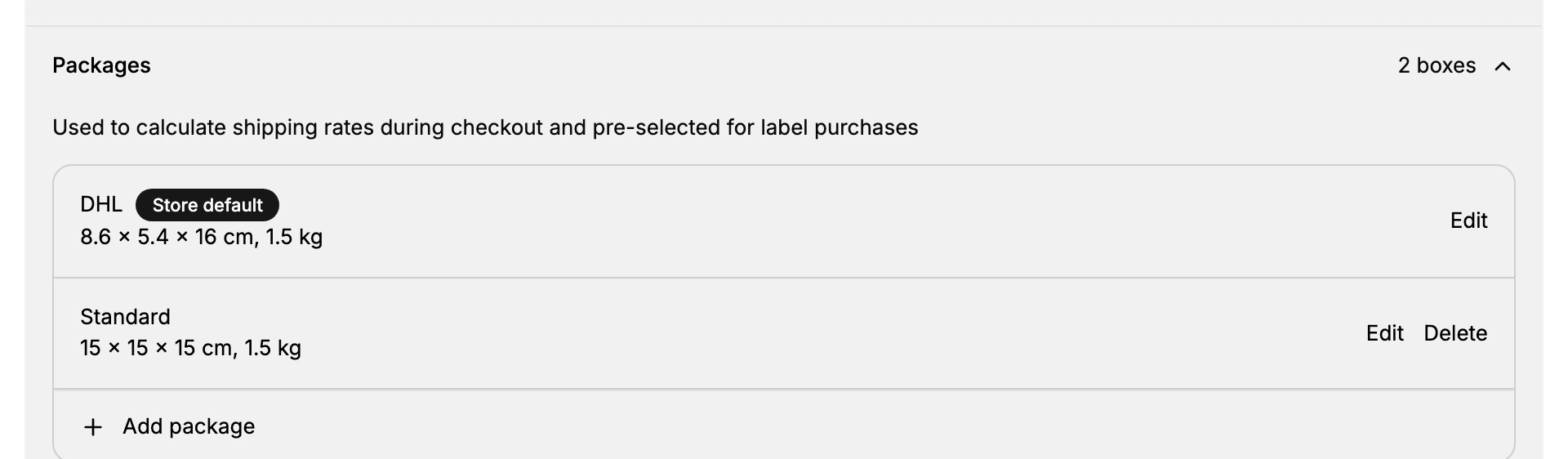
On the Shipping and delivery page, select Packages to expand it. The section notes that packages are used to calculate shipping rates during checkout and are pre-selected for label purchases. It lists each saved package with its name, the dimensions and weight written out, such as 15 by 15 by 15 cm at 1.5 kg, and an Add package button below.
One package carries a Store default marker, and the actions beside it are not the same as the rest. The default offers Edit only; every other package offers Edit and Delete. So the package your rates and labels rely on cannot be removed while it holds that role. To get rid of it, make another package the default first.
2. Start a new package
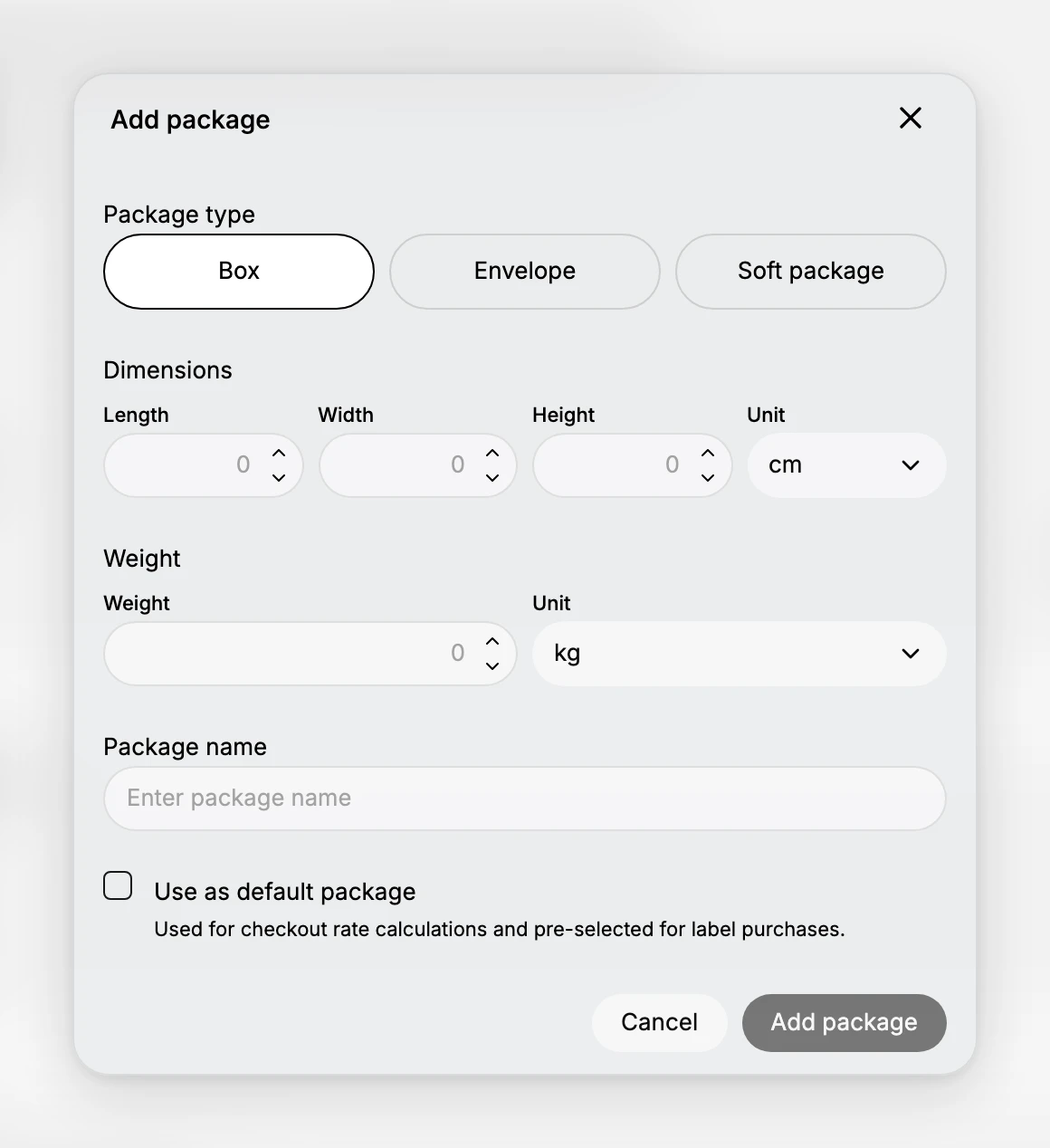
Select Add package to open the Add package dialog. It holds every field that describes the package: the type, its dimensions, its weight, a name, and whether it becomes your default.
On a store with a carrier account connected, the dialog also offers a choice between a Custom package, where you enter your own sizes, and a Carrier package, which uses a carrier's standard packaging. If you do not see that choice, you have no carrier account connected and are entering a custom package, which is what the rest of these steps describe.
3. Choose the package type
Under Package type, pick Box, Envelope, or Soft package to match what you ship in. The type helps carriers price the shipment correctly, since an envelope and a box are handled differently.
4. Enter the dimensions and weight
Enter the Length, Width, and Height under Dimensions, and choose the unit, such as centimeters. Under Weight, enter the package weight and choose its unit, such as kilograms. These figures are what the carrier uses to calculate the rate, so measure your real packaging to keep quotes accurate.
5. Name the package and set a default
Give the package a name under Package name so you can recognize it later. Select Use as default package if this is the package to use for checkout rate calculations and to pre-select when buying labels. The dialog notes this is what the default is used for. A default saves time when most orders ship in the same packaging.
6. Save the package
Select Add package to save it. It then appears in the Packages list, where Edit changes its details and Delete removes it, unless you made it the default, which leaves only Edit.
Edit opens the same form under the title Edit package, with every field as you left it. The only difference is the button you finish on, Save rather than Add package.
Best practices
- Save the packages you actually use. Accurate dimensions and weight give accurate rate quotes and correct labels.
- Set a sensible default. Make your most-used package the default so rates and labels use it without extra steps.
- Keep the list tidy. Delete packages you no longer ship in so the list stays easy to choose from.
- Weigh the empty package. The package weight is added to the items, so record the empty packaging weight, not a guess.
If something goes wrong
- Rates look wrong at checkout. Check the default package dimensions and weight, since those feed the rate calculation.
- You cannot find a package when buying a label. Confirm it was saved in the Packages list, and set the one you use most as the default so it is pre-selected.
- You cannot change these settings. Your role may not allow managing store settings. Ask an owner or admin.
Next steps
Related articles
Still stuck?
- Ask Tanqory AIAsk in your own words. It answers from these articles and links the ones it used.
- Ask in your adminThe assistant in your Tanqory admin answers and makes the change for you once you confirm.
- Contact TanqoryWrite to our privacy, security or legal teams, or talk to sales about a plan or a move.