How Shipping Zones Work
Shipping zones are how one store charges different delivery prices in different places. This article explains what a zone is, how it connects a shipping profile to its rates, where to find the Shipping zones section, and why a zone left without a rate quietly blocks checkout.
On this page
A shipping zone is a group of destinations, countries or regions within a country, that you price together. You need zones because a single flat price for everywhere is almost always wrong: it either overcharges a nearby customer or loses you money on an order going overseas. A zone lets you set one rate for the places that cost about the same to reach, and a different rate for the places that do not, so each customer is quoted shipping that fits where they are.
Zones do not sit on their own. Each one lives inside a shipping profile, the record that ties a set of products to the locations they ship from and the destinations they ship to. Your store opens with one profile, the General profile, which automatically covers every product you have not moved into a custom profile, so for most stores the zones you set in the General profile are the zones the whole catalog ships under. This article explains how a zone works, where it lives, and what to have ready before you build one. Create and Edit Shipping Zones walks the actual steps to add, rename, or remove one.
Before you begin
- Your role includes Shipping settings, the permission that lets you change the store's shipping configuration.
- The destinations you want to ship to are already in your Markets, the countries and regions you have set up to sell in. A zone can only offer destinations that your Markets already contain, so a country has to be added there first. Add Regions to a Market covers adding them.
- You have decided, at least roughly, how you want to group your destinations for pricing, for example one zone for your home country and one for everywhere else.
- Open Settings, then Shipping and delivery, and open a shipping profile.
How shipping zones work
A zone is one link in a chain of three: a profile, a zone, and a rate. Each answers a different question, and a customer sees a shipping price only when all three are in place.
- A profile answers which products. It is the set of products a group of shipping rules applies to, and the General profile covers everything not placed in a custom profile.
- A zone answers which destinations. It is a named group of countries or regions inside a profile, grouped because you want to price them the same way. You choose the grouping and the name.
- A rate answers what it costs. It is a shipping price attached to a zone, and one zone can hold several, which is how a customer is offered a choice such as a cheaper Standard and a faster Express.
| Piece | The question it answers | What it is |
|---|---|---|
| Profile | Which products | The products a set of shipping rules applies to |
| Zone | Which destinations | A group of destinations within that profile, priced together |
| Rate | What it costs | A shipping price offered to customers in a zone |
At checkout the chain runs in reverse. The customer's delivery address decides which zone it falls into, and that zone's rates become the shipping options and prices they see. An address that matches no zone has nothing to quote, so the customer is offered no shipping at all and cannot complete the order. This is why covering every place you sell to with a zone, and giving every zone a rate, is what lets customers actually pay.
Why a zone has to hold a rate
Creating a zone names the destinations it covers, but it does not price them, so a zone on its own still quotes nothing. Until you add at least one rate, the profile flags the zone with the line No rates. Customers in this zone won't be able to complete checkout, and a customer shipping there reaches checkout with no option to select. Adding a rate is the step that turns a destination you have defined into a place a customer can pay to ship to. Set Up Shipping Rates covers the kinds of rate you can add, from a flat price to one that changes with the order's weight or total.
Open the Shipping zones section
Zones are not on a page of their own. You reach them inside a profile.
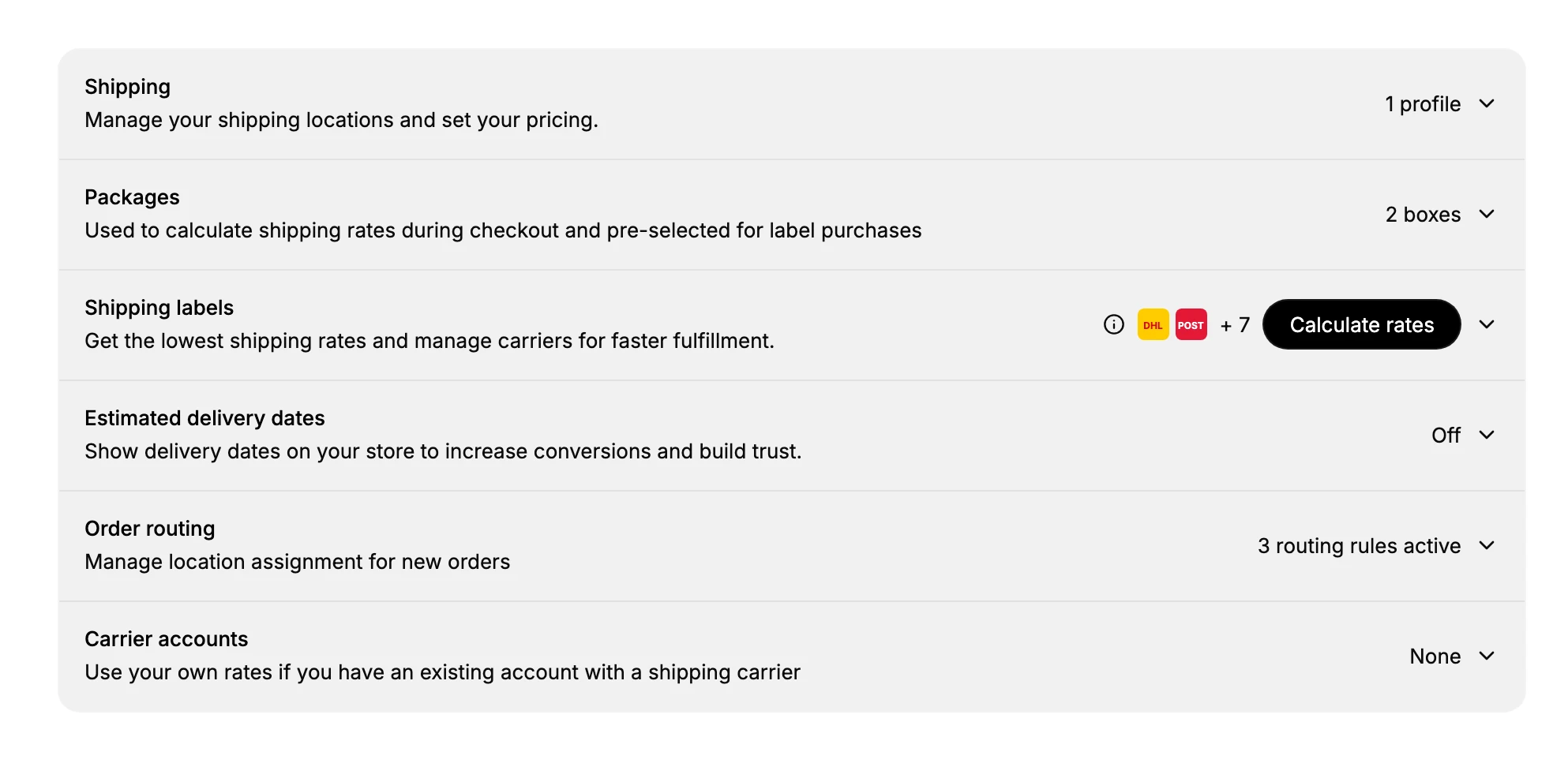
- Go to Settings, then Shipping and delivery.
- The Shipping section is collapsed when the page opens, showing only a count such as 1 profile. Select its heading to expand it.
- Under STORE DEFAULT, select General shipping rates to open the General profile.
- Scroll to the Shipping zones section. Every zone for this profile is listed there, each showing its rates with an Add rate control, and an Add shipping zone control adds a new one.
A custom profile keeps its own separate Shipping zones for the products assigned to it, so a store with custom profiles has more than one set of zones to manage. General Shipping Profile covers the store default, and Create a Shipping Profile sets up a custom one.
Destinations not covered by a zone
A destination you have not added to a zone cannot be quoted a rate, so orders cannot ship there. There are two different ways a place can be missing, and each is fixed somewhere different.
It is not in a market. Then it is not even offered when you build a zone, because the zone's destination picker lists only what your Markets contain. The profile counts these at the foot of the page and offers Go to Markets to add them.
It is in a market but in no zone. Then it appears in the picker and you have not added it yet. Open the zone and add it, or create a zone for it.
Either way, the destination is sellable only once it sits in a zone that has a rate.

Best practices
- Group destinations that share a price. Put the countries you charge the same way into one zone, and split out the ones that need a different rate.
- Give every zone a rate. A zone without a rate blocks checkout for customers there, so make sure each has at least one.
- Cover the places you sell to. A destination in no zone cannot be shipped to, so add the countries you want to reach.
- Use custom profiles for exceptions. When specific products need different destination pricing, give them a custom profile with its own zones.
If something goes wrong
- A customer cannot complete checkout. Their destination may not be in a zone, or the zone may have no rate. Add the destination to a zone and give the zone a rate.
- A country is not available at checkout. It may not be in any zone or market yet. Add it to a market, put it in a zone, then add a rate.
- You cannot change these settings. Your role may not include Shipping settings. Ask an owner or admin.
Next steps
Related articles
Still stuck?
- Ask Tanqory AIAsk in your own words. It answers from these articles and links the ones it used.
- Ask in your adminThe assistant in your Tanqory admin answers and makes the change for you once you confirm.
- Contact TanqoryWrite to our privacy, security or legal teams, or talk to sales about a plan or a move.