Enable Third-Party Calculated Rates at Checkout
A third-party calculated rate is one your own carrier works out while the customer is checking out, rather than a number you maintain. This article covers the plan gate in front of it, the five providers you can connect and the difference between an aggregator and a direct carrier, the credentials each one asks for, and why the live prices you already see when buying a label are a different thing entirely.
On this page
A shipping rate you write yourself is a number you maintain. A third-party calculated rate is one the carrier works out at the moment the customer checks out, from the parcel and where it is going, using the account you hold with that carrier. The customer pays what the carrier quotes, so what they pay and what you are billed move together.
Turning it on is not a switch. It means connecting your own carrier account with a provider, which this article walks through, after the plan gate that stands in front of it on most plans.
Before you begin
- Your role includes Shipping settings, the permission that lets you change the store's shipping configuration.
- You hold an account with a carrier whose rates you want quoted, since this feature uses yours rather than providing one.
- Your plan is Scale or Enterprise, or you are ready to change to one. The three plans below them do not include this feature.
- Your products carry weights and your package sizes are set, because the carrier prices the real parcel; Packages covers setting them.
- Go to Settings > Shipping and delivery and open Carrier accounts.
Where the setting is
The Carrier accounts row is outlined in red below. It sits under Order routing at the foot of the list and reads None until an account is connected. Opening it shows the card this article is about, with the button that either lets you in or asks you to upgrade.
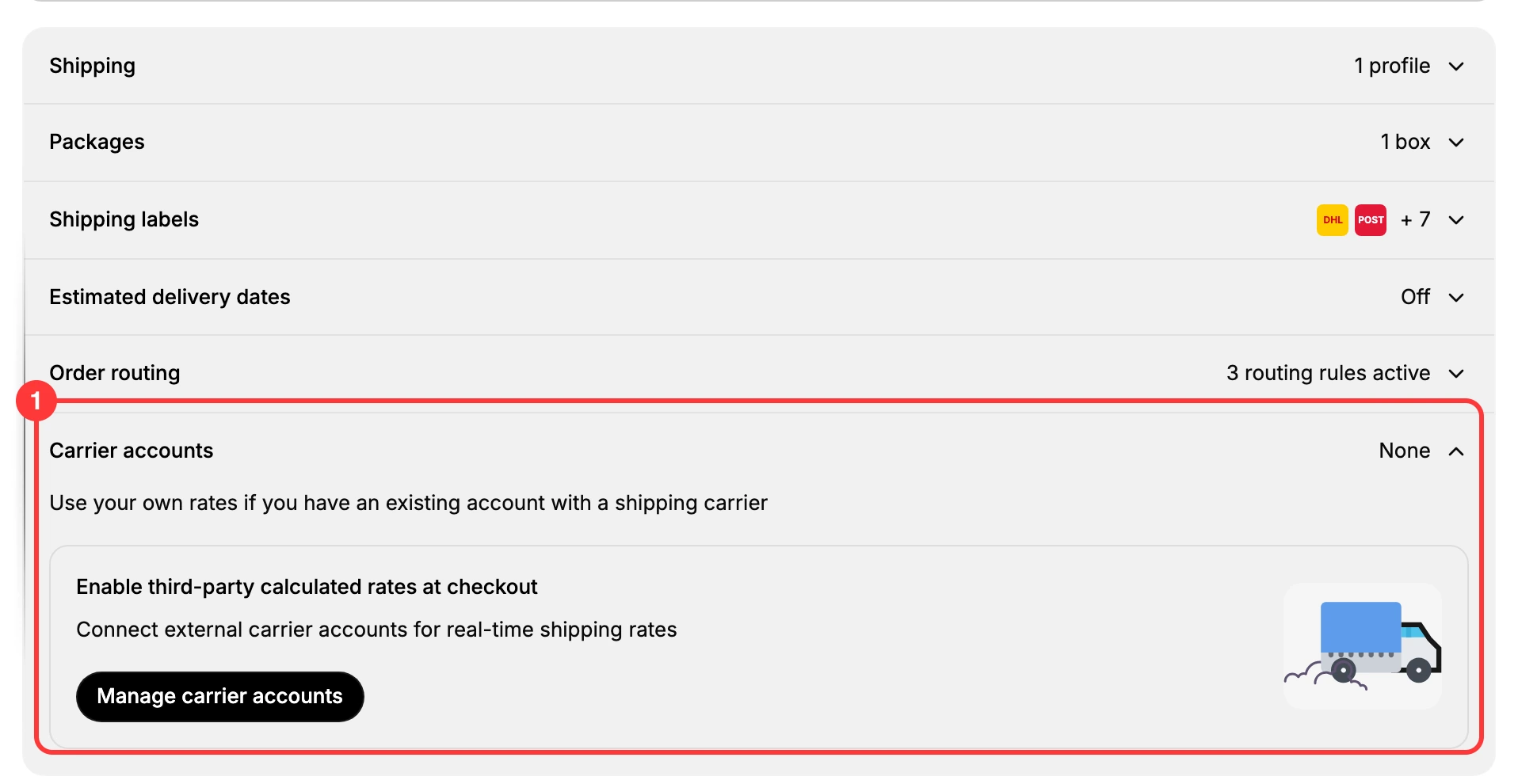
The section describes itself in one line: use your own rates if you have an existing account with a shipping carrier. The card inside it is headed Enable third-party calculated rates at checkout, explained as connecting external carrier accounts for real-time shipping rates.
The same thing has a page of its own, which the next section walks through. Carrier Accounts is the companion article on the accounts themselves.
What the plan gate looks like
On a plan that does not include it there is nothing to fill in. The card offers a single Upgrade your plan button, and opening the Carrier accounts page directly replaces the feature with a full-page notice: the feature is not included in your plan, upgrade to a higher plan to access it, with a Compare Plans button.
Both of those buttons land in the same place, the Compare plans page, and that page answers the question the gate does not.
Its short feature list does not mention this feature at all. See all features at the foot of the table opens the full matrix, and there it appears as Third-party calculated rates, described as live carrier pricing displayed during checkout, with a mark against each plan.
| Plan | Third-party calculated rates |
|---|---|
| Starter | Not included |
| Growth | Not included |
| Business | Not included |
| Scale | Included |
| Enterprise | Included |
So this is not a small step up. Three of the five plans do not carry it, and the two that do are the top two. Worth knowing before you plan around it.
The order is therefore: reach a plan that includes it, connect the carrier account, and only then can the carrier's rates be quoted. Nothing on the card lets you start in the middle.
Connecting a carrier account
On a plan that includes the feature the card carries Manage carrier accounts, which is the button shown in the picture above. On a plan without it the same card offers Upgrade your plan instead. Either way the row still reads None until an account is actually connected.
1. Open Manage carrier accounts
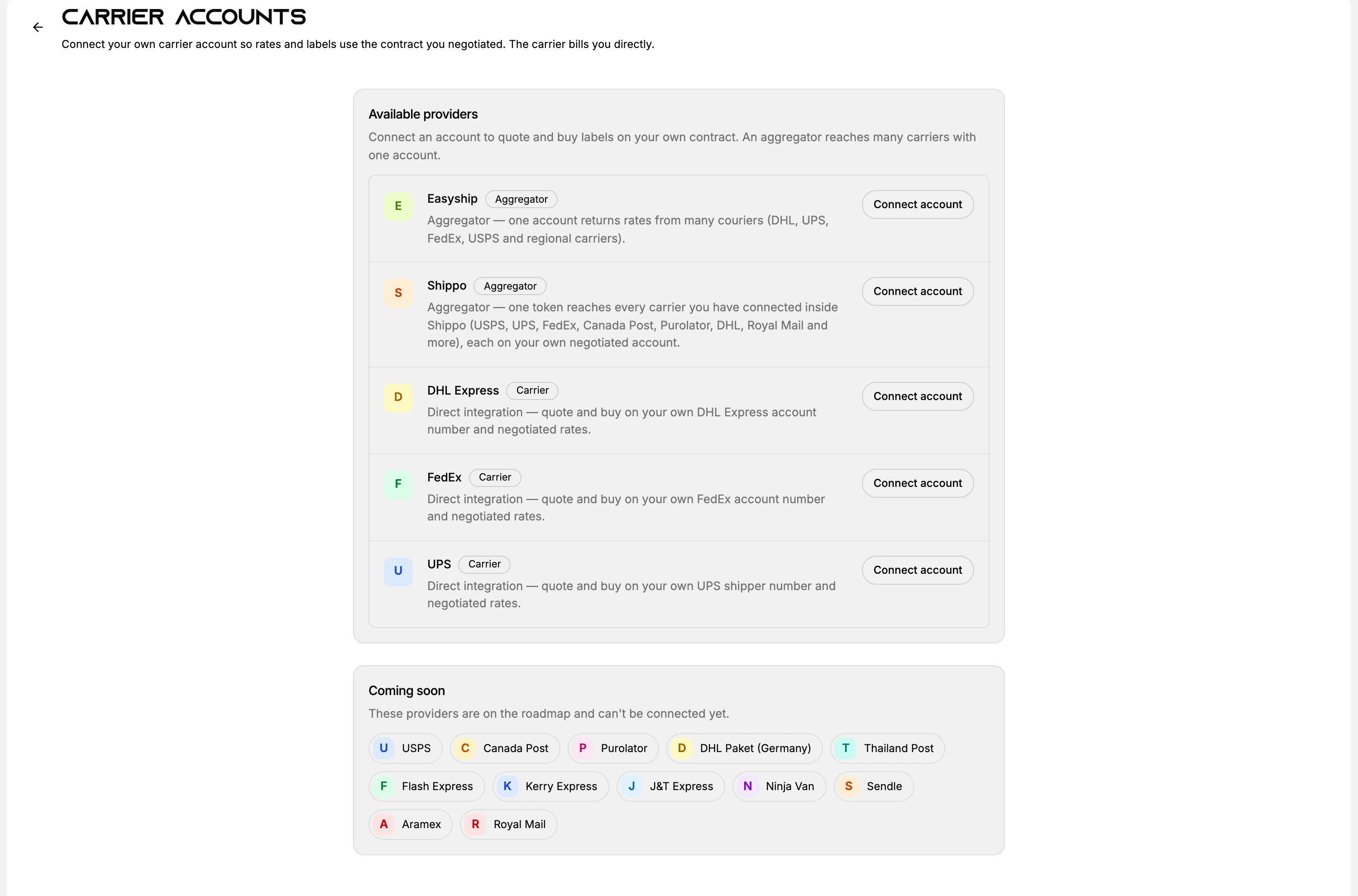
The Carrier accounts page states the bargain in one line: connect your own carrier account so rates and labels use the contract you negotiated, and the carrier bills you directly. That last part matters. Postage on a connected account is not billed through Tanqory.
2. Pick a provider, and note which kind it is
Available providers holds five, and they are not the same kind of thing. The page says so itself: an aggregator reaches many carriers with one account.
| Provider | Kind | What one account gets you |
|---|---|---|
| Easyship | Aggregator | Rates from many couriers through a single account, DHL, UPS, FedEx, USPS and regional carriers |
| Shippo | Aggregator | Every carrier you have already connected inside Shippo, each on your own negotiated account |
| DHL Express | Carrier | A direct integration on your own DHL Express account number |
| FedEx | Carrier | A direct integration on your own FedEx account number |
| UPS | Carrier | A direct integration on your own UPS shipper number |
A second card, Coming soon, lists providers the page says are on the roadmap and cannot be connected yet: USPS, Canada Post, Purolator, DHL Paket (Germany), Thailand Post, Flash Express, Kerry Express, J and T Express, Ninja Van, Sendle, Aramex and Royal Mail. Several of those are reachable today through an aggregator even though they cannot be connected directly, which is the practical reason to look at Easyship or Shippo first.
3. Fill in the credentials the provider asks for
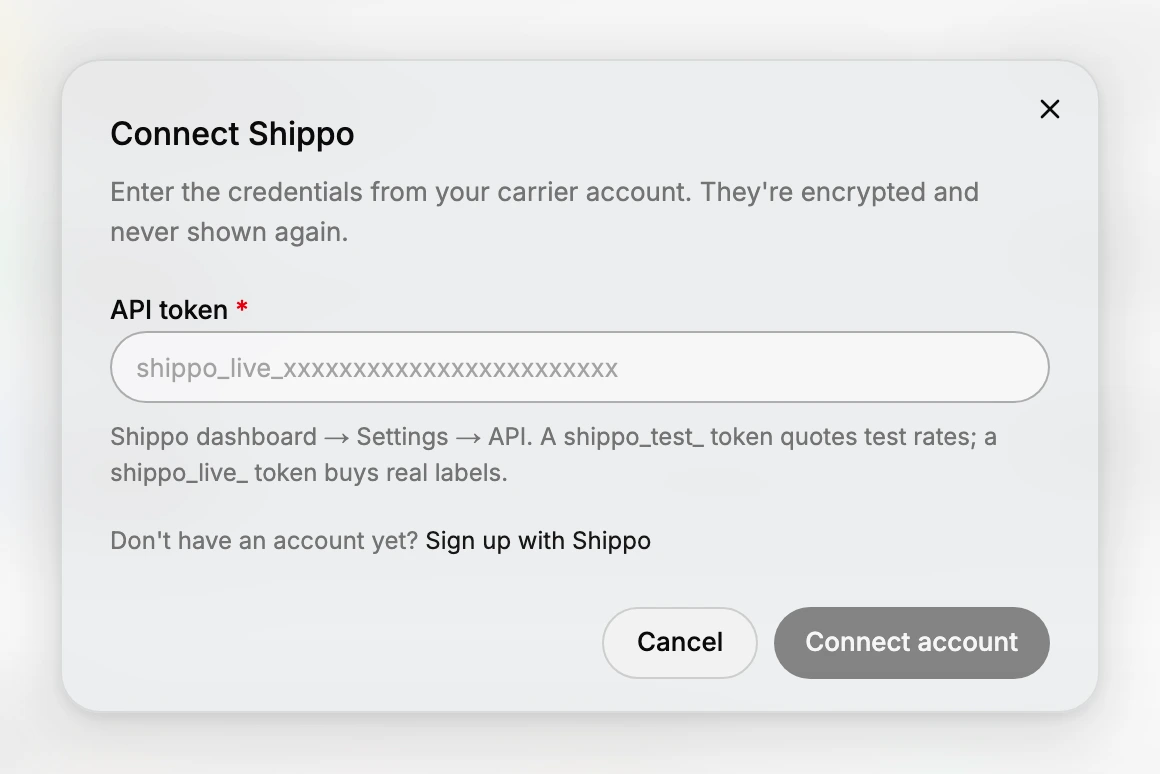
Connect account opens a dialog for that provider. All five open the same way, with the line that the credentials come from your carrier account and are encrypted and never shown again, and all five offer a sign-up link if you do not have an account yet.
What they ask for is not the same. An aggregator wants one key. A carrier wants credentials from its own developer portal plus the account number your rates hang off.
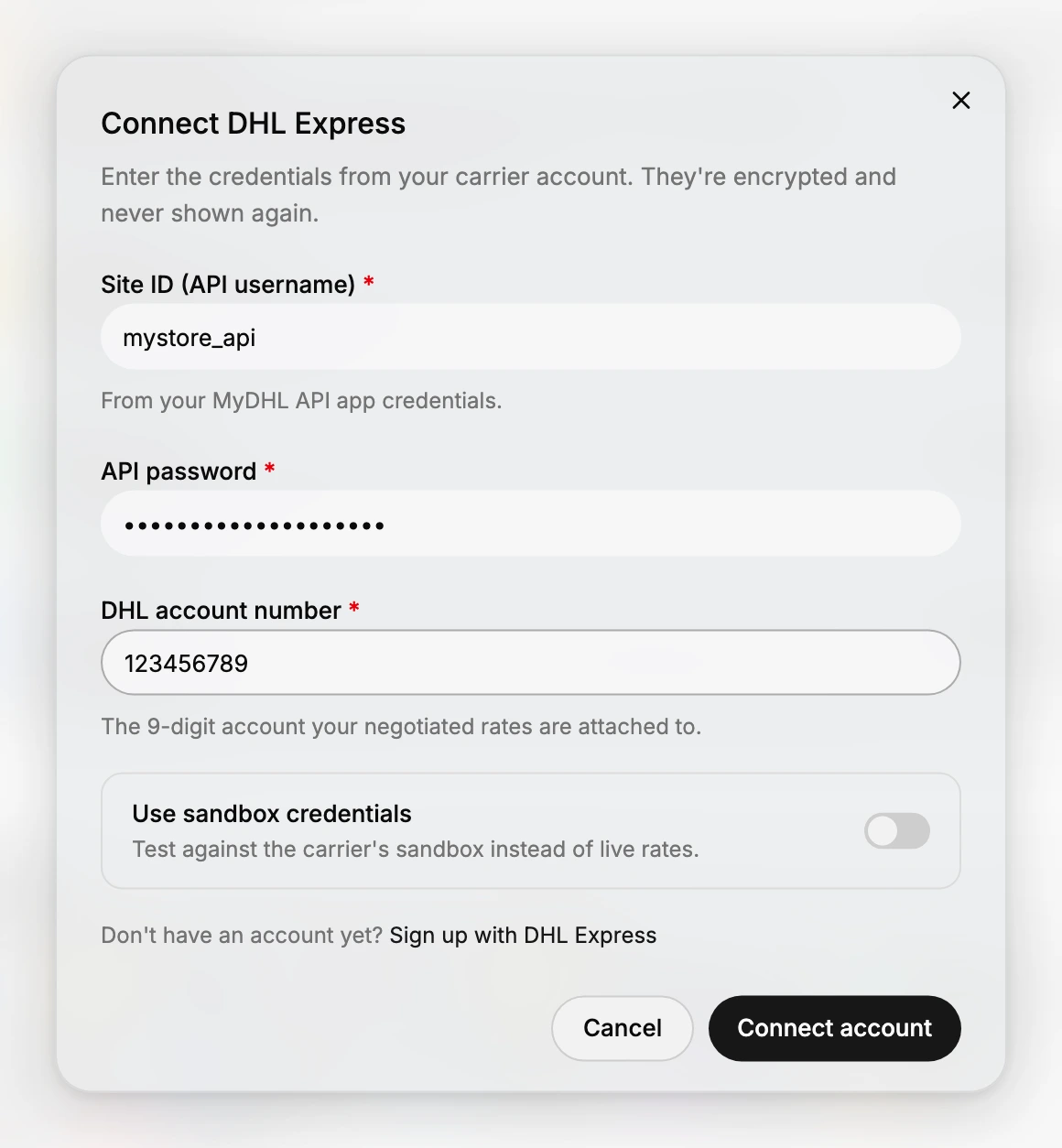
The picture above is filled with example values, not working credentials, to show the shape of each one. Every field marked with a star is required. Connect account is greyed out on an empty form and active once those fields hold a value.
The shapes in the last column are the ones the fields themselves show you, so a value of yours that looks nothing like them is probably the wrong value.
| Provider | What it asks for | Where the dialog says to find it | The shape it shows |
|---|---|---|---|
| Easyship | API key | The Easyship dashboard, then Connect, then API | prod_ and a long string |
| Shippo | API token | The Shippo dashboard, then Settings, then API | shippo_live_ and a long string |
| DHL Express | Site ID (API username), API password, DHL account number | The Site ID comes from your MyDHL API app credentials | A nine-digit account, 123456789 |
| FedEx | API key (client ID), Secret key, FedEx account number | The FedEx developer portal, then My Projects, then your project, then API key | An account number, shown as 123456789 |
| UPS | Client ID, Client secret, UPS account (shipper) number | The UPS developer portal, then your app, then Client ID | A six-character shipper number, A1B2C3 |
Two of those hints are worth reading twice.
Easyship's hint adds that sandbox keys start with sand_, which is how you tell one of yours apart before you paste it.
Shippo puts the same distinction in the token itself, and its hint spells it out: a token beginning shippo_test_ quotes test rates, and one beginning shippo_live_ buys real labels. Which one you paste decides which you get.
The account number field is the one to read carefully, because it is not the login you sign in to the carrier with. Each dialog describes it as the account your negotiated rates are attached to. DHL Express says nine digits and UPS says six characters; FedEx gives no length, and its field shows the same nine-digit example as DHL.
4. Decide whether to start in the sandbox
Four of the five dialogs carry a Use sandbox credentials switch, described as testing against the carrier's sandbox instead of live rates. It is off unless you turn it on. Shippo is the exception, because there the token you paste already says which world you are in.
Turn it on when the credentials you hold are sandbox credentials, and leave it off for the account you actually ship on. Quoting against a sandbox and quoting against a live contract do not return the same prices, so the switch and the credentials have to agree.
5. Connect, then check the row
Connect account at the foot of the dialog is what submits the credentials. Back on Shipping and delivery, the Carrier accounts row is where to look afterwards: it reads None while nothing is connected, so that row is the readout for whether anything is.
This is not the same as the rates you see when buying a label
It is easy to mix these up, because both are live carrier prices.
| Which rates | Where they appear | What they need |
|---|---|---|
| Buying a label | On the Buy shipping label page of an order, for you | Nothing. They are quoted whether or not you have a carrier account |
| Calculated rates at checkout | At your checkout, for the customer | Your own carrier account, and a plan that allows it |
Buying a label already returns live prices from several carriers even while Carrier accounts reads None. The plan comparison says the same thing from the other side: Shipping labels is marked as included on every plan, while Third-party calculated rates is not. So seeing carrier prices on a label is no evidence that calculated rates are on at checkout. Buy a Shipping Label covers that side.
Connecting an account does reach both, though. The Carrier accounts page puts it as rates and labels using the contract you negotiated, and each provider is described as somewhere to quote and buy on your own account. So the account you connect for checkout is the same account a label is then bought on.
One more control sits nearby and is not this one. The Shipping labels row on the same settings page opens a list of carriers with a Manage preferred carriers action. That governs which of the carriers already available to the store you prefer, and it is not where your own account goes. Preferred Carriers covers it.
What changes for the customer
| Without calculated rates | With calculated rates |
|---|---|
| The customer pays a rate you set and keep up to date | The customer pays what the carrier quotes for that order |
| The same rate applies whatever the carrier charges you | The price follows the account rates you hold with the carrier |
The result of this setting appears in one place only, the delivery step of your own checkout. Nothing in the admin shows the customer's view, so after connecting an account it is worth walking your own store through to the delivery step and looking.
Best practices
- Keep your own rates in place until the carrier's are working. A zone with no rate cannot be checked out from, so removing your rates before the carrier's are live closes your own checkout.
- Fix weights and packages first. A carrier prices the parcel it is told about, so a missing weight produces a quote that is wrong in one direction or the other.
- Do not read label prices as proof. They are quoted with or without an account of your own, so they say nothing about checkout.
If something goes wrong
- The card only offers Upgrade your plan. Your plan does not include this feature. Both that button and the Compare Plans button on the Carrier accounts page open the Compare plans screen, where See all features shows which plans do.
- No live rate appears at checkout. The rates arrive only once an account is connected, which the plan has to allow first.
- The rate looks wrong. Check the product weight and the package size the quote was built from.
- You cannot change these settings. Your role may not allow managing store settings. Ask an owner or admin.
Next steps
Related articles
Still stuck?
- Ask Tanqory AIAsk in your own words. It answers from these articles and links the ones it used.
- Ask in your adminThe assistant in your Tanqory admin answers and makes the change for you once you confirm.
- Contact TanqoryWrite to our privacy, security or legal teams, or talk to sales about a plan or a move.