Delivery Options at Checkout
The Delivery customizations section hides, renames and reorders the delivery options customers see at checkout, powered by apps you install from the Tanqory App Store. The options themselves come from the Shipping and delivery settings, which this article also walks through row by row.
On this page
The delivery options a customer picks from at checkout come out of Settings > Shipping and delivery. Each thing you turn on there, a shipping rate, local delivery, or pickup, is what puts a choice in front of the customer.
The same page also has a Delivery customizations section for hiding, renaming or reordering those options. It runs on apps rather than a built-in rule editor: you add a customization by installing a delivery-customization app from the Tanqory App Store. This article covers the Delivery customizations section and where the underlying delivery options come from.
Delivery customizations
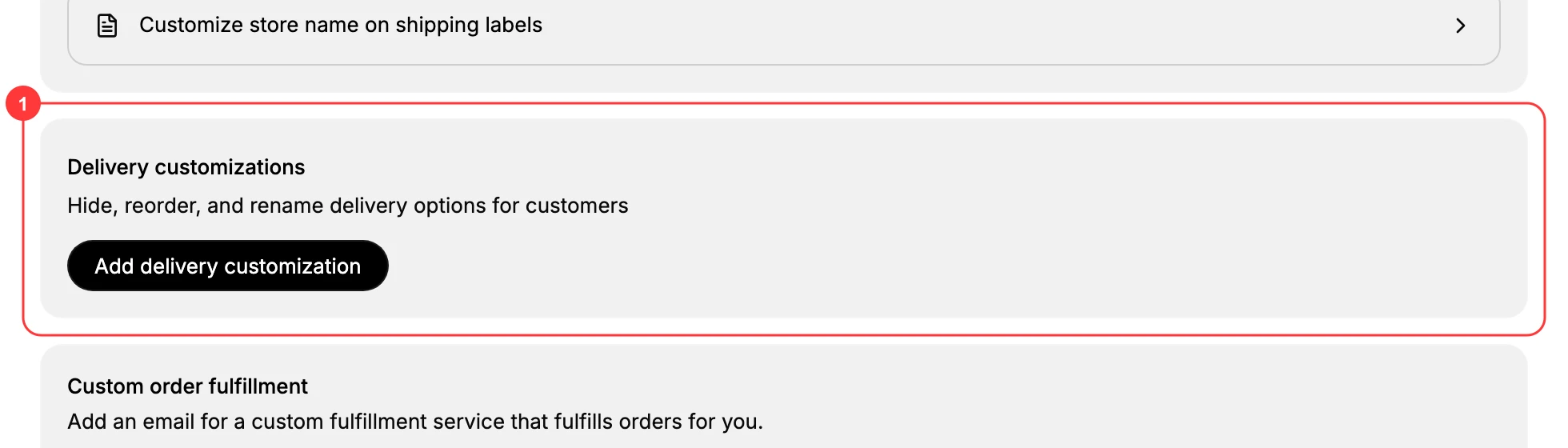
The Delivery customizations section sits at the foot of the Shipping and delivery page, below Documents. Its own line says what it does: hide, reorder, and rename delivery options for customers.
1. Open the section
Scroll to the Delivery customizations card (1) and select Add delivery customization.
2. Install a delivery-customization app
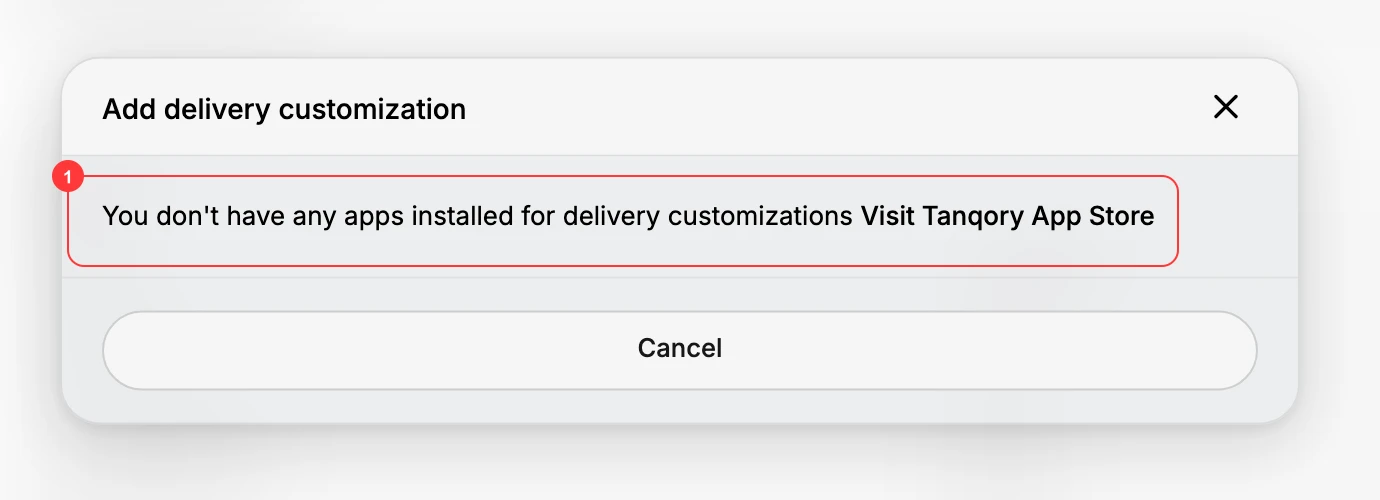
Delivery customizations run on apps, not a rule editor built into the page. With no app installed, the dialog reads You don't have any apps installed for delivery customizations (1) and offers Visit Tanqory App Store, which opens the App Store to find one.
3. Build the rule in the app
Once a delivery-customization app is installed, you add a customization from this same section, and the app provides the flow for the rule: which option to hide, rename or reorder, and any conditions it applies under. The exact steps belong to the app you chose, so follow its own instructions. Your customizations are then managed from the Delivery customizations section.
Where the options come from
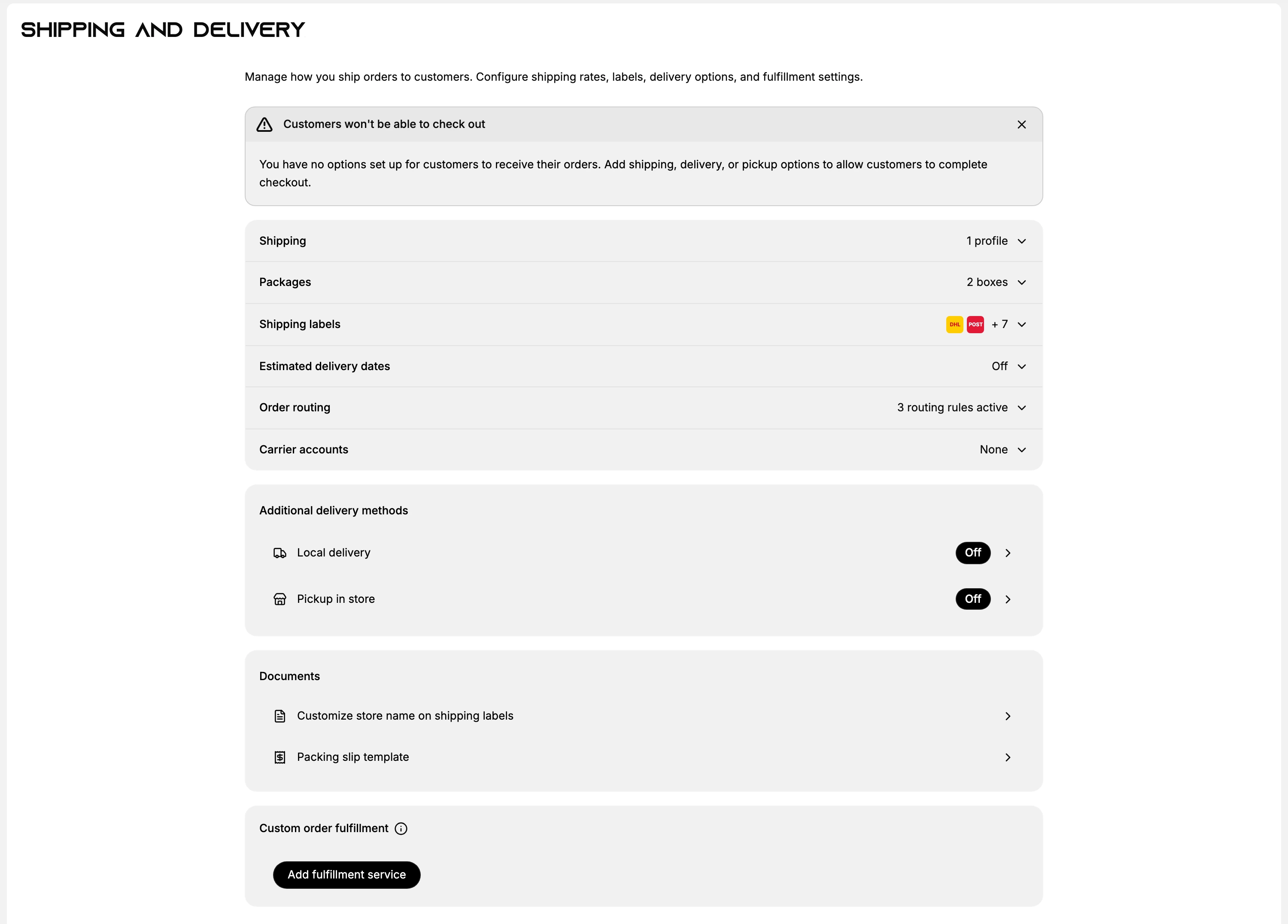
The page describes itself as where you manage how orders are shipped to customers, covering rates, labels, delivery options and fulfillment settings.
Until at least one option is set up, a warning sits at the top: customers will not be able to check out, because there is no way for them to receive their order. It carries a close button, so it can be cleared from the screen without anything being fixed.
| Setting | What it does for the customer |
|---|---|
| Shipping | The profile holds the zones, the rates and the locations you ship from. This is where the main list comes from |
| Local delivery | Off until you turn it on for a location, then delivery becomes a choice |
| Pickup in store | Off until you turn it on for a location, then collecting the order becomes a choice |
| Estimated delivery dates | Described on the page as showing delivery dates on your store to increase conversions and build trust |
| Packages | Described on the page as used to calculate shipping rates during checkout, so it shapes the price rather than the list |
| Carrier accounts | Connects a carrier so its own rates can be offered at checkout. The page is gated behind a higher plan |
Order routing is the odd one out. It decides which of your locations fulfills an order once it is placed, so it changes what happens after checkout rather than what is offered during it.
What has to be true before a shipping rate appears
The Shipping row is where most of the work is, and a rate only reaches a customer once four things line up. The profile page states each one in its own words, which is the quickest way to see where a store is stuck.
The destination is in a market. A country outside your markets cannot be put in a zone at all.
- The panel at the foot of the profile, Start shipping to more places, says you add countries to a market to start selling and to manage localized settings including shipping zones, and it counts the countries and regions you have left out.
- Go to Markets beside it is the way there, and Add Regions to a Market covers the rest.
The destination is in a shipping zone. Zones are the groups of countries a rate is set against, so an address in no zone has no rate to be quoted.
- Shipping Zones covers building and editing them.
That zone has at least one rate. This is the step most often missed, and the profile does not leave it ambiguous.
- A zone with no rate carries the line No rates. Customers in this zone won't be able to complete checkout, with an Add rate button beside it.
- A market shows the same thing from its own side. Open one and its Additional settings carry a Shipping row giving a rate count and the market it ships to, reading 0 rates where nothing reaches it and a figure where something does. Selecting that row opens the shipping profile.
- Shipping Rates Setup covers adding one.
The order ships from a location that has rates. Underneath the zones sits a section headed Shipping not available from these locations.
- It says plainly that shipping options will not be available at checkout when they ship from these locations, and asks you to add zones and rates to allow it.
- A location in that state is listed there as Inactive with its own Add rates button, so the fix is per location rather than store-wide.
- Locations covers the locations themselves.
Miss any one of the four and the customer does not see a shipping option, whatever else is configured. The warning at the top of the settings page is the summary of the same thing.
The rates above apply to every product that is not in a profile of its own. The profile page closes by saying that to apply different shipping rates to specific products you create a new profile, which Create a Shipping Profile covers.
Local delivery and pickup are set per location
These two do not run off zones and rates. Each has its own page listing Your locations, with every location showing where it stands, and a location that offers neither reads Doesn't Offer Delivery and Doesn't Offer Pickup on the two pages. Where no location offers either, both rows on the Shipping and delivery page read Off.
That is the practical difference: a shipping rate is set for a place you send to, while delivery and pickup are set for a place you send from.
The rest of the page
The remaining sections are about getting the parcel out rather than about the customer's choice.
- Shipping labels opens a list of carriers grouped by country, each with how many of its services are enabled, plus Calculate rates and Manage preferred carriers, which Preferred Carriers covers. Buying an actual label happens on an order, not here, and Shipping Labels covers that.
- Documents holds Customize store name on shipping labels and Packing slip template, covered in Customize Packing Slips.
- Custom order fulfillment carries a single Add fulfillment service button, for handing fulfillment to an outside service. See Custom Order Fulfillment.
Best practices
- Check the result on your own storefront. Everything here is the input. The delivery step of your own checkout is the only place that shows what a customer is actually offered, and it is worth walking through after a change.
- Give every zone a rate as you create it. A zone with none is not a half-finished setting, it is a zone whose customers cannot pay.
- Fix the checkout warning rather than closing it. The close button clears the message from your screen and changes nothing about why it appeared.
- When one country is the problem, open the market it belongs to. Its Shipping row gives that market's rate count in a single line, which is faster than reading down the zone list, and takes you to the profile from there.
- Check the fulfillment locations as well as the rates. A rate is only usable if the location the order ships from is not sitting under Shipping not available from these locations.
Common questions
- Can I hide, rename or reorder a delivery method? Yes, through the Delivery customizations section at the foot of Settings > Shipping and delivery, which runs on apps you install from the Tanqory App Store. There is no rule editor built into the page itself, so with no app installed the Add delivery customization dialog points you to the App Store. What customers are offered otherwise is decided by the settings you have set up.
- Why can't my customers check out? With no shipping, delivery or pickup option set up, there is no way for a customer to receive the order, and the page says so at the top. Adding any one of the three clears it.
- Customers in one country cannot check out but others can. That country's zone has no rate. Open the profile and look for the zone carrying the no-rates line.
- Can I set different delivery options per market? A market carries its own Shipping row showing how many rates reach it, but selecting that row opens the shipping profile, so the rates themselves are still set there rather than on the market.
- Is this the same as Settings > Checkout? No. That page covers the customer contact method and what customer information is asked for. It does not decide which delivery methods appear.
Next steps
Related articles
Still stuck?
- Ask Tanqory AIAsk in your own words. It answers from these articles and links the ones it used.
- Ask in your adminThe assistant in your Tanqory admin answers and makes the change for you once you confirm.
- Contact TanqoryWrite to our privacy, security or legal teams, or talk to sales about a plan or a move.