Custom Order Fulfillment
Recording an outside partner that stores and ships orders for you, so those orders are handed to it instead of leaving your own locations. What you supply to add one, how to manage it afterwards, and what it changes about fulfillment.
On this page
A custom fulfillment service is an outside service that stores and ships orders on your behalf, rather than you fulfilling them from your own locations. You add one when a partner, such as a warehouse or a dropshipper, handles shipping for some or all of your orders. Once it is added to your store, orders can be handed to the service to fulfill instead of shipping them yourself. You set one up in Settings, under Shipping and delivery, in the Custom order fulfillment section, by selecting Add fulfillment service.
What a custom fulfillment service is for
Most stores start by fulfilling orders from their own locations, managed under Settings > Locations. A custom fulfillment service is for when someone else does the shipping, so you record that service in your store and route the relevant orders to it. Adding it here makes the service known to your store; you give it a name to recognize it and an email so it can be contacted for the orders it fulfills.
Before you begin
- Your role includes Shipping settings, the permission that lets you change the store's shipping configuration.
- You have the name of the fulfillment service and the email address it uses for fulfillment.
- Open Settings > Shipping and delivery in the admin sidebar and scroll to Custom order fulfillment, where Add fulfillment service sits.
Steps
1. Open Add fulfillment service
In Settings, open Shipping and delivery and scroll to the Custom order fulfillment section. Select Add fulfillment service to open the Add custom fulfillment service dialog.
2. Enter the service name and email
In the dialog, enter a Name so you can recognize the service, and an Email address for it. The name identifies the service in your store, and the email is the address associated with it for fulfillment.
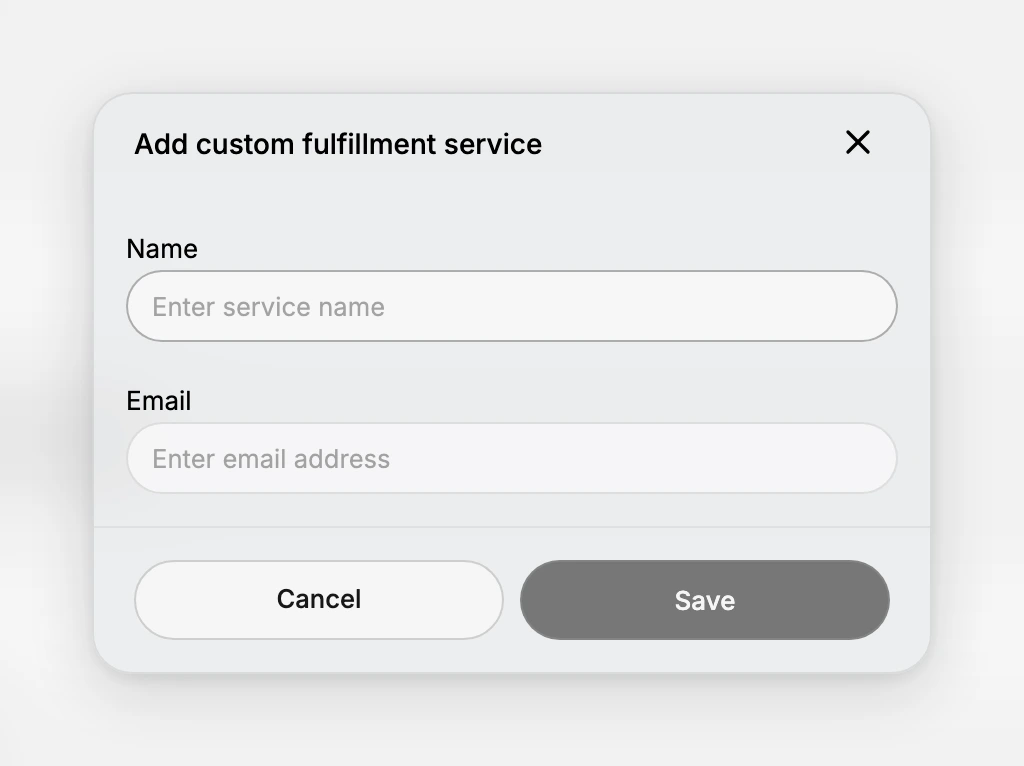
3. Save the service
Select Save to add the service. A message confirms that the custom fulfillment service was added, and it then appears in the Custom order fulfillment section with its name and email, alongside Edit and Delete actions to update or remove it later. Select Cancel instead if you do not want to add it.
Managing a service you added
Once a service is listed, the Custom order fulfillment section shows it with an Edit action to change its name or email and a Delete action to remove it. Deleting a service confirms with a message that it was removed and takes it off the list.
How the service is used
Adding a custom fulfillment service stores it in your store as a record with the name and email you gave it. It does not change how an order is fulfilled inside the admin: an unfulfilled order still shows a Mark as fulfilled action on its own page, which is how you record that the order has shipped, whether you shipped it or the partner did. The service does not appear as a separate button or a routing target on the order, so treat it as the saved record of the partner that fulfills those orders. Arrange the actual handover with that partner directly, using the email you saved as their contact.
Best practices
- Name it recognizably. Use a name that tells you which partner or service it is, so it is easy to pick and manage later.
- Use the service's real fulfillment email. The email is the address associated with the service, so enter the one the service actually uses.
- Keep your own locations for what you ship. Use a custom service only for the orders that partner actually fulfills, and keep fulfilling the rest from your locations.
If something goes wrong
- The service is not added. Make sure both a Name and an Email were entered, then select Save again.
- You cannot add a service. Your role may not allow managing store settings. Ask an owner or admin.
- Orders are not going to the service. Adding a service only records it in your store; it does not add a "send to service" step to an order. Fulfill the order from its own page with Mark as fulfilled once the partner has shipped it, and coordinate the handover with that partner directly.
Next steps
Related articles
Still stuck?
- Ask Tanqory AIAsk in your own words. It answers from these articles and links the ones it used.
- Ask in your adminThe assistant in your Tanqory admin answers and makes the change for you once you confirm.
- Contact TanqoryWrite to our privacy, security or legal teams, or talk to sales about a plan or a move.