Order Routing
Order routing rules decide which location is assigned to fulfill each new order. The rules run in a priority order from top to bottom, you can reorder or delete them, add more from a set of rule types, and revert to the defaults.
On this page
Order routing decides which of your locations is assigned to fulfill each new order. It matters most when you fulfill from more than one location, because it removes the guesswork of choosing a location by hand and applies consistent logic instead, such as shipping from the closest location or avoiding a split shipment. You control it with routing rules that run in a set order. You manage them in Settings > Shipping and delivery, in the Order routing section, which opens the Routing rules page.
Before you begin
- Your role includes Shipping settings, the permission that lets you change the store's shipping configuration.
- You have the locations you fulfill from set up, so the rules have locations to assign; Manage Locations covers adding them.
- Open Settings, then Shipping and delivery, then Order routing.
How routing rules work
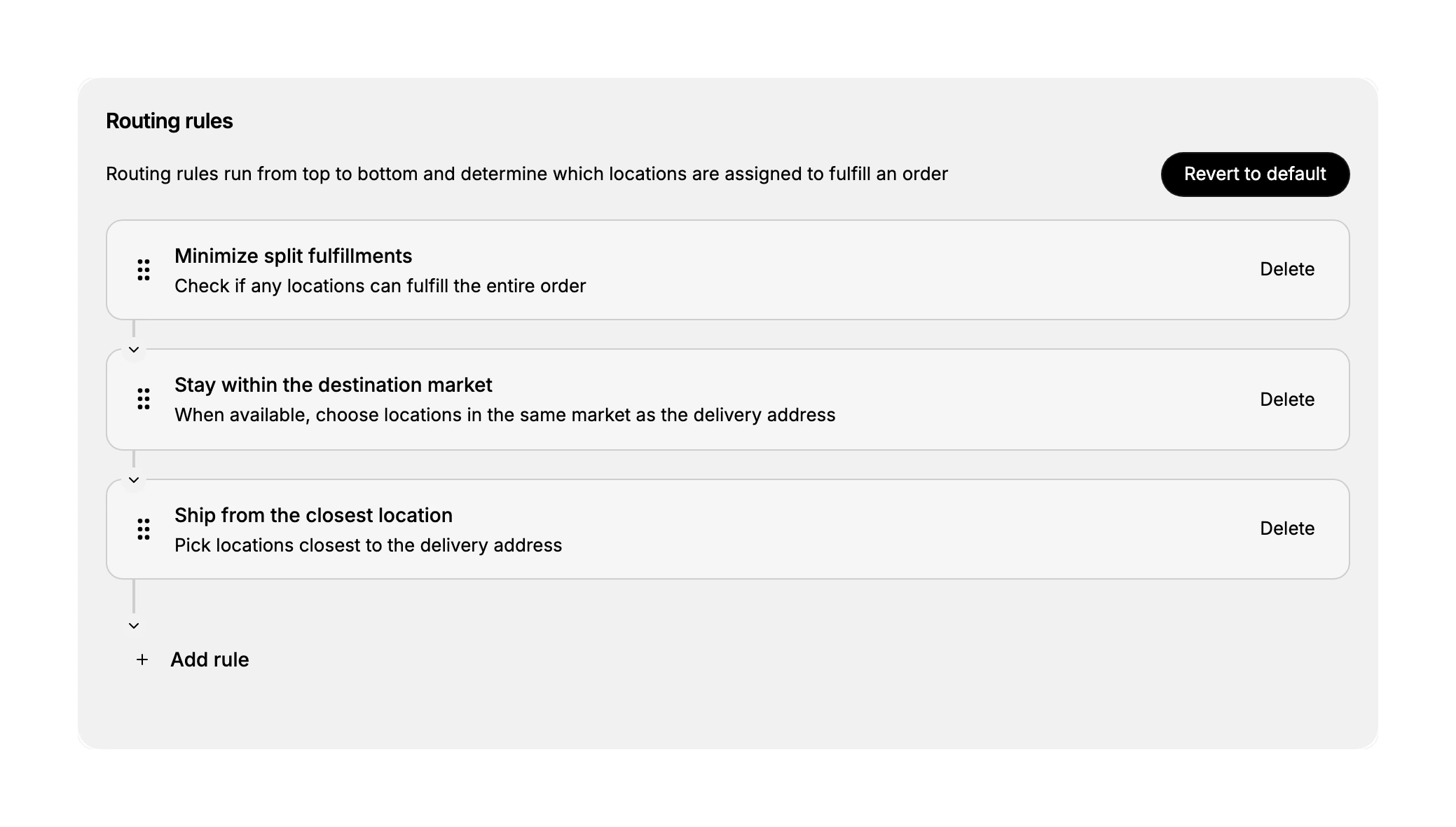
The Routing rules page lists your rules and states that they run from top to bottom and determine which locations are assigned to fulfill an order. The order matters: the rule at the top is applied first, then the next, and so on, so the sequence sets the priority. Each rule has a drag handle so you can reorder it, and a Delete action to remove it. A Revert to default action at the top restores the original set of rules.
The default rules
A new store starts with three routing rules already active, in this order.
| Order | Rule | What it does |
|---|---|---|
| 1 | Minimize split fulfillments | Checks if any single location can fulfill the entire order |
| 2 | Stay within the destination market | When available, chooses locations in the same market as the delivery address |
| 3 | Ship from the closest location | Picks locations closest to the delivery address |
Because they run in order, the store first tries to keep an order together at one location, then prefers a location in the customer's market, and finally falls back to the nearest location.
Adding a rule
Selecting Add rule opens a dialog listing every rule type you can use, both the ones you already have and the ones you do not. A rule already in your list is marked In use and its Add rule button is greyed out, so the dialog shows you the full set while only letting you add what is missing. Select Add rule beside a rule you want, then choose Done. Cancel closes the dialog without adding anything.
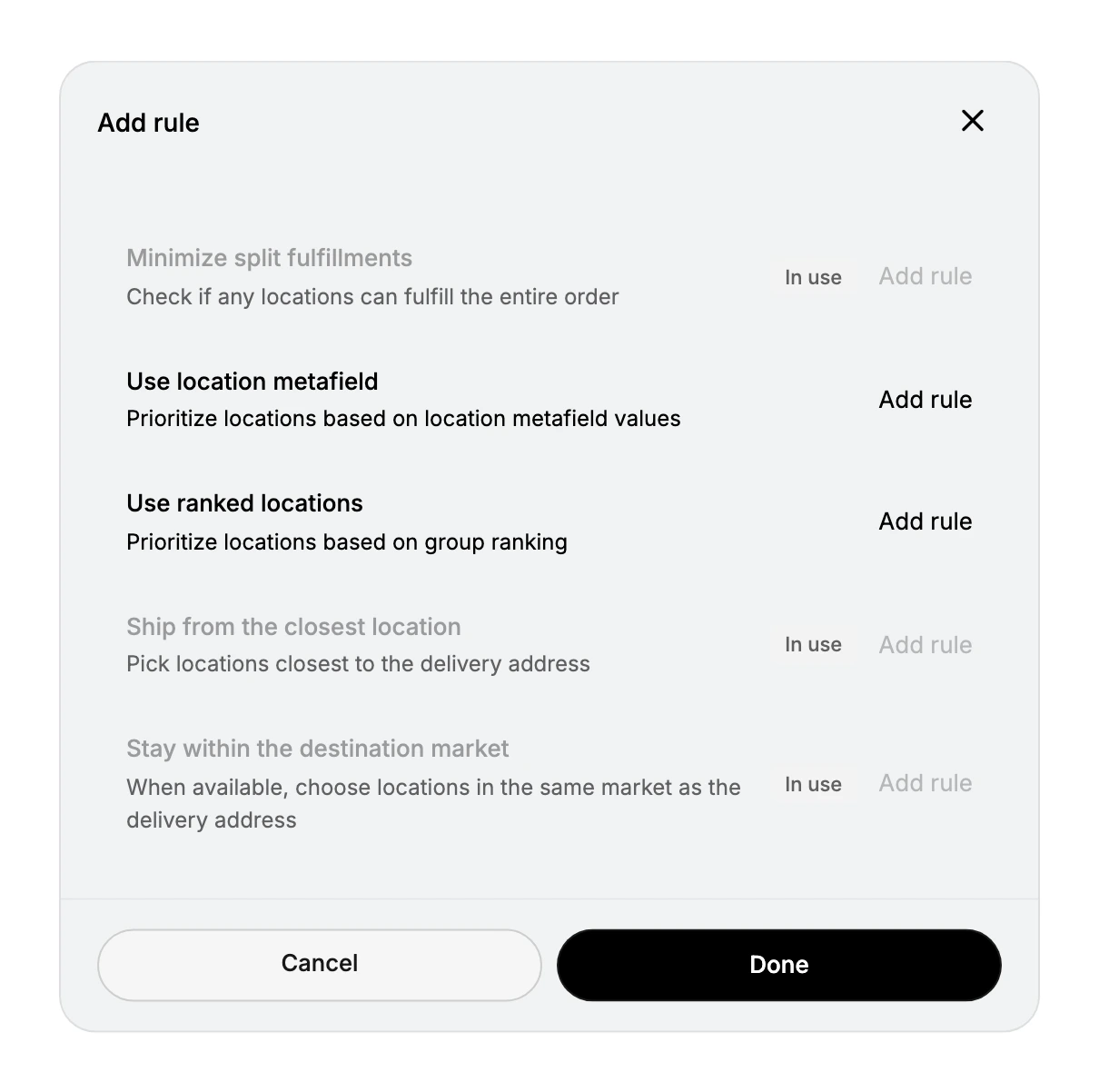
Alongside the three default rules, two more rule types are available to add.
| Rule | What it does |
|---|---|
| Use location metafield | Prioritizes locations based on location metafield values |
| Use ranked locations | Prioritizes locations based on group ranking |
After adding a rule, drag it to the position you want in the priority order, since where it sits decides when it is applied.
Best practices
- Order rules by what matters most. The top rule is applied first, so put your priority, such as avoiding split shipments or shipping nearest, at the top.
- Keep it simple. Start from the defaults and add a rule only when you need behavior they do not cover.
- Reorder after adding. A new rule is only useful in the right position, so drag it to where it should apply in the sequence.
- Revert if unsure. If a change causes unexpected assignments, use Revert to default to return to the original rules.
If something goes wrong
- Orders are assigned to an unexpected location. Check the order of your rules, since the top rule is applied first; reorder them so the priority you want is applied first.
- A change made things worse. Use Revert to default to restore the original three rules and start again.
- You cannot change these settings. Your role may not allow managing store settings. Ask an owner or admin.
Next steps
Related articles
Still stuck?
- Ask Tanqory AIAsk in your own words. It answers from these articles and links the ones it used.
- Ask in your adminThe assistant in your Tanqory admin answers and makes the change for you once you confirm.
- Contact TanqoryWrite to our privacy, security or legal teams, or talk to sales about a plan or a move.