Local Delivery
Local delivery lets a location deliver orders straight to nearby customers instead of shipping by carrier. You turn it on per location, set the postal codes you cover and what delivery costs, then connect a local delivery app for routing.
On this page
Local delivery lets one of your locations deliver orders straight to customers near it, instead of handing them to a shipping carrier. You turn it on for each location that delivers, then set the delivery zones it covers by postal code and what each zone charges. The day-to-day routing and delivery updates run through a local delivery app you connect.
Before you begin
- Your role includes Shipping settings, the permission that lets you change the store's shipping configuration.
- You have a location to deliver from, with its address set. The switch belongs to the location, not the store, so a store with no locations has nothing to turn on; Manage Fulfillment Locations covers setting one up.
- You know the postal codes you deliver to. A delivery zone is defined by postal code, and a zone cannot be activated until it has at least one.
- You have a way to make the deliveries. Tanqory records the zones and prices; the routes, customer contact and delivery statuses are handled by a local delivery app you connect.
- Go to Settings > Shipping and delivery; Local delivery is under Additional delivery methods, below the main shipping options.
Turn on local delivery
1. Open Local delivery
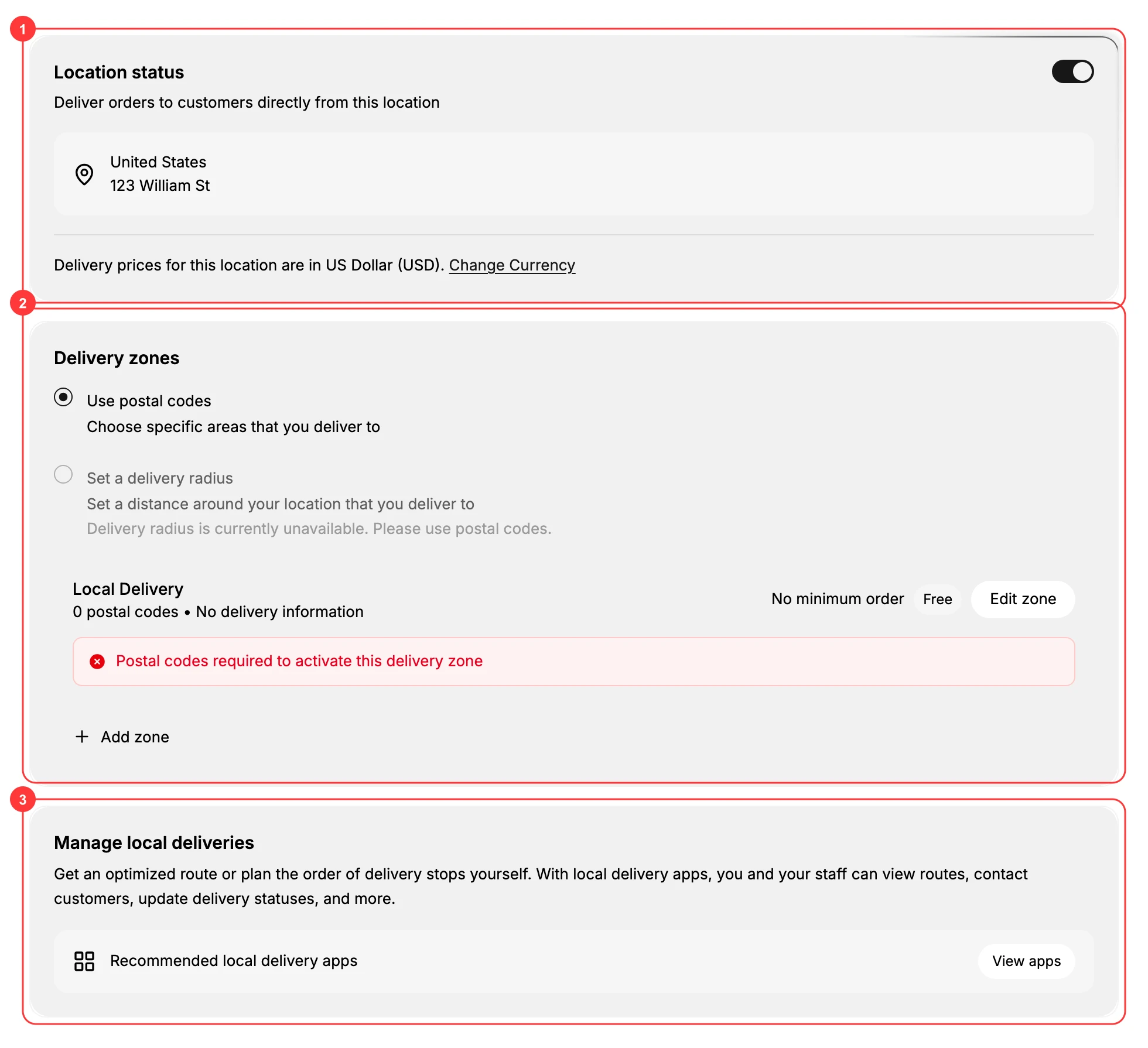
Scroll down to Additional delivery methods and open Local delivery (1). It sits beside Pickup in store and reads Off until a location is switched on. The page then lists your locations, each showing whether it offers delivery.

2. Turn on the location and open its zones
Open the location you want to deliver from. Its page is headed Local delivery for that location, with the address below so you can be sure which one you are changing.
Turn on Location status (1), described as delivering orders to customers directly from this location. This reveals Delivery zones (2), where you set the areas you cover. Pick Use postal codes, since Set a delivery radius is shown but currently unavailable. A note confirms that delivery prices for this location are in the location's currency.
Below that, Manage local deliveries (3) is where you connect a local delivery app. Pricing and areas live in Tanqory; route planning and delivery updates live in the app.
3. Set up a delivery zone
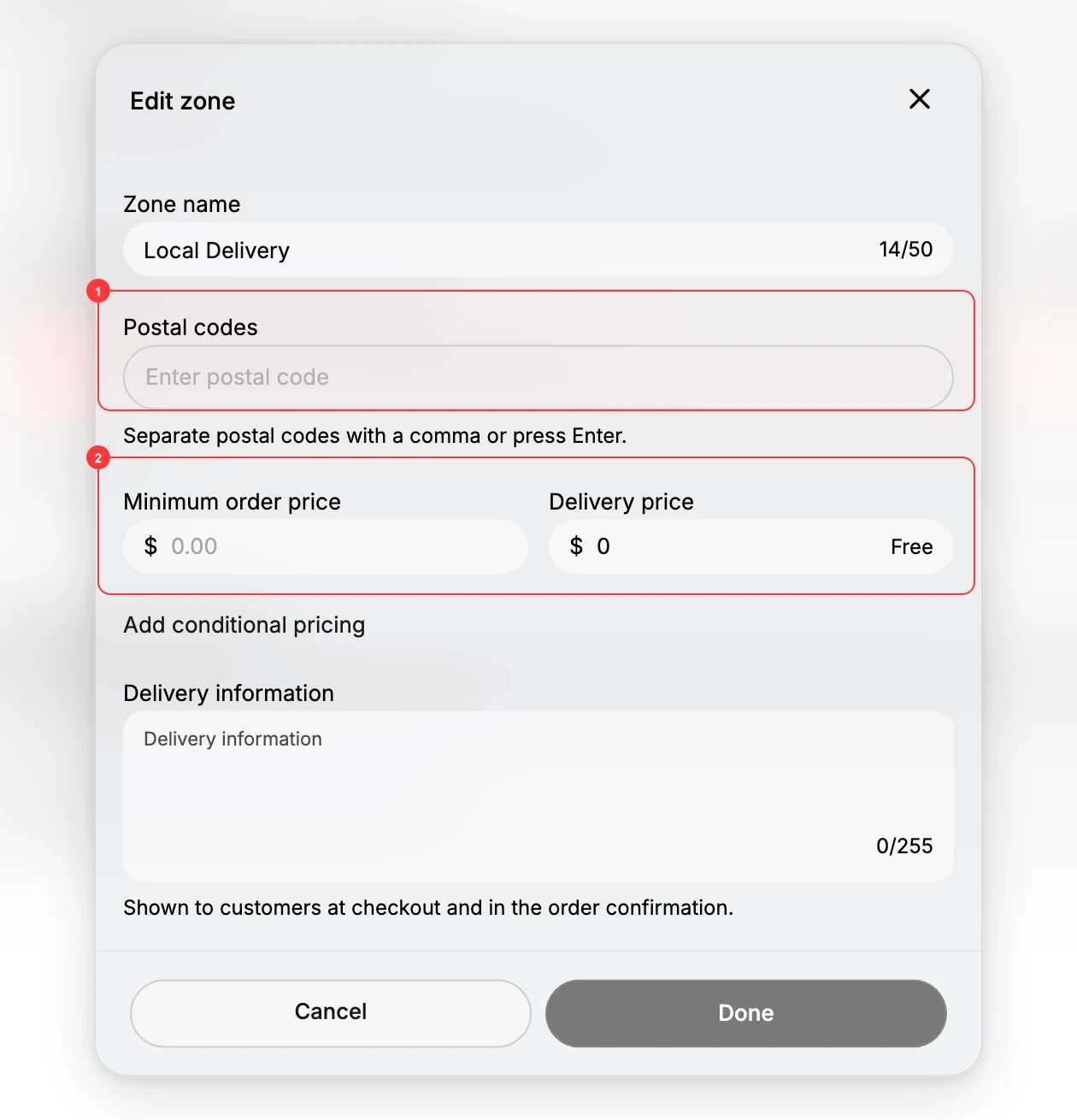
Each location starts with one zone. Select Edit zone on it, or Add zone for another, to open the zone dialog, then fill it in:
- Zone name gives the area a label, such as Local Delivery or Downtown.
- Postal codes (1) are the codes this zone covers, separated by a comma or Enter. A zone cannot be activated without at least one, which is why a new zone shows "Postal codes required to activate this delivery zone".
- Minimum order price and Delivery price (2) set the smallest order the zone applies to and what delivery costs, and the delivery price can be Free. Add conditional pricing lets the price vary with the order.
- Delivery information is an optional note shown to the customer at checkout and in the order confirmation.
Select Done to keep the zone.
4. Save
A Save bar appears as soon as you change anything on the location. Select Save to apply it; Discard throws the change away. Nothing is stored until you save.
What turning it on changes
Local delivery is one of the three ways a customer can receive an order, alongside shipping and pickup, and a store needs at least one of them. Until it has one, the Shipping and delivery page carries the warning that customers will not be able to check out, because you have no options set up for customers to receive their orders. A location switched on, with an active zone, offers delivery to customers in that zone's postal codes.
Pricing and area are set here; routing is not. There is no route planning or driver tracking on this page, which is what the local delivery app in Manage local deliveries is for.
Verify the result
- The location no longer reads Doesn't offer delivery in the Local delivery list, which is where each location's state is shown.
- The zone shows its postal codes and price instead of "Postal codes required to activate this delivery zone".
- The change survives a reload. Nothing is stored until Save, so if the state has gone back, the save did not go through.
Best practices
- List every postal code you cover. A customer whose postal code is in no zone is not offered local delivery, so gaps quietly lose those orders.
- Set a minimum order only where it pays off. Use it when delivery is worth making above a certain order total, and leave it at zero to offer delivery on any order.
- Connect a delivery app before you promise fast delivery. The switch and zones price the option; the app is what gets the parcel to the door.
If something goes wrong
- Local delivery is not offered to a customer. Confirm the location's Location status is on, that you saved, and that the customer's postal code is in a zone.
- A zone will not activate. It needs at least one postal code; open Edit zone and add one.
- You cannot plan routes or update statuses in Tanqory. That work happens in a connected local delivery app; open Manage local deliveries and connect one from View apps.
- You cannot change these settings. Your role may not allow managing store settings. Ask an owner or admin.
Next steps
Related articles
Still stuck?
- Ask Tanqory AIAsk in your own words. It answers from these articles and links the ones it used.
- Ask in your adminThe assistant in your Tanqory admin answers and makes the change for you once you confirm.
- Contact TanqoryWrite to our privacy, security or legal teams, or talk to sales about a plan or a move.