Pickup in Store
Collection is switched on one location at a time, not once for the store. The ready time you promise, the message the customer gets when the order is waiting, and how the option then appears at checkout.
On this page
Pickup in store lets customers buy online and collect their order at one of your store locations instead of having it shipped. There is no carrier cost for you or the customer, orders are ready in hours rather than days, and it brings buyers into your physical space. You turn it on for each location under your Shipping settings.
Before you begin
- Your role includes Shipping settings, the permission that lets you change the store's shipping configuration.
- You have at least one location with inventory, so checkout knows the items are available to collect.
- Open Settings, then Shipping and delivery, and open Pickup in store.
How pickup in store works
You enable pickup per location, not once for the whole store. For every location you switch on, you set how long orders usually take to be ready and the message customers get when their order is waiting for them. Pickup then appears at checkout as a delivery option priced at free, alongside your shipping methods.
Steps
1. Open Pickup in store in your Shipping settings
Go to Settings > Shipping and delivery. Under Additional delivery methods you will find Local delivery and Pickup in store, each with its own on/off state. Open Pickup in store.
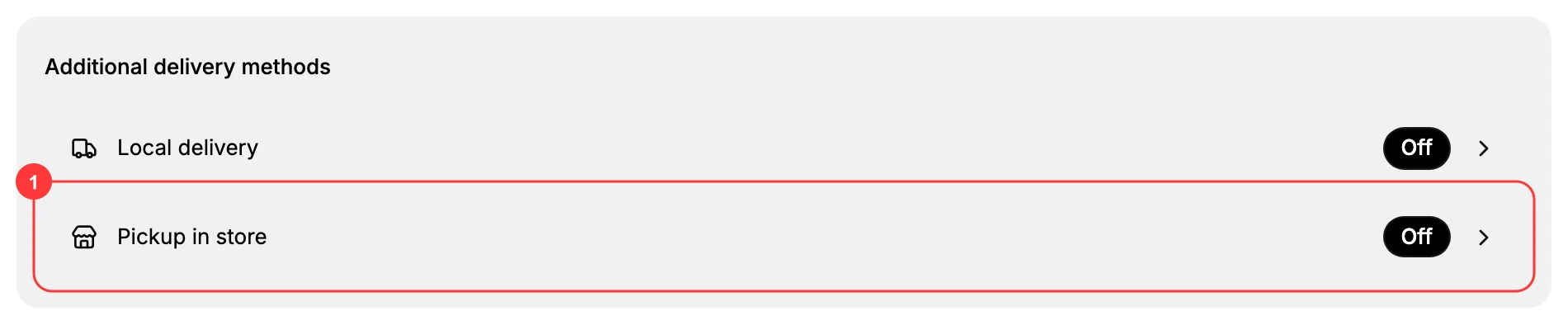
Pickup in store (1) sits next to Local delivery. Opening it lets you manage pickup for each of your locations.
2. Choose the location that will offer pickup
The Pickup in store page lists every location under Your locations with its current status. A location that is not set up yet shows Doesn't Offer Pickup. Select the one you want to enable.
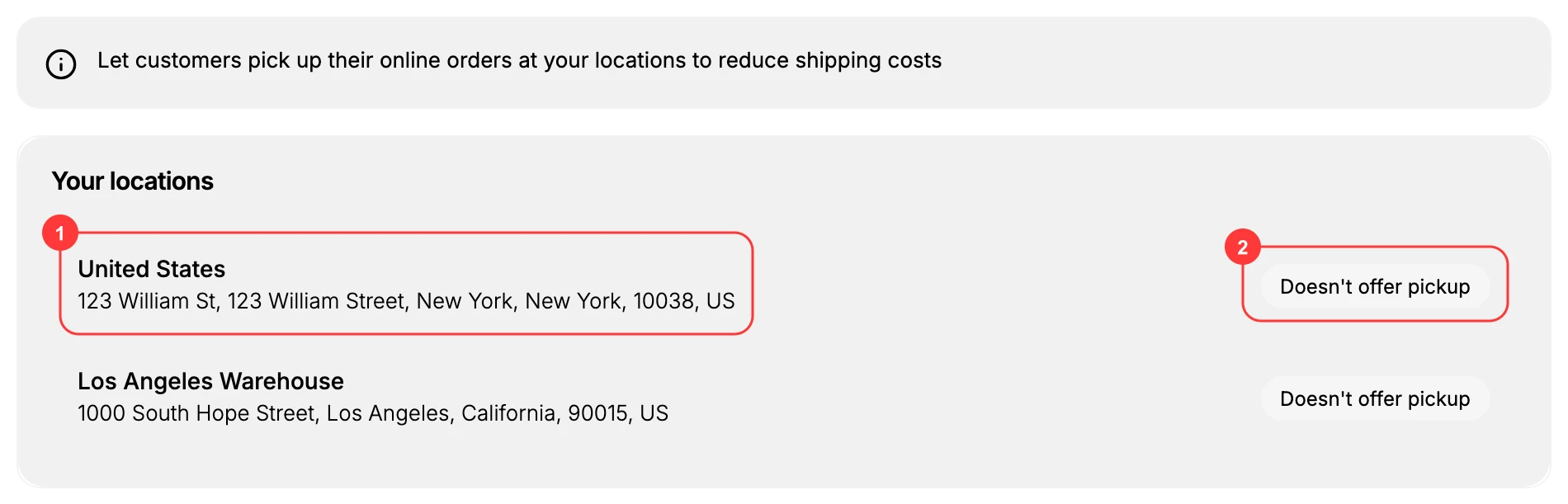
Each location (1) shows its address and a pickup status badge (2). Select a location showing Doesn't Offer Pickup to set it up.
3. Turn on pickup and fill in the details
The location's page opens with almost nothing on it: a Location status heading and the switch, and that is all. The rest of the settings appear only once the switch is on, so if the page looks empty, it is because pickup is still off here.
Switch it on, and the fields below appear.
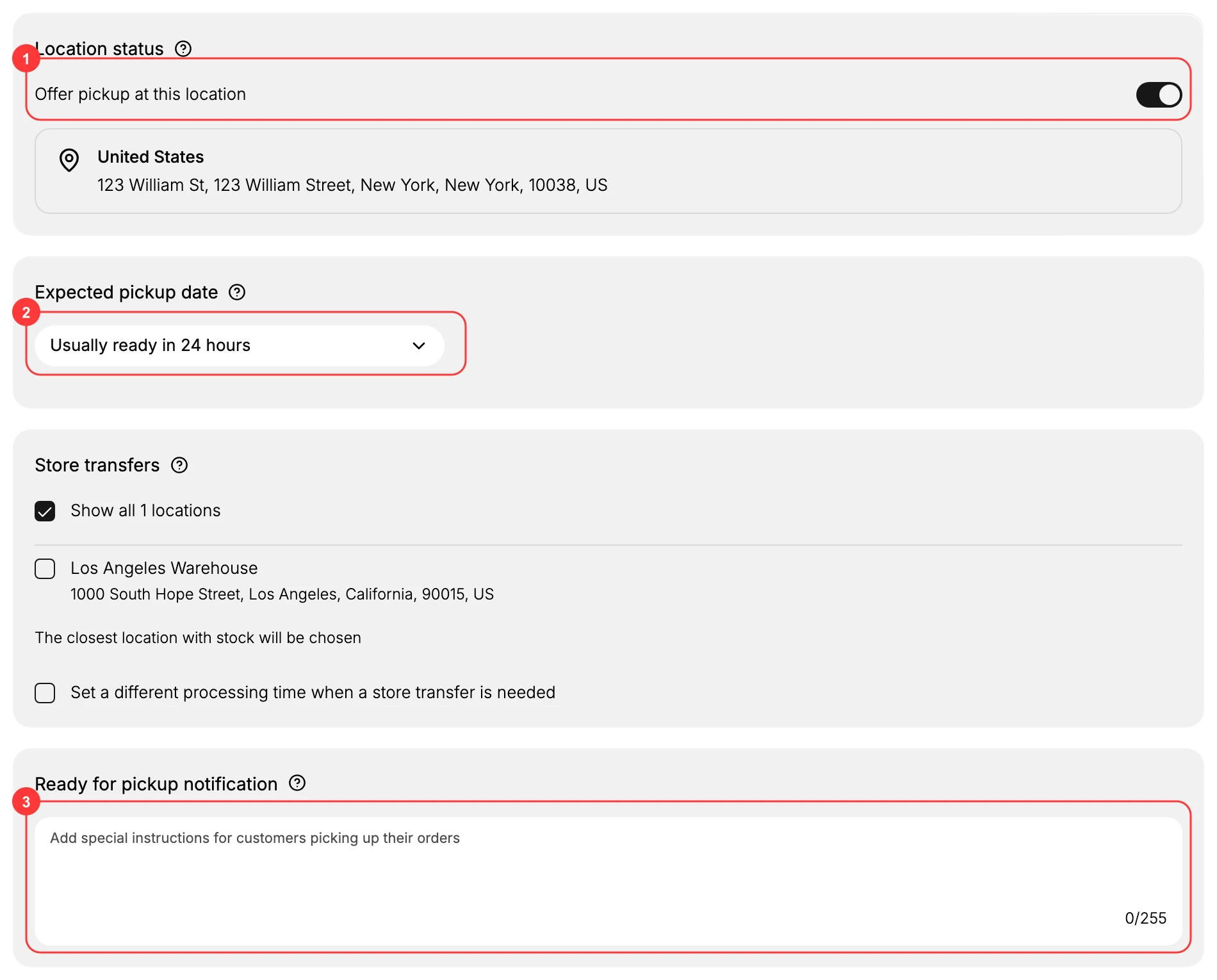
- Offer pickup at this location (1) is the on/off switch. Turning it on makes this location selectable for pickup at checkout.
- Expected pickup date (2) sets how long an order usually takes to be ready, for example "Usually ready in 24 hours". Customers see this estimate at checkout, so pick a window you can reliably meet.
- Ready for pickup notification (3) is the message customers receive when their order is ready to collect. The field asks for special instructions for customers picking up their orders, and counts your characters against a limit of 255, so it is a short note rather than a page: where the counter is, what to bring, when you are open.
Below these, Store transfers lets you fill pickup orders using stock from your other locations when the pickup location is out of stock. With "Show all locations" selected, the closest location with the item is used, and you can set a longer processing time for orders that need a transfer.
4. Review the checkout preview and save
The Checkout preview card shows exactly how the option appears to customers: your location name, its address, the free pickup price, and the expected pickup time. The location name and address come from your location settings, so update them there if they look wrong. When the preview reads correctly, click Save.
What customers see at checkout
Once a location offers pickup, a customer can choose pickup instead of shipping during checkout. They select the pickup location, see the expected pickup time you set, and pay nothing for delivery. A pickup order comes through your Orders like any other order; when it is ready to collect, the Ready for pickup notification you wrote is what tells the customer to come and pick it up.
Verify the result
- The location no longer reads Doesn't Offer Pickup in the Pickup in store list, which is where each location's state is shown.
- The Checkout preview on the location's page shows the location name, its address, FREE, and the expected pickup time you chose.
- The settings survive a reload. Nothing is kept until Save, so if the page has gone back to showing only the switch, the save did not go through.
Common mistakes
- Turning pickup on at a location that cannot actually receive customers. Pickup is set per location, so enabling it somewhere without a counter sends customers to a warehouse door.
- Not stating the collection times. A customer who is not told when they can collect will either turn up at the wrong time or contact you to ask.
- Forgetting that pickup skips shipping entirely. An order collected in store has no carrier and no label, so treating it like a shipment leaves it sitting unfulfilled.
If something goes wrong
- The location page looks empty. Only Location status and its switch are shown until pickup is turned on for that location. Everything else appears with the switch.
- The location still shows Doesn't Offer Pickup. The change was not saved. Turn the switch on again and use Save; Discard throws it away.
- The name or address in the preview is wrong. Both are read from the location itself, as the note under the preview says, so correct them in Locations rather than here.
- Your pickup message is cut off. The notification field stops at 255 characters, counted for you beside the box.
- You cannot change these settings. Your role may not allow managing store settings. Ask an owner or admin.
Next steps
- Local delivery for customers who want their order brought to them instead.
- Locations to manage the addresses and inventory behind each pickup point.
- Shipping rates setup to round out the delivery options at checkout.
Related articles
- Store Pickup (Click and Collect) for the concept and when to use it
- Order routing
- Create a shipping profile
Still stuck?
- Ask Tanqory AIAsk in your own words. It answers from these articles and links the ones it used.
- Ask in your adminThe assistant in your Tanqory admin answers and makes the change for you once you confirm.
- Contact TanqoryWrite to our privacy, security or legal teams, or talk to sales about a plan or a move.