Store Pickup (Click and Collect)
Letting a customer collect an order at your counter instead of posting it. What it costs them, when collection beats delivering or shipping, what they meet at checkout, and where pickup is switched on for each location.
On this page
Store pickup, also called click and collect or buy online pickup in store, lets customers buy online and collect their order at one of your locations instead of paying for shipping. It removes carrier cost for both sides, gets orders into customers' hands faster, and brings them into your physical space. In Tanqory this is the Pickup in store option in your Shipping settings.
When to use pickup
Pickup is one of three ways a customer can receive an order in Tanqory, and you can offer it alongside the others so the customer chooses what suits them at checkout.
| Method | How the order reaches the customer | What the customer pays | Best for |
|---|---|---|---|
| Pickup in store | The customer collects it at one of your locations | Nothing, the option is priced as free | Customers who can reach one of your locations and would rather collect than wait |
| Local delivery | You deliver it to a nearby customer from a location | Not decided by the local delivery setting, which only records that the location delivers | Nearby customers who want it brought to them without a carrier |
| Shipping | A carrier delivers it to the customer's address | The shipping rate for their zone | Customers beyond your local area, including other regions and countries |
Reach for pickup when you have a physical location customers can come to and you want to save the carrier cost on nearby orders. Local delivery and Set up shipping rates cover the other two.
Where it lives
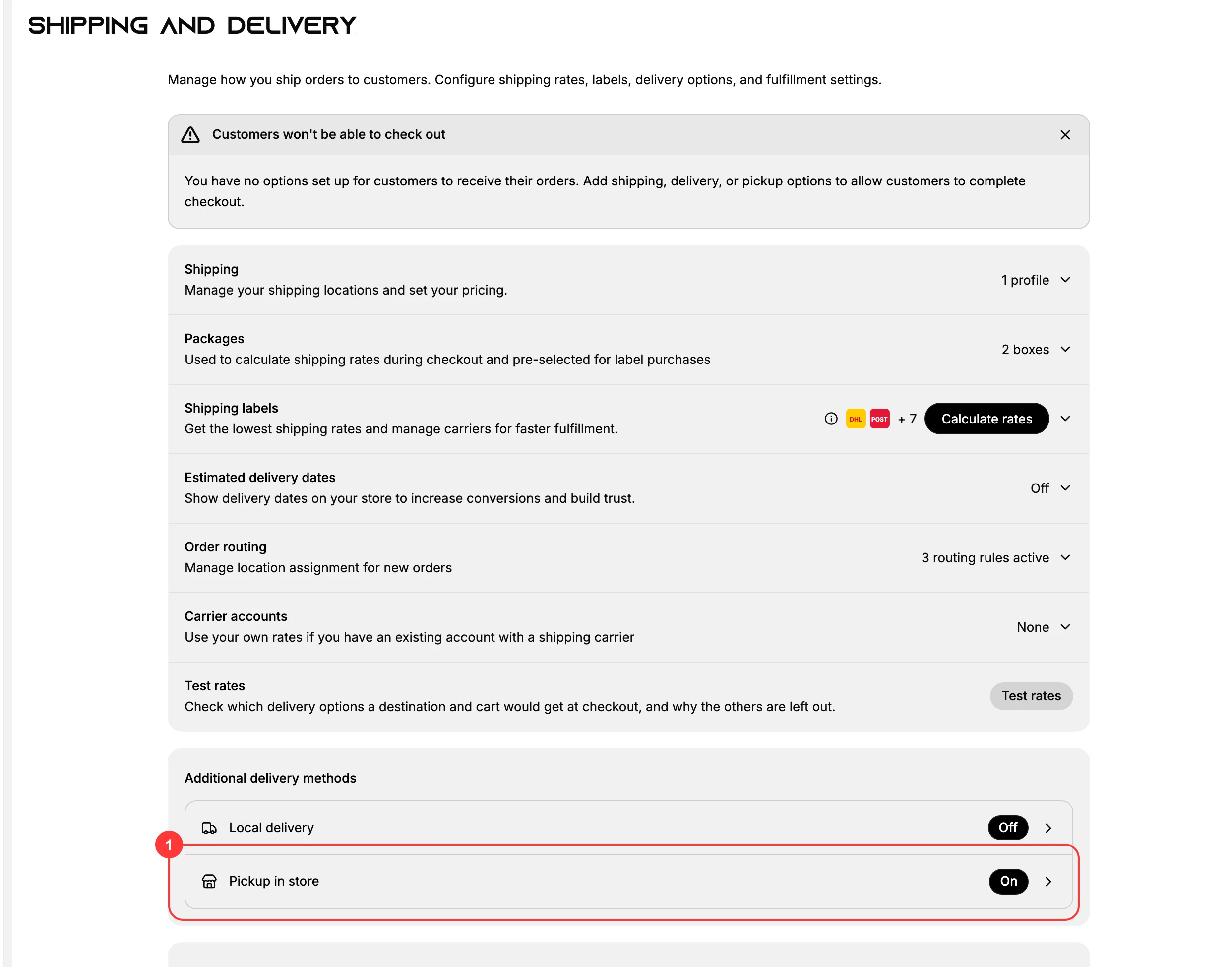
Pickup is set up per location under Settings > Shipping and delivery, in the Additional delivery methods section, where Pickup in store (1) sits next to Local delivery. Open it to manage pickup for each location; each one starts with a Doesn't Offer Pickup badge until you turn it on.
For each location you enable, you choose how long orders usually take to be ready and write the message customers get when their order is waiting for them. A third setting, Store transfers, decides whether an order can still be collected there when that location is out of stock, by bringing the item in from another one, and lets you allow extra time when it has to.
The location's own page then previews the option as the customer will meet it, showing the location, its address, the word FREE and the ready time you set.
What customers see at checkout
When a location offers pickup, a customer can choose pickup instead of shipping during checkout. They pick the pickup location, see the expected ready time you set, and pay nothing for delivery. After the order is placed, it comes through your Orders like any other order; when it is ready, the ready-for-pickup notification you wrote is what tells the customer to come and collect it.
Set it up
The full walkthrough, with every field and a real screenshot of each step, is in Pickup in Store. Start there to turn pickup on for a location.
Best practices
- Set a ready time you can meet. The expected pickup time shows to the customer at checkout, so choose a window your team can hit reliably.
- Write clear pickup instructions. Use the ready-for-pickup message to say where the pickup point is, its hours, and what the customer should bring.
- Enable it only where you can fulfill it. Turn pickup on for locations that have the staff and stock to hand orders over, rather than every location by default.
Next steps
- Pickup in Store for the step-by-step setup.
- Local delivery to deliver orders to nearby customers yourself.
- Locations to manage the addresses pickup uses.
Related articles
Still stuck?
- Ask Tanqory AIAsk in your own words. It answers from these articles and links the ones it used.
- Ask in your adminThe assistant in your Tanqory admin answers and makes the change for you once you confirm.
- Contact TanqoryWrite to our privacy, security or legal teams, or talk to sales about a plan or a move.