Edit a Shipping Profile
To change a shipping profile, you open it and edit its parts on the profile page, where you can rename a custom profile, change its products, fulfillment locations, and shipping zones and rates. A custom profile can also be deleted from its Actions menu. The General profile is edited the same way but cannot be renamed or deleted.
On this page
You edit a shipping profile by opening it and changing its parts directly on the profile page, so there is no separate edit mode. From there you can rename a custom profile, change which products it covers, adjust its fulfillment locations, and add or change its shipping zones and rates. A custom profile can also be deleted, while the General profile is always present and cannot be renamed or deleted.
Before you begin
- Your role includes Shipping settings, the permission that lets you change the store's shipping configuration.
- You know what you want to change on the profile, and for a custom profile, which products it should cover.
- Open Settings, then Shipping and delivery, and find the Shipping section.
What you can change
Opening a profile shows the same sections you set when it was created, each of which you can edit.
| Part | What editing it does |
|---|---|
| Profile name | Renames a custom profile; it is for your reference and customers do not see it |
| Products | Changes which products the profile covers |
| Fulfillment locations | Changes which locations fulfill the profile's products |
| Shipping zones and rates | Adds, changes, or removes the destinations and their rates |
| Delete profile | Removes a custom profile, from its Actions menu |
Steps
1. Open the profile
In Settings > Shipping and delivery, open the Shipping section (1).
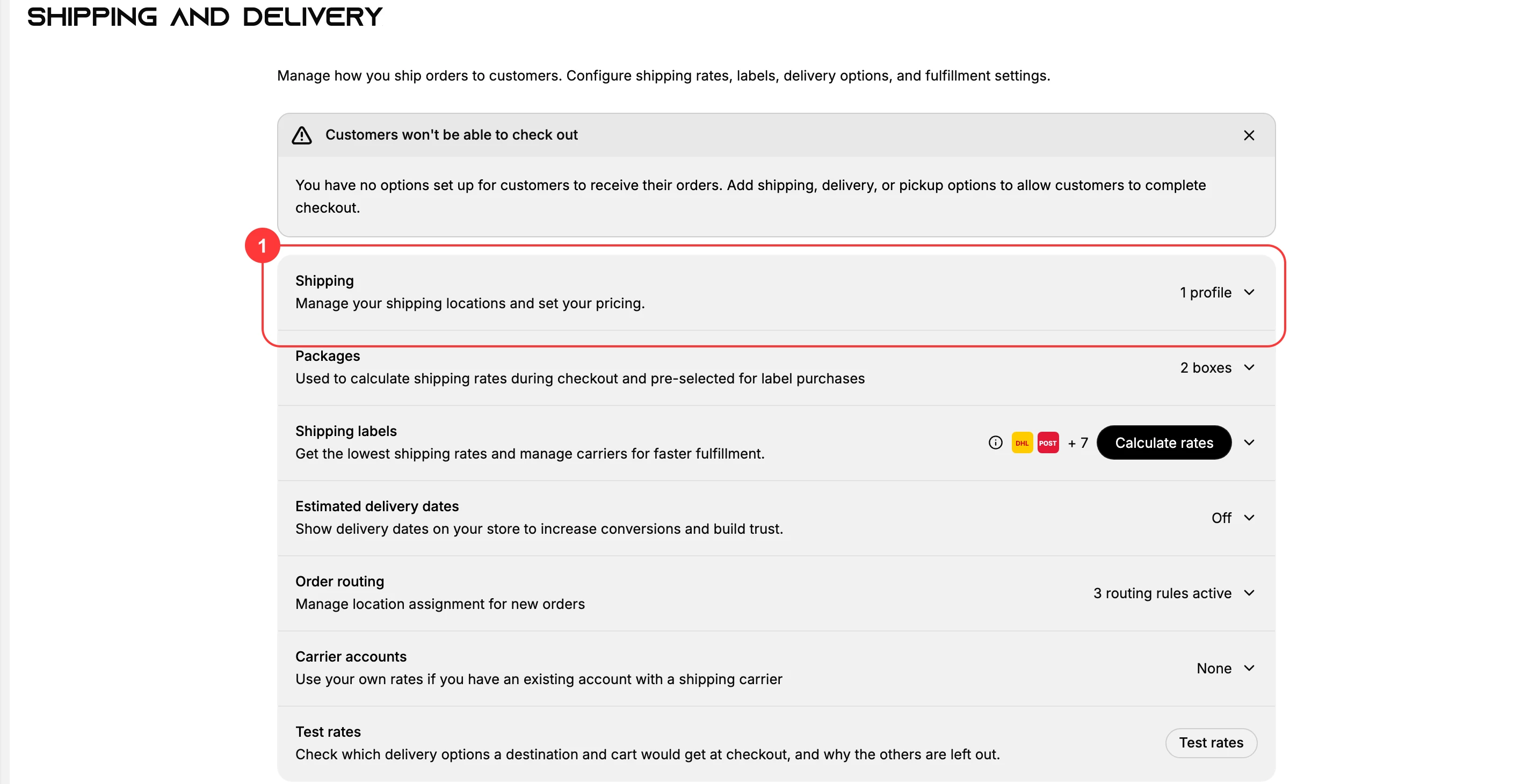
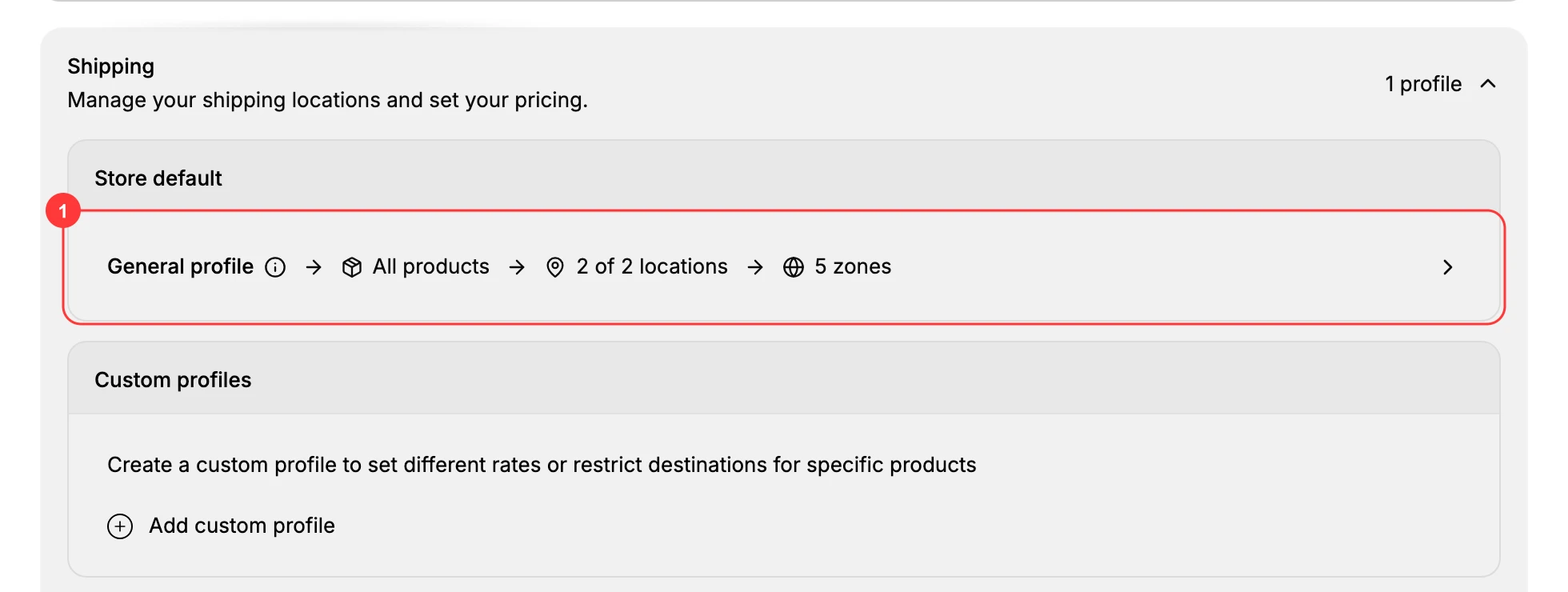
The section expands to list your profiles. The General profile (1) is the store default, and any custom profiles appear under Custom profiles below it. Select the profile you want to edit, and its page opens.
2. Rename a custom profile
On a custom profile's page, the Profile name field holds its name, which you can change. The note beneath it says the name is for your reference only and that customers do not see it, so rename it to whatever keeps your profiles clear.
The General profile has no name field. Its page opens straight into Products, Fulfillment locations and Shipping zones, so there is nothing to rename.

3. Change the products, locations, zones, and rates
Use the Products section to add or remove the products the profile covers, the Fulfillment locations section to change where they ship from, and the Shipping zones section to add or change zones and their rates. These are the same sections you set when creating a profile. Create a Shipping Profile covers these fields in full, while Set Up Shipping Rates and Create and Edit Shipping Zones go deeper on rates and zones.
4. Delete a custom profile if you no longer need it
To remove a custom profile, open it and select Actions, then Delete profile. The products it covered return to the General profile and use the general rates again. The General profile has no delete option, since it is the store default.
Notes and best practices
- Changes take effect for the products in the profile. Editing rates or zones changes what customers of that profile pay, so review before you rely on it.
- Keep a rate in every zone. If you remove rates while editing, a zone left without one blocks checkout for customers there.
- Renaming is safe. The profile name is internal, so renaming it does not change anything the customer sees.
- Deleting returns products to the General profile. Before deleting a custom profile, make sure the general rates are right for the products that will move back.
If something goes wrong
- A change is not reflected at checkout. Confirm you saved it on the correct profile, and that the product is in that profile.
- You cannot rename or delete the General profile. That is expected; the General profile is the store default and only custom profiles can be renamed or deleted.
- You cannot change these settings. Your role may not allow managing store settings. Ask an owner or admin.
Next steps
Related articles
Still stuck?
- Ask Tanqory AIAsk in your own words. It answers from these articles and links the ones it used.
- Ask in your adminThe assistant in your Tanqory admin answers and makes the change for you once you confirm.
- Contact TanqoryWrite to our privacy, security or legal teams, or talk to sales about a plan or a move.