Return Rules
Return rules set how long a customer has to send something back and whether an order can still be cancelled. This covers the default rule that applies to every order, adding a rule for one market, and keeping those rules in step with the written policy customers read.
On this page
Return rules set the return and cancellation windows that apply to your orders, so they decide how long a customer has to return an item and whether an order can be cancelled. They are the operational side of returns, separate from the written Return and Refund Policy, which is the customer-facing page that explains your terms. You manage return rules under Settings, in Policies.
Note: Keep these return rules in step with your written Return and Refund Policy, so customers are not told one thing and handled another.
What a return rule sets
Each rule sets the windows that apply to the orders it covers:
| Part | What it sets |
|---|---|
| Return window | How long after receiving an order a return is allowed, for example a 60-day return. |
| Cancellation window | Whether and for how long an order can be cancelled. |
Those two are the headline, but a rule holds more than a pair of windows. The full editor is covered in What the rule editor holds below.
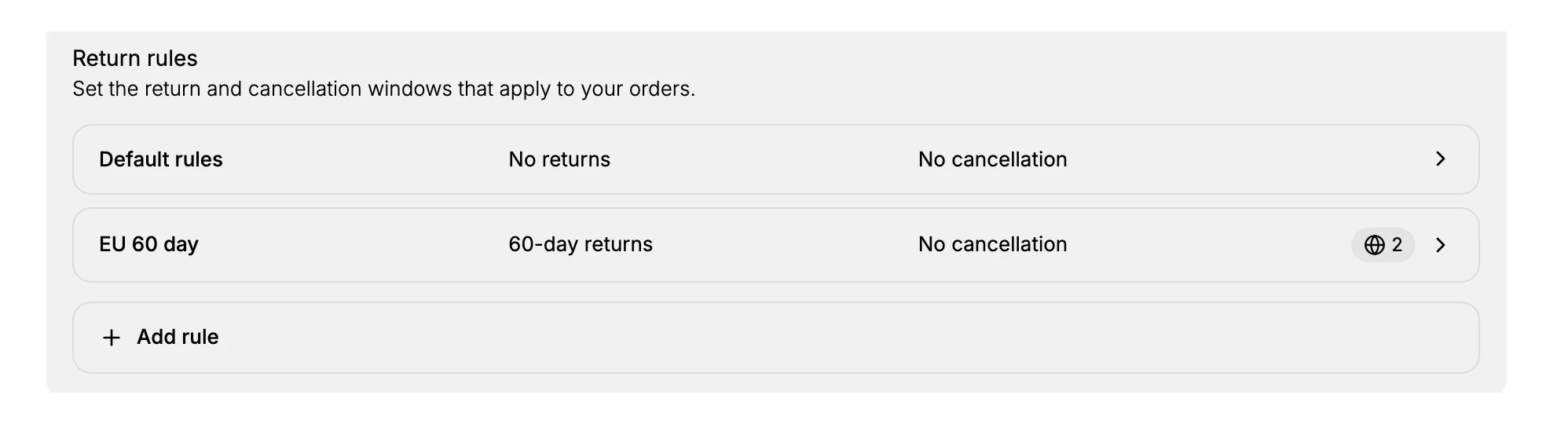
A rule can also be scoped to specific markets, so you can apply different windows in different regions. The Default rules entry applies to all orders that no other rule covers.
Default and custom rules
| Rule | What it is |
|---|---|
| Default rules | The baseline that applies to every order, unless a market-specific rule overrides it. |
| A custom rule | A named rule (such as one for the EU) with its own return and cancellation windows and markets. |
Before you begin
- Your role includes Manage returns and exchanges.
- Open Settings, then Policies, and find the Return rules section at the top.
Steps
1. Open Settings, then Policies
From the admin, open Settings, then Policies. The Return rules section sits at the top, above Written policies, and lists your rules with their return and cancellation windows.
2. Set the default rules
Open Default rules to set the return and cancellation windows that apply to every order. This is the baseline, so set it to match how you handle returns for most of your store, for example a standard return window and whether cancellations are allowed.
3. Add a rule for a specific market
Select Add rule to open the rule editor. Give the rule a Title, which is how you will recognize it in the list, then use Add market under Eligibility to choose which markets it applies to. A rule with no market covers nothing in particular, so scoping it is what makes it take effect where you intend.
What the rule editor holds
The editor is more than a pair of date fields. It is organized into sections, each with its own on and off switch, so a rule can allow returns while leaving cancellations alone.
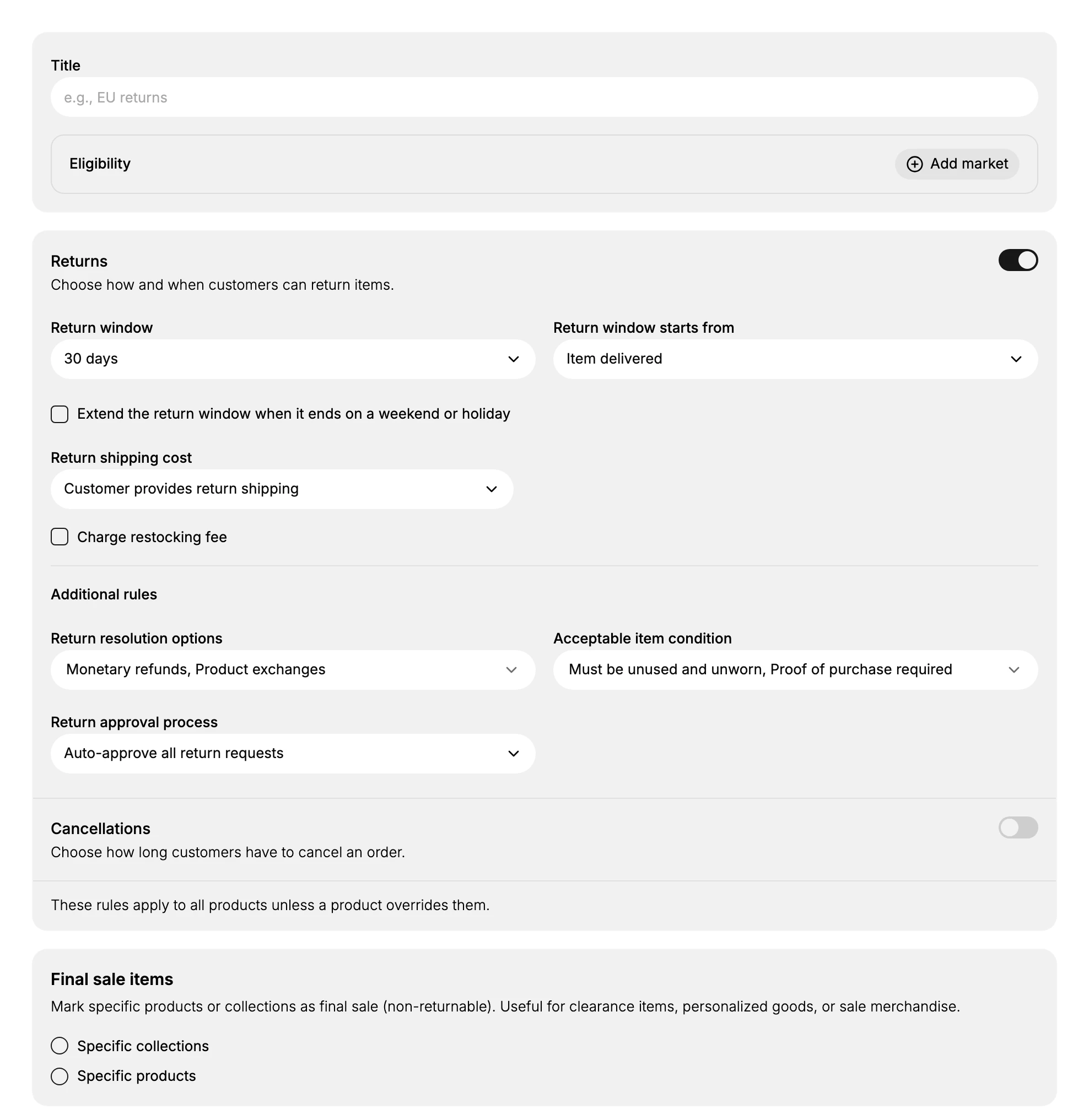
Returns, described on screen as choosing how and when customers can return items, holds the settings most stores care about:
| Setting | What it decides |
|---|---|
| Return window | How long the customer has, such as 30 days |
| Return window starts from | The event the clock runs from, such as Item delivered |
| Extend the return window when it ends on a weekend or holiday | Whether a deadline landing on a non-working day rolls forward |
| Return shipping cost | Who pays to send the item back, such as Customer provides return shipping |
| Charge restocking fee | Whether a fee is deducted from the refund |
Return window starts from is the one worth pausing on. A window counted from delivery and a window counted from purchase are different promises, and the gap between them is however long shipping takes.
Additional rules covers what you will accept and how requests are handled:
| Setting | What it decides |
|---|---|
| Return resolution options | What the customer can get, such as Monetary refunds and Product exchanges |
| Acceptable item condition | The condition you require, such as unused and unworn, or proof of purchase |
| Return approval process | Whether requests are approved automatically or reviewed, such as Auto-approve all return requests |
Cancellations is a separate section with its own switch, described as choosing how long customers have to cancel an order. Below it the editor notes that these rules apply to all products unless a product overrides them.
Final sale items is where you carve out exceptions. It marks specific products or collections as non-returnable, which the editor suggests for clearance items, personalized goods, or sale merchandise, and you choose either Specific collections or Specific products.
4. Keep the rules and the written policy aligned
Make sure the windows here match what your Return and Refund Policy tells customers, so the operational rule and the published page agree. A mismatch between the two is what leads to disputes.
Verify the result
- The Return rules section lists your rules with the return and cancellation windows you set.
- A market-scoped rule shows the number of markets it applies to.
- The windows match what your written Return and refund policy states.
Best practices
- Set the default rule first, since it covers every order a specific rule does not.
- Use a market rule only where the terms genuinely differ, so the setup stays simple.
- Keep the rule and the written policy in step, so customers are not told one thing and handled another.
- Review the windows when your process changes, so the rule always reflects how you really handle returns.
Common mistakes
- Leaving the default at No returns when you do accept returns, so orders show no return window.
- A rule that disagrees with the written policy, which confuses customers and staff.
- Over-splitting by market into many rules that are hard to keep consistent.
If something goes wrong
- There is no Return option on an order. Check that a return rule allows returns; a rule set to No returns leaves nothing to return.
- The wrong window applies. Confirm which rule covers that order's market, since a market rule overrides the default.
- You cannot edit the rules. Your role may not allow managing settings. Ask an owner or admin.
Next steps
Related articles
Still stuck?
- Ask Tanqory AIAsk in your own words. It answers from these articles and links the ones it used.
- Ask in your adminThe assistant in your Tanqory admin answers and makes the change for you once you confirm.
- Contact TanqoryWrite to our privacy, security or legal teams, or talk to sales about a plan or a move.