Create a Return
The Create return page is where you start a return from a fulfilled order. You select the items and quantities to return, optionally set up an exchange and return shipping, and create the return.
On this page
The Create return page is where you start a return for a fulfilled order. From it you choose which items and how many to return, decide whether to set up an exchange, choose how the item comes back with return shipping, add a staff note, and create the return. You open it from a fulfilled order by selecting Return. Because a return is against items that were shipped, the Return option appears only after the order is fulfilled. Handling the return here keeps the order accurate and starts the customer's refund or exchange.
Note: The Return option appears only after an order is fulfilled, since a return is against items that were shipped.
What's on the Create return page
| Section | What it does |
|---|---|
| Select items to return | The fulfilled items, where you set the return quantity for each |
| Exchange items | Turns the return into an exchange, replacing returned items with different ones |
| Return shipping options | How the item comes back: an uploaded label, a label URL, or no return shipping |
| Staff note | A private note about the return that only staff can see |
| Notify customer | Whether the customer is told a return has been created |
| Summary | The refund the return adds up to, line by line, with the Create return button |
Before you begin
- Check the order is fulfilled first. The Return button only appears once items have shipped, so an unfulfilled order has nothing to return yet.
- Check the order has no return already open. One part way through shows Return In Progress at the top and drops the Return button, leaving only Refund.
- Your role includes Manage returns and exchanges.
- Open Orders > Overview in the admin sidebar and open the order, then select Return.
Steps
1. Open the Create return page
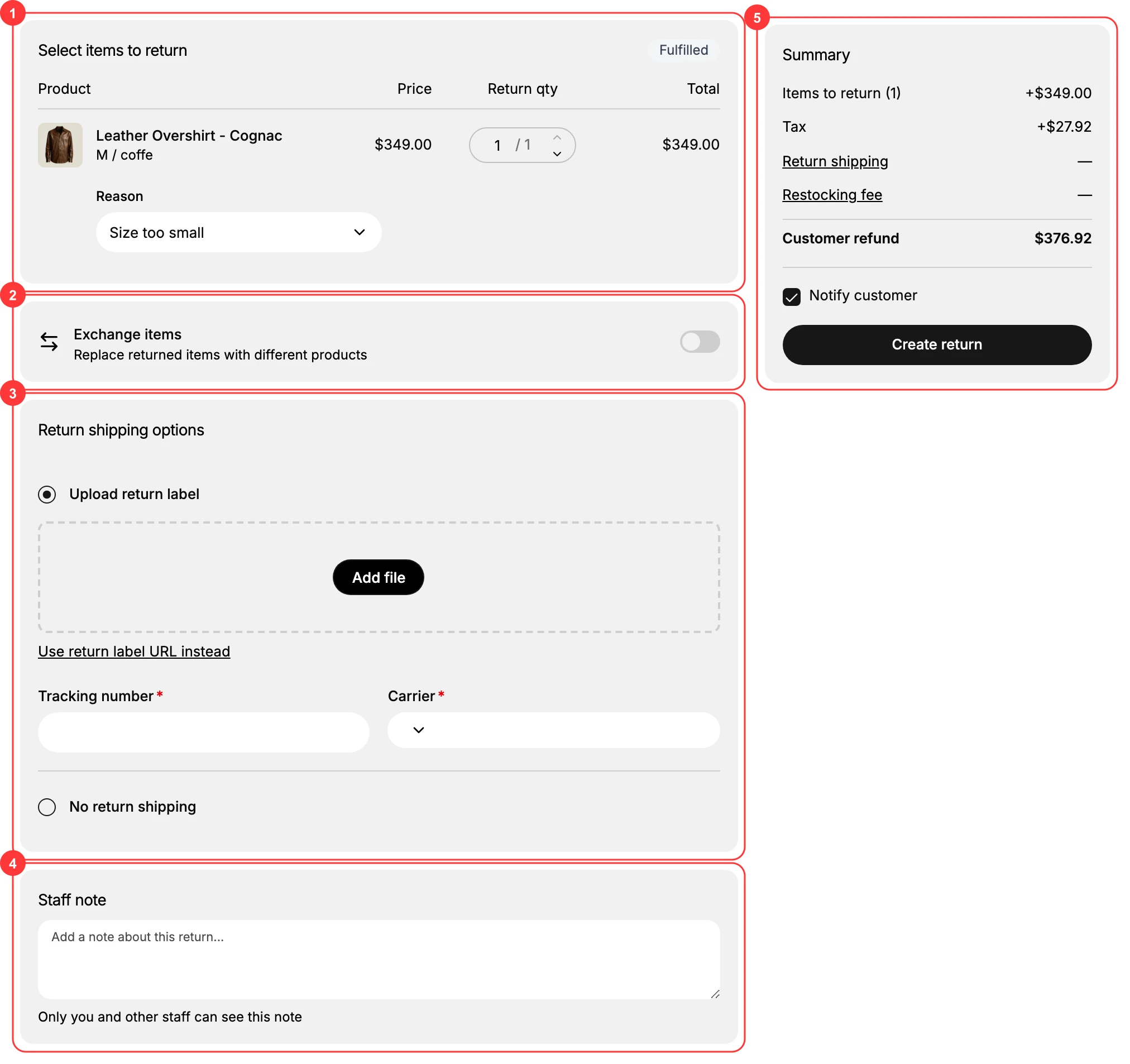
Open the fulfilled order and select Return. The Create return page opens in two columns. The form on the left is where you set the return up, working down through Select items to return (1), the Exchange items switch (2), Return shipping options (3), and the Staff note (4). The Summary (5) on the right adds up what you have chosen and carries the Create return button, so it is worth glancing at as you go rather than only at the end.
2. Select the items and quantities
Under Select items to return (1), each fulfilled item shows its Product, Price, a Return qty you set, and the Total for that line. Set the return quantity for each item the customer is sending back, up to the quantity that was fulfilled. Only the items and quantities you set here are part of the return, so match them to what the customer is actually returning. See Select Items to Return for more.
3. Set up an exchange if needed
The Exchange items toggle (2) turns the return into an exchange, replacing the returned items with different products instead of refunding. Leave it off for a plain return, or turn it on when the customer wants a different item, which Exchange walks through.
4. Choose the return shipping
Under Return shipping options (3), decide how the item comes back. There are two routes, and you pick the one that matches how you handle return postage.
- Upload return label is for when you are providing the label. You add a label file, or use the link to give a return label URL instead, and you can record a Tracking number and a Carrier alongside it.
- No return shipping is for when you are not sending a label at all, such as a return the customer posts at their own cost or brings back in person.
5. Add a staff note
Use Staff note (4) to record anything your team should know about this return, such as the condition the customer described or an agreement you made with them. Only you and other staff can see it, so it is the place for context that helps whoever processes the return later without going to the customer.
6. Decide whether to notify the customer
The Summary on the right of the page shows what you are returning, and beside it sits Notify customer, which decides whether the customer is told that the return has been created.
- Leave it on when the customer asked for the return and is expecting confirmation.
- Turn it off when you are recording a return that was already agreed another way, so they are not sent a duplicate message about something they already know.
A return can also start from the customer's side rather than yours. Your team is told when that happens through the New return request alert, which Staff Notifications sets up.
7. Create the return
Review the summary, then select Create return. That is the point the return starts on the order, so check the quantities and the shipping choice before you use it.
Two things change on the order at that moment. It picks up a Return In Progress badge beside its payment and fulfillment status. The return appears on the order as a card of its own, numbered after the order with an R suffix, such as #1017-R1, carrying its own In Progress state and a Process return action. If the order had been archived, creating the return also unarchives it, which is deliberate: a return is open work, and an archived order is one you have finished with.
Best practices
- Match the quantities to the real return. Set the return quantity to what the customer is actually sending back so the order stays accurate.
- Use an exchange when they want a different item. Turning on Exchange items avoids a refund-and-reorder for a simple size or color swap.
- Choose return shipping to fit your process. Upload or link a label when you provide return postage, or choose No return shipping when you do not.
- Note anything unusual. A staff note keeps context with the return for whoever handles it next.
If something goes wrong
- There is no Return option on the order. The order must be fulfilled first, since a return is against shipped items.
- You cannot create the return. The Create return button stays inactive until you have selected at least one item to return.
- You cannot manage the return. Your role may not allow managing orders and returns. Ask an owner or admin.
Next steps
Related articles
Still stuck?
- Ask Tanqory AIAsk in your own words. It answers from these articles and links the ones it used.
- Ask in your adminThe assistant in your Tanqory admin answers and makes the change for you once you confirm.
- Contact TanqoryWrite to our privacy, security or legal teams, or talk to sales about a plan or a move.