Exchange
An exchange replaces the items a customer returns with different products instead of refunding them. You set it up on the Create return page by turning on Exchange items and adding the replacement products.
On this page
An exchange lets a customer swap the items they return for different products, instead of getting their money back. It is a good fit when a customer wants a different size, color, or item rather than a refund. You set it up on the Create return page by turning on Exchange items and choosing the replacement products to send. This article covers the exchange option; and Create a Return takes the whole return page.
What Exchange items does
| Element | What it does |
|---|---|
| Exchange items toggle | Turns the return into an exchange, replacing returned items with different products |
| Exchange items section | Where you add the replacement products to send to the customer |
| Add products | Opens a picker to choose the replacement products and variants |
| Create exchange | Creates the exchange instead of a plain return |
Before you begin
- Check the order is fulfilled first. The Return button only appears once items have shipped, so an unfulfilled order has nothing to return yet.
- Check the order has no return already open. One part way through shows Return In Progress at the top and drops the Return button, leaving only Refund.
- Your role includes Manage returns and exchanges.
- You are on the Create return page for a fulfilled order, with the returning items selected.
- Open Orders > Overview in the admin sidebar and open the order, then select Return.
Steps
1. Turn on Exchange items
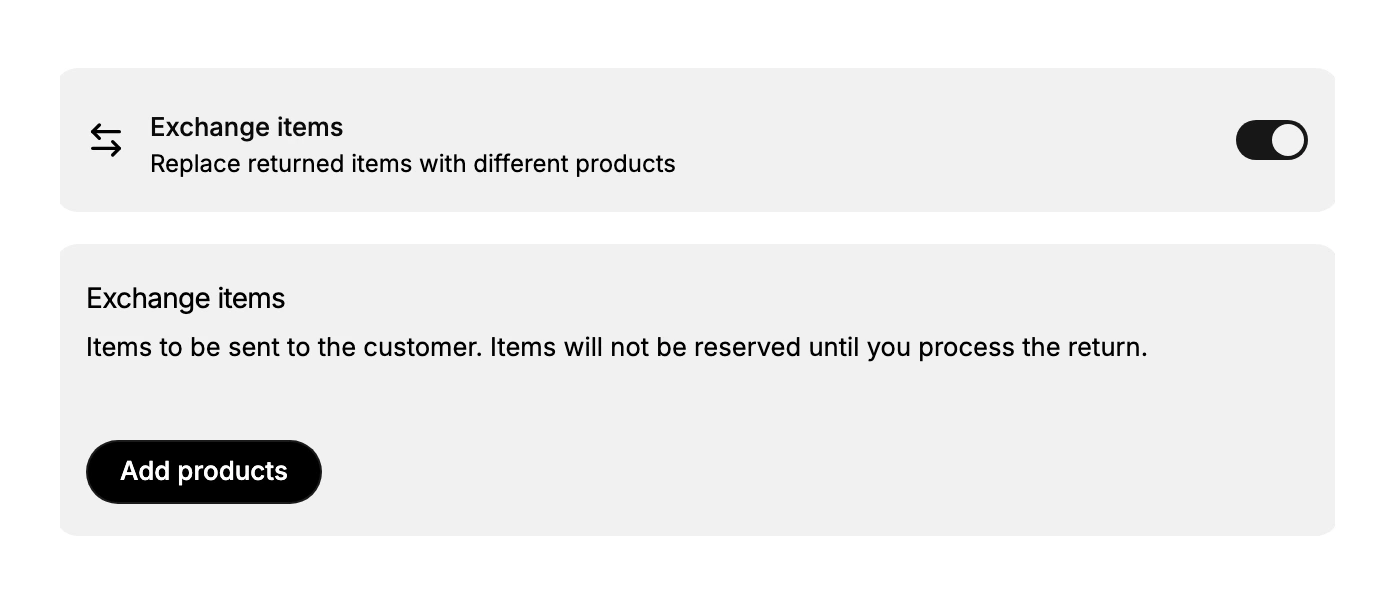
On the Create return page, find the Exchange items card, described as "Replace returned items with different products", and turn its toggle on. An Exchange items section appears below, and the Summary button changes to Create exchange.
2. Add the replacement products
In the Exchange items section, select Add products to open the product picker, then choose the products and variants to send to the customer in place of the returned items. These are the items to be sent to the customer. A note explains that the items will not be reserved until you process the return, which Exchange Items Pending explains.
3. Create the exchange
With the returning items selected and the replacement products added, select Create exchange to create the exchange. The difference in value between the returned items and the replacements is handled as part of the exchange, and Exchange Value Calculation shows the arithmetic. Review both sides before you create it, so the customer sends back the right items and receives the right replacements.
Creating the exchange does not move any stock. The return appears on the order marked In Progress, and the replacements stay unreserved until you process it, which is the step that receives the returned goods and releases the new ones. Restock a Return covers that stage.
Best practices
- Use an exchange for a simple swap. When a customer just wants a different size or color, an exchange is cleaner than a refund and a new order.
- Add the exact replacements. Choose the products and variants the customer actually wants, so the exchange sends the right items.
- Check the value difference. Confirm how any price difference between the returned and replacement items is settled before you create the exchange.
- Remember stock is not held yet. Replacement items are not reserved until you process the return, so availability can change.
If something goes wrong
- The Exchange items section is missing. Turn on the Exchange items toggle on the Create return page to reveal it.
- A replacement is out of stock. Items are not reserved until you process the return, so confirm availability before relying on it.
- You cannot create the exchange. Select the returning items and add the replacement products first; both are needed.
Next steps
Related articles
Still stuck?
- Ask Tanqory AIAsk in your own words. It answers from these articles and links the ones it used.
- Ask in your adminThe assistant in your Tanqory admin answers and makes the change for you once you confirm.
- Contact TanqoryWrite to our privacy, security or legal teams, or talk to sales about a plan or a move.