Issue a Refund
The Refund page: choosing the items and quantities, the staff-only reason, the summary that works out the total, the notification that goes out unless you clear it, and the button that carries the figure you are about to send back.
On this page
The Refund page returns money to a customer for an order. You pick which items and how many, record a reason for your own team, confirm where the money goes and how much, and issue it. A refund can be the whole order or part of it, up to the amount still available.
Two things make this page unlike the rest of the order screens. It moves real money, and the items you refund are taken off the order. Neither is undone by clicking again.
Note: The page says it plainly at the top: if you need to update prices or quantities, edit the order instead. A refund is for money you are giving back, not a way to correct an order.
Before you begin
- The order has a payment that can be refunded. The page shows an Available to refund figure, and that is the ceiling.
- You know how much you are giving back and why. The amount follows the items you pick, but you can also type a different one, so the decision is yours before you arrive.
- Decide whether the customer should be emailed about it, because the page offers to do that and arrives with it switched on.
- Open Orders > Overview, open the order, and select Refund.
Steps
1. Open the Refund page from the order

Open the order and select Refund (1), the first of the four actions along the top. Return sits next to it and does a different job: a return brings goods back, a refund sends money back, and one does not require the other.
The button is there whatever the fulfillment status, so an order that has not shipped can still be refunded.
2. Set the refund quantity for each item
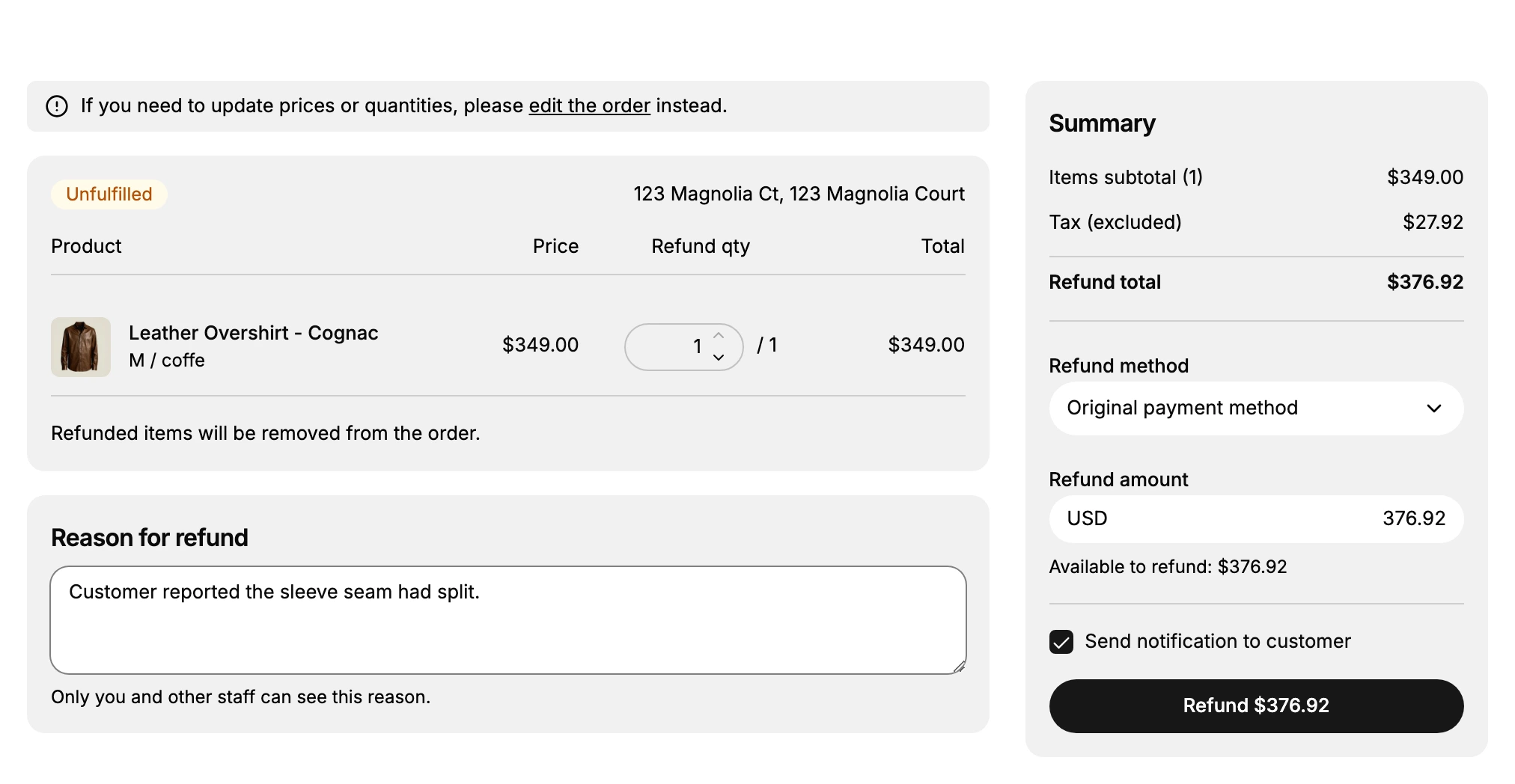
Each row shows the Product, its Price, a Refund qty you set, and the line Total. Set the quantity for each item you are refunding, using the arrows or by typing.
The quantity is capped at what is on the order, exactly as it is on a return: type a larger number and it drops back when you leave the field. The line Total fills in as you go, and beneath the rows the page repeats that refunded items will be removed from the order.
3. Record a reason
Reason for refund takes a free-text note, and the page states underneath that only you and other staff can see it. The customer never reads it.
It is worth writing properly. Weeks later this is the only explanation of why money left, and a line such as the seam had split tells your team more than a blank field or the word refund.
4. Check the summary
The Summary on the right does the arithmetic. Before you pick anything it reads No items selected. Once you do, it breaks the refund into three lines.
| Line | What it holds |
|---|---|
| Items subtotal | The count you chose and what those items came to. |
| Tax (excluded) | The tax on them. |
| Refund total | The two added together, which is what the customer gets. |
Below that, Refund method decides where the money goes, with Original payment method the usual choice, and Refund amount holds the figure in your store currency. It fills in from the items automatically, so a single item at $349.00 with $27.92 of tax gives a Refund total of $376.92 and an amount to match.
Available to refund sits under the amount and is the ceiling. The amount field is editable, so you can refund less than the items come to by typing a smaller figure, which is how you handle a partial refund on a full-price line.
5. Decide whether to tell the customer
Send notification to customer sits just above the button and arrives switched on, so a refund emails the customer unless you clear it.
Leave it on for an ordinary refund; the customer is expecting the money and the message is the confirmation. Clear it when you are correcting something internally and a message would only confuse, or when you have already told them yourself.
6. Issue the refund
The button carries the figure, reading Refund $376.92 rather than just Refund, which is your last check that the amount is the one you meant. It stays inactive until something is selected.
Press it and the money goes back, the refunded items come off the order, and the customer is emailed if you left the notification on. There is no undo. If you are unsure about any part of it, the safe move is to leave the page and come back, because nothing here is saved until you press the button.
Verify the result
- The order gains a refund chip at the top, reading Partial Refund where only part of it was returned.
- Its payment card now runs Original order with the amount it started at, the recalculated Subtotal and Total, the amount Paid, a Refunded amount as a negative figure. Under it sit the Reason you typed and a Net payment, which is what you have actually kept.
- The timeline carries a line reading that you refunded the items, with the time it happened.
Best practices
- Refund only what you mean to. Refunded items leave the order, so the quantities are the decision, not just the amount.
- Stay inside Available to refund. It is the ceiling, and it already accounts for anything refunded before.
- Write the reason for your future self. It is the only record of why the money went back.
- Check the figure on the button before you press it, since that is the number that leaves.
If something goes wrong
- You wanted to change a price or a quantity. Edit the order instead, as the notice at the top says. A refund is not a correction tool.
- The amount is not what you expected. It follows the items and quantities you chose, and it cannot pass Available to refund.
- The number you typed changed by itself. It was above the quantity on the order, so it dropped back when the field lost focus.
- The button will not press. Nothing is selected yet. Set a refund quantity of at least one.
- You cannot issue a refund at all. Your role may not allow managing orders and refunds. Ask an owner or an admin.
Next steps
Related articles
Still stuck?
- Ask Tanqory AIAsk in your own words. It answers from these articles and links the ones it used.
- Ask in your adminThe assistant in your Tanqory admin answers and makes the change for you once you confirm.
- Contact TanqoryWrite to our privacy, security or legal teams, or talk to sales about a plan or a move.