Select Items to Return
The section on the Create return page where you choose what is coming back: how the quantity is capped at what was fulfilled, the reason that appears once you pick one, and the summary lines your choice produces, including tax.
On this page
When you create a return, the Select items to return section is where you pick exactly what is coming back. It lists the order's fulfilled items and lets you set a return quantity for each, so the return covers only what the customer is actually sending back. Getting this right keeps the order and any refund accurate. You reach it on the Create return page, which you open by selecting Return on a fulfilled order. This article covers the item selection, and Create a Return takes the whole page.
What the section shows
| Column | What it shows |
|---|---|
| Product | The item name and variant, such as size |
| Price | The item's price |
| Return qty | The quantity being returned, which you set, out of the quantity fulfilled |
| Total | The line total for the quantity you are returning |
Before you begin
- The order is fulfilled. The Return button only appears once items have shipped, so an unfulfilled order has nothing to return yet.
- The order has no return already open. One that is part way through shows Return In Progress at the top and drops the Return button, leaving only Refund, so a second return cannot be started alongside the first.
- You know what the customer is actually sending back, and how many of each, since that is the whole of what this section records.
- Open Orders > Overview, open the order, and select Return.
Steps
1. Find the fulfilled items
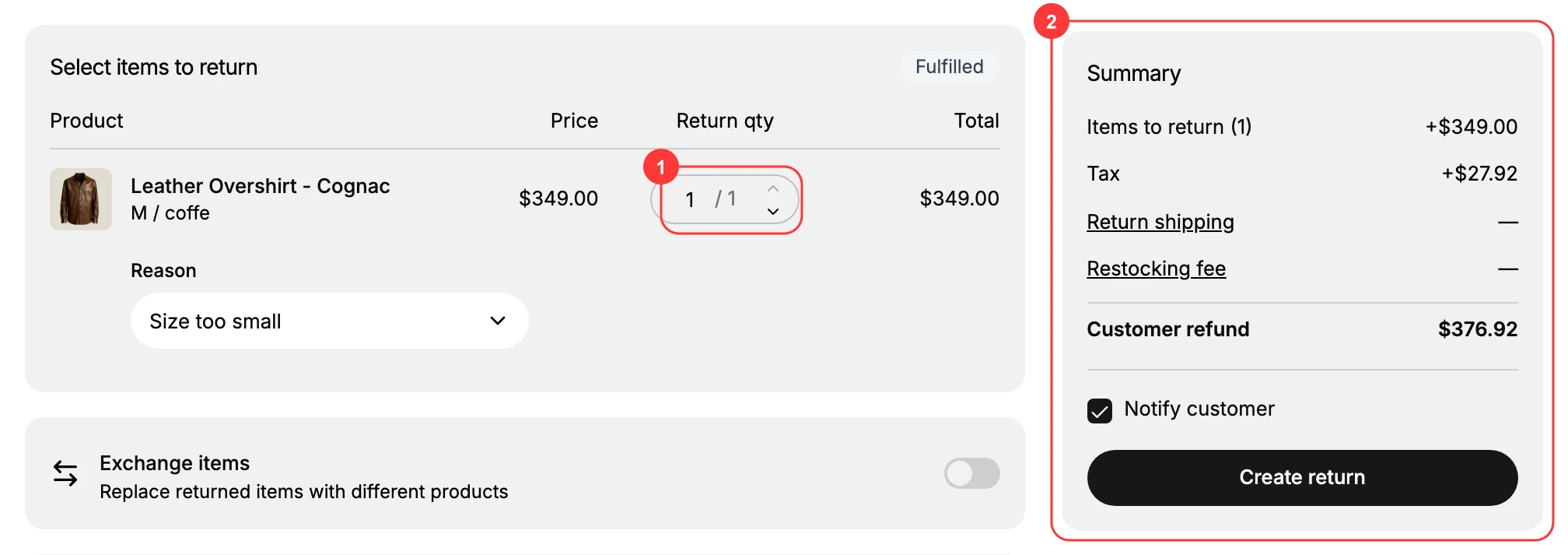
On the Create return page, the Select items to return card is marked Fulfilled and lists the items from the order with columns for Product, Price, Return qty, and Total. These are the items that were shipped and so can be returned. In the image, the Return qty control (1) is where you set how many to return, and the Summary (2) on the right reflects your selection.
2. Set the return quantity for each item
For each item the customer is returning, set the Return qty (1). The control reads as the quantity you are returning out of the quantity that was fulfilled, such as 0 of 1, and it holds you to that. Type a larger number and it is replaced with the fulfilled quantity as soon as you leave the field. The Increase and Decrease arrows beside it do the same job without typing.
Setting a quantity changes two things in the row. The item's Total fills in, so a single unit at $349.00 turns a Total of zero into $349.00, while on a multi-item order anything you leave at zero stays greyed with a Total of zero beside it. A Reason control also appears, holding Unknown until you choose something. It offers eleven values, from Size too small through Item damaged to Other, and it is worth setting rather than leaving, since it is the only record of why the item came back. Return Reasons covers what each one means and when to reach for it.
3. Check the summary
The Summary (2) on the right is where the return becomes money. Until you set a quantity it says only that you still need to select items to return, and the Create return button stays inactive.
Once an item is selected it breaks the return down into five lines:
| Line | What it holds |
|---|---|
| Items to return | The count you chose and what those items came to. |
| Tax | The tax on them, added for you. |
| Return shipping | Reads as empty on this page. |
| Restocking fee | Reads as empty on this page. |
| Customer refund | The total the customer gets back. |
Customer refund is the line to read before anything else, because it is the number the customer will see. On a single item at $349.00 with $27.92 of tax it reads $376.92, the item and its tax together, so tax follows the items without you doing anything. It counts only what you selected, so on a multi-item order anything left at zero stays out of the total.
The other two lines are worth understanding rather than filling in, because nothing on the Create return page sets either one. The page offers a return label and a tracking number, not a shipping charge, and it has no restocking fee control at all.
Both come from your return rules instead. A rule carries a Return shipping cost setting and a Charge restocking fee option, and Return Rules covers how a rule is written and which orders it applies to. The physical side of restocking, putting the goods back into stock, happens later when the return is processed, which Restock a Return covers.
With the items and quantities settled, the selection is done and the rest of the page decides how the goods travel and what the customer hears. Below this section sits an Exchange items switch, for replacing what came back with something else, then Return shipping options, where you either upload a return label or record that there is none, and a Staff note only your team can see. Notify customer, beside the Create return button, decides whether they are told.
Nothing is committed until you press Create return, so the quantities can be adjusted as often as you like first. Create a Return walks the rest of the page and finishes the job.
Best practices
- Return only what is coming back. Set the quantity to match the items the customer is actually returning, not the whole order by default.
- Watch the line total. The Total updates with the quantity, so use it to confirm the value of the return.
- Select before you create. The Create return button stays inactive until at least one item is selected.
If something goes wrong
- An item is not listed. Only fulfilled items appear here, since a return is against shipped items; check the order was fulfilled.
- The number you typed changed by itself. It was above the fulfilled quantity, so it dropped back to that when the field lost focus.
- The Create return button is inactive. Set a return quantity of at least one so there is something to return.
Next steps
Related articles
Still stuck?
- Ask Tanqory AIAsk in your own words. It answers from these articles and links the ones it used.
- Ask in your adminThe assistant in your Tanqory admin answers and makes the change for you once you confirm.
- Contact TanqoryWrite to our privacy, security or legal teams, or talk to sales about a plan or a move.