Cancel an Order
Canceling an order stops it before it ships and, if it has been paid, refunds the customer. In the Cancel order window you choose whether to refund now or later, pick a reason, add a staff note, and decide whether to restock the items and email the customer. Canceling cannot be undone, so the window asks you to confirm. This article walks through the Cancel order window.
On this page
Canceling an order stops it before it ships and, if it has already been paid, refunds the customer. You do it from the order's More actions menu, in the Cancel order window, where you set the refund, a reason, whether to restock the items, and whether to email the customer. Canceling cannot be undone, so the window asks you to confirm. This article walks through that window.
You open it with Cancel order in the More actions menu on the order, reached from Orders > Overview.
The Cancel order window
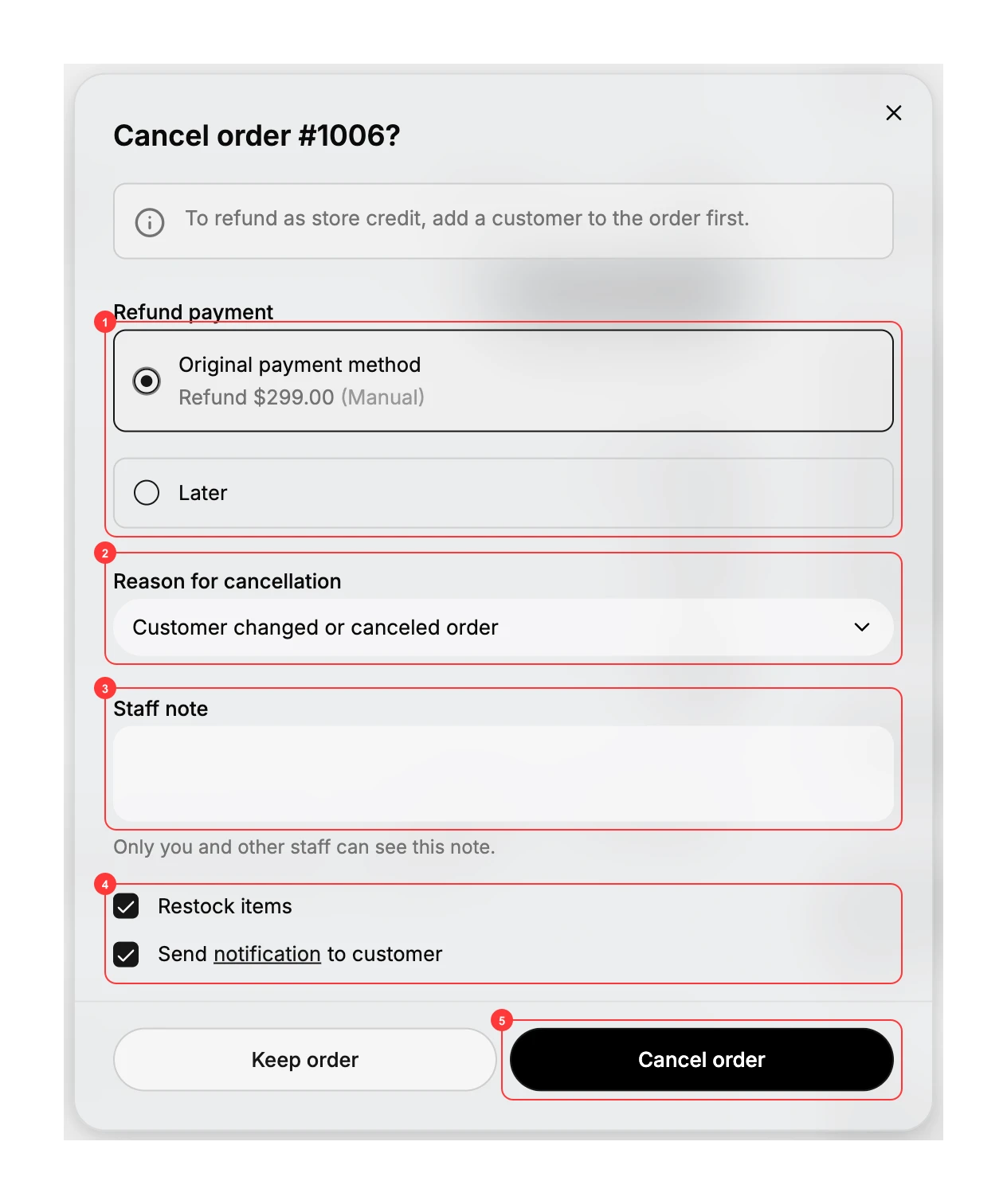
The window is headed Cancel order with the order number, and it gathers the cancellation decisions in one place: the refund, the reason, a staff note, and the restock and notification choices, with Keep order and Cancel order buttons at the bottom. A note at the top explains that to refund as store credit you add a customer to the order first.
Before you begin
- Your role includes Edit orders.
- The order has not shipped, since canceling stops it before fulfillment.
- Open Orders > Overview and open the order, then choose Cancel order from More actions.
Steps
1. Open the Cancel order window
On the order, open More actions and select Cancel order. The Cancel order window opens.
2. Choose the refund
Under Refund payment, choose Original payment method to refund the paid amount now, or Later to cancel now and handle the refund separately (1). If the order has not been paid, there is nothing to refund.
3. Pick a reason for the cancellation
Choose a reason from the Reason for cancellation dropdown (2), such as the customer changing or canceling the order. The reason is kept with the cancellation.
4. Add a staff note if needed
Use the Staff note box to record anything about the cancellation (3). As the note says, only you and other staff can see it.
5. Set restock and notification
Decide whether to Restock items, which returns the items to your inventory, and whether to Send notification to customer, which emails them about the cancellation (4). Both are on by default. The emails your store can send about an order, and what each one contains, are listed under Customer Notifications.
6. Confirm the cancellation
Select Cancel order (5) to cancel. The order is canceled, and the refund, restock, and email run according to your choices. To back out without canceling, select Keep order instead. Canceling cannot be undone.
Best practices
- Pick a reason that fits, so your cancellation records are useful later.
- Restock only items that will actually come back to stock, and clear the option for goods that were consumed or damaged.
- Leave the notification on for a normal cancellation, so the customer knows their order was canceled and refunded.
Common mistakes
- Canceling when you meant to edit or refund. If you only need to change the order, edit it; if it has shipped, a return is usually the right path.
- Restocking items that will not return, which leaves your stock counts too high.
- Turning off the notification on a normal cancellation, so the customer is left unsure what happened.
Next steps
Related articles
Still stuck?
- Ask Tanqory AIAsk in your own words. It answers from these articles and links the ones it used.
- Ask in your adminThe assistant in your Tanqory admin answers and makes the change for you once you confirm.
- Contact TanqoryWrite to our privacy, security or legal teams, or talk to sales about a plan or a move.