Mark an Order as Paid
When a customer pays you outside Tanqory, such as by a bank transfer or on delivery, the order stays Payment Pending until you record the payment. Marking it as paid on the payment card, and confirming in the short window that opens, moves the order to Paid and clears its balance. Only do this once you have actually received the money, since Tanqory cannot check an offline payment for you. This article walks through marking a pending order as paid.
On this page
When a customer pays you outside Tanqory, for example by a bank transfer or on delivery, the order stays Payment Pending until you record that the money arrived. You do that with Mark as paid on the order's payment card, which moves the order to Paid and clears the balance. Only mark an order as paid once you have actually received the money, because Tanqory cannot verify an offline payment for you. This article walks through it.
You do this on the payment card of a pending order, reached from Orders.
The payment card on a pending order
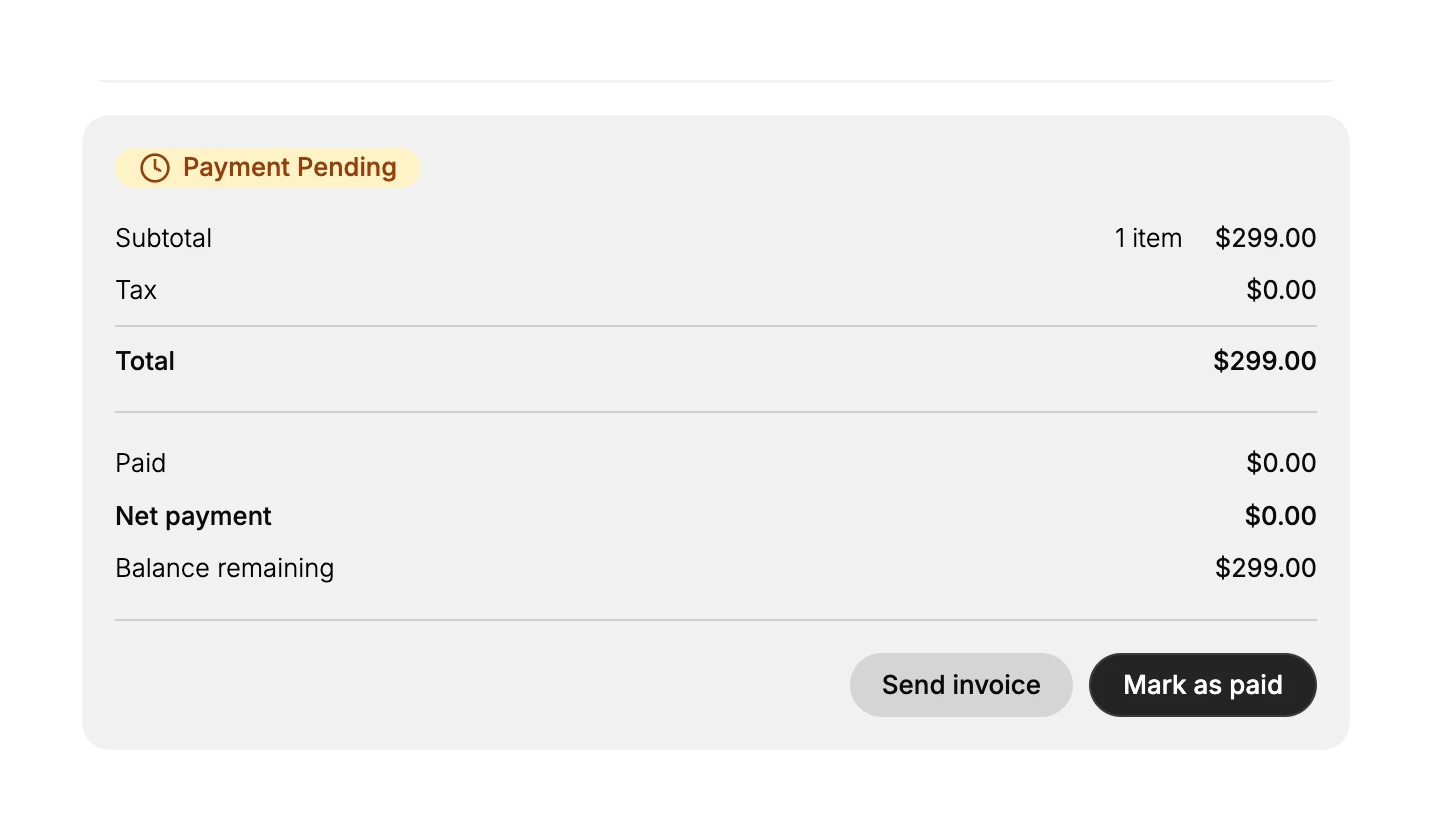
Until the payment is recorded, the payment card shows a Payment Pending badge, a Paid amount of $0.00, and the Balance remaining the customer still owes. It has a Send invoice button and a Mark as paid button. Use Mark as paid once the money has arrived.
Before you begin
- Your role includes Edit orders.
- The customer has actually paid outside Tanqory, since this only records a payment you have received.
- Open Orders and open a pending order, then select Mark as paid on its payment card.
Steps
1. Confirm the payment actually arrived
Before you mark anything, check that you have received the money, for example on your bank statement, since Tanqory cannot confirm an offline payment for you.
2. Select Mark as paid
On the pending order's payment card, select Mark as paid.
3. Confirm in the window
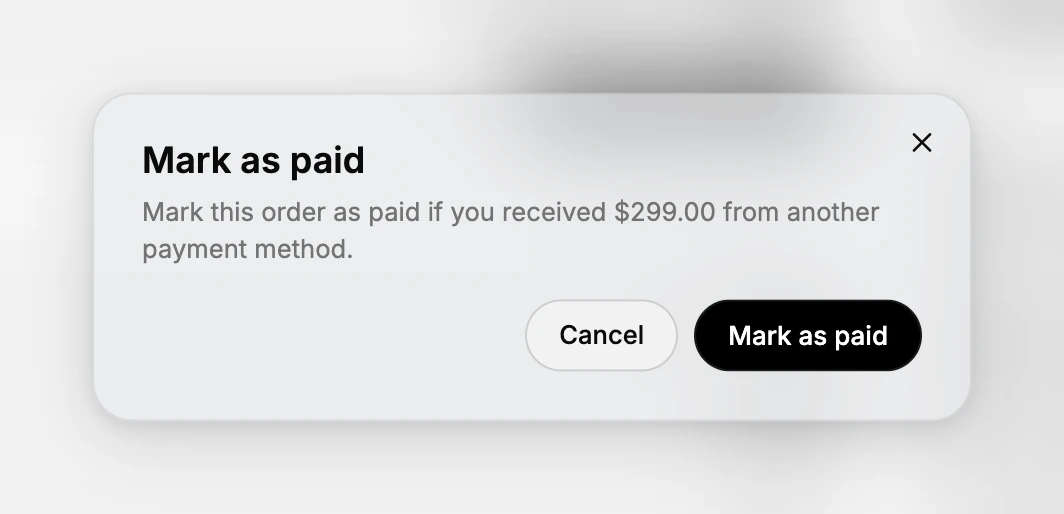
A short window asks you to confirm, noting the amount received from the other payment method. Select Mark as paid to record the payment, or Cancel to stop. Once you confirm, the order moves to Paid and the balance is cleared.
Best practices
- Check the money has arrived before you mark it, since marking as paid only records the payment and does not collect it.
- Match the amount in the window against what you received, so you are recording the right payment.
- Use Send invoice instead when the customer has not paid yet and you want to email them a link to pay.
Common mistakes
- Marking an order as paid before the money arrives, which records a payment you have not actually received.
- Confusing Mark as paid with Send invoice. Mark as paid records a payment you already have; Send an Invoice asks the customer to pay.
- Not checking the amount in the confirmation window against what you were actually paid.
Next steps
Related articles
Still stuck?
- Ask Tanqory AIAsk in your own words. It answers from these articles and links the ones it used.
- Ask in your adminThe assistant in your Tanqory admin answers and makes the change for you once you confirm.
- Contact TanqoryWrite to our privacy, security or legal teams, or talk to sales about a plan or a move.