Draft Orders
The Drafts page lists the orders you have created by hand, grouped by status, with metrics and search to find any one.
On this page
The Drafts page lists the orders you have created yourself in the admin, rather than the orders customers place at checkout. It works like the Orders overview, with a set of metrics, status tabs, search, and a table, but it shows only your draft orders and where each one is in its life. This article walks through the page and how to use it.
You will find this under Orders > Drafts, and you start a new one with Create draft order.
Before you begin
- Your role includes View orders.
- You have created at least one draft, since the page is empty until you do.
- Open Orders > Drafts in the admin sidebar.
The Drafts page
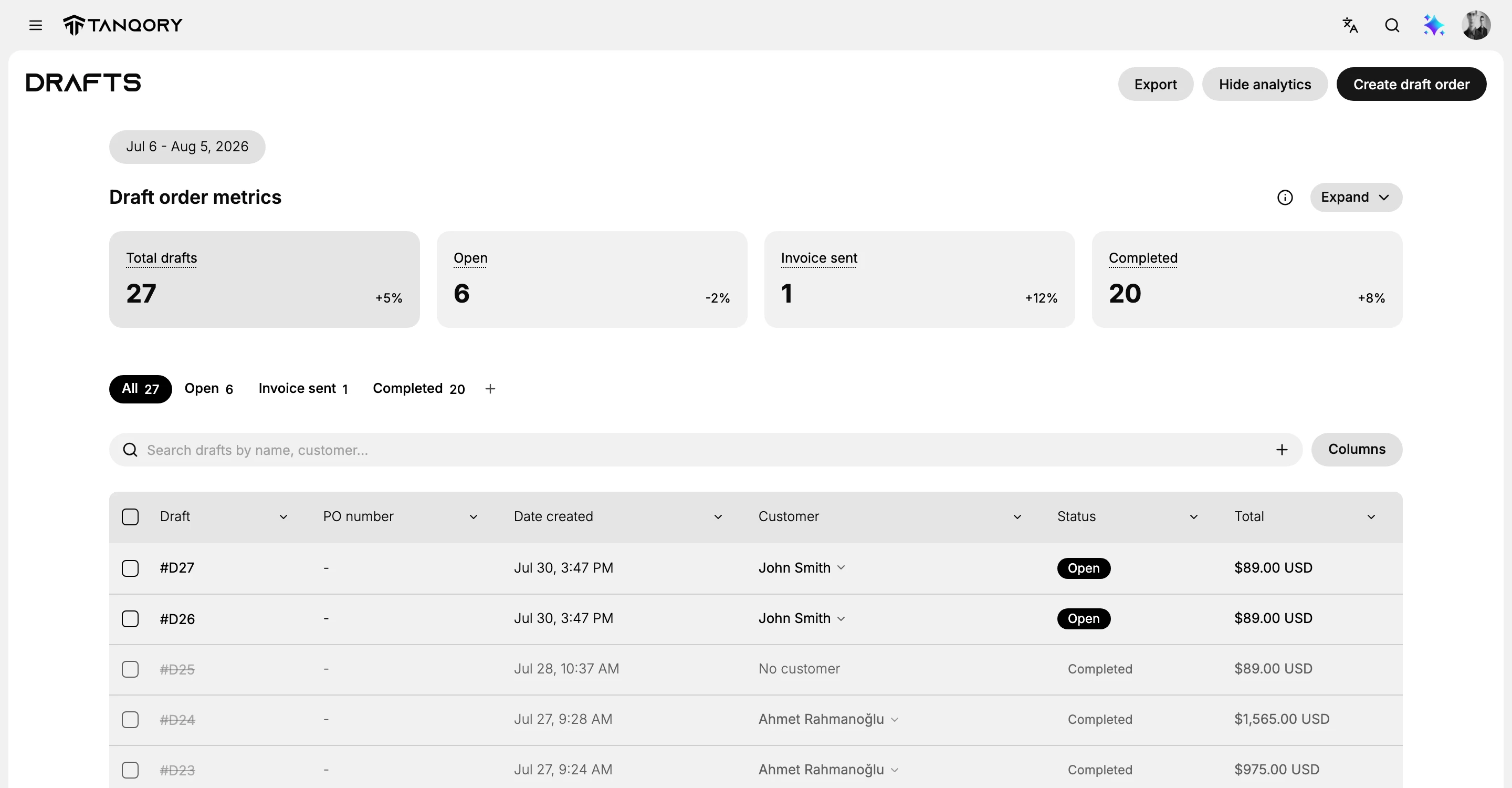
The page is headed Drafts, with Export, Hide analytics, and Create draft order at the top right. Below a date-range pill, the Draft order metrics give a quick read, then the status tabs, search, and the table of your drafts.
Read the draft metrics
The Draft order metrics section shows four cards for the selected period: Total drafts, Open, Invoice sent, and Completed. Together they tell you how many drafts you have and how far along they are. Use the date-range pill to change the period, or Expand for a trend view.
Follow a draft through its statuses
The tabs split the drafts by status, each with a count: All, Open, Invoice sent, and Completed. A draft usually moves through these in order.
- Open is a draft you are still working on or have saved to finish later.
- Invoice sent is a draft where you have emailed the customer a link to pay.
- Completed is a draft that has been paid and turned into an order.
Click a tab to narrow the table to drafts in that state.
Find a draft
Use the Search drafts by name, customer bar to jump to a specific draft by its number or the customer's name. Next to it, Columns lets you choose which fields the table shows, such as PO number, Date created, Customer, Status, and Total.
Open or create a draft
Select a draft from the table to open it and keep working on it, for example to add items, send the invoice, or mark it paid. To start a new draft, use Create draft order at the top right, which opens the draft order form covered in Create a Draft Order.
Best practices
- Use the status tabs to see what needs action. Open drafts are yours to finish, and Invoice sent drafts are waiting on the customer.
- Search by customer when you are looking for a specific person's draft.
- Finish drafts you no longer need, so the list reflects real, active work.
Common mistakes
- Leaving drafts Open indefinitely, so the list fills with orders that were never completed.
- Losing track of Invoice sent drafts, which are waiting on the customer to pay.
- Recreating a draft that already exists, instead of searching for it first.
Next steps
Related articles
Still stuck?
- Ask Tanqory AIAsk in your own words. It answers from these articles and links the ones it used.
- Ask in your adminThe assistant in your Tanqory admin answers and makes the change for you once you confirm.
- Contact TanqoryWrite to our privacy, security or legal teams, or talk to sales about a plan or a move.