Export Orders to CSV
Export your orders to a CSV file: choose which orders to include and the CSV format, then download.
On this page
Exporting orders gives you a CSV file of your order data that you can open in a spreadsheet or hand to another system, such as your accounts. You choose which orders to include and the CSV format, and the file downloads. This article walks through the Export orders window.
You start this with Export on the Orders overview, reached from Orders > Overview.
The Export orders dialog
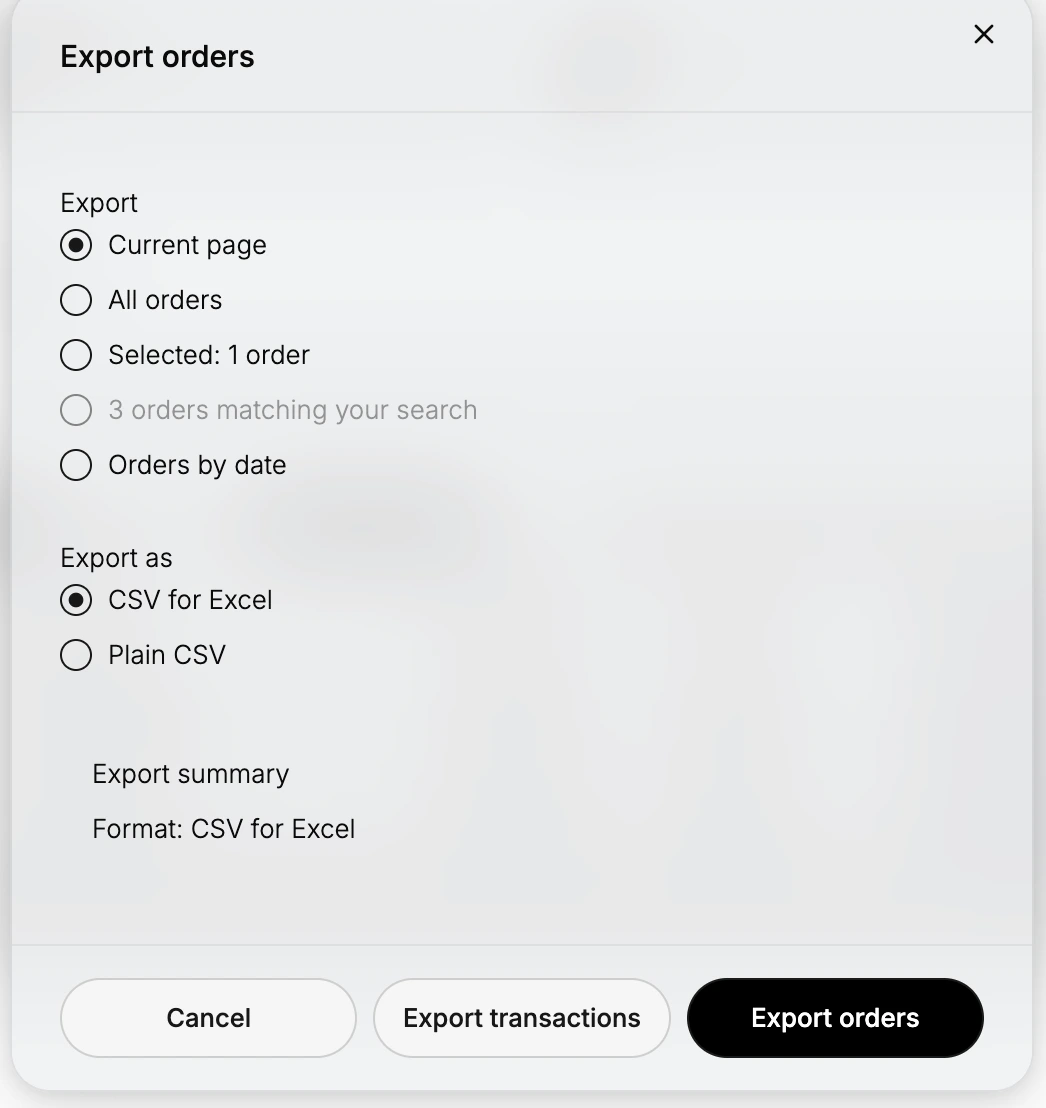
Clicking Export opens the Export orders window, shown above. It has an Export section for choosing which orders to include, an Export as section for the file format, an Export summary of your choices, and the buttons at the bottom.
Before you begin
- Your role includes Edit orders.
- Open Orders > Overview and select Export.
Steps
1. Open the Export orders window
On the Orders overview, click Export. If you first tick one or more orders in the table, the Export option also appears in the selection bar, and the window then offers to export just those orders.
2. Choose which orders to export
Under Export, choose the set of orders to include:
- Current page exports the orders shown on the current page of the table.
- All orders exports every order.
- Selected exports only the orders you ticked, with the count shown.
- Orders by date exports the orders within a date range you set.
An option for the orders matching a search appears when you have searched the list.
3. Choose the CSV format
Under Export as, choose the format:
- CSV for Excel is formatted to open cleanly in a spreadsheet program.
- Plain CSV is a plain comma-separated file for other systems.
The Export summary below shows the format you have chosen.
4. Export
Click Export orders to create and download the file. Use Export transactions instead if you want the transaction records rather than the orders, or Cancel to close the window without exporting.
Best practices
- Export All orders for a full record, and use Current page or Selected for a quick, smaller file.
- Choose CSV for Excel when you will open the file in a spreadsheet, so the columns line up cleanly.
- Use Orders by date to export a specific period, for example for a monthly reconciliation.
Common mistakes
- Exporting the current page when you meant all orders, which leaves out everything beyond the first page.
- Picking the wrong format, so the file does not open cleanly where you need it.
- Confusing Export transactions with Export orders, which return different data.
Next steps
Related articles
Still stuck?
- Ask Tanqory AIAsk in your own words. It answers from these articles and links the ones it used.
- Ask in your adminThe assistant in your Tanqory admin answers and makes the change for you once you confirm.
- Contact TanqoryWrite to our privacy, security or legal teams, or talk to sales about a plan or a move.