Invite Team Members
An invitation gives someone their own login to your store instead of a copy of yours. The form asks three things: who it goes to, whether they must add a second sign-in step, and which roles they get. After you send it, the invitation sits on the Pending tab until they accept it or it expires.
On this page
When someone new starts working on your store, the thing to avoid is handing over your own email and password. Two people behind one login means no record can tell you which of them made a change. It also means that the day one of them leaves, you have to change the password for everybody. An invitation avoids both: the person builds their own account, with their own password, and you decide in advance how much of the store it reaches.
An invitation is not the same as access. Nothing changes on your store the moment you send one. The person has to open the email and set up their account, and until they do, the invitation counts as pending rather than as a member.
Before you begin
- Your role includes People settings, the permission that covers adding and removing people.
- You have an email address each person reads, and you know which roles they need.
How many people you can have
Your plan sets how many team members the store can hold, and the owner is one of them.
| Plan | Price per month | Team members |
|---|---|---|
| Starter | $19 | 2 |
| Growth | $49 | 5 |
| Business | $149 | 15 |
| Scale | $399 | 50 |
| Enterprise | $1,999 | Unlimited |
Two members is the owner plus one helper, so a Starter store is full on its first real hire rather than its tenth. There are two ways past that, and they cost differently. Moving up a plan buys a block of members along with everything else in that tier. Buying seats one at a time does not: Settings > Purchase has an Add-ons category holding Additional Staff Seat at $5 per month, with a Buy button beside it. A store that needs a third person and nothing else is better off with the seat. A store that would use the rest of the tier anyway is better off with the plan.
Finding the page
The Users page is not on the main menu. Select the menu button at the top left of the admin, scroll to the bottom of the list that opens and choose Settings > Users. Users sits between Policies and Notifications in the settings list, and it carries its own arrow because Roles and Security belong underneath it.
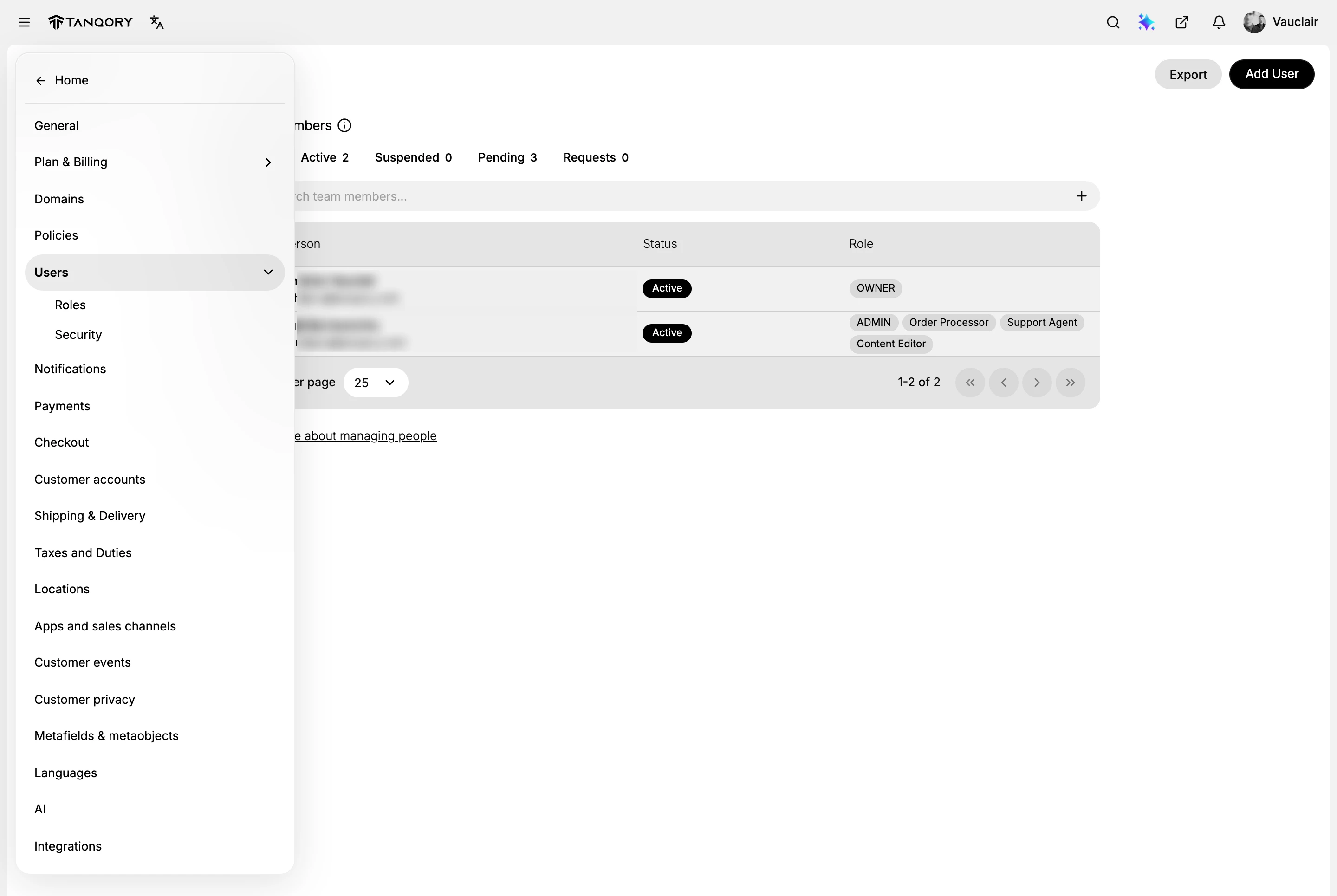
The page opens on Team members, the list of everyone who already has access. Add User, at the top right, opens the invitation form.
The form asks you three things
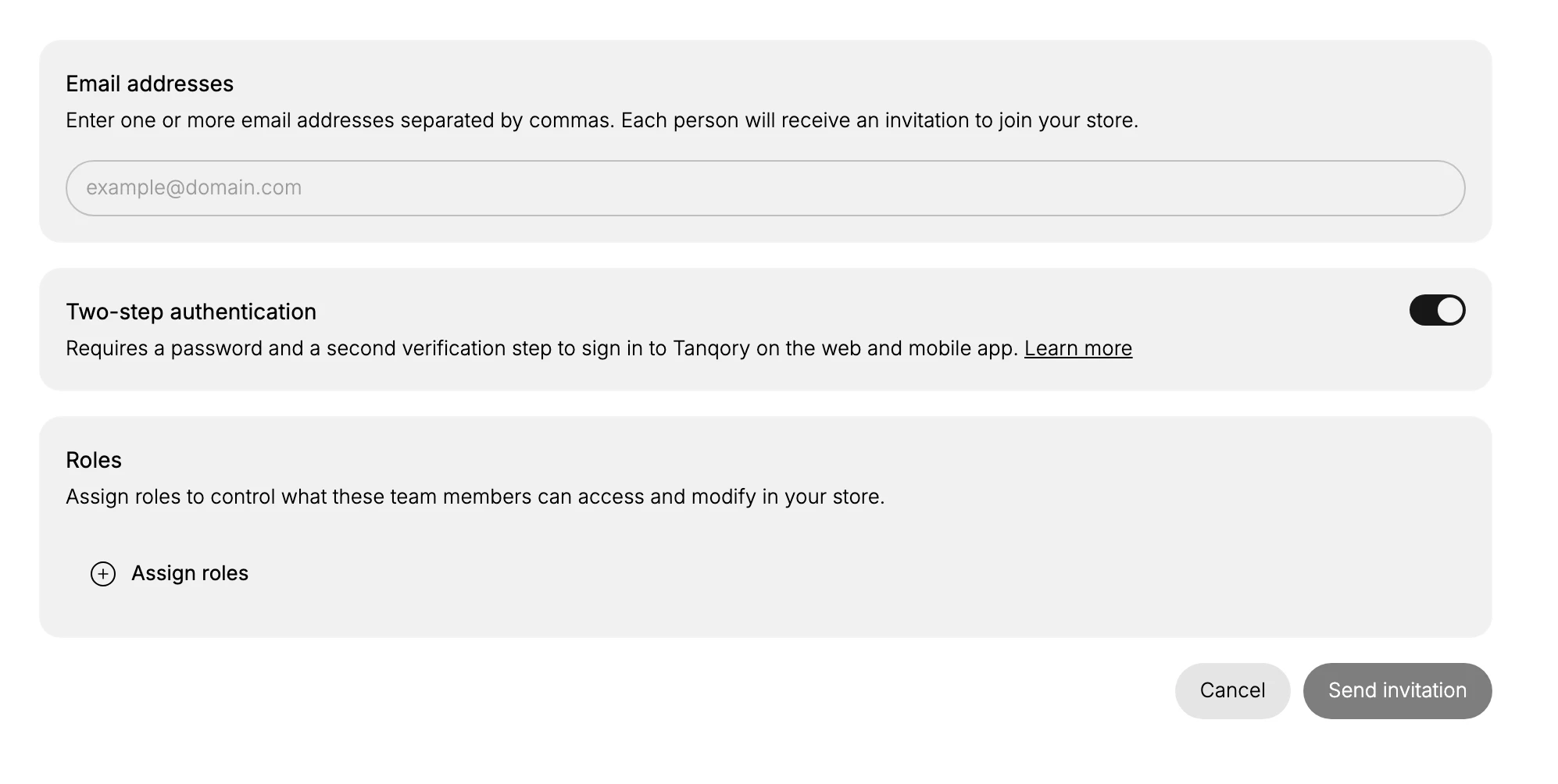
Everything you decide sits on a single screen, so there is no sequence of screens to work through. Read the form as three questions.
Note: The form empties itself if you press Escape to close the role list, or if you move the two-step toggle after typing. Set the toggle first, enter the addresses next, and close the role list by clicking outside it.
Who it goes to
Email addresses takes one address, or several separated by commas, which invites a whole department in one pass. The address does more than carry the message: it becomes the person's login name, so it has to be an address they control rather than a shared inbox. An address with one character wrong still belongs to somebody, which is why it is worth reading back before you send.
Whether they must add a second sign-in step
Two-step authentication decides whether this person needs their password plus a second check, both on the web and in the mobile app. The toggle arrives switched on, so the safe answer is the one you get by leaving it alone.
Switching it off is a decision, not a default. It suits someone joining with read-only access, where a stolen password reaches nothing worth changing, and it suits a person who cannot receive a code on a phone. Off means their password is the only thing in the way until they turn two-step on for themselves.
What they can do once they are in
Assign roles opens the store's full list of roles, each with a line saying what it covers. Three are described in the broadest terms: Admin manages most settings and team members, Editor covers products, orders and content, and Viewer is read-only. Below them are four roles named after the jobs they suit, Store Manager, Content Editor, Order Processor and Support Agent, followed by any role your store has built for itself. Pick more than one and the person gets everything those roles allow, added together. If nothing on the list fits, the list ends with Create new role.
A role is not optional here. Send invitation stays grey and unusable while the Roles section is empty, however complete the rest of the form looks, so an invitation cannot go out with nobody having decided what the person may touch. Once a role is chosen it appears as its own row with Remove beside it, and an Add more roles control takes the place of Assign roles.
Checking what the role actually allows
A one-line description is thin ground for a decision about access, and the form knows it. The moment a role lands in the Roles section, a Permission summary appears below it, headed "Combined permissions from all assigned roles". It breaks the store into fourteen areas, thirteen of which carry the name of a section in the navigation menu, and against each one it counts how many of that area's permissions this person is getting.
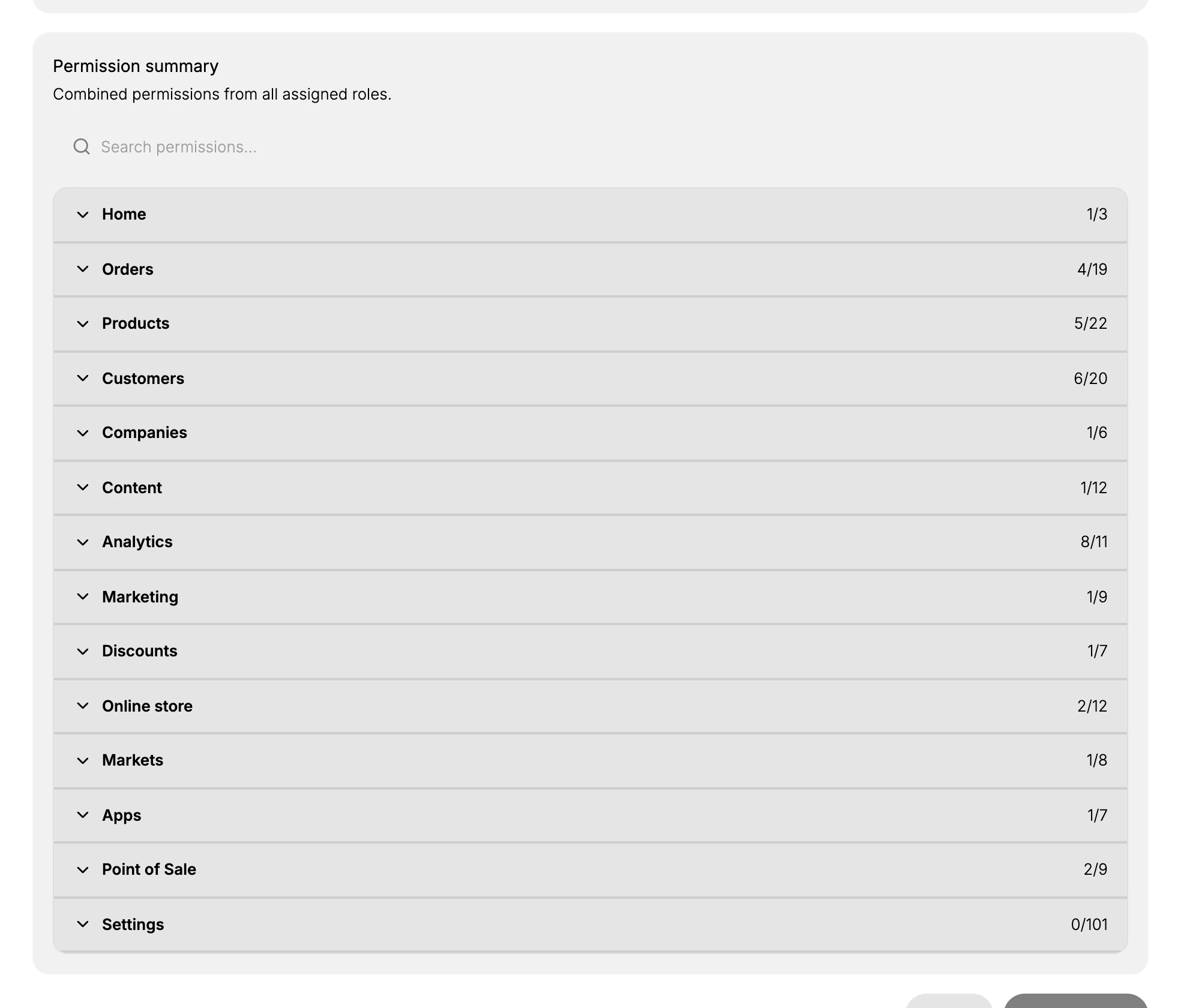
Read the numbers before you send, because they are the difference between a role's name and what it does. Viewer comes to 34 permissions out of the 246 in the store, and none of the 101 under Settings. Editor comes to 141, also with nothing under Settings. Admin comes to all 246, Settings included, which is the whole store and the reason it is not a role to hand out for convenience. The heading says combined for a reason: assign a second role and the counts rise to cover both.
The summary counts permissions rather than screens, so an area reading 4 of 19 does not tell you which four. Expanding an area lists them, and the search box above the list finds a single permission by name when you know what you are looking for.
What the person sees once they are in
The navigation menu is the plainest proof of what a role reaches. A section this person has no permission for still appears in the menu, but in grey rather than black, and clicking it does nothing at all. Nothing is hidden, so they can see the shape of the admin while being unable to open the parts that are not theirs.
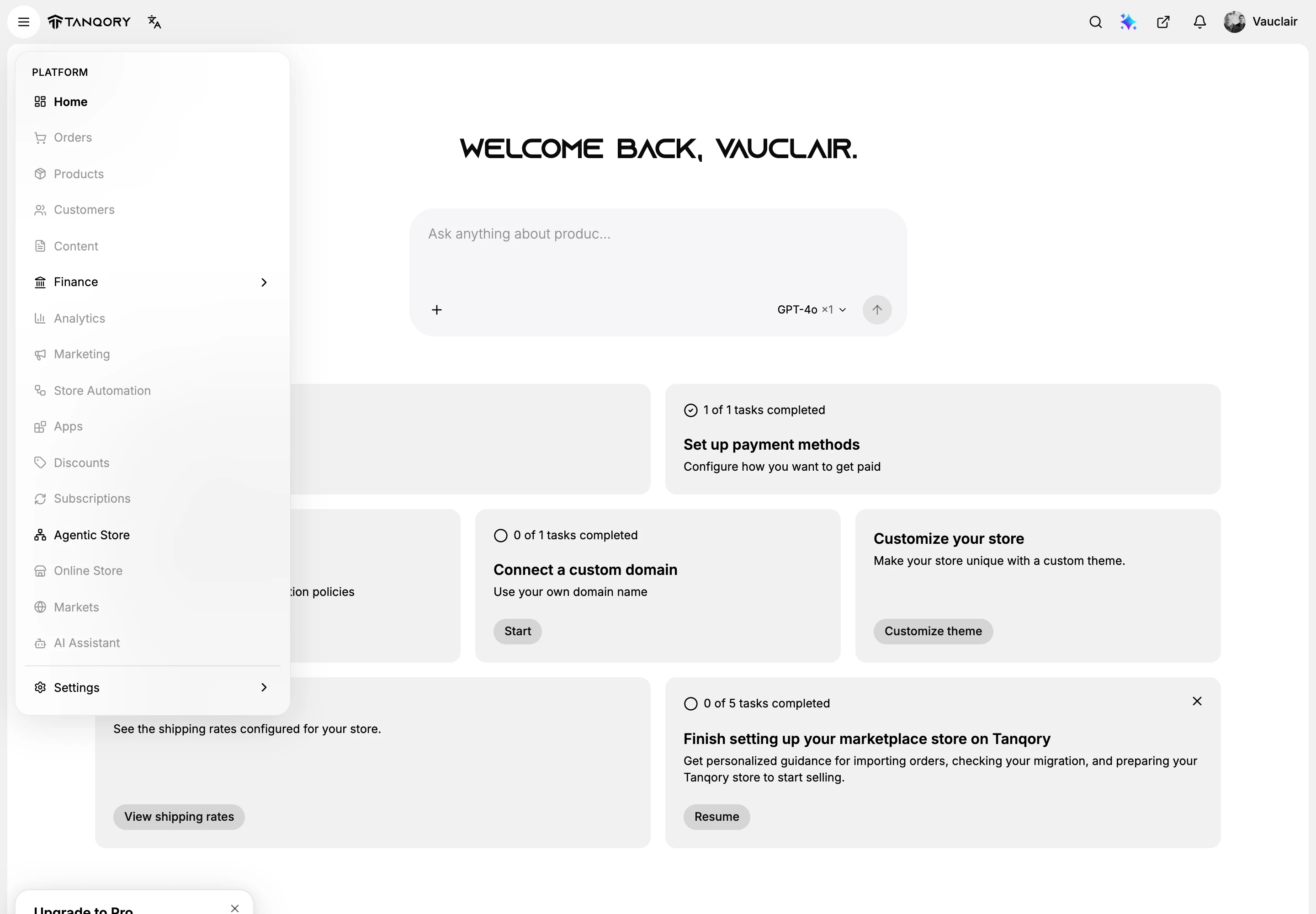
That makes the menu a check you can run after the fact. If a colleague says they cannot find something, ask them to open the menu: a grey entry means the role is the reason, and the fix is to widen their roles rather than to look for a fault elsewhere. A black entry means they can reach it and the problem lies further in.
Inviting someone, start to finish
Say you are bringing in a support assistant. Open the Users page and select Add User.
Type their address into Email addresses. It turns into a small tag with a cross on it, which is the form telling you the address has been accepted rather than left half typed, and the cross is how you take it back out. Leave two-step on, since this person will be reading customer records, and assign Support Agent. The form now looks like this.
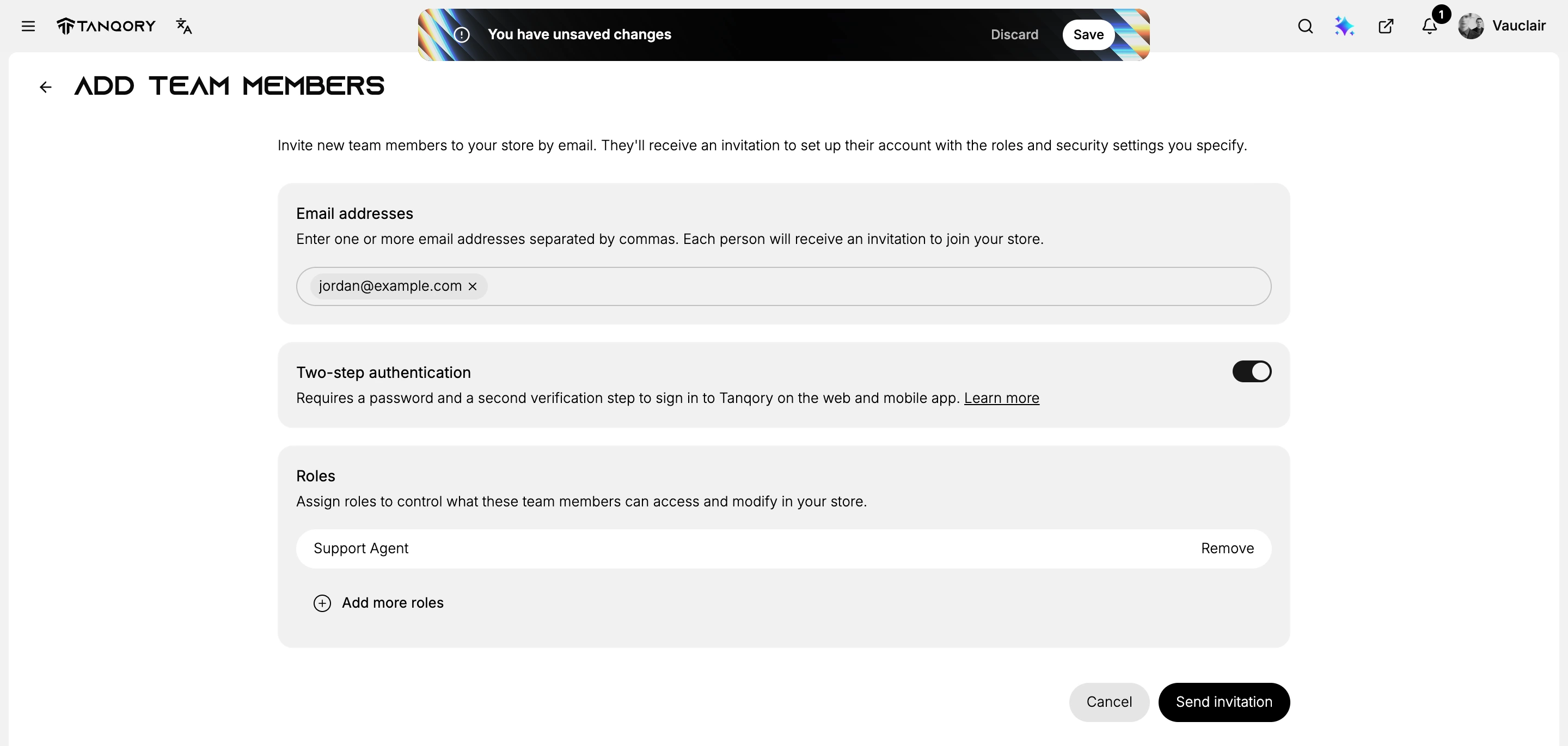
Two things change once the form has content. The Send invitation button turns black, which is the signal that the form has everything it needs. A bar also appears across the top reading You have unsaved changes, with Discard and Save, and that bar is not what you want: it belongs to the form, not to the invitation.
Check the Permission summary against what this person is here to do, then select Send invitation at the bottom of the form. The button reads Sending while it works. Cancel leaves without inviting anyone, which is the way out if you spot a wrong address before it goes.
Then it waits
The invitation lands on the Pending tab of the Users page, where the count in the tab label tells you how many are outstanding. The tab lists the address, the date it was sent, and the role it carries. There is no name yet, because the person has not filled one in.
Invitations do not wait forever. A live one reads Expires in 7 days beside the date it was sent, counting down from there, and once it lapses the same cell reads Expired instead. The link in that old email is then no longer the way in.
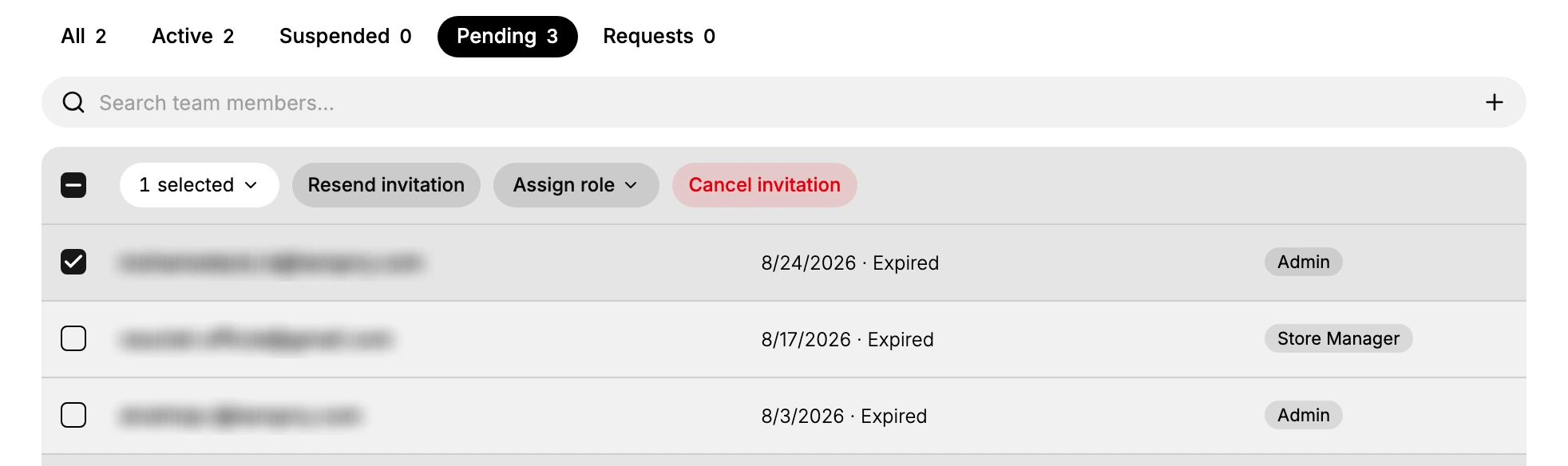
Tick the checkbox on a pending row and three actions appear above the list:
| Action | What it does |
|---|---|
| Resend invitation | Sends the invitation again to the same address, which is what an expired one needs |
| Assign role | Changes the roles the invitation carries, so you can correct them before it is used |
| Cancel invitation | Withdraws it, for an address that was wrong or a person who is no longer joining |
When the person does accept, they leave the Pending tab and appear under Active, this time with a name beside the address and the roles the invitation carried.
If something goes wrong
- Nothing arrived. Check the address on the Pending row for a typo, and have them look in spam. A typo cannot be corrected in place, so cancel that invitation and send a new one to the right address.
- The link says the invitation expired. The row will say so too. Select it and choose Resend invitation.
- They see too much, or too little. If they have not accepted yet, use Assign role on the pending row. If they have, change their roles from their entry under Active.
- Add User does nothing, or is missing. Your own role may not include People settings, in which case an owner or another admin has to send the invitation.
- The store has no room for another person. You have reached the member count your plan allows, and the answer is a seat or a bigger plan, as above.
Next steps
- Roles and Permissions for building a role when none of the existing ones fit.
- Manage Users
- Manage Team
Related articles
- Enable Two-Factor Authentication sets the requirement for everyone at once instead of per invitation.
- Two-Factor Authentication
- Users for what else the Users page holds.
Still stuck?
- Ask Tanqory AIAsk in your own words. It answers from these articles and links the ones it used.
- Ask in your adminThe assistant in your Tanqory admin answers and makes the change for you once you confirm.
- Contact TanqoryWrite to our privacy, security or legal teams, or talk to sales about a plan or a move.