Subscription Overview
Everything about your store subscription lives under Settings: your current plan and what it includes, your billing cycle and next charge, your payment method and invoices, and the add-ons you can top up. This is the overview that ties them together and explains how billing, cancellation, and refunds work.
On this page
Your Tanqory subscription is what keeps your store running, and everything about it lives under Settings. Two pages hold it: Plan & Billing shows the plan you are on and what it includes, and Billing shows your billing cycle, your next charge, your payment method, and your invoices. This article is the overview that ties them together, so you can see what you are subscribed to, when you are charged, and how changing, canceling, and refunds work.
Before you begin
- Your role includes Billing settings.
- Open Settings and open Billing for your billing cycle, invoices, and payment method, or Plan & Billing for your plan and what it includes.
Where your subscription lives
Your subscription is split across two pages, each answering a different question.
| Page | What it holds |
|---|---|
| Plan & Billing (the Plan page) | Your current plan, its price and cycle, a What's included list, and the actions to change, cancel, or reactivate your plan |
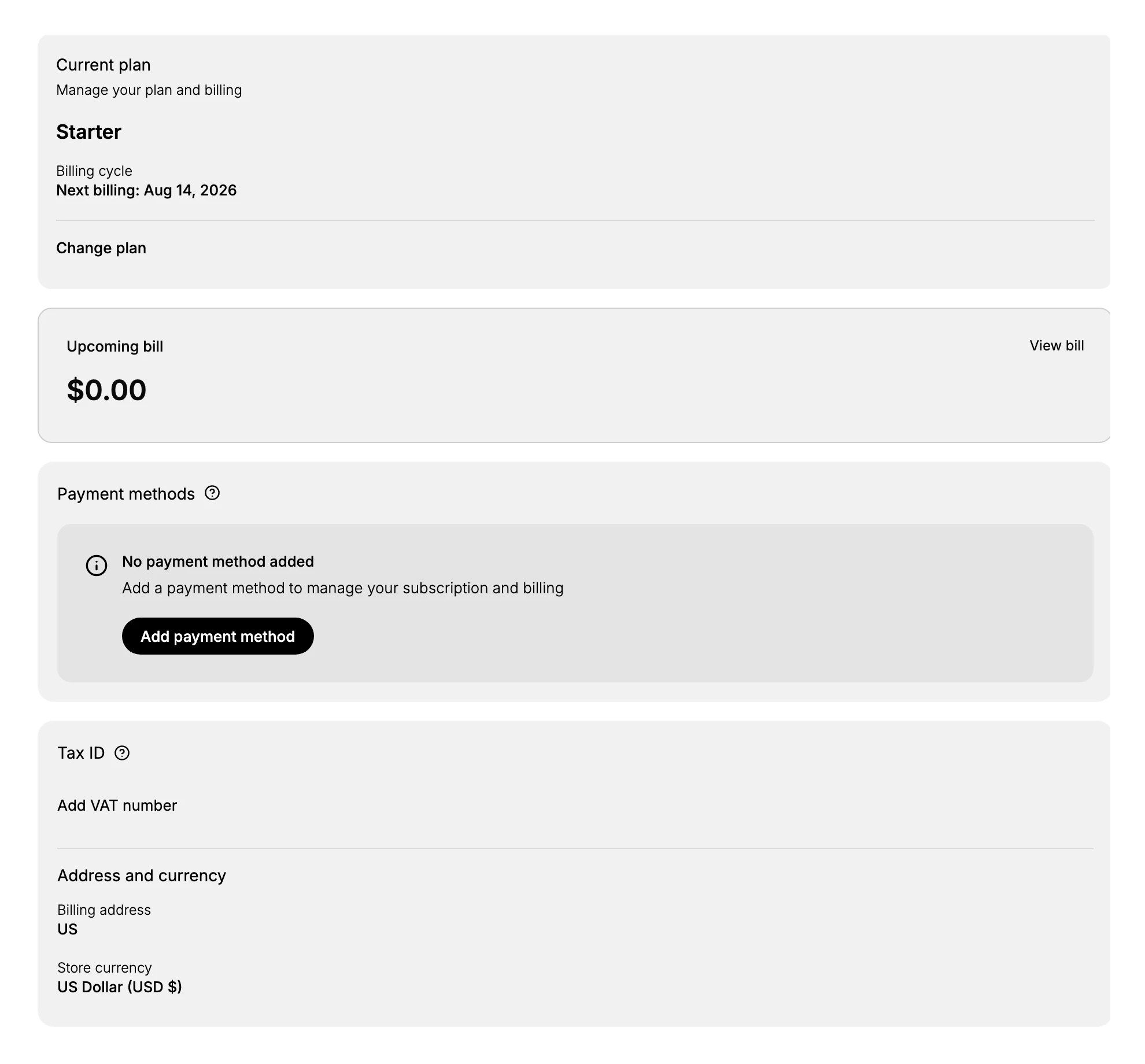
| Billing | Your billing cycle and next billing date, the upcoming bill, your payment methods, your tax ID, your billing address and store currency, and your recent invoices |
Your current plan
The Plan & Billing page names the plan you are on, marks it Current, and shows its price and billing cycle. Its What's included list sets out what the plan gives you, such as a full online store, unlimited products, the checkout, 24/7 support, a free SSL certificate, and all features unlocked. This is the quick answer to what you are paying for. Compare Plans sets your plan beside the others, and Pick Your Plan covers moving to a different one.
Your billing cycle and when you are charged
The Billing page shows your billing cycle and a Next billing date, and an Upcoming bill with the amount due at that date. You choose a monthly or an annual cycle when you pick your plan, and the fee is charged in advance for the period ahead, so a monthly plan is billed at the start of each cycle and an annual plan once for the year.
The cycle runs from the day your plan starts. For example, if a monthly plan starts on the 14th, each charge falls on the 14th, so a bill on 14 June is followed by the next on 14 July, then 14 August, and so on. An annual plan started on that date is charged once and renews on the same date a year later. The Next billing date on the Billing page is always the date of your next charge, and the Upcoming bill is what you will be charged then.
Note: Under the Tanqory Terms of Service, subscription fees are charged in advance on a recurring cycle, for example every 30 days on a monthly plan, and your subscription renews automatically unless you cancel it before the renewal date.
Free trial
A new signup on a monthly plan begins on a free trial rather than on a charge, and nothing is taken from you to start it. No card is asked for at sign-up.
| When | What happens |
|---|---|
| The first 3 days | Free, on the plan you chose, with its full features |
| When those days are up | An email offers that same plan for one more month at $1 |
| When that month ends | You are asked whether to subscribe or renew at the plan's real price |
| If you decide not to | Some features close off and stay closed until a plan is taken up again. Nothing is deleted |
Two things follow for billing. Your first real charge is the $1, not the plan price, so the billing cycle described above begins later than the day you signed up. And declining at the end is a decision you make rather than a charge you have to head off; leaving it alone does not put a full plan price on a card.
Add-ons and balances
Beyond your plan, three things can be topped up from the Compare plans page, each on its own tab. They are separate from your plan fee and are covered in full in Compare Plans.
- AI Credits. Your plan includes a free AI tier that resets each period. When you need more, you buy one-time credit packs that raise the limit.
- Shipping Balance. A prepaid balance you top up to buy shipping labels at cost. Label purchases draw down this balance instead of charging your card each time.
- Migrate Store. Moves your store onto a managed cloud, such as Amazon Web Services or Google Cloud, with the cloud included in the plan price shown.
AI Credits
Your plan includes a free AI tier that powers the platform's AI features, and you can top it up when you need more. Three features spend them. The AI Assistant uses them to write product descriptions, draft support replies, answer questions about your store, and summarize analytics. The AI Image Generator uses them to create an image from a prompt when you add product media. The theme builder's AI mode uses them to edit your storefront from a description. They are measured in tokens for text work and images for picture generation, and the tier resets each period. Compare Plans carries the full detail of what the credits do and the top-up packs. AI Assistant App covers the assistant itself.
Payment method, tax, and currency
The Billing page is where you add and manage your payment method, add a VAT number under Tax ID, and see your billing address and store currency. Add a payment method before your next billing date so the charge can be taken. See Add a Payment Method for Subscription.
Note: Under the Terms of Service, all fees are exclusive of taxes. You are responsible for any applicable taxes, which are added where the law requires and shown on your invoice.
Your invoices
The Recent invoices table on the Billing page lists each invoice with its date, invoice number, amount, and status, and you can filter by paid or unpaid. For the full history and receipts, use View all invoices, which Billing History walks through.
Changing, canceling, and reactivating
From the Plan & Billing page you can Change plan, which opens the Compare plans page to move up or down, and you can cancel your plan. When a cancellation is scheduled, the page shows Cancellation Scheduled and a Cancels on date, and a Reactivate plan action to undo it before that date. Your plan keeps working until the end of the paid term. Upgrading and downgrading are covered in Pick Your Plan.
Note: Refunds are governed by the Tanqory Refund and Return Policy, part of the Terms of Service. For business merchants on a recurring subscription, fees are generally non-refundable once a billing cycle has started, and access continues to the end of the paid term without pro-rating. Refunds for billing errors, duplicate charges, or failures covered by an SLA are handled under that policy, and your statutory consumer rights always apply where they do.
If a payment is late
Most billing problems begin with a charge that does not go through, usually because the card on file has expired or has insufficient funds. The single best way to avoid it is to keep a valid payment method on the Billing page. If a charge does fail, it does not go straight to a penalty; it moves through a few stages, and fixing your payment method early usually clears it.
- You are notified first. When a charge cannot be processed, Tanqory tells you it did not go through, sent to your billing email, so make sure that email reaches whoever handles payments. You set it under Billing Preferences.
- The charge is retried. Tanqory may attempt the payment again, so adding or updating your card after the failure is usually enough to settle the bill on the next attempt. See Add a Payment Method for Subscription.
- The account can be restricted. If the fee stays outstanding, Tanqory may suspend or restrict your account, and this can include taking your store offline, until the balance is paid in full.
- Late fees may apply. Tanqory may charge late fees or interest where the law permits, and a suspension does not remove your obligation to pay what is due.
Note: This follows the Late Payments terms in the Tanqory Terms of Service. Those terms state that if Tanqory cannot process payment using your method, for example because a card has expired or funds are insufficient, it will notify you and may retry billing. If payment stays outstanding, it may suspend or restrict your account, including taking your store offline, until all outstanding fees are paid.
Best practices
- Keep a valid payment method on file, so your next charge is not missed.
- Note your next billing date, so the charge does not surprise you.
- Match your plan to your usage, moving up if you keep hitting limits and down if you never use the higher features.
- Top up AI Credits or Shipping Balance before they run out, so AI features and label buying keep working.
If something goes wrong
- Your store is restricted or offline. A payment may be outstanding. Add or update your payment method on the Billing page and settle the balance.
- A charge looks wrong. Check the Recent invoices table and your billing cycle, and open the invoice to see what it covers.
- You cannot manage the subscription. Your role may not allow it. Ask an owner or admin.
Next steps
Related articles
Still stuck?
- Ask Tanqory AIAsk in your own words. It answers from these articles and links the ones it used.
- Ask in your adminThe assistant in your Tanqory admin answers and makes the change for you once you confirm.
- Contact TanqoryWrite to our privacy, security or legal teams, or talk to sales about a plan or a move.