Log In to Your Tanqory Account
Logging in is how you reach your store. You can go in with your email and password, or hand the job to a passkey or to an account you already hold with Google, Apple, Facebook or WhatsApp. This article covers every route on the page, what to do when a password will not come to mind, and how to leave a machine that is not yours.
On this page
Your Tanqory account is what connects you to your stores and to your role in each of them. Logging in is how you reach them, and it happens at admin.tanqory.com, which is the page you land on whenever you open the admin while logged out.
There is more than one way through it. This article takes them in turn, starting with the one most people use.
Before you begin
- You have a Tanqory account. If you do not, Create a Tanqory Account comes first, and the Sign up link at the foot of the log-in box takes you straight there.
- You know the email address your account is under. Everything on this page begins with it, including the password reset.
- You have the credential you intend to use to hand. That is your password, a device with your passkey on it, or the Google, Apple, Facebook or WhatsApp account your Tanqory account is linked to.
- Open the log-in page at admin.tanqory.com, linked above. Opening the admin at any other address while logged out sends you to the same place.
What the page offers
The card is headed Log in with Use your Tanqory Account beneath it, and everything you need is on it.
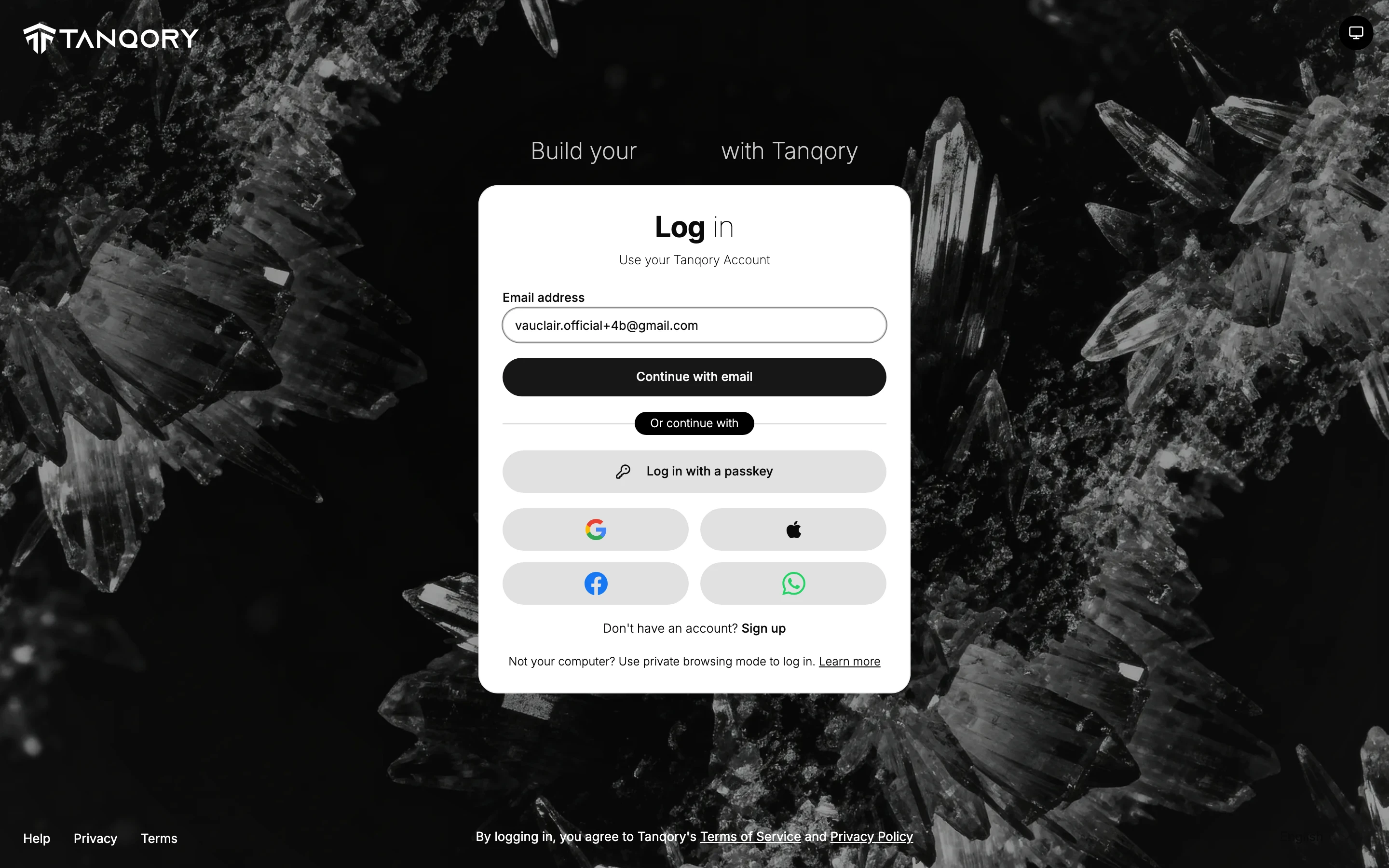
| Route | What it does | Suits you when |
|---|---|---|
| Continue with email | Moves to a password step for that address | You log in with a Tanqory password |
| Log in with a passkey | Uses the passkey already saved on the device you are holding | The device is yours and has a passkey for the account |
| Continue with Google | Hands the check to your Google account | Your Tanqory account is linked to that Google account |
| Continue with Apple | Hands the check to your Apple account | Your Tanqory account is linked to that Apple account |
| Continue with Facebook | Hands the check to your Facebook account | Your Tanqory account is linked to that Facebook account |
| Continue with WhatsApp | Hands the check to your WhatsApp account | Your Tanqory account is linked to that WhatsApp account |
They all end in the same account, so the one worth using is whichever opens fastest on the device in front of you.
Around the card sit the things you may want before you go in. Help, Privacy and Terms are in the footer, the Terms of Service and Privacy Policy links state what you agree to by logging in, and a language control changes the page's language. The line "Not your computer? Use private browsing mode to log in" is there because an ordinary window keeps you logged in afterwards.
Log in with your email and password
- Enter your email and select Continue with email. Type the address your account is under in Email address, then select Continue with email.
- Read what the page does next, because it tells you something. If an account exists for that address, the page moves to the password step. If none does, you are taken to the sign-up page with the address already filled in, which means either the address is wrong or you never made an account. If it was a typo, the Already have an account? Log in link takes you back.
- Enter your password and select Log in. The password step shows the address above the field so you can check it is the right account, with Change email beside it if it is not. Type your password, then select Log in.
That is the whole route. You land in your store, or in the store picker if your account holds more than one.
Note: If the password will not come to mind, use Forgot password? on the password step rather than guessing at it. Reset Your Password walks the reset from there. Repeated wrong attempts get you no closer and can slow the account down.
Log in with a passkey
Select Log in with a passkey and the device asks you to confirm in whatever way it already unlocks: a fingerprint, your face, or the device PIN.
Nothing is typed, so there is no password to be watched over your shoulder or reused somewhere else. That is what makes a passkey the safest of these routes on a device that belongs to you. It is worth setting one up on the machine you work from most.
If the button appears to do nothing, the device you are on has no passkey for this account. Use your email and password instead.
Log in with Google, Apple, Facebook or WhatsApp
Select one of the four and that service takes over. It asks you to pick or confirm the account, then returns you to Tanqory already logged in.
Two things are worth knowing about this route. It only works with the account your Tanqory account is linked to, so using a different Google or Facebook account will not get you in, however valid that account is. There is also no Tanqory password involved at all, which means there is none to forget and none to fall back on. Lose access to the linked account and you lose this route with it.
Logging out, and when it matters
An ordinary browser window keeps you logged in on that device until you log out. On your own computer that is convenience. On anyone else's it is a session left open for the next person.
So on a shared or public machine, open a private browsing window before you log in, as the note on the page suggests, and closing the window ends the session with it. When you finish on a device that is not yours, log out rather than closing the tab, because a closed tab leaves the session alive behind it.
If something goes wrong
- Your password is not accepted. Look for a stray space or a keyboard set to another layout, then use Forgot password? rather than trying the same thing again.
- You land on the sign-up page after entering your email. No account exists for that address. Correct it and try again, or carry on and create the account.
- You are on the password step for the wrong account. Change email takes you back to the address step.
- Google, Apple, Facebook or WhatsApp does not get you in. Check two things: that you are using the account linked to your Tanqory account, and that you are logged in to that service in the same browser.
- The passkey button does nothing. That device has no passkey for this account. Use your email and password, then set a passkey up on it afterwards.
- You are on a shared computer. Use private browsing, and log out when you are done.
Best practices
- Use a strong, unique password. It is the credential everything else sits behind, and Change Your Account Password covers changing it.
- Set up a passkey on the device you use most, so the everyday log-in needs no password at all.
- Turn on two-factor authentication, so a known password is still not enough on its own. Two-Factor Authentication explains it.
- Keep the email on your account current, since password recovery is sent there and nowhere else.
Next steps
Related articles
Still stuck?
- Ask Tanqory AIAsk in your own words. It answers from these articles and links the ones it used.
- Ask in your adminThe assistant in your Tanqory admin answers and makes the change for you once you confirm.
- Contact TanqoryWrite to our privacy, security or legal teams, or talk to sales about a plan or a move.