Reset Your Password
Resetting your password gets you back into your account when you have forgotten it. You start from the log-in page with Forgot password, and Tanqory emails a reset link to the address on the account, which is what proves the account is yours. The link is good for 1 hour. If the inbox itself is out of reach, the same screen offers a way round that.
On this page
Resetting your password is how you get back in when the password will not come to mind. It works by swapping one proof for another. Normally you prove the account is yours by typing its password; here you prove it by opening an email sent to the address the account is registered under. That is why nothing in this article asks you to remember anything, and why the whole thing rests on one question: can you still read that inbox.
It is worth being sure this is the article you want. Resetting is for when you are locked out. If you can already log in and want a different password, Change Your Account Password is the shorter route and does not involve email at all.
Before you begin
- You know which email address the account uses. Everything here is sent to that address and nowhere else.
- You can open that inbox now rather than later, since the link is short-lived.
- You are not logged in, and do not need to be. This is the one account task that starts from outside the admin.
Reset your password
The reset is not on a page of its own that you can go to. You reach it through the log-in page: enter your email, continue to the password step, and select Forgot password? below the password field. Arriving this way matters, because the address you typed comes with you and the screen is then about that specific account.
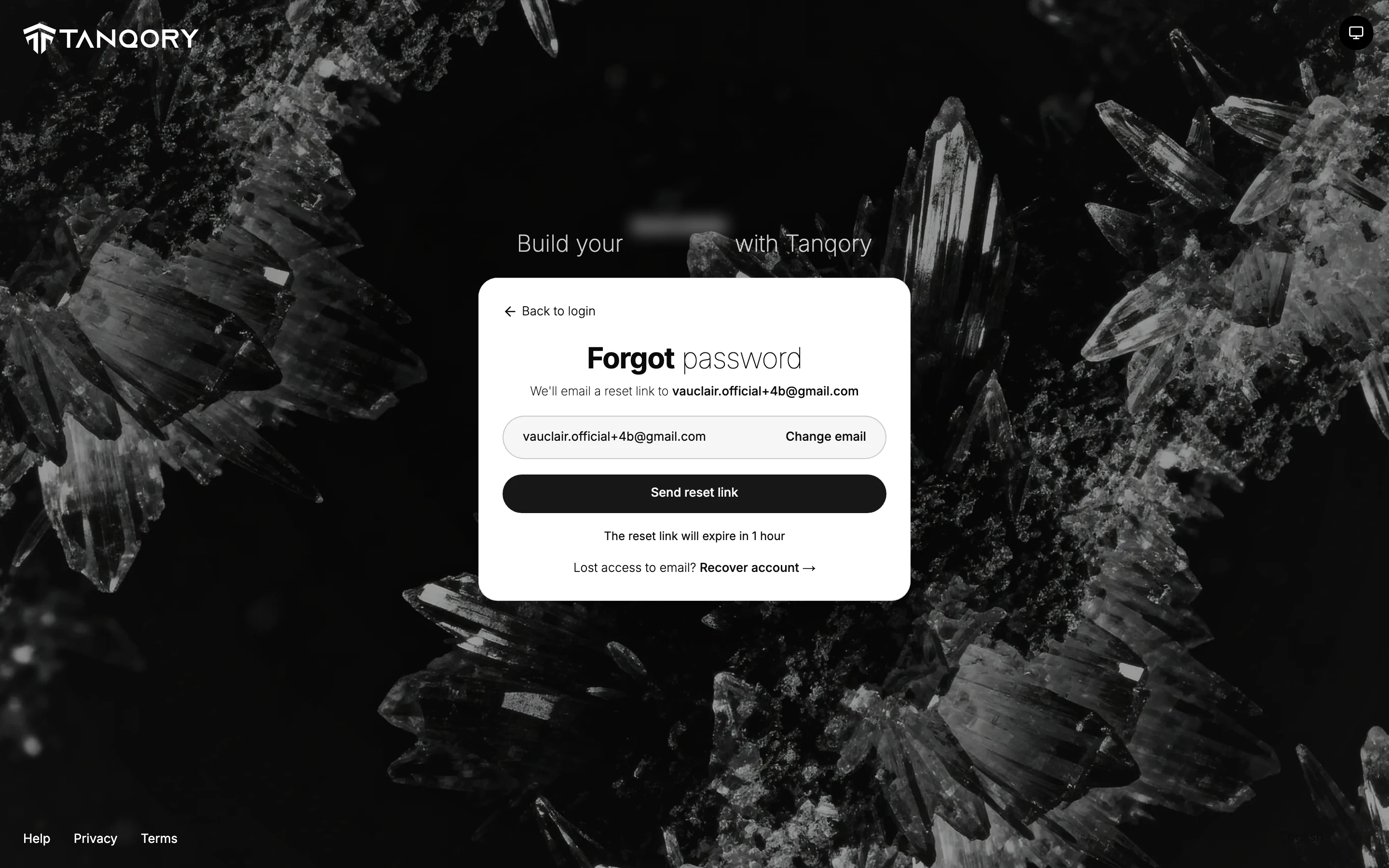
- Check the address before you send anything. The screen names the address it is about, both in the line under the heading and in the field below it. This is the one part of the reset you can still correct for free: Change email beside the field takes you back to enter a different one. A link sent to an address you cannot open is an hour wasted, so read it rather than glancing at it.
- Select Send reset link. Nothing about your account changes yet. Your old password still works, and it keeps working until the moment you set a new one, so a reset you asked for by mistake costs you nothing if you leave it alone.
The screen then changes to Check your email, which repeats the three moves left to make and offers a Resend button on a short timer.
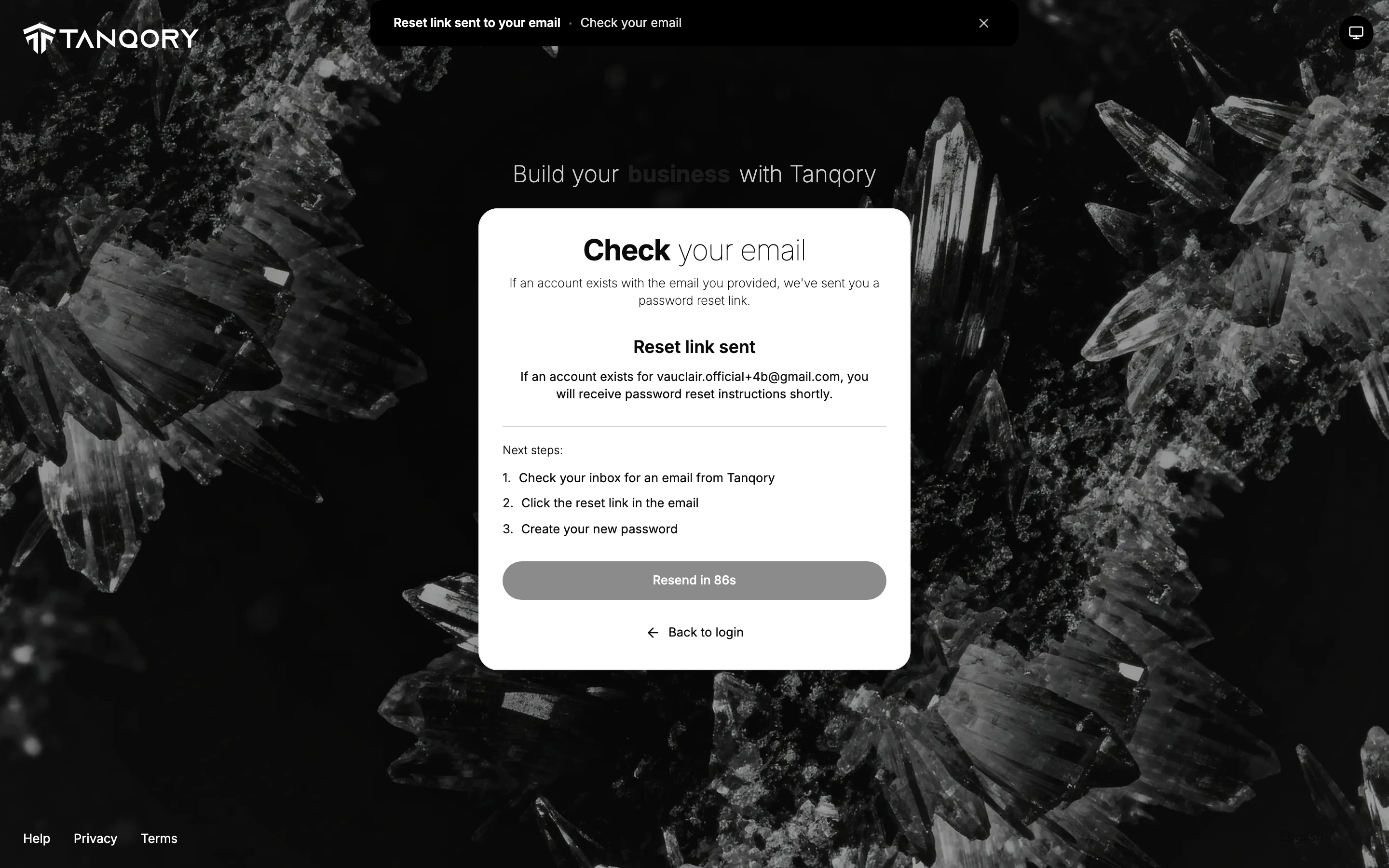
Read its wording closely and you will notice it says if an account exists for that address. It says the same thing whether or not one does. That is deliberate: a stranger typing addresses into this page learns nothing about who has an account. The cost to you is that a typo looks exactly like success, so an email that never arrives is worth treating as a wrong address rather than a fault.
- Open the link within 1 hour. Opening it is what proves you can read the account's email, and that is the whole basis of the reset, which is why the window is short. Past the hour the link takes you to Invalid reset link instead, which offers to send you a new one.
- Set the new password twice, then log in with it. The link opens Reset your password, which asks for New Password and Confirm Password. Both must match, which is the page's only guard against a typo you cannot see: nothing here shows you the old password or asks for it.
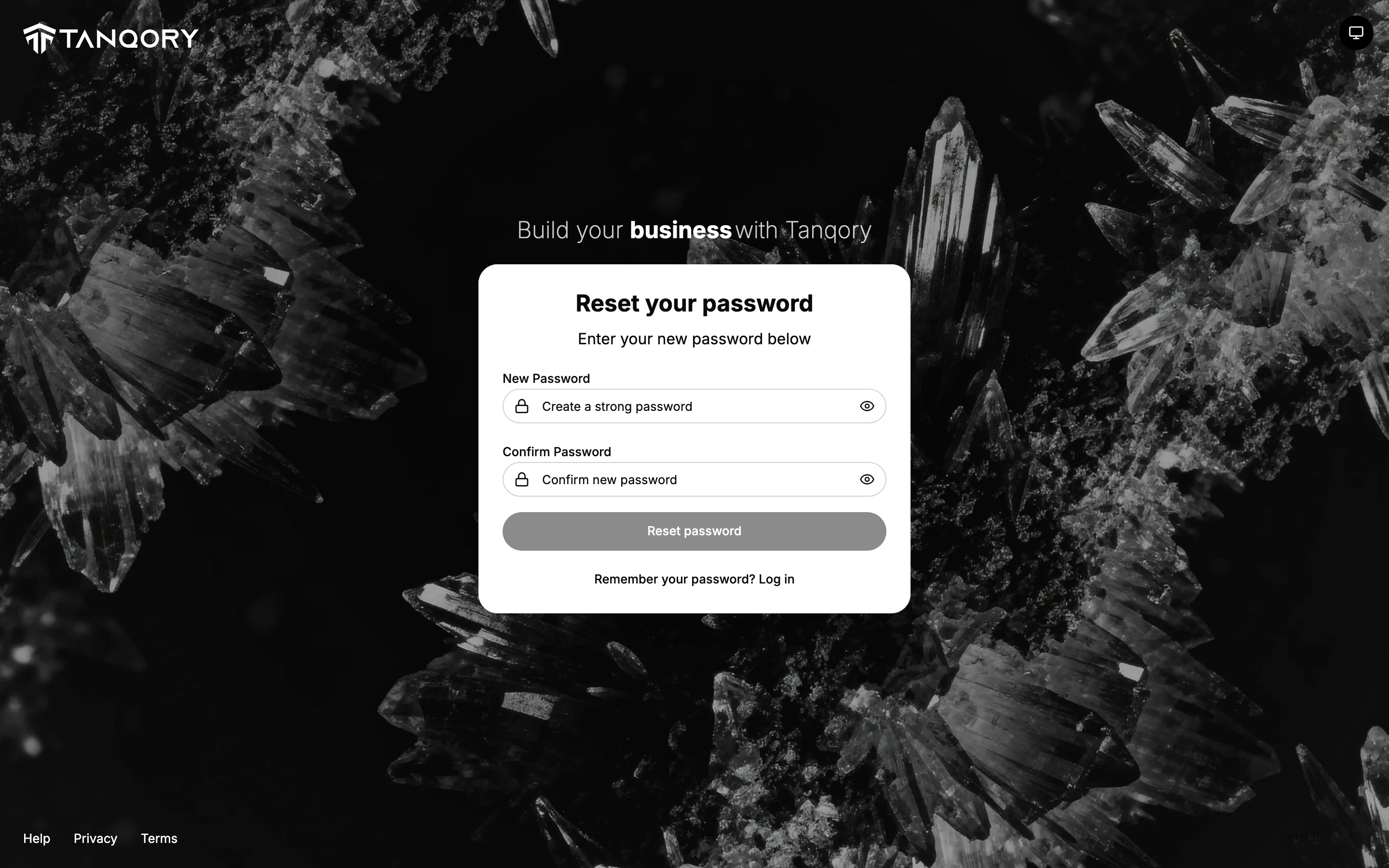
Choose a password you have not used on another site, since one reused elsewhere is only as safe as the weakest place you typed it. Select Reset password and the screen becomes Password reset successful, which tells you the password has been updated and then sends you to the log-in page on its own. There is a Go to login now button if you would rather not wait for it.
The old password is gone from that moment, so a copy saved in a browser or a password manager is now out of date and will need replacing there too.
The whole route rests on reaching that inbox. For an account whose email you no longer read, the screen carries a line beneath the button, Lost access to email? Recover account, which is the way back when the ordinary route is closed to you.
Best practices
- Add a secondary email. In your account's Security settings you can add a secondary email for password recovery and security alerts, so you have a backup way to receive the reset.
- Use the link quickly. The reset link expires in 1 hour, so open it soon after it arrives.
- Set a strong, unique password. Do not reuse a password from another site when you reset.
- Check it is really from Tanqory. Only follow a reset link you requested, and be wary of unexpected reset emails.
If something goes wrong
- The email did not arrive. Check your spam folder and confirm you used the right account email, then request the link again.
- The link no longer works. You land on Invalid reset link, reading "Invalid or expired reset link". You do not have to go anywhere to fix it: that screen carries a Request new reset link button, and Back to login beneath it. A link also stops working once it has been used, so an older reset email in the same inbox will fail this way even inside the hour.
- You are not sure which email to use. Use the email you log in with; if you set one up, a secondary email can also receive recovery messages.
- You remember your password after all. Select Back to login and log in as usual.
Next steps
Related articles
Still stuck?
- Ask Tanqory AIAsk in your own words. It answers from these articles and links the ones it used.
- Ask in your adminThe assistant in your Tanqory admin answers and makes the change for you once you confirm.
- Contact TanqoryWrite to our privacy, security or legal teams, or talk to sales about a plan or a move.