Change Your Account Password
Changing your password is for when you still know it and want a different one. It happens on your own account Security page, and Tanqory checks twice that it is really you before it will let you through: your password, then a 6-digit code. Only after both does the box appear that takes the new password.
On this page
The password this article changes is the one you type to log in at admin.tanqory.com, on the step after you enter your email address. It belongs to your Tanqory account rather than to any one store, so if your account holds several stores, this single password opens all of them: you log in to the account first and choose the store afterwards.
Changing it is how you keep control of that account, particularly if you suspect the current password has been seen, shared, or used somewhere else as well. This is the route for when you still know it. If you cannot get in at all, Reset Your Password is the one you want instead.
Expect it to take longer than you think. Tanqory asks you to prove who you are twice before it will show you the box that takes the new password, which is deliberate: someone who finds your screen unlocked should not be able to lock you out of your own account in two clicks.
Before you begin
- You know your current password. The first check asks for it, and there is no way past that check without it.
- You can read the account's email, or you have your authenticator app to hand. The second check uses one or the other, and which one depends on your account.
- You have decided on the new password. Choosing one while the box is already open is how people end up reaching for something they have used before.
Getting to the password box
Because the password belongs to the account, it is not in the store settings at all. Open the profile picture at the top right, choose Your profile, open the navigation menu, and select Security under Account settings. The Password section is the second one down, with an Update password button and a line showing when it was last changed.
- Select Update password. Nothing opens for editing yet. Instead a dialog appears headed Confirm your identity, reading "For added security, enter your password."
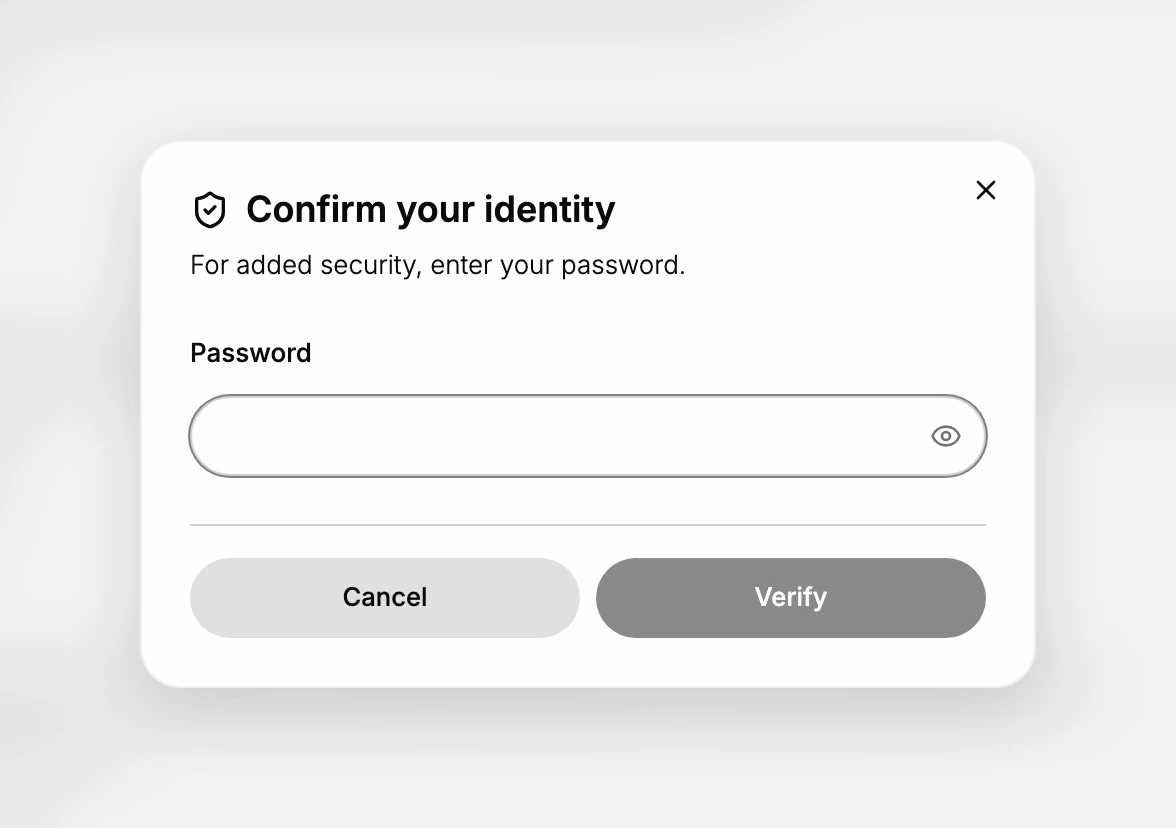
- Type your current password and select Verify. This is the first of the two checks.
- Enter the 6-digit code and select Verify. A second Confirm your identity appears, reading "For your security, please verify your identity before changing your password." Where the code comes from depends on the account, and the dialog names the source either way. With two-factor authentication switched on, it asks for the code from your authenticator app. Without it, the code is emailed to the address on the account.
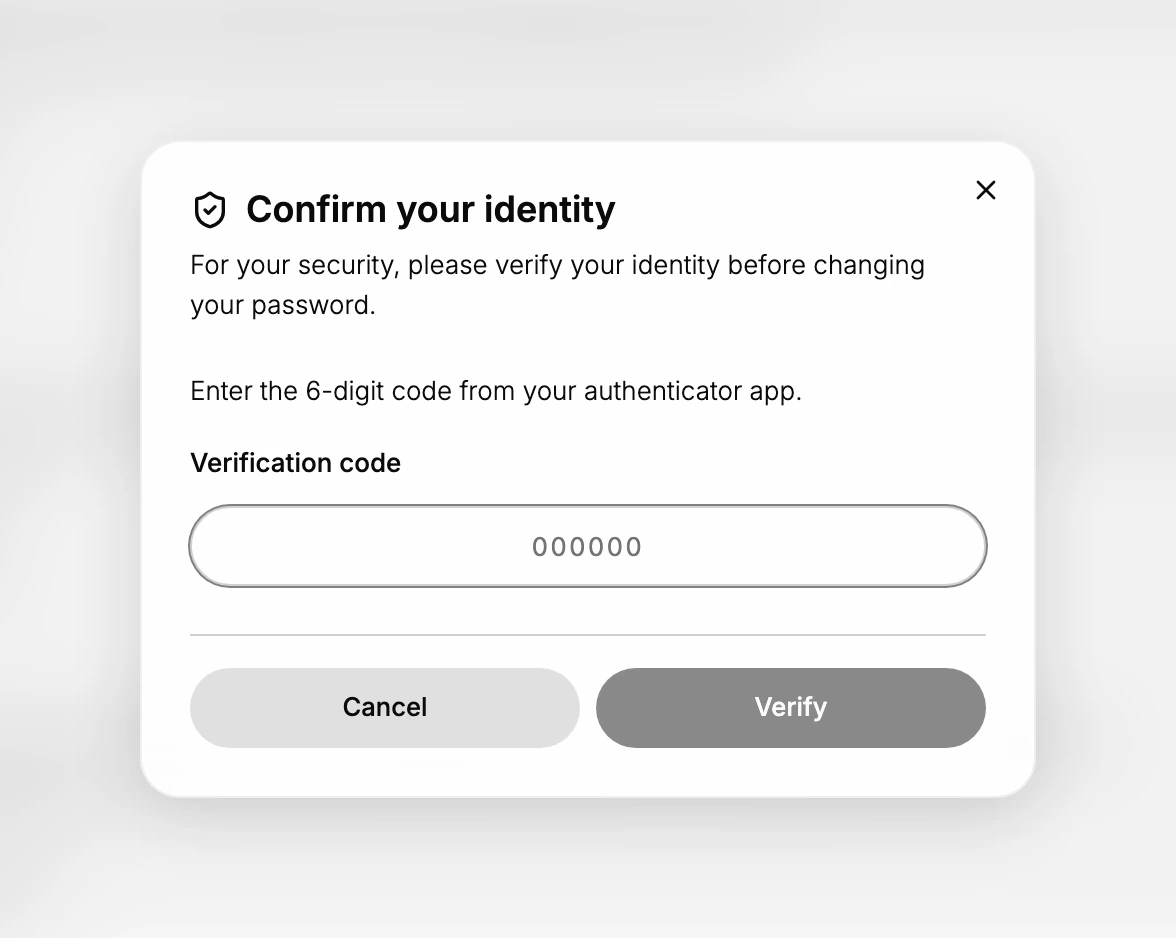
Note: Asking for a new code stops the previous one working, and a code typed from an older message is refused without any explanation of why. Use Resend code only when nothing has arrived.
Setting the new password
Both checks done, the Update your password dialog opens. It holds two fields and nothing else: Replacement password and Re-enter replacement password.
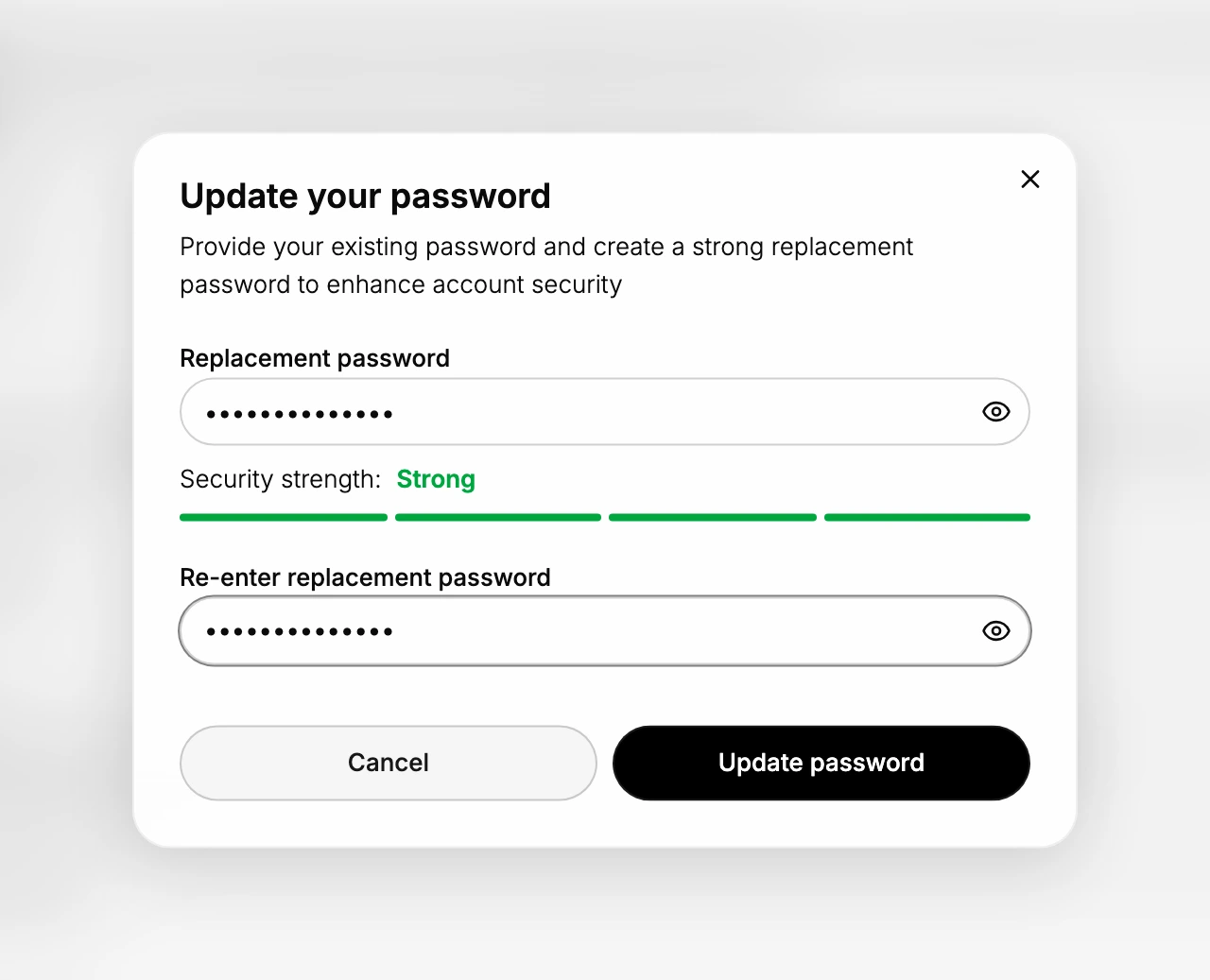
- Type the new password. A Security strength reading appears under the field as you type and changes as the password gets harder to guess. Three readings show: Weak, Medium and Strong.
- Type it again, then select Update password. The second field exists to catch a typo you cannot see, since both fields hide what you type. Cancel closes the dialog and changes nothing.
The strength reading is advice rather than a gate. A password marked Weak does not stop the button working, so nothing prevents you saving a poor one except the decision not to. Roughly, letters alone come out Weak, a longer run of letters reaches Medium, and mixing in a capital and a digit reaches Strong.
Once saved, the old password stops working everywhere it was used: the log-in page, any copy kept in a browser or a password manager, and the Confirm your identity check that guards the rest of your security settings.
Best practices
- Use a unique password. Do not reuse a password from another site, so a breach elsewhere cannot reach your account.
- Aim for Strong, not merely allowed. The reading is advice and the button works either way, so the only thing keeping a weak password out is you.
- Change it if in doubt. If you think your password has been seen or shared, change it right away.
- Use a password manager. It can store and fill a long, unique password so you do not have to remember it.
If something goes wrong
- The verification code is refused. The likeliest reason is that a newer code was issued after it, which retires the older one. Take the most recent message and try that.
- The two entries do not match. Re-enter the same password in both the replacement and re-enter fields.
- The first check will not accept your password. Check for a stray space or a keyboard set to another layout. There is no way past this check, so if the password really is gone, reset it instead.
- You cannot find the code. If the account has two-factor authentication on, it is in your authenticator app and no email was sent. If not, it was emailed to the address on the account; check the spam folder there.
Next steps
Related articles
Still stuck?
- Ask Tanqory AIAsk in your own words. It answers from these articles and links the ones it used.
- Ask in your adminThe assistant in your Tanqory admin answers and makes the change for you once you confirm.
- Contact TanqoryWrite to our privacy, security or legal teams, or talk to sales about a plan or a move.