Create a Tanqory Account
A Tanqory account is what you log in with, and a store is what you sell from. Creating the account takes an email address and a password, or one tap if you already have a Google, Apple, Facebook or WhatsApp account you want to use. Sign-up then runs on past the account: it asks which plan the free trial should run on and what the store is called, and this article covers every card in that sequence.
On this page
Everything in Tanqory sits behind an account. It is the thing you log in with, it holds your name and your password, and it is what your stores belong to once you create them. This article covers making that account, and the two cards that follow it before sign-up is finished. If you already have an account, Log In to Your Tanqory Account is the article you want instead.
It costs nothing to do, and no card is asked for. What you are starting is a free trial, which runs for 3 days on whichever plan you pick.
Before you begin
- You have an email address you can receive mail at, since this is the address your account is named by.
- You know which country your business operates from. The page asks for it and arrives with one already chosen, which is not always the one you want.
- You know whether you want to log in with a password or through Google, Apple, Facebook or WhatsApp. Switching later leaves you with two ways into one account to keep track of.
- You have a name for the store in mind. Sign-up does not finish at the account: it goes on to ask which plan you want to try and what the store is called.
Getting to the sign-up page
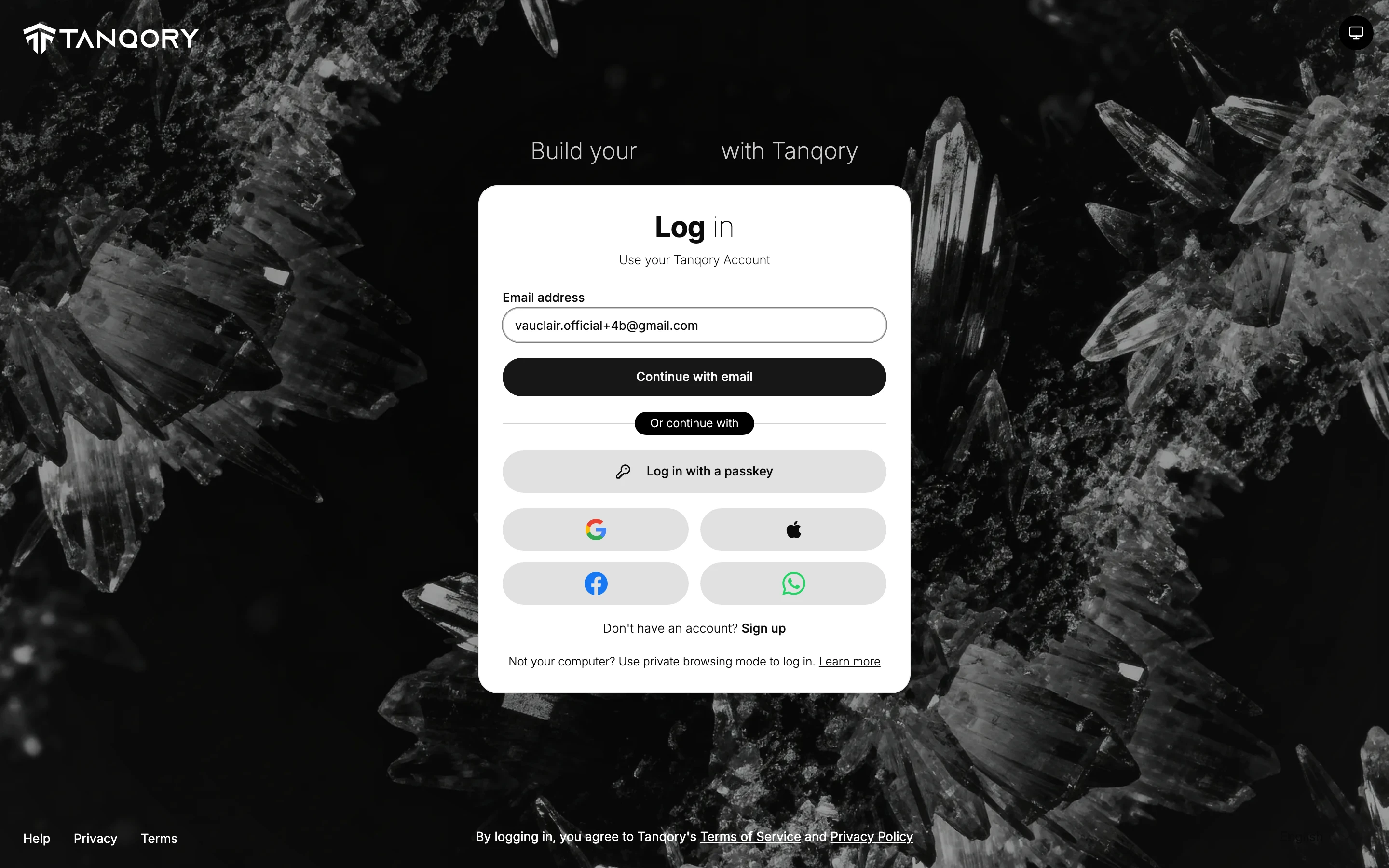
Everything starts at admin.tanqory.com, which is the log-in page whether or not you have an account yet. There are two ways on from there.
Select Sign up. At the bottom of the log-in box is a line reading "Don't have an account?" followed by Sign up. That is the direct route, and it opens the page with nothing filled in.
Or type an email that has no account yet. Enter an address and select Continue with email. If Tanqory finds no account for it, you land on the sign-up page with that address already filled in. Nothing is created by this. You can leave without finishing.
The second route is worth knowing even if you do not plan to use it. People often arrive expecting to log in, discover they never made an account, and assume they have done something wrong. They have not; this is what the page is meant to do.
If you arrived from the Tanqory website rather than typing the address, you will have come through its Start free button, which is the same door under a different name. So is Create an account, which is how the sign-up page itself is headed.
The Country field
Below the sign-up options there is a Country selector, and it arrives with a country already filled in rather than empty. Nothing you have typed chose it, so read it while the card is still in front of you.
Country is not a label. It is the sort of setting other things are built on top of later, in the same way a store's currency is, and correcting it once a store is set up is more work than getting it right here.
Sign up with an email address
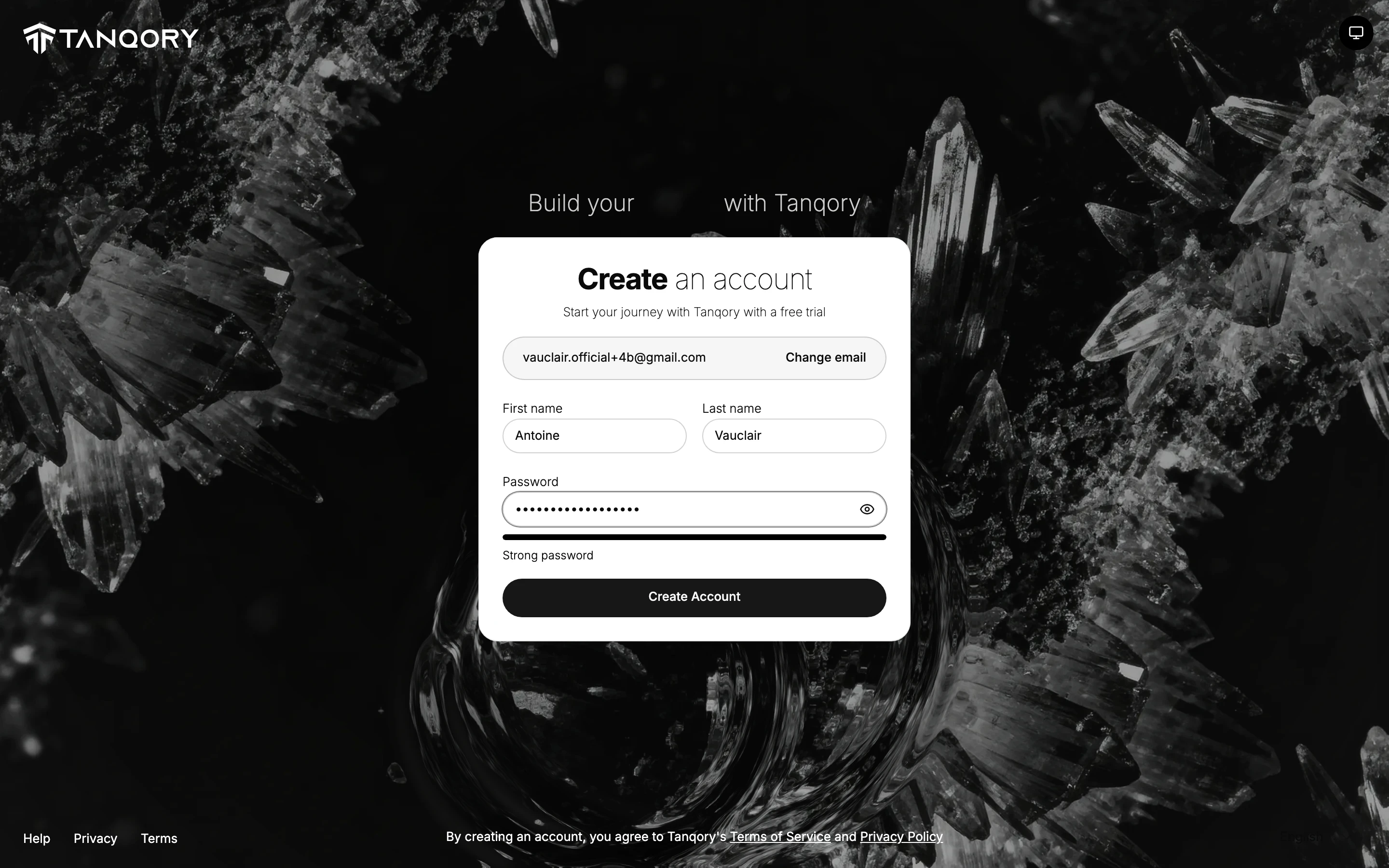
- Open the sign-up page by either route above. The heading reads Create an account.
- Enter your email address and select Continue. Use an address you will keep. It becomes the name of the account and the place password resets are sent.
- Fill in your name and choose a password. The next step asks for your first name, your last name, and a password. Your email is shown above them with a Change email link beside it, so a typo at this point costs you one click rather than a new account.
- Select Create Account. By doing this you are agreeing to the Terms of Service and Privacy Policy, which the page says in the line underneath the button.
That button is the last one on this card. The account exists the moment you select it, and the card that comes up in its place is the plan card described below.
Sign up with Google, Apple, Facebook or WhatsApp
Under the email field there is a line reading OR, and beneath it a set of buttons: Continue with Google, Continue with Apple, Continue with Facebook and Continue with WhatsApp. Choosing one of them hands you to that provider to prove who you are, and when it finishes you are returned to Tanqory with an account already made.
There is no password to choose on this route, because the provider is the thing that proves who you are. That means no Tanqory password to forget, and equally none to fall back on if you lose access to the account you signed up with.
The six ways you will be able to log in afterwards
Making the account and getting back into it are not the same list, and the second one is longer. Once the account exists, any of these six will let you in.
| Route | Available at sign-up |
|---|---|
| Your email address and a password | Yes, this is the main sign-up route |
| Continue with Google | Yes |
| Continue with Apple | Yes |
| Continue with Facebook | Yes |
| Continue with WhatsApp | Yes |
| Log in with a passkey | No, a passkey is set up on a device after the account exists |
A passkey is the device standing in for a password: you approve the log-in with the fingerprint, face or PIN your phone or laptop already unlocks with, and nothing is typed. It is the only one of the six you cannot start with, for the reason in the table: the key is tied to an account, so the account has to exist first. The log-in article linked at the top covers all six in full.
The verification message
Sign up with an email address and Tanqory sends a verification message to that address. It arrives while you are still signing up, and it is a thread of its own rather than the next step.
Note: Leaving the message unopened does not block you. Sign-up carries on, and a store can be created before you ever open it. What verifying buys is stated on the verification page itself, as access to all features, which is reason enough to open it the same day.
Open the message and select the link inside. The page it opens confirms it with the line Email verified successfully, over a sentence saying your email has been verified and you can now access all features.
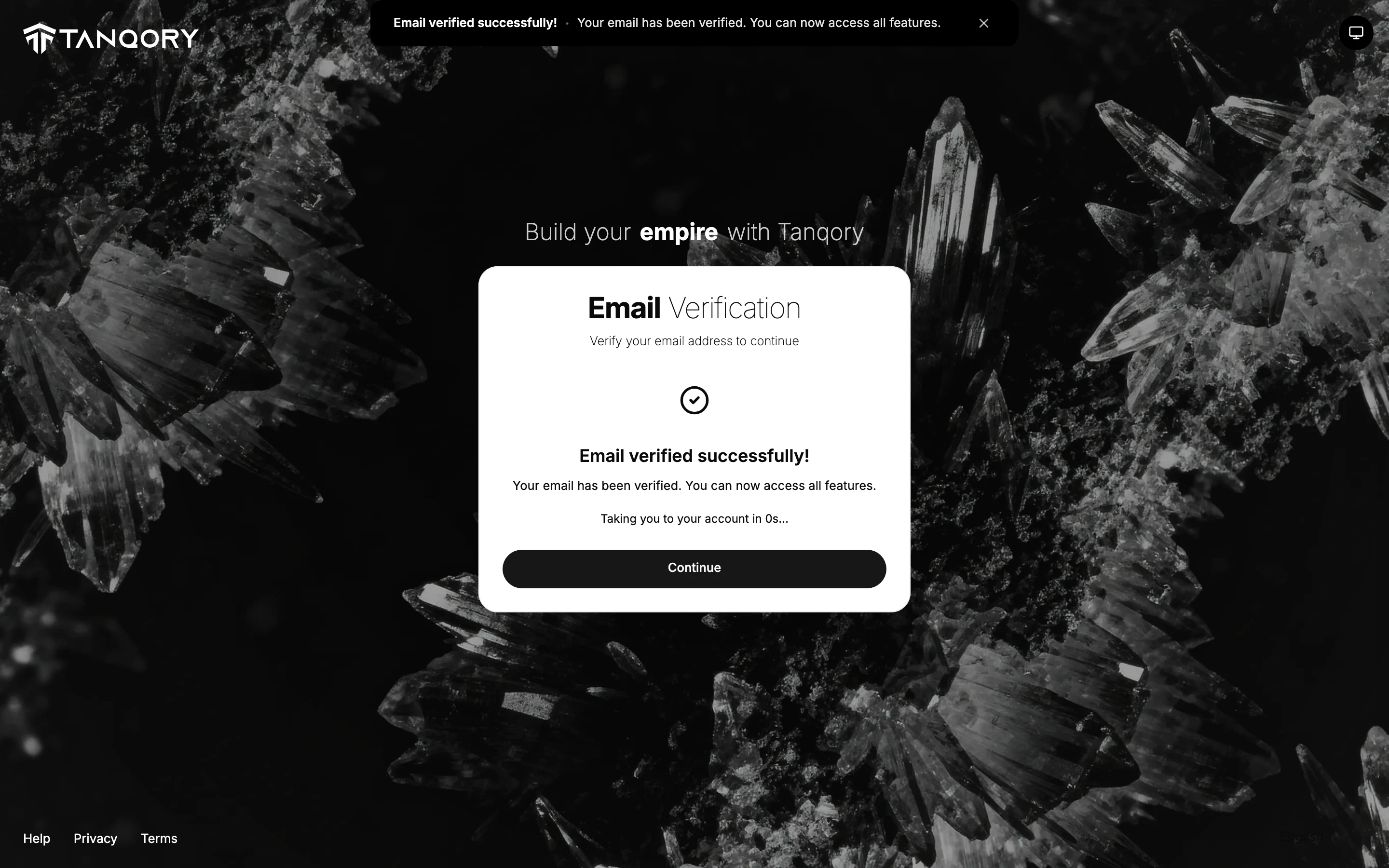
That page counts down and returns you to the log-in screen by itself, or you can select Continue rather than wait.
Choosing the plan you try
Create Account is not where sign-up ends. The card that comes up next asks which plan you want the free trial to run on, under the heading Choose the plan you want to try. The line beneath that heading sets out the terms in one go: the trial runs for 3 days on the plan you pick, no card is required, and the plan can be changed later.
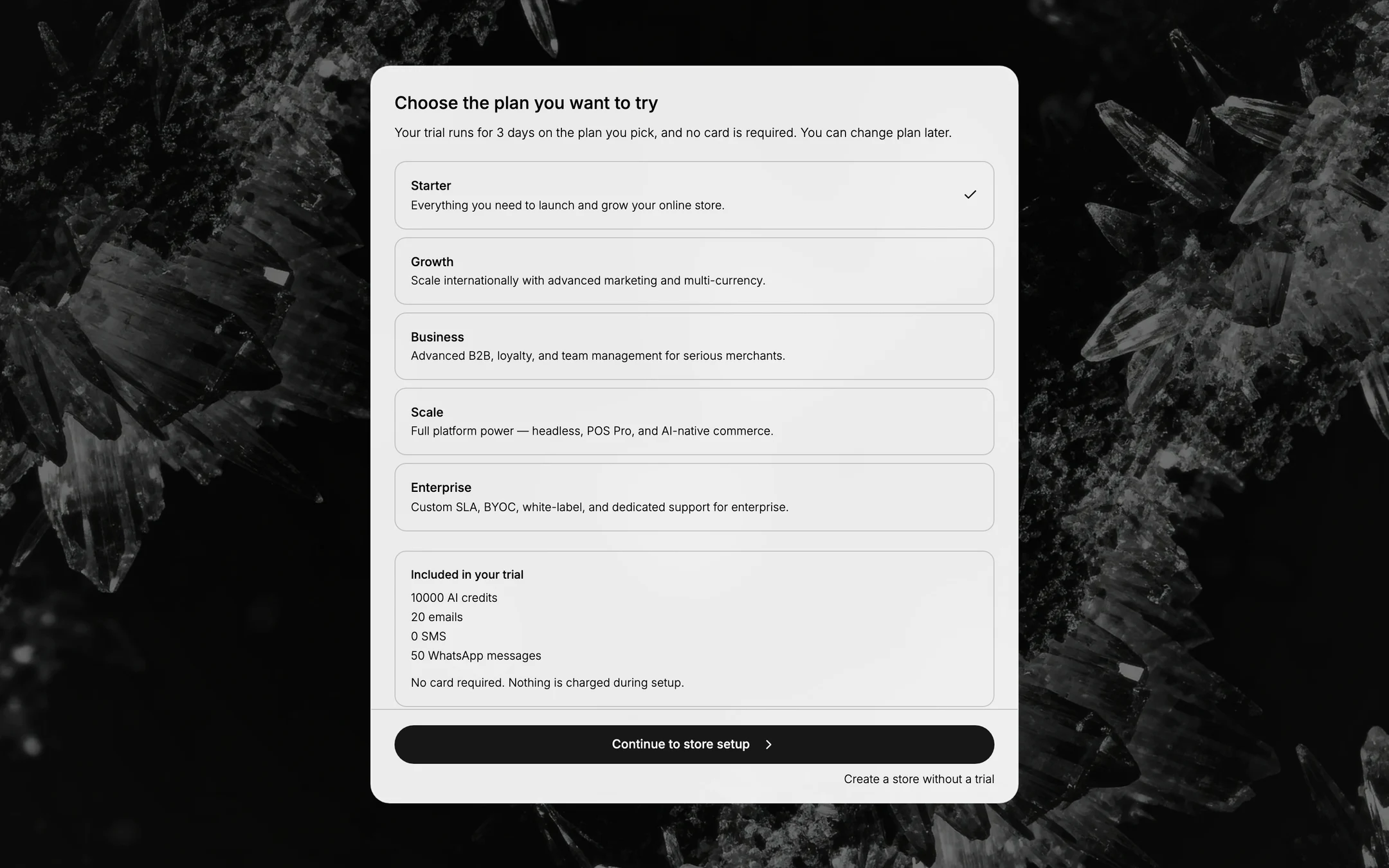
The five plans are stacked in order, Starter up to Enterprise, each with a single line saying who it suits. None of them shows a price. The card is not asking you to buy anything, so the only question in front of you is which set of features you want the trial to run on. If you would rather see the money before answering it, Compare Plans sets out what each plan costs and what it allows.
Nothing is selected when the card opens. Until you choose, Continue to store setup is greyed out and the line Choose a plan to continue sits above it, so the step cannot be walked past by accident. Selecting a plan puts a tick at the right-hand end of its row and makes the button live. Selecting a second one moves the tick rather than adding another, because the trial runs on one plan at a time.
Included in your trial is the panel at the foot of the card: 10000 AI credits, 20 emails, 0 SMS and 50 WhatsApp messages. Those four figures are identical on all five plans, so the allowance belongs to the trial rather than to the plan. Picking Scale rather than Starter opens the larger feature set for 3 days, but it does not hand you more messages to send, and the zero beside SMS means that channel is not part of the trial at all.
The small link under the button, Create a store without a trial, is the way past this card for anyone who would rather not start the clock yet.
Note: The offer belongs to your first store. Create a second store on the same account afterwards and this card does not appear again. What opens in its place is headed Create your store first and says that the plan is picked once the store exists, so the trial is worth spending on the store you actually mean to build.
Naming the store
Continue to store setup replaces the plan card with the last one, headed Name your store. Only one thing on it has to be filled in.
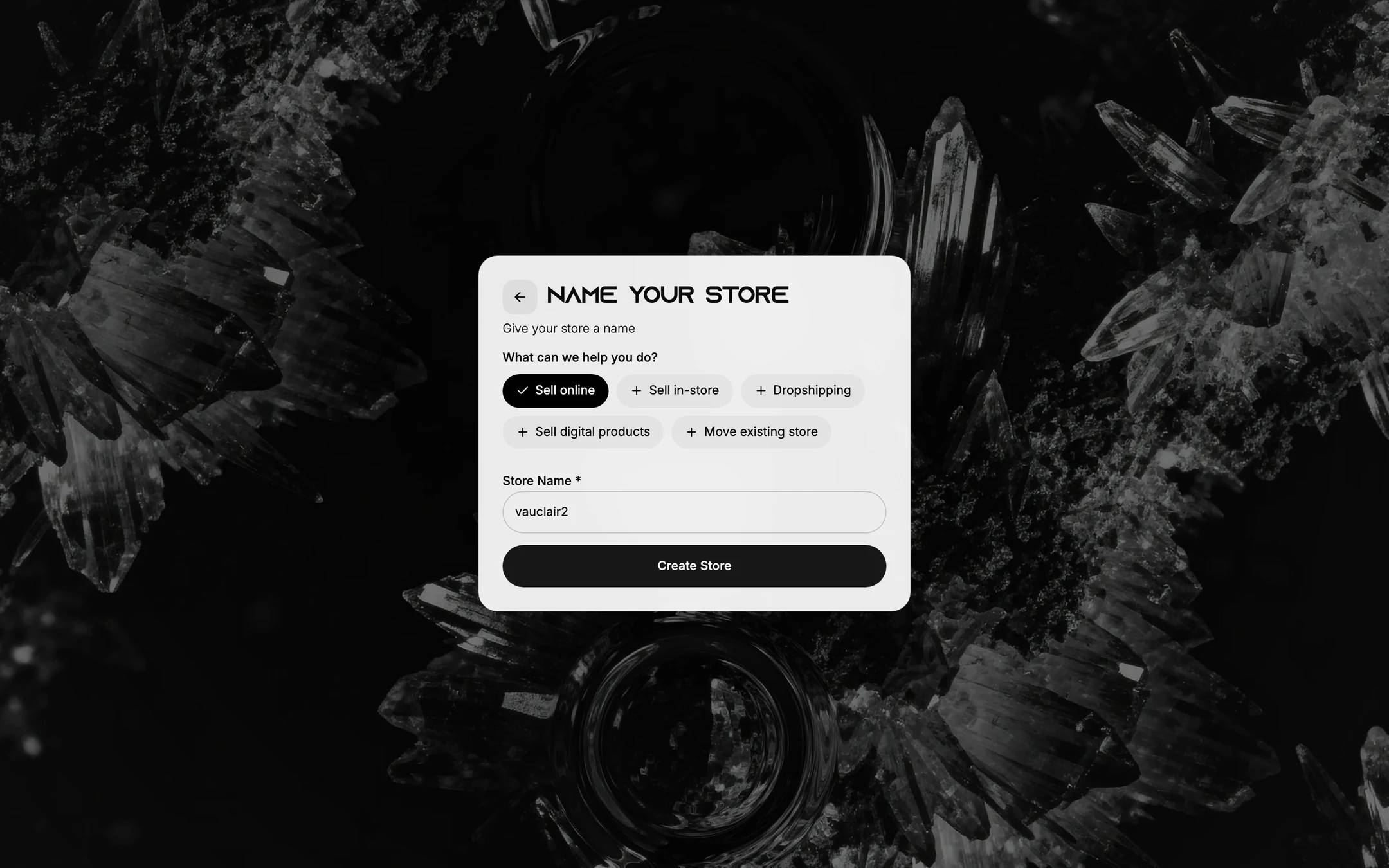
What can we help you do? comes first, answered by five buttons: Sell online, Sell in-store, Dropshipping, Sell digital products and Move existing store. None of them is on when the card opens. Selecting one turns its plus into a tick, selecting it again turns it back off, and more than one can be on at once. Leaving all five off does not stop you either, since the button that makes the store does not wait on them. Nothing on the card says what your answer changes, so treat it as telling Tanqory what you came here to do rather than as a setting you will be held to.
Store Name is the required field, marked with an asterisk. Create Store stays greyed out until there is something in it, so an empty name is the one thing that can stop you here.
What the field does not tell you is that this name is not your web address. The store is given an address of its own on mytanqory.com when it is created, and that address is a short run of letters that owes nothing to the name you typed. Putting the store on an address you have chosen is a separate job for later. Changing Your Store's Web Address explains what that free address is and what can be done about it.
The arrow at the top left of the card steps back to the card before it, so changing your mind about the plan costs nothing while you are still on this screen. Create Store is the button that ends sign-up.
What you have once sign-up is done
Two things now exist and they are worth keeping apart. The account is what you log in with. The store is what you sell from. One account can hold several stores, and everything you set up from here belongs to the store rather than to you.
The trial is already running on that store. Your store list shows it with a Trial badge, the line Trial ends with a date and a time, and a Choose plan control in the same row. That time is there because the 3 days run from the minute the store was made rather than to the end of a day: a store created at 1:55 in the afternoon comes off trial at 1:55 in the afternoon 3 days later.
What you do not have is anything to sell. The store opens on a Home page of setup cards, one each for a first product, a way to take payment, store policies and a domain of your own, and that is the real work of the first day. Getting Started with Tanqory walks it in order, and Setup Guide explains how those cards count what you have finished.
What happens after the trial
Creating the store starts a clock. This is how it runs, so that it does not run out on you before you have looked at it.
| When | What happens |
|---|---|
| The first 3 days | Free, with every feature of the plan you picked available |
| When those days are up | An offer arrives by email: the same plan for one more month at a token $1, which is an introductory price rather than the plan's real one |
| When that month ends | You are asked to decide, either subscribing or renewing at the plan's real price, or not |
| If you decide not to | Some features close off and stay closed until a plan is taken up again. Nothing is deleted, but a store in that state is not one you can trade from |
The detail lives elsewhere. Subscription Overview covers how billing runs once you are paying, and Your Plan and Upgrade Prompt shows where the admin keeps your plan and the time left on it. Prices and limits are in the comparison linked further up.
Next steps
Related articles
Still stuck?
- Ask Tanqory AIAsk in your own words. It answers from these articles and links the ones it used.
- Ask in your adminThe assistant in your Tanqory admin answers and makes the change for you once you confirm.
- Contact TanqoryWrite to our privacy, security or legal teams, or talk to sales about a plan or a move.