Setup Guide
How the setup cards on Home work: what a card is made of, how the counts move as you finish tasks, and what the larger marketplace card is for.
On this page
When you open a new store, Home shows a row of setup cards. Each one stands for a task a store needs before it can sell, keeps its own count of how far along that task is, and offers a button that opens the page where the work is done. This article is about the cards as a mechanism, how to read one and what its count means. The tasks themselves, and the order worth doing them in, are in Getting Started with Tanqory.
Before you begin
- Any role can open Home and see the setup cards. What each card lets you do depends on your access.
- Select Home at the top of the admin sidebar, where the setup cards are shown.
Where the cards are
The cards sit below the assistant box on Home, one task to a card, filling the body of the page. They appear nowhere else in the admin, so returning to Home is how you find them again.
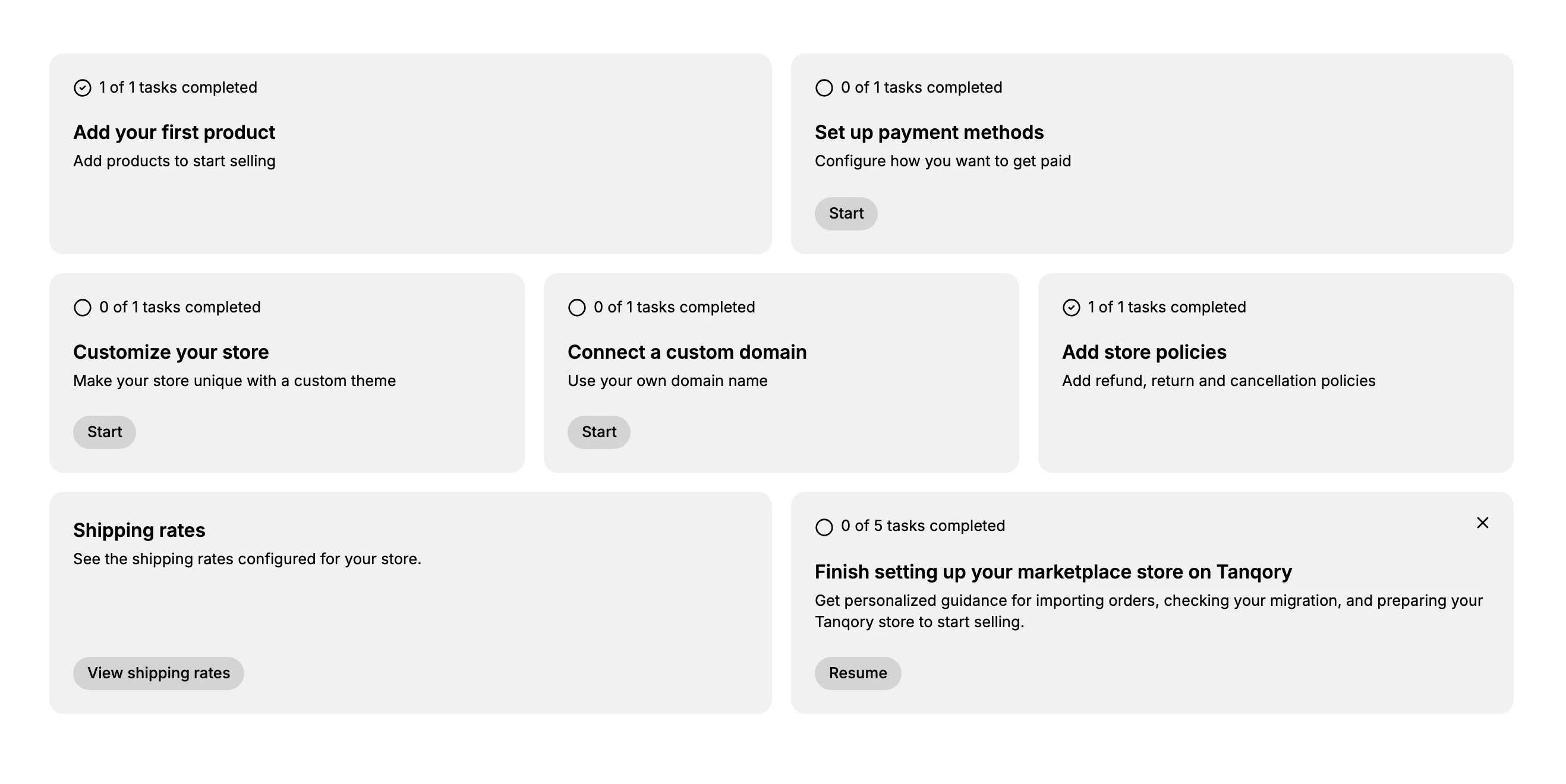
There are six task cards, covering products, payments, your theme, your domain, store policies and shipping rates, plus one larger card for stores moving from another platform.
How the cards track progress
- Each card shows a count at the top, such as 1 of 1 tasks completed or 0 of 1 tasks completed, so you can see where the task stands without opening it.
- A finished task shows a check next to the count and no longer shows its action button, because there is nothing left to do on it.
- A task still to do shows an empty circle and an action button, such as Start or View shipping rates, that opens the page where you complete it.
- As you finish tasks, their counts fill in, so the cards double as a record of how ready your store is to sell.
Note: A card counts a task as done once the setting exists, not once its content is finished. The policies card is the one to watch, since it reads as complete as soon as a policy has been created, even when that policy still holds unfilled placeholders such as a store name or contact address. Those placeholders are shown to customers on your storefront. Open each policy and read it through before you treat that card as closed. Store Policies covers what belongs in each one.
The marketplace setup card
A larger card, Finish setting up your marketplace store on Tanqory, gathers several tasks under one Resume button and tracks its own count, such as 0 of 5 tasks completed. Its description explains that it gives you personalized guidance for importing orders, checking your migration, and preparing your store to start selling. Open it with Resume when you are moving an existing store to Tanqory, and dismiss it with the close control once you no longer need it. Migration Overview covers the move itself.
Next steps
Related articles
Still stuck?
- Ask Tanqory AIAsk in your own words. It answers from these articles and links the ones it used.
- Ask in your adminThe assistant in your Tanqory admin answers and makes the change for you once you confirm.
- Contact TanqoryWrite to our privacy, security or legal teams, or talk to sales about a plan or a move.