Your First Order
An order carries two statuses, one for the money and one for the goods, and processing it means moving both. This covers what each status value means, when to record a payment yourself, how fulfilling notifies the customer, and what the order's timeline proves afterwards.
On this page
When an order comes in, you handle two things on it: its payment and its fulfillment. You work from the Orders overview, open the order, record the payment if it is still pending, then fulfill it so the customer gets their goods. Each order tracks a Payment status and a Fulfillment status, and the order's timeline records what happened, including the emails sent to the customer.
You'll work on the orders list, reached from the admin sidebar.
Before you begin
- Your role includes Edit orders, and Mark orders as paid if you record payments yourself.
- You have an order to work with. Until a customer buys something, the list is empty.
- Open Orders > Overview in the admin sidebar and open the order you want to work on.
Order statuses
An order has two statuses that you move forward as you process it.
Payment status answers whether the money has arrived, and it has more than two values, because a payment can stop part way or be sent back.
| Payment status | What it means |
|---|---|
| Payment pending | The payment has not completed, so nothing has reached you yet |
| Partially paid | Part of the order total has been received and the rest has not |
| Captured | The payment has been taken, which is what most working orders show |
| Partial refund | The order was paid and you have since returned part of the money |
| Refunded | The order was paid and the money has since been returned in full |
Fulfillment status answers whether the goods have gone, and it has two values.
| Fulfillment status | What it means |
|---|---|
| Unfulfilled | Nothing has shipped yet, so the order is waiting on you |
| Fulfilled | You have marked the items as sent |
The two are independent, so read both. An order at Captured and Unfulfilled has been paid for and is waiting to be packed, which is the normal state of a new order. One at Payment pending and Unfulfilled has not been paid, and most stores hold that one until the payment clears rather than shipping it.
An order that has a return running shows that separately from these two, as Return in progress while the return is open and Return closed once it is settled.
The Orders overview list has tabs for All, Unfulfilled, Unpaid, Open, and Archived, so you can find the orders that still need work.
Steps
1. Open the orders list
Open the list. It shows each order with its Payment status and Fulfillment status. Use the Unpaid or Unfulfilled tab to find an order that still needs work, then click it to open it. If you do not have a customer order to work on yet, the Create order button at the top lets you make one yourself to practice with.
Tip: Make your first order a real one to yourself before you open the store. Buy something small from your own storefront, pay for it, then take it through payment and fulfillment here. This is the one way to confirm that checkout, payment and fulfillment all work before a customer relies on them. Create a Draft Order walks through making one.
2. Open the order and review it
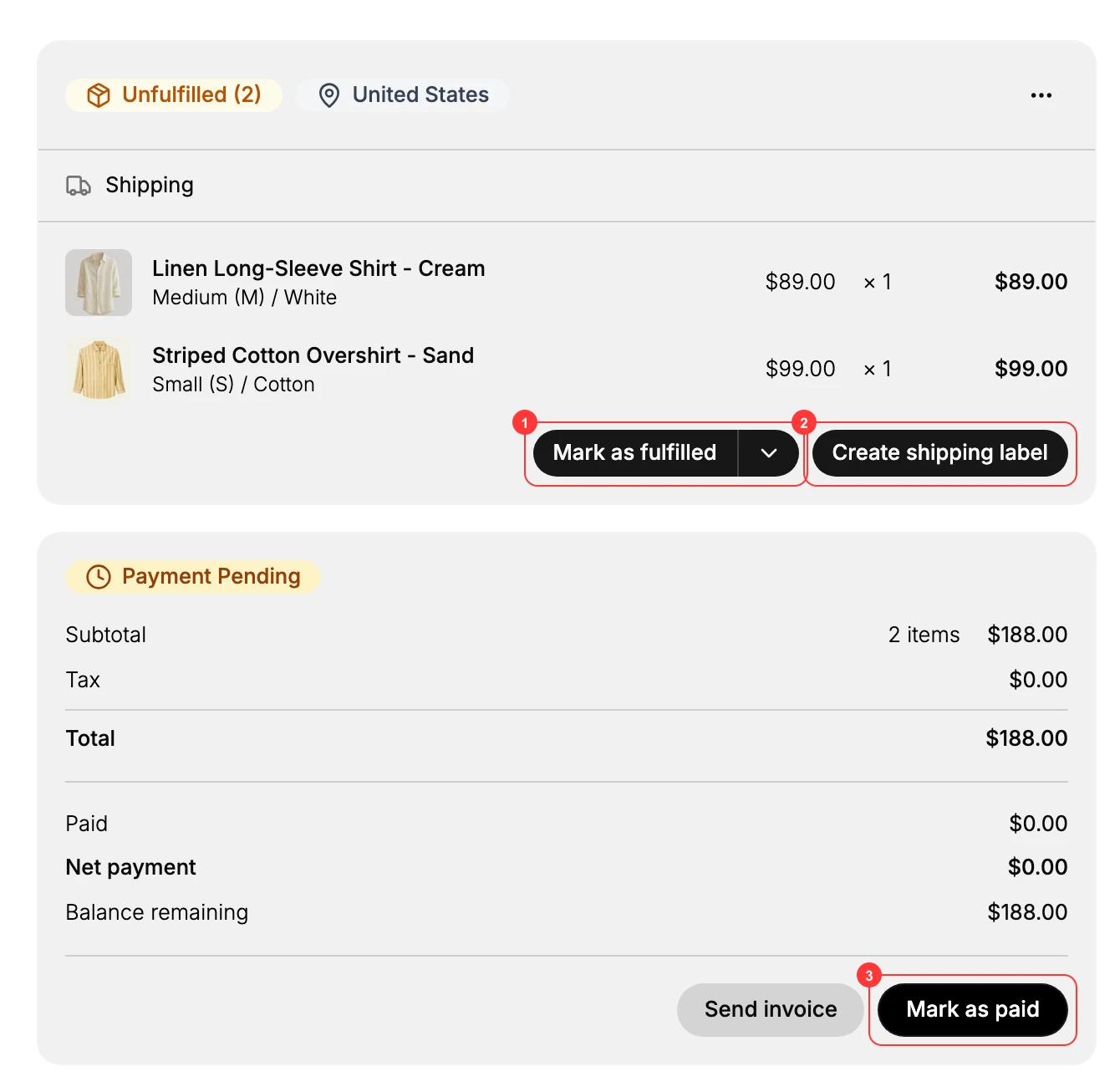
On the order, check the line items, the quantities, and the customer's shipping address before you do anything else. The order shows a fulfillment card with the items and a payment card with the totals, with the actions you need shown below.
3. Record the payment if it is pending
If the Payment status is Pending, take the payment, then click Mark as paid (3) to record it, which moves the order to Paid. Use Send invoice instead if you want the customer to pay from an emailed invoice. An order that was paid at checkout already shows Paid, so you can skip this.
4. Fulfill the order
When the goods are ready to go, fulfill the order. Click Mark as fulfilled (1) to record that you have sent the items, which moves the order to Fulfilled. Use Create shipping label (2) instead when you want Tanqory to produce a shipping label as part of fulfilling. Either way the customer is notified that their order is on the way.
5. Confirm the customer was notified
On the order's Timeline, confirm the emails to the customer were sent, such as the order confirmation and the fulfillment notice. The timeline is the record of everything that happened on the order.
The timeline reads as a list of entries with a time against each. Typical entries are an order confirmation email being sent to the customer with a View email link beside it, a note that you marked the total as paid, and the confirmation number generated for the order. If an entry you expect is missing, the thing it records did not happen.
Note: Fulfilling an order tells the customer their parcel is on its way, and the notification goes out at the moment you confirm it. Mark an order fulfilled once it has actually left, not while you are still packing, or the customer starts counting delivery days against a parcel that is still on your table.
Verify the result
- The order's Payment status is Paid and its Fulfillment status is Fulfilled.
- The order no longer appears under the Unpaid or Unfulfilled tab.
- The timeline shows the confirmation and fulfillment emails to the customer.
If something goes wrong
- The order still shows Pending after payment. Open the order and click Mark as paid, or check that the payment actually went through.
- You fulfilled the wrong order. Open it and use More actions to correct it, or work from Edit an Existing Order.
- The customer says no email arrived. Check the order's timeline to confirm the email was sent, and verify the customer's email address.
Next steps
Related articles
Still stuck?
- Ask Tanqory AIAsk in your own words. It answers from these articles and links the ones it used.
- Ask in your adminThe assistant in your Tanqory admin answers and makes the change for you once you confirm.
- Contact TanqoryWrite to our privacy, security or legal teams, or talk to sales about a plan or a move.