Home Dashboard Overview
Home is the landing page you reach after you open a store. It greets you, gives you an AI assistant to ask about your store, and shows setup task cards that walk you through getting ready to sell.
On this page
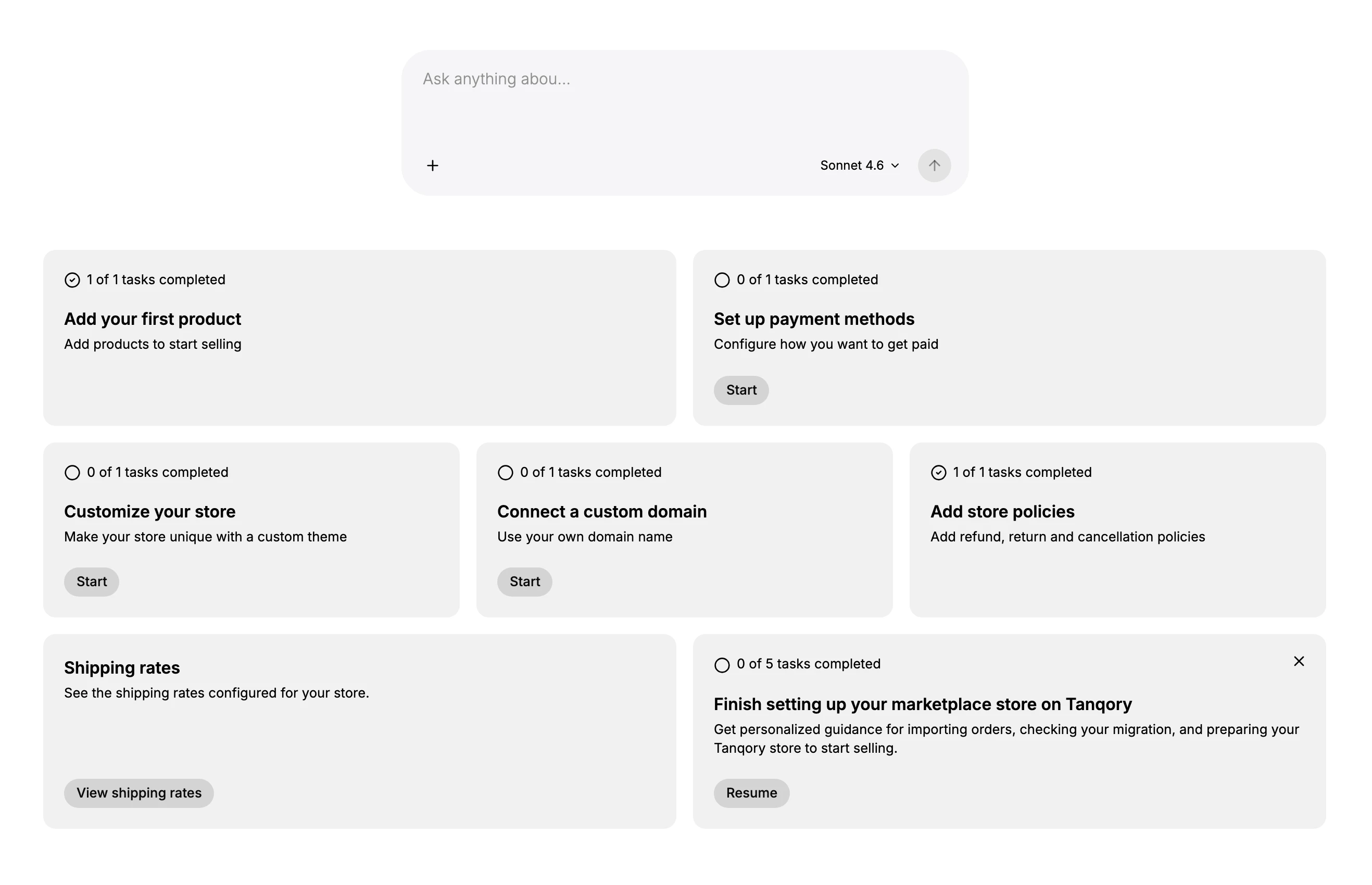
Home is the first page you reach after you sign in and open a store, and you return to it from Home at the top of the sidebar. It opens with a greeting, an assistant box where you can ask about your store, and a set of setup cards that track the tasks a new store needs before it can sell. Use it to get your bearings on a new store, then open the area you need from the sidebar for the day-to-day work. Home has its own web address, ending in dashboard, so the store's bare address does not land here. If you have bookmarked the store rather than this page, the bookmark will not bring you back to Home; select Home at the top of the sidebar instead, or bookmark the page while you are on it.
Before you begin
- Any role can open Home; what each card lets you do depends on your access.
- Select Home at the top of the admin sidebar. It is also the page you land on after signing in and opening a store.
The assistant box
At the top of Home is a box for asking about your store in plain language. The prompt suggests a subject to start you off, such as "Ask anything about shipping rates...". Type a question and it answers from what it knows about your store, so you do not have to leave the page to look something up.
The box carries three controls:
- A model selector, showing which model will answer, such as Sonnet 4.6.
- A plus control, for attaching a file to your question.
- A send button.
It is the same assistant you reach from AI Assistant in the sidebar, so nothing you ask here is tied to this page. Use it when you can describe what you want but do not know what it is called, because both the menus and search need the correct name.
The setup task cards
Below the assistant box is a grid of cards, one for each task that gets a new store ready to sell. They are the reason Home exists for a new store: they tell you what is left to do without you having to know in advance which settings matter.
Two articles cover them, and they answer different questions. Setup Guide explains how a card is built and how its count moves as you finish a task. Getting Started with Tanqory covers the tasks themselves, the order worth doing them in, and what it costs you to leave one undone.
A larger card, Finish setting up your marketplace store on Tanqory, sits with them and groups the migration tasks under a Resume button. It matters only if you are bringing an existing store across, and it can be dismissed once you are done with it.
What Home does not show
Home carries no sales figures, no order list and no customer summary. Each of those lives in the area it belongs to instead.
| What you are looking for | Where it is now |
|---|---|
| Sales, orders and returning customer figures | Store Metrics Cards and Reading the Sales Chart |
| Your latest orders | See Your Recent Orders |
| Your best customers | Find Your Top Customers |
| Your plan and the Upgrade to Pro prompt | Your Plan and Upgrade Prompt |
Tips for Home
- Use Home to get oriented on a new store, then open the area you need, such as Orders, Products, or Customers, from the sidebar for the actual work.
- Work through the setup cards before you start selling, so payments, shipping, policies, and your first products are all ready.
- Ask the assistant box when you are unsure where something lives, rather than hunting through the menus.
- Open Analytics, not Home, when you want to read how your store is performing.
Next steps
Related articles
Still stuck?
- Ask Tanqory AIAsk in your own words. It answers from these articles and links the ones it used.
- Ask in your adminThe assistant in your Tanqory admin answers and makes the change for you once you confirm.
- Contact TanqoryWrite to our privacy, security or legal teams, or talk to sales about a plan or a move.