Navigating the Admin
A tour of the Tanqory admin sidebar: what each top-level area holds, where common tasks live, and how to move around with search, sub-menus, and Settings.
On this page
The Tanqory admin is where you run your store, and everything you do is grouped into a sidebar of top-level areas. Knowing what each area holds is the quickest way to find your way around, since you go straight to the right place instead of hunting through menus.
The sidebar is closed to begin with, so you open it from the Navigation menu button at the top left, and it closes again once you pick where you are going. It lists every area under a PLATFORM heading. Everyone sees the same list, but an area your role cannot reach is greyed out and does not respond when you select it, so a teammate with fewer permissions sees the same sidebar you do with some of it out of reach. This article names each area, shows where common tasks live, and covers how to move around quickly.
Before you begin
- Sign in and open a store, so the sidebar is in front of you as you read.
- Any role can move around the admin. An area your role cannot reach still appears in the sidebar, greyed out, rather than being hidden from you.
The admin sidebar
Each row in the sidebar is a top-level area. A row with an arrow on the right expands to show its own pages when you click it, so the sidebar works as a two-level menu: the area first, then its pages. For example, Products expands to Collections, Inventory, Transfers, Purchase Orders, and Gift Cards, and Settings expands to pages such as Payments, Checkout, Taxes and Duties, and Locations.
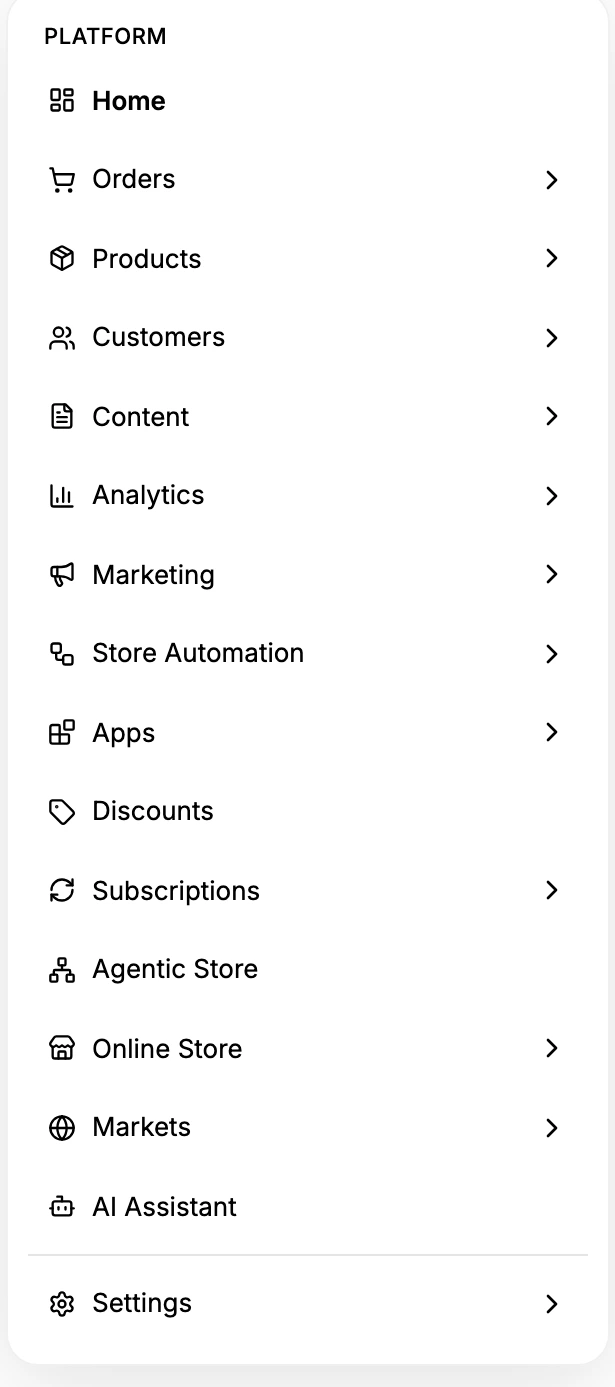
| Area | What you manage here |
|---|---|
| Home | The landing page, with an AI assistant box and the setup task cards for a new store |
| Orders | The orders customers place, along with Drafts, Shipping labels, and Abandoned Checkouts |
| Products | Your catalog, along with Collections, Inventory, Transfers, Purchase Orders, and Gift Cards |
| Customers | Customer records, with Segments and Companies |
| Content | Metaobjects, Files, Menus, and Blog Posts |
| Analytics | Reports and metrics about your store, with Reports and Live View |
| Marketing | Campaigns, Email Marketing, and Attribution |
| Store Automation | Automated workflows for your store, with a Dashboard, Workflows, Templates, and History |
| Apps | Apps you add to your store, with the App Store and your Installed apps |
| Discounts | Discount codes and automatic discounts |
| Subscriptions | Selling plans for recurring purchases |
| Agentic Store | Agentic Storefronts, where AI agents can surface your products to customers |
| Online Store | Your storefront, including Pages, Preferences, and Tanqory Studio |
| Markets | Selling in different markets, with Catalogs and Rollouts |
| AI Assistant | The built-in assistant you can ask about your store |
| Settings | Store-wide configuration, and the longest list in the sidebar. Twenty entries: Home, General, Plan & Billing, Domains, Policies, Users, Notifications, Payments, Checkout, Customer accounts, Shipping & Delivery, Taxes and Duties, Locations, Apps and sales channels, Customer events, Customer privacy, Metafields & metaobjects, Languages, AI and Integrations. Two of them open further, Plan & Billing into Plan, Purchase and Billing, and Users into Roles and Security |
Find common tasks quickly
If you are not sure where a task lives, use this table as a shortcut. Find what you want to do in the left column, then open the area named on the right from the sidebar to get there. It covers the tasks stores reach for most often; for anything not listed, the area table above shows what each area holds, and Search in the top bar jumps straight to a specific product, order, or customer.
| To do this | Go to |
|---|---|
| View or fulfill an order | Orders |
| Recover an abandoned checkout | Orders, then Abandoned Checkouts |
| Add or edit a product | Products |
| Check or adjust stock | Products, then Inventory |
| Issue or sell a gift card | Products, then Gift Cards |
| Find a customer or give store credit | Customers |
| Add a blog post or edit menus | Content |
| See your sales and reports | Analytics |
| Send an email or run a campaign | Marketing |
| Automate a repeating task | Store Automation |
| Create a discount | Discounts |
| Sell on a subscription plan | Subscriptions |
| Edit your storefront pages or theme | Online Store |
| Sell in another country or currency | Markets |
| Install an app | Apps |
| Invite a team member or set permissions | Settings, then Users |
| Change payments, checkout, taxes, or locations | Settings |
When an entry reads something like Products, then Inventory, open that area from the sidebar first, then choose the named page from the ones it expands to. That is the same two-level pattern the sidebar uses everywhere: the area first, then its pages.
Tip: When you cannot think which area owns a setting, open Settings and read its list rather than guessing your way through the other areas. Twenty entries sit under it, and anything that applies to the whole store rather than to one order, product or customer is almost always one of them.
Move around the admin
- Open the sidebar from the menu button at the top left, then click an area to go to it. An area with an arrow expands to show its pages.
- Use Search in the top bar to reach something by name, which is faster than opening the sidebar and clicking down to it. Getting Around Quickly covers Search and the other shortcuts in the top bar.
- Use Settings for store-wide configuration. Most setup that is not about a single order, product, or customer lives there.
- Use the breadcrumbs at the top of a page to step back up to where you came from.
If something goes wrong
- An area is greyed out and will not open. Your role does not have permission for it. The area is not hidden and nothing is broken. It stays out of reach until an admin grants your account a role that covers it, which they do under Settings > Users. Roles and Permissions sets out what each role can reach and how a custom role is built when none of the built-in ones fits, and Users covers the page where a person's role is changed.
- You cannot find a setting. Open Settings, since most store-wide configuration lives there rather than in the individual areas.
- You feel lost in a deep page. Use the breadcrumbs at the top of the page to go back up.
Next steps
Related articles
Still stuck?
- Ask Tanqory AIAsk in your own words. It answers from these articles and links the ones it used.
- Ask in your adminThe assistant in your Tanqory admin answers and makes the change for you once you confirm.
- Contact TanqoryWrite to our privacy, security or legal teams, or talk to sales about a plan or a move.