Adding Your First Product
The new product form section by section, what belongs in each field with a worked example to copy the shape of, and what happens when you save: a new product is Active to begin with, so it goes live on your storefront the moment you do.
On this page
Adding a product is the first task in setting up your store. You create one from Products > Add product, which opens a form split into sections. The only field the form requires is the Title, but to actually sell the product you will also want a description, at least one image, and a price. The product's status starts as Active, so it goes live on your selling channels as soon as you save.
Before you begin
- Your role includes Edit products.
- Have the product's basics ready: a title, a price, and at least one image. A product without these is not ready to sell.
- Open Products in the admin sidebar, then select Add Product to open the form.
What the product form has
| Section | What it holds |
|---|---|
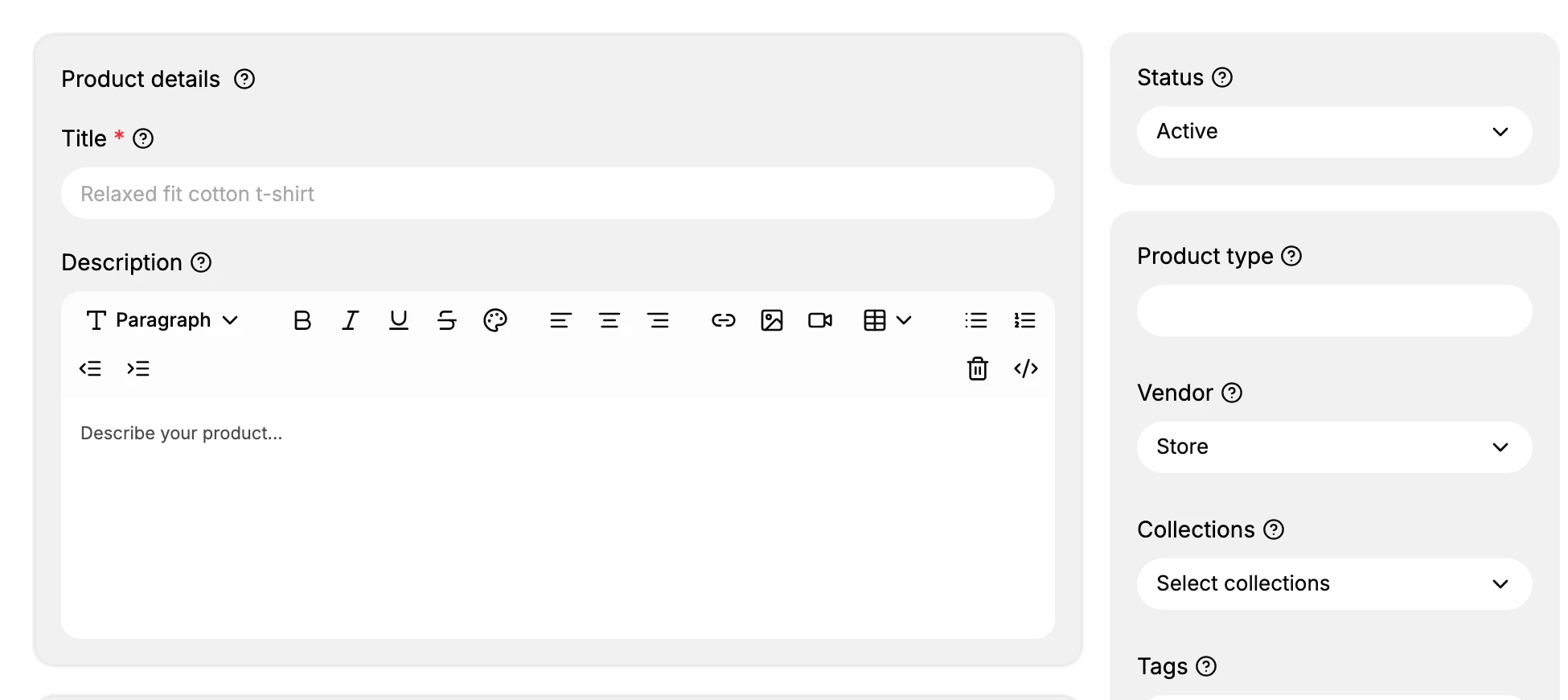
| Product details | Title (required), Description, and Category |
| Media | The product's images, added with Upload new or Select existing |
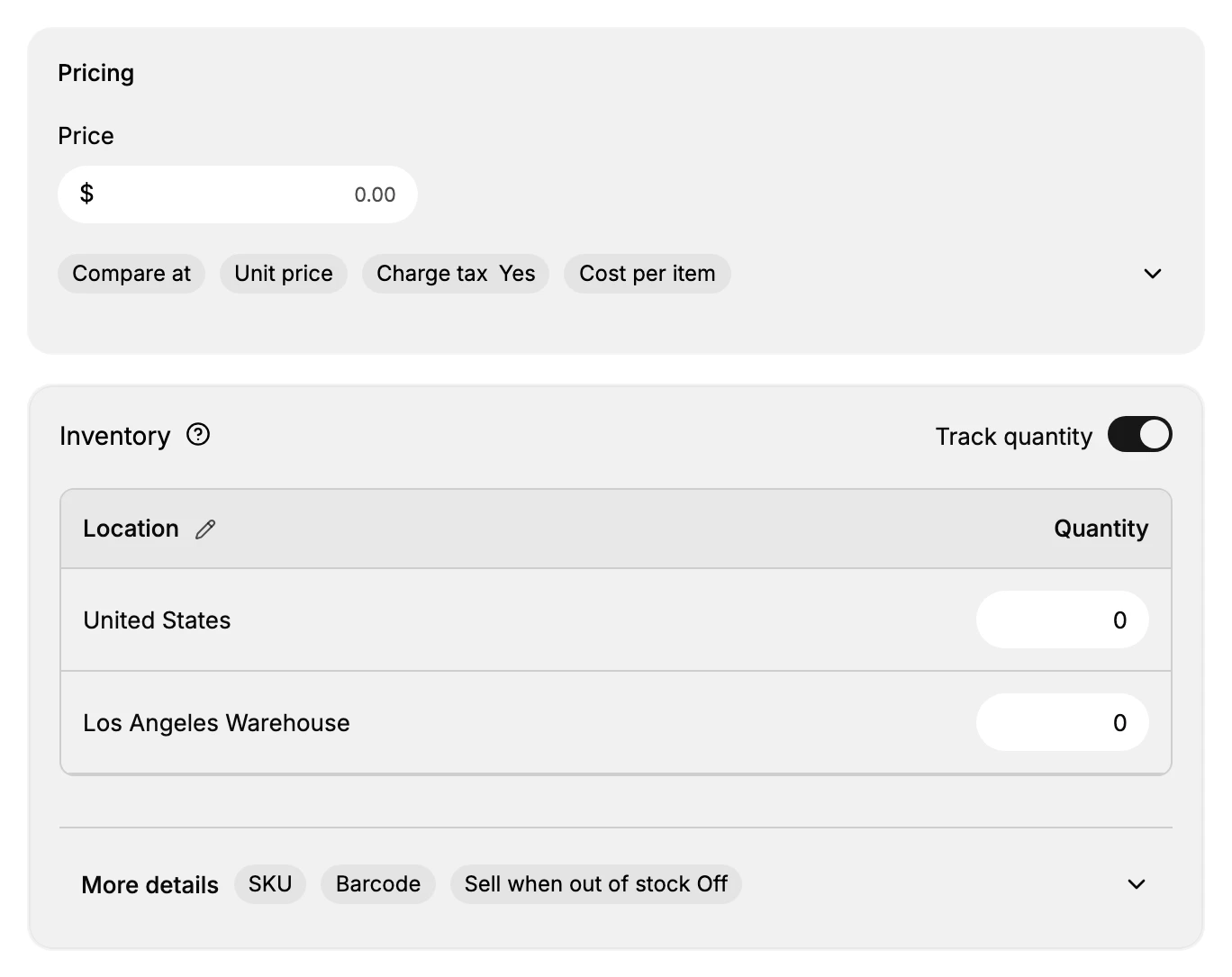
| Pricing | Price, Compare at, Unit price, Charge tax, and Cost per item |
| Inventory | Whether stock is tracked, the quantity held at each of your locations, and a More details group holding SKU, Barcode and a Sell when out of stock switch |
| Shipping | Whether it is a physical product, the package it goes in (already set to one of your saved boxes), the weight, and customs information (Country of origin, HS Code) |
| Variants | Options such as size or color, added with Add Option to create the product's variants |
| Metafields | Extra custom fields, if your store has defined any |
| Search engine listing | A preview of how the product appears in search results, with a Page title you can set |
On the right are the Status (Active by default), the organization fields (Product type, Vendor, Collections, Tags), and the channels the product publishes to, such as Online Store.
What to put in each field
If this is your first product, the hard part is not finding the fields but knowing what belongs in them. Here is one product filled in, so you can see the shape of a good answer before you write your own.
| Field | An example | Why it is written that way |
|---|---|---|
| Title | Linen Long-Sleeve Shirt - Cream | Says what the thing is and which version of it. A shopper scanning a collection page reads this and nothing else, so "Shirt" or "New arrival" leaves them guessing |
| Description | Lightweight woven linen with a relaxed fit and a straight hem. Cool in summer, softens with every wash. Machine wash cold, hang to dry. | Answers the questions a shopper would ask if you were standing there: what it is made of, how it fits, how to look after it. Facts, not adjectives |
| Price | 89.00 | The amount the customer pays. Enter the number only, since the currency comes from your store settings |
| Compare at | 120.00 | The higher, older price, shown struck through beside yours. Leave it empty unless the item really sold at that price, otherwise the markdown is not honest |
| Cost per item | 32.00 | What the item costs you. Customers never see it. Your reports use it to work out your profit margin |
| SKU | LIN-LS-CRM-M | Your own code for this exact item, used for stock counts and picking. Any consistent pattern works, such as material, style, colour, size |
| Weight | 0.35 | Used to work out shipping rates, so a wrong weight means a wrong delivery charge on every order |
Tip: Write the description for someone who cannot touch the product, because that is exactly the situation your customer is in. Material, fit, size and care answer most pre-purchase questions, and answering them here is cheaper than answering them one email at a time.
Add a product
1. Open Products and click Add product
Go to Products and click Add product to open the new product form.
2. Enter the title and description
In Product details, enter the Title, which is the product's name on your storefront and the only required field. Add a Description that tells customers what the product is, and pick a Category if you want.
3. Add an image
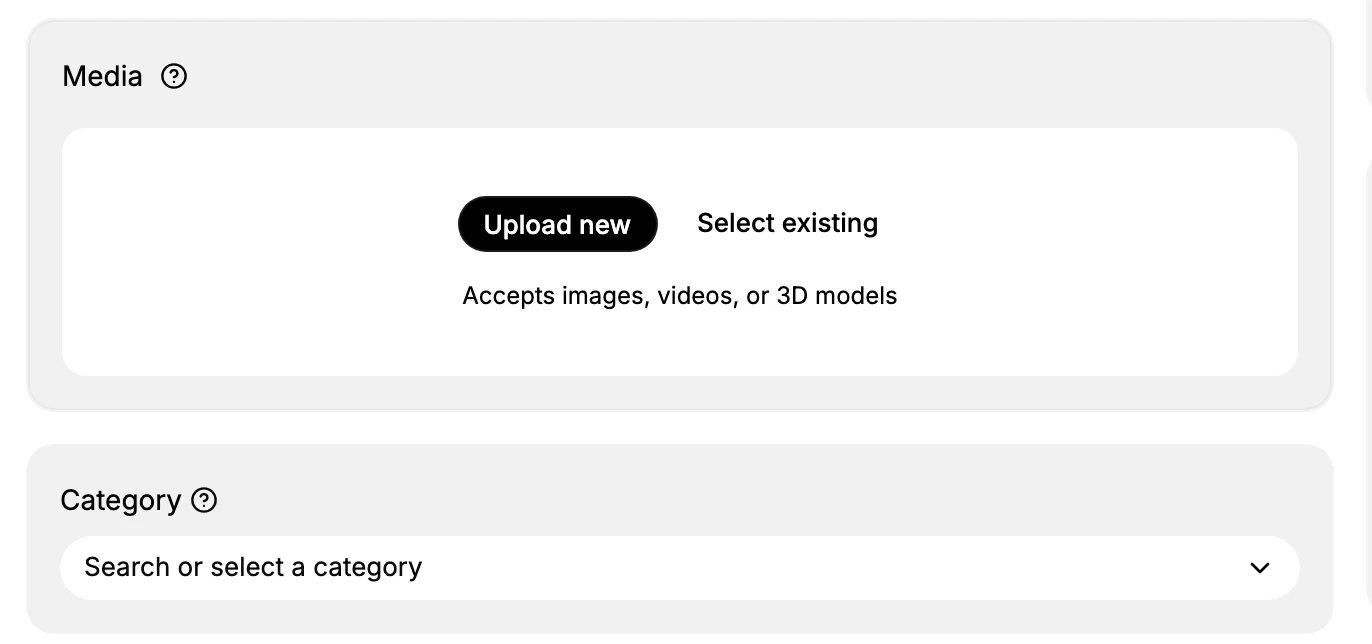
The Category section sits directly below Media, and its box is a search rather than a list, so type what the product is and pick from what comes back.
In the Media section, use Upload new to add a product image, or Select existing to reuse one already in your store. A clear image is what customers see first. Managing Product Images covers uploading and arranging them.
4. Set the price
In the Pricing section, enter the Price. You can also set a Compare at price to show a markdown, and a Cost per item to track your margin. Setting Product Prices works through each pricing field.
Compare at, Unit price, Charge tax and Cost per item sit behind their own labels here rather than as open fields, so select the one you want and it opens for you to fill in.
5. Set inventory and shipping if the product needs them
For a stocked item, Track quantity is already on, and the section lists every location you hold stock at with a quantity box against each, so enter what you have where you have it. Turning Track quantity off tells Tanqory not to count this product at all, which suits a made-to-order item or a service. For something you ship, open Shipping, confirm it is a physical product, and set the Weight, which carriers use for rates; you can also fill in the customs information (Country of origin and HS Code) for cross-border orders. Skip these for a digital product or a service. Track Quantity explains stock tracking, and Create a Shipping Profile sets up how a product ships.
6. Add variants if the product comes in options
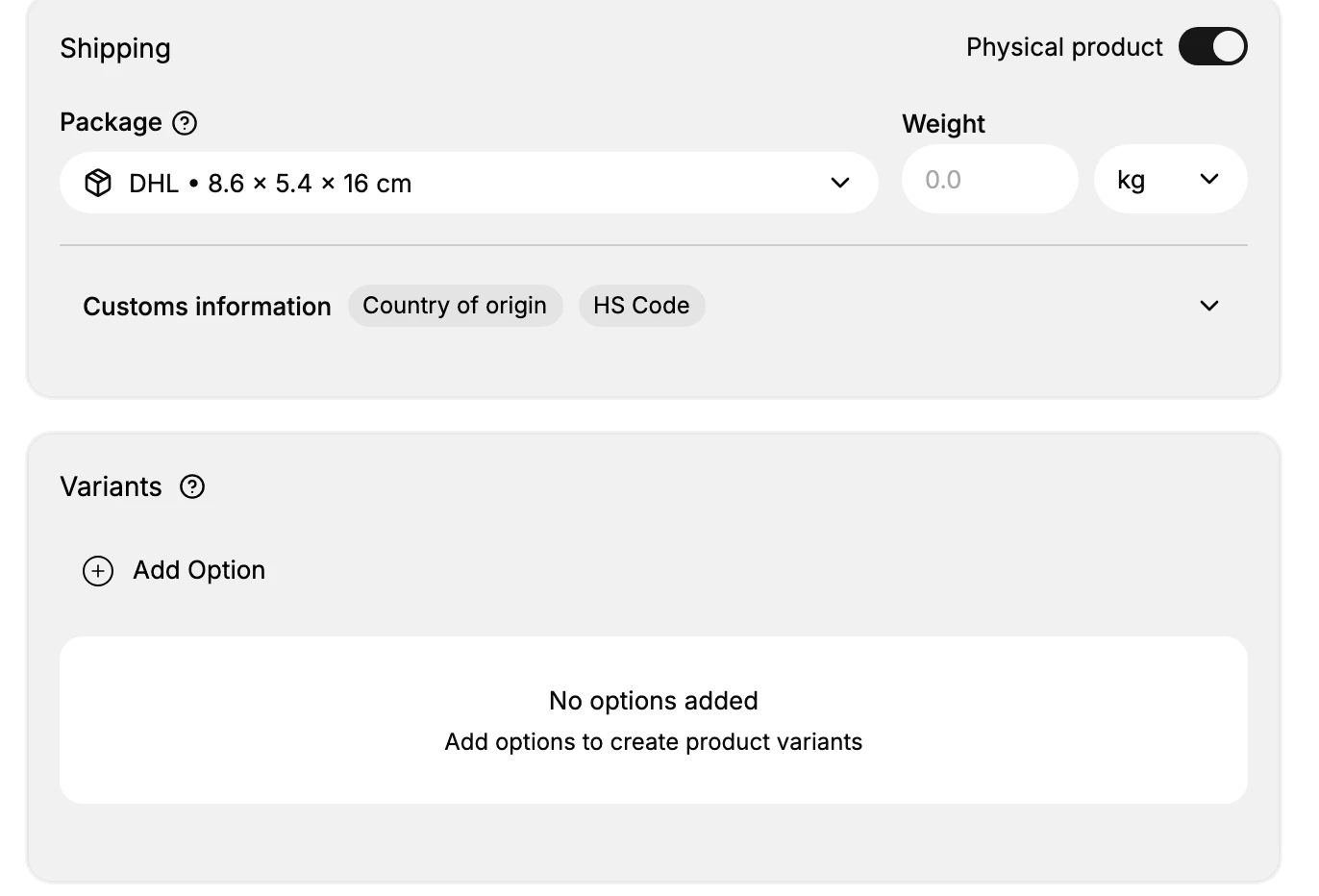
If the product comes in options such as size or color, open Variants and use Add Option to add them. As the section says, you add options to create the product's variants. Leave this empty for a single-version product. Product Variants covers options and the variants they create.
7. Review the search engine listing
Open Search engine listing to see a preview of how the product will appear in search results, with the page address and a Page title. The product is findable without changing anything here, but you can edit the Page title if you want it to read differently from the product title. Product SEO (Search Engine Listing) goes through the listing fields.
8. Check the status and save
The Status is Active by default, which means the product goes live on its channels when you save.
Note: Active is the default, so saving a half-finished product puts it on your storefront straight away. If you are building the product over more than one sitting, set it to Draft before your first save and switch it back when it is ready. Leave it as is to publish, or change it to a draft if the product is not ready. When the details are right, click Save in the top bar, and Tanqory checks the required field and saves the product. Manage Product Status (Active, Draft, Unlisted) explains what each status does.
If something goes wrong
- Save is blocked. The Title is required, so add one if it is empty, then save again.
- The product is not on your storefront. Check that the Status is Active and that it is published to your Online Store.
- Permission denied. Your role cannot manage products.
Next steps
Related articles
Still stuck?
- Ask Tanqory AIAsk in your own words. It answers from these articles and links the ones it used.
- Ask in your adminThe assistant in your Tanqory admin answers and makes the change for you once you confirm.
- Contact TanqoryWrite to our privacy, security or legal teams, or talk to sales about a plan or a move.