Product SEO (Search Engine Listing)
Control how a product appears in search results from the Search engine listing section: the Meta title, Meta description, URL handle, and Keywords.
On this page
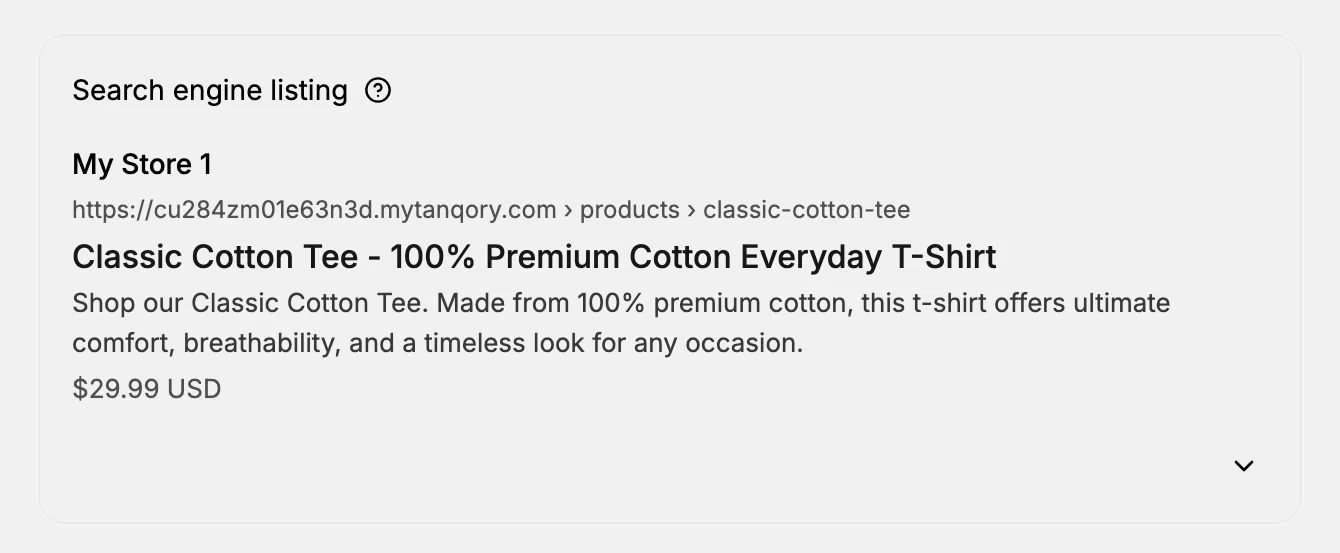
Every product has a Search engine listing section near the bottom of the product editor. It shows a preview of how the product appears in search results, including the store name, the URL, the product title, and the price, and lets you override the SEO fields behind that preview so you compete for the searches that matter.
Before you begin
- You have the Edit products permission.
- You know the terms customers actually search for this product.
- Open Products and open a product, then scroll to its Search engine listing section.
What the listing preview shows
By default the section is collapsed to a search-result preview:
- Store name (e.g. My Store 1)
- The URL, ending in the product's handle, for example
/products/classic-cotton-tee - The product title (the bold headline)
- The description snippet beneath the title
- The price
The preview reflects the product's title, description, and URL handle. Expand the section (the chevron on the right) to override these for search engines with dedicated SEO fields, namely Meta title, Meta description, URL handle, and Keywords, instead of relying on the defaults.
How the fields shape your search result
A search engine builds each result from a page's title, description, and address. The Search engine listing section is where you set those for this product, overriding the defaults it would otherwise take from the product's own title and description. That is the point of the section: you decide how the product reads in search rather than leaving it to the defaults.
- The Meta title becomes the clickable headline of the result. It is the first thing a shopper reads, so a clear, specific title is what earns the click.
- The Meta description becomes the snippet under the headline. It is your space to summarize the product and persuade the shopper to click through.
- The URL handle is the address shown in the result. A short, descriptive one is easier to read, trust, and share, and changing it later breaks the links that already point at the product.
- Keywords are not shown to shoppers. The field records the search terms you consider relevant to the product; unlike the three fields above, it changes nothing a shopper sees.
Because the preview at the top updates as you type, you can see exactly how the result will read before you save, so you are never guessing at the effect of a change.
URL handle guidance
The handle is the last part of the URL after /products/:
- Keep it lowercase with hyphens between words.
- Make it descriptive:
/products/classic-cotton-teeis better than/products/sku-12345. - Avoid changing it after the product is published: existing links and search results point at the old handle and will break.
Steps
1. Open the product and scroll to Search engine listing
Open the product from Products in the admin sidebar and scroll to the Search engine listing section. You'll see the search-result preview.
2. Expand the section to edit it
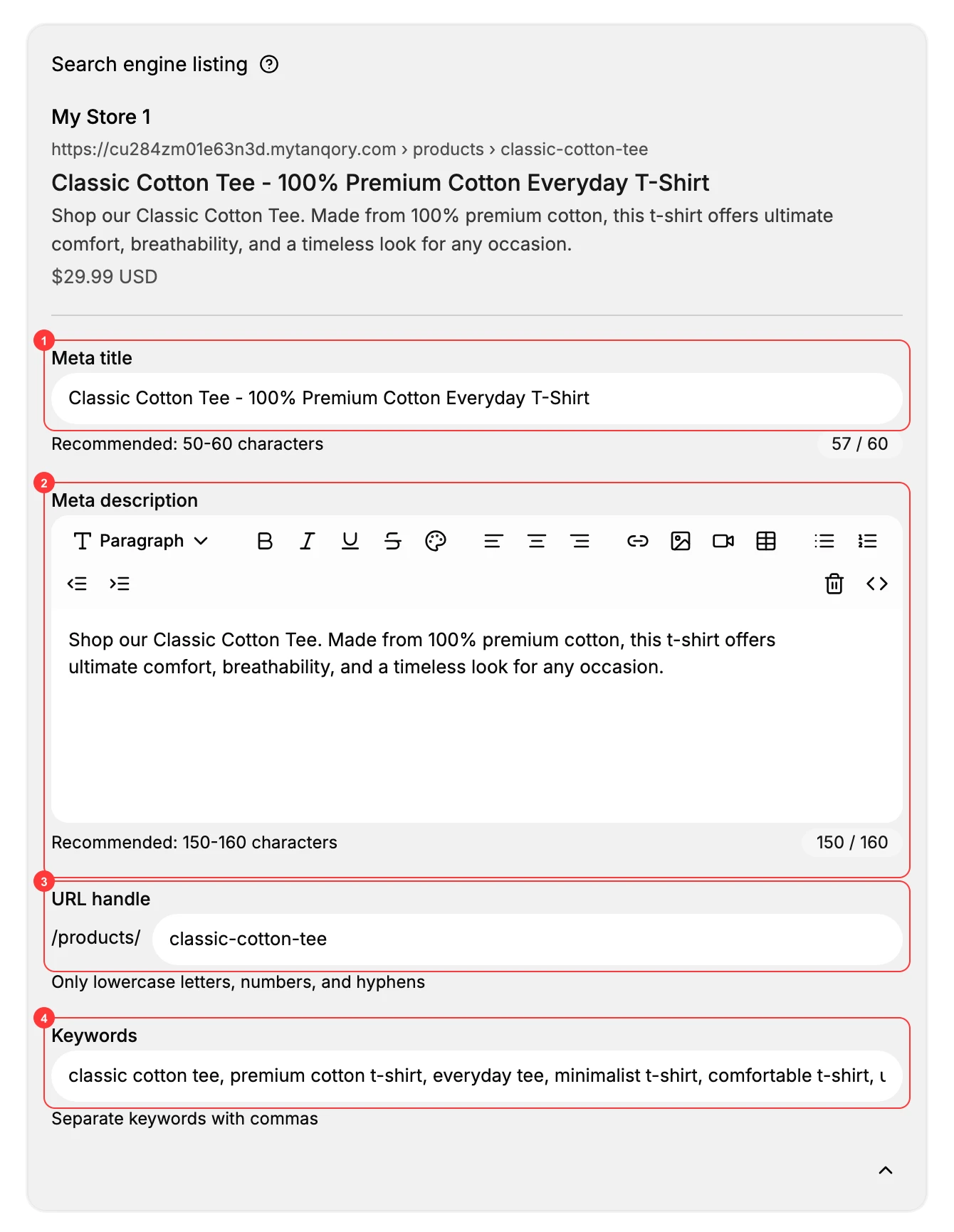
Click the chevron on the right of the section to reveal the editable SEO fields: Meta title (1), Meta description (2), URL handle (3), and Keywords (4). The live preview stays at the top so you can see the effect of your edits.
3. Write the Meta title
Fill in Meta title, the headline shoppers read and click in the search result. Lead with what the product is and your brand, since that first line is what earns the click. The field shows a live character count and recommends 50 to 60 characters (it counts up, for example 57 of 60); staying in range keeps the title from being cut off in results.
4. Write the Meta description
Write Meta description in the rich-text editor, a sentence or two (the field recommends 150 to 160 characters) covering the benefit and what the product is. This is the snippet shown under the title in search results and in the preview above.
5. Check the URL handle
The URL handle follows /products/ and accepts only lowercase letters, numbers, and hyphens. Make sure it follows the guidance above: only change it on an unpublished product, or accept that old links will break.
6. Add Keywords
Enter Keywords as a comma-separated list (the field hint reads Separate keywords with commas): the search terms you consider relevant to this product. Unlike the three fields above, Keywords are not shown in the search result itself.
7. Save
Click Save in the floating bar. The preview updates to reflect your changes.
Verify the result
- The Search engine listing preview shows your Meta title, description snippet, and URL.
- The character counters sit within the recommended ranges (Meta title 50 to 60, Meta description 150 to 160).
- The storefront product page loads at the expected URL handle.
Best practices
- Write a unique Meta title and description per product: do not reuse one template across the catalog.
- Match real search terms: write the Meta fields and Keywords for what customers type, not internal jargon.
- Settle the URL handle before publishing so you never have to break links later.
Common mistakes
- Duplicate titles or snippets across products: they compete with each other in search.
- Keyword stuffing the title: it reads badly and does not help.
- Changing the handle after launch: every existing link to that product breaks.
If something goes wrong
- The preview did not update: confirm you clicked Save.
- The product page returns a 404 error after a handle change: revert the handle, or update the links that point to it.
- Permission denied: your role lacks the Edit products permission.
Next steps
Related articles
Still stuck?
- Ask Tanqory AIAsk in your own words. It answers from these articles and links the ones it used.
- Ask in your adminThe assistant in your Tanqory admin answers and makes the change for you once you confirm.
- Contact TanqoryWrite to our privacy, security or legal teams, or talk to sales about a plan or a move.