Import Products via CSV
Add or update many products at once by uploading a CSV in the Import products dialog. Start from the sample CSV so your column headers match, upload the file, and check the preview before anything is saved. This article covers where to get the correct format, what each step of the dialog does, and how to recover when a file will not import cleanly.
On this page
Importing a CSV is the fast way to add or update many products at once, which makes it the right tool for setting up a catalog, for a large seasonal update, or for moving a catalog over from another platform. For small edits to a handful of products, Bulk Edit Products is quicker and needs no file at all. The Import products dialog takes you through uploading a file and previewing it, so nothing is written to your catalog until you have seen what the import will do.
You work under Products in the admin sidebar.
Get the format right first
The import expects the same columns the product CSV uses, and columns are matched by their header name. Rather than guess the names, select Download sample CSV in the import dialog. It gives you a template with the exact headers, which are the same fields you get when you export. They run Product Handle, Title, Description, Vendor, Product Category, Type, Tags, the Option and Variant columns, Image URL and Alt Text, SEO Title and SEO Description, and so on. Fill in the template, or rename your own file's headers to match it.
Tip: the cleanest way to build an import file is to export a few products first, edit that CSV, and import it back. The columns then line up by definition, and you can see how real values are formatted before you type your own.
Before you begin
- You have the Import and export products permission.
- You have a CSV whose headers match the sample.
- For a migration or a mass update, export your current catalog first, so you have a copy of the data as it was.
- Open Products in the admin sidebar, where Import sits in the page header.
Steps
1. Open Products and select Import
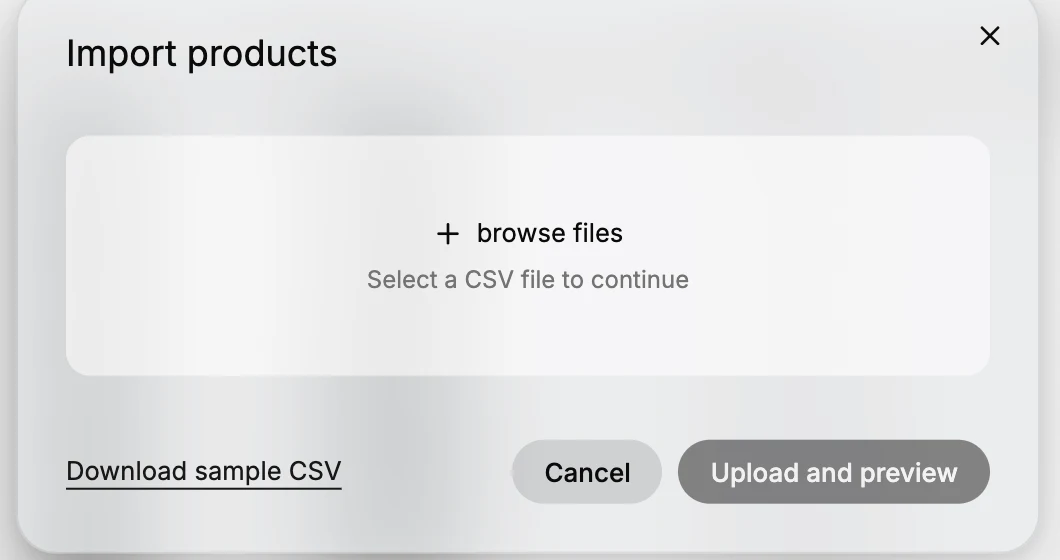
Go to Products in the admin sidebar and select Import in the page header. The Import products dialog opens, with the prompt to upload a CSV file to import products.
2. Download the sample CSV the first time
Select Download sample CSV to get the template with the correct headers, and build your file from it. Doing this once saves the most common import problem, which is a header that does not match and is therefore skipped.
3. Select your CSV
Drag your file onto the drop zone, or select browse files and pick it. Until a file is chosen the dialog keeps prompting you to select a CSV file to continue, so the upload button does nothing yet.
4. Select Upload and preview
This uploads the file and builds a preview of the import. Nothing is committed at this point, which is what makes the step worth taking slowly: it is where a wrong column, a stray row, or a file in the wrong format shows up while it is still free to fix.
5. Review the preview, then confirm
Read the preview against what you expected the file to do. Check that the rows are the products you meant to send, that the values landed in the right columns, and that nothing looks blank where your file had data. If anything is off, back out, correct the CSV against the sample, and upload it again. When the preview looks right, confirm to apply the import.
Verify the result
- The imported products appear in the Products list, and the tab counts have grown by the number of new products.
- Open two or three of them and check the title, price, variants, and images against your CSV.
- For an update rather than a new product, confirm the existing product changed instead of a second copy appearing, which is what a mismatched handle causes.
Best practices
- Start from the sample CSV, or from an export, so the headers match exactly.
- Test with a few rows before importing a large file. A five-row test shows the same formatting problems as a five-hundred-row one, and costs nothing to undo.
- Keep handles consistent. The handle is what identifies a product, so a changed or mistyped handle creates a duplicate instead of updating the product you meant.
- Use image URLs that stay reachable, since the images are pulled in at import time.
- Export before a mass update, so you have the previous values if the import is not what you wanted.
Common mistakes
- Headers that do not match the sample. Columns are read by name, so a typo means that column is skipped and the data never arrives.
- Skipping the preview. It is the only check that happens before the import is written.
- Importing a large file without a small test first, which turns one formatting mistake into hundreds of rows to correct.
- Importing without a backup before a mass update. Export first.
If something goes wrong
- The file will not upload. Confirm the file is a
.csvrather than a spreadsheet file saved in another format, and select browse files again. - The preview looks wrong. Back out, fix the CSV against the sample, and upload it again. Nothing has been saved at that point.
- A column is empty in the preview. The header for that column does not match the sample. Correct the header and re-upload.
- The import created duplicates. The handles in the file did not match the products you meant to update. Fix the handles and import again, then remove the duplicates.
- Permission denied. Your role is missing the Import and export products permission.
Next steps
Related articles
Still stuck?
- Ask Tanqory AIAsk in your own words. It answers from these articles and links the ones it used.
- Ask in your adminThe assistant in your Tanqory admin answers and makes the change for you once you confirm.
- Contact TanqoryWrite to our privacy, security or legal teams, or talk to sales about a plan or a move.