Export Products to CSV
Export your catalog to a CSV from the Export Products dialog. Choose how many products to include, pick the CSV format that suits the program you will open it in, and select exactly which of the 33 fields the file should carry.
On this page
Exporting writes your products to a CSV file you can open in a spreadsheet. It is how you get catalog data out of Tanqory for bulk editing, for sending a price list to a supplier, for keeping a snapshot before a large change, or for moving to another system. The Export Products dialog controls three things: how many products go into the file, which CSV format it is written in, and which fields become columns.
The export is also the safest way to prepare an import. Because the file you get back uses the same column names the importer expects, editing an export and sending it back is far more reliable than building a CSV by hand. That flow is covered in Import Products.
Note: the dialog states that the exported CSV can update all product information except inventory quantities. To change inventory quantities across locations, use the inventory CSV or the bulk editor instead.
You work under Products in the admin sidebar.
Before you begin
- You have the Import and export products permission.
- If you only want part of the catalog, narrow the list first with a tab or a search, because the scope options follow what is on screen.
- If you plan to select specific products, tick them in the list before opening the dialog.
- Open Products in the admin sidebar, where Export sits in the page header.
Steps
1. Open Products and select Export
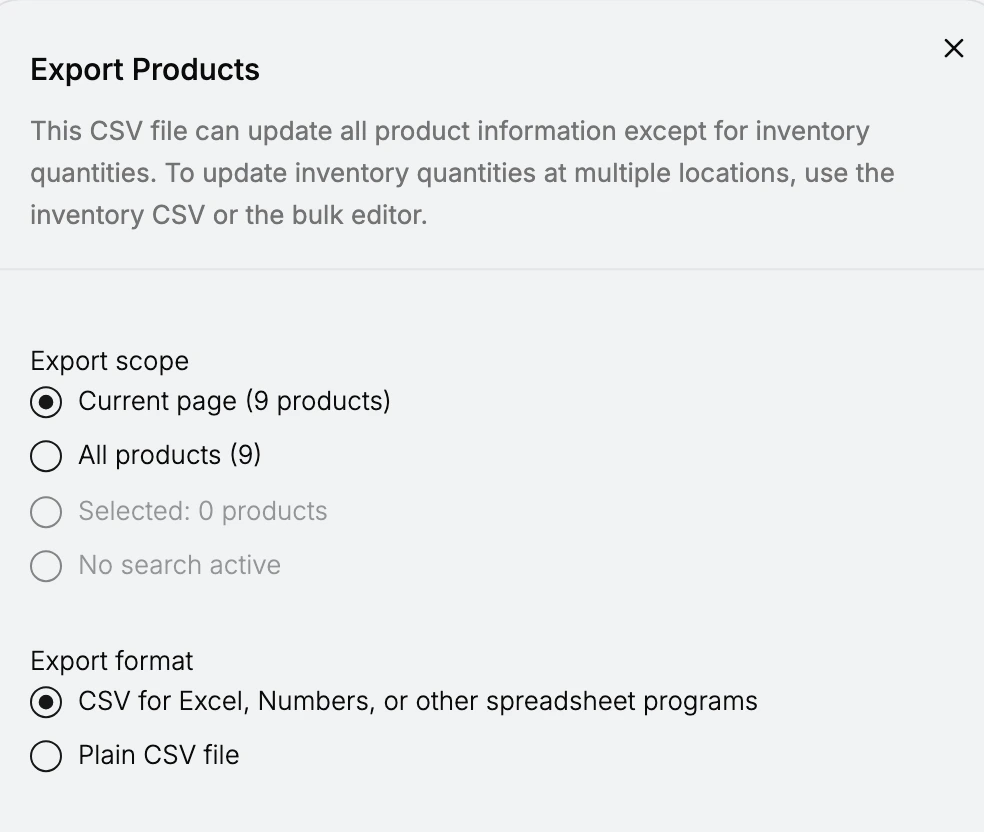
Go to Products in the admin sidebar and select Export in the page header. The Export Products dialog opens with the note about inventory quantities at the top, then the three sections you work through in order.
2. Choose the Export scope
The scope decides how many products land in the file. Each option shows its own count, so you can see the size of the export before you commit to it.
- Current page exports only the products on the page you are looking at, which follows the rows-per-page setting of the list.
- All products exports the whole catalog, whatever page you are on.
- Selected exports only the products you ticked in the list. It stays greyed out while nothing is selected, which is why it reads "Selected: 0 products" on a fresh list.
- The search option exports the products matching the search you have applied. It stays greyed out and reads "No search active" until you search first.
The two greyed-out options are not broken. They are waiting for you to select rows or run a search before you open the dialog, so if you want either of them, cancel, set up the list, and open Export again.
3. Choose the Export format
Both options produce a CSV. The difference is how it is written for the program you will open it in.
- CSV for Excel, Numbers, or other spreadsheet programs is the default and the right choice if a person is going to open the file. It opens cleanly in a spreadsheet without an import wizard.
- Plain CSV file is the raw file, which suits another system reading it or a script processing it.
4. Choose the Fields to export
Every column of the export is a checkbox in this section, and all of them are selected to begin with, with a running count at the bottom that reads "33 fields selected". Select all and Deselect all flip the whole list at once, so the fastest way to a narrow file is to deselect everything and then tick the handful you want.
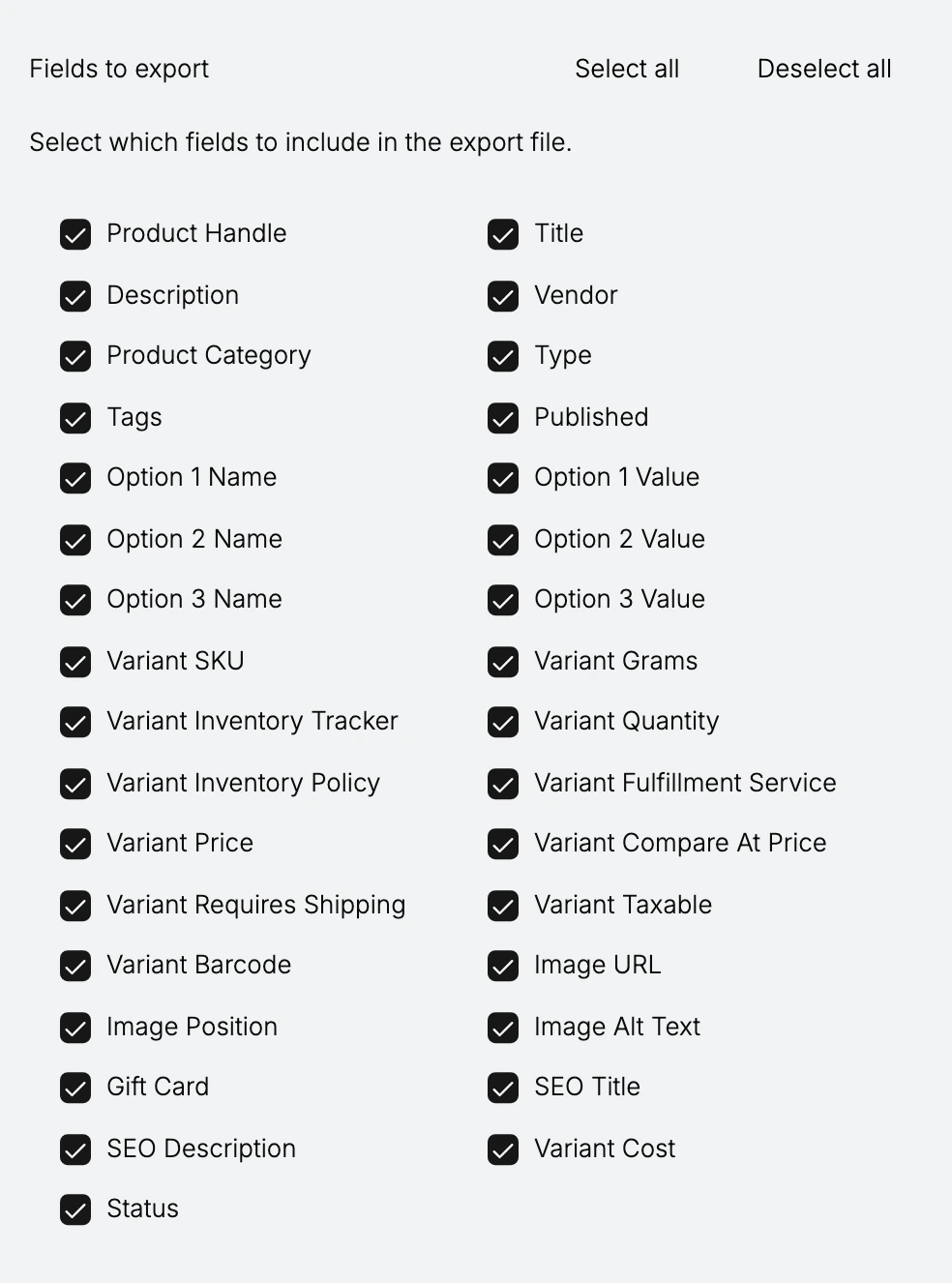
The fields group into five kinds of data.
| Group | Fields |
|---|---|
| Product | Product Handle, Title, Description, Vendor, Product Category, Type, Tags, Published, Status, Gift Card |
| Options | Option 1 Name and Value, Option 2 Name and Value, Option 3 Name and Value |
| Variant | Variant SKU, Variant Grams, Variant Inventory Tracker, Variant Quantity, Variant Inventory Policy, Variant Fulfillment Service, Variant Price, Variant Compare At Price, Variant Requires Shipping, Variant Taxable, Variant Barcode, Variant Cost |
| Images | Image URL, Image Position, Image Alt Text |
| Search listing | SEO Title, SEO Description |
Two things are worth knowing when you trim the list. Product Handle is what identifies a product, so keep it in any file you intend to edit and import back, or the import cannot tell which product a row belongs to. A narrower file is also easier to work with: a price review is far quicker in a file of Handle, Title, and Variant Price than in one with all 33 columns.
5. Select Export
Check the field count at the bottom of the dialog against what you expected, then select Export to generate the file. Cancel closes the dialog and changes nothing, so backing out costs you nothing if the scope or fields look wrong.
Verify the result
- The CSV opens in your spreadsheet program with the columns you selected, in the same order as the field list.
- The number of products represented matches the scope you chose. Products with several variants take more than one row.
- Spot-check one product against its page in the admin, so you know the values are the ones you expected before you build anything on the file.
Best practices
- Narrow the scope first when you only need a subset. Exporting the whole catalog for a few rows makes the file harder to work in and slower to check.
- Keep a periodic full export. It is the simplest snapshot of your catalog, and it costs nothing to keep.
- Export before any mass change, including an import, so you have the previous values.
- Open the file with handles, SKUs, and barcodes treated as text. Left to itself, a spreadsheet can turn them into numbers or dates and quietly corrupt them.
- Keep Product Handle selected in anything you plan to import back.
- Test a small re-import before importing an edited full-catalog file.
Common mistakes
- Exporting everything when a tab or a search would have given the exact subset.
- Expecting inventory quantities to round-trip. The dialog says the CSV does not update them, so use the bulk editor for stock.
- Deselecting Product Handle and then finding the file cannot be imported back.
- Letting a spreadsheet reformat handles or SKUs, which breaks the match on re-import.
- Opening the dialog before ticking rows and then wondering why the Selected option is greyed out.
If something goes wrong
- The file is too large to work with. Narrow the scope, or deselect the fields you do not need, and export again.
- The columns are wrong. Open Export again and adjust the Fields to export selection. Nothing about the earlier file changes.
- Selected or the search option is greyed out. Cancel, tick the products or run the search on the list first, then reopen the dialog.
- The file will not open cleanly. Choose CSV for Excel, Numbers, or other spreadsheet programs rather than the plain CSV.
- Permission denied. Your role is missing the Import and export products permission.
Next steps
Related articles
Still stuck?
- Ask Tanqory AIAsk in your own words. It answers from these articles and links the ones it used.
- Ask in your adminThe assistant in your Tanqory admin answers and makes the change for you once you confirm.
- Contact TanqoryWrite to our privacy, security or legal teams, or talk to sales about a plan or a move.