How to Add a Product
Add a product to your Tanqory store: write a clear title and description, upload images, set prices, track inventory, and publish it to your storefront.
On this page
A product in Tanqory represents a physical or digital item you sell. Each product has a title, description, pricing, images, and optional variants such as size or color. Products are the core of your catalog: shoppers browse them, and every order references them.
Clear titles and descriptions help shoppers understand what they're buying. Accurate pricing and inventory tracking prevent fulfillment issues. Well-structured products also improve how your store appears in search engines and on marketplace channels.
Variants let you sell multiple versions of the same product under one listing. For example, you can offer a t-shirt in small, medium, and large, or a notebook in red and blue. Each variant can have its own price, SKU, and inventory count. If your product has no variations, it keeps a single default variant.
Tip: This article walks you through adding a product, section by section. When you need exact detail on a field - which ones are required and which choices are hard to change later - Create a Product (Detailed Walkthrough) is the field-by-field companion.
Before you begin
- You are in the store where you want to add the product.
- You have the Create products permission. If not, ask your store owner to grant it from Settings > Users.
- Open Products in the admin sidebar to open the product form.
Steps
1. Open the Add Product form
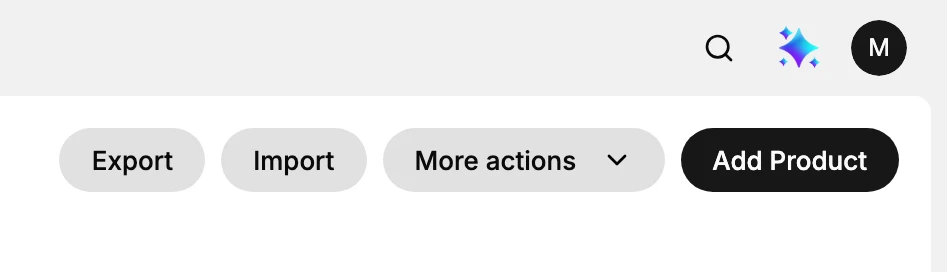
Go to Products in the admin sidebar. New stores see the No products yet empty state with an Add Product button; click it. Existing stores see the product list with the same Add Product button in the page header. The editor opens with the sections below, which you fill in from top to bottom.
2. Fill in the product details
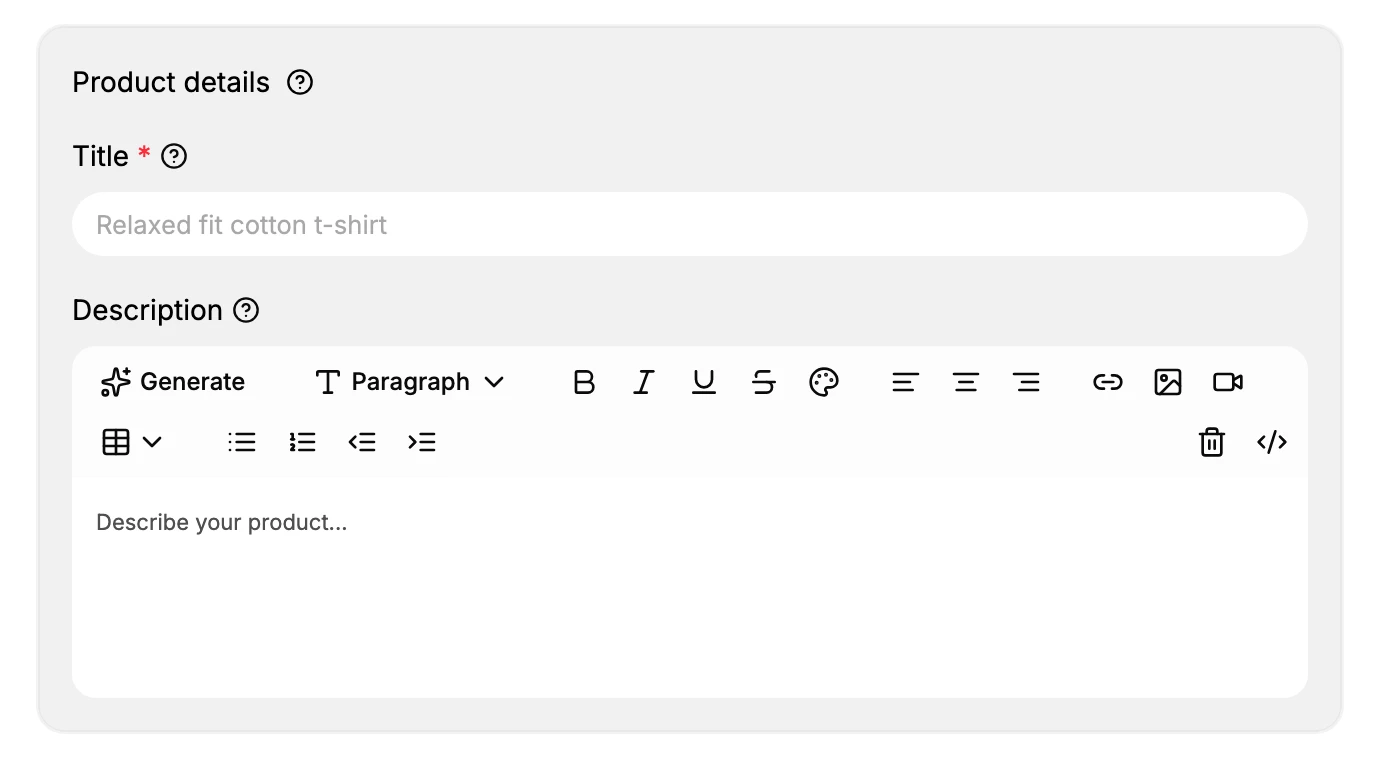
In Product details, type a clear, descriptive Title. This is what shoppers and search engines see, so describe what the item is rather than a style code (for example, "Men's Cotton T-shirt, Navy" is better than "Style #4421"). Add a Description in the rich-text editor below it, covering what the product is, who it's for, key features, materials, and sizing. The editor supports bold, italic, headings, lists, links, images, video, and tables, and Generate uses AI to draft a description you can then edit.
3. Add media
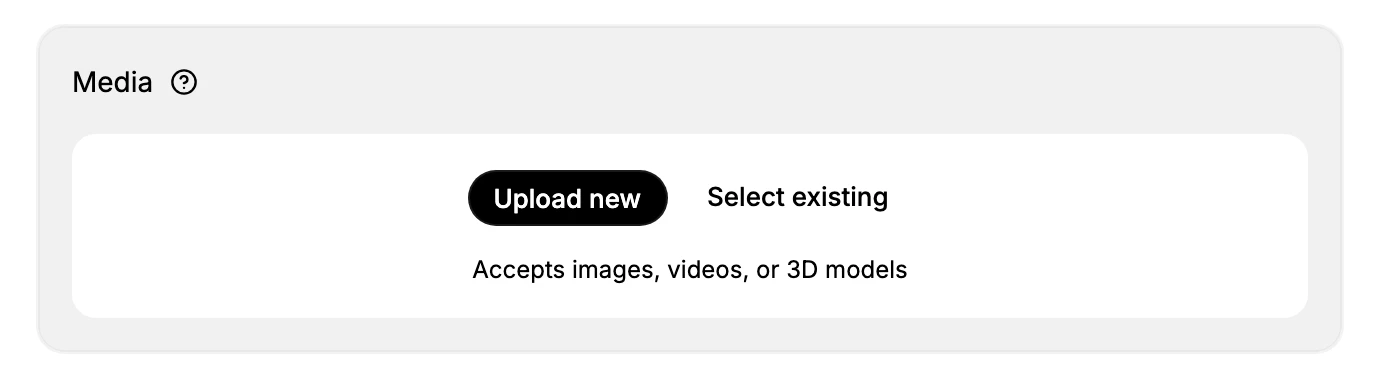
In the Media section, click Upload new to add images (or videos and 3D models), or Select existing to reuse files already in your store. Use clear, well-lit images, with at least one per color variant. Drag to reorder; the first image becomes the storefront thumbnail. Managing Product Images goes further into reordering, alt text, and video or 3D media.
4. Choose a category
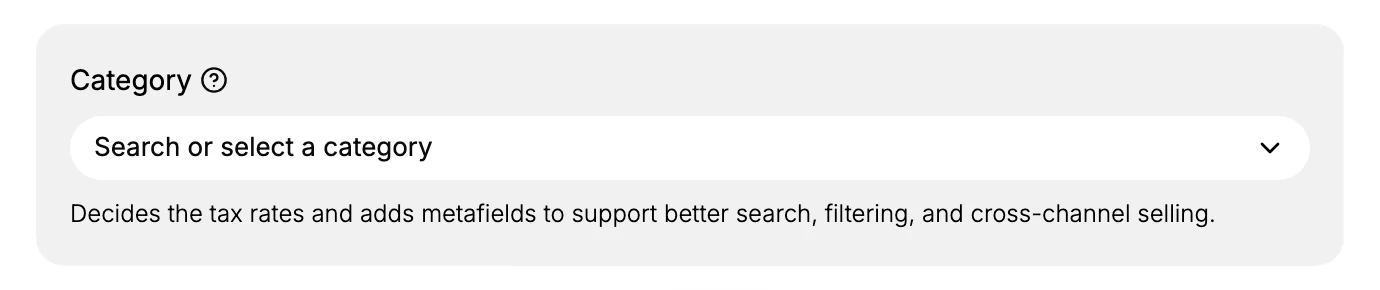
In Category, search for and select the product category. The category sets the product's tax rates and adds relevant custom fields that help with search, filtering, and selling across channels.
5. Set the pricing
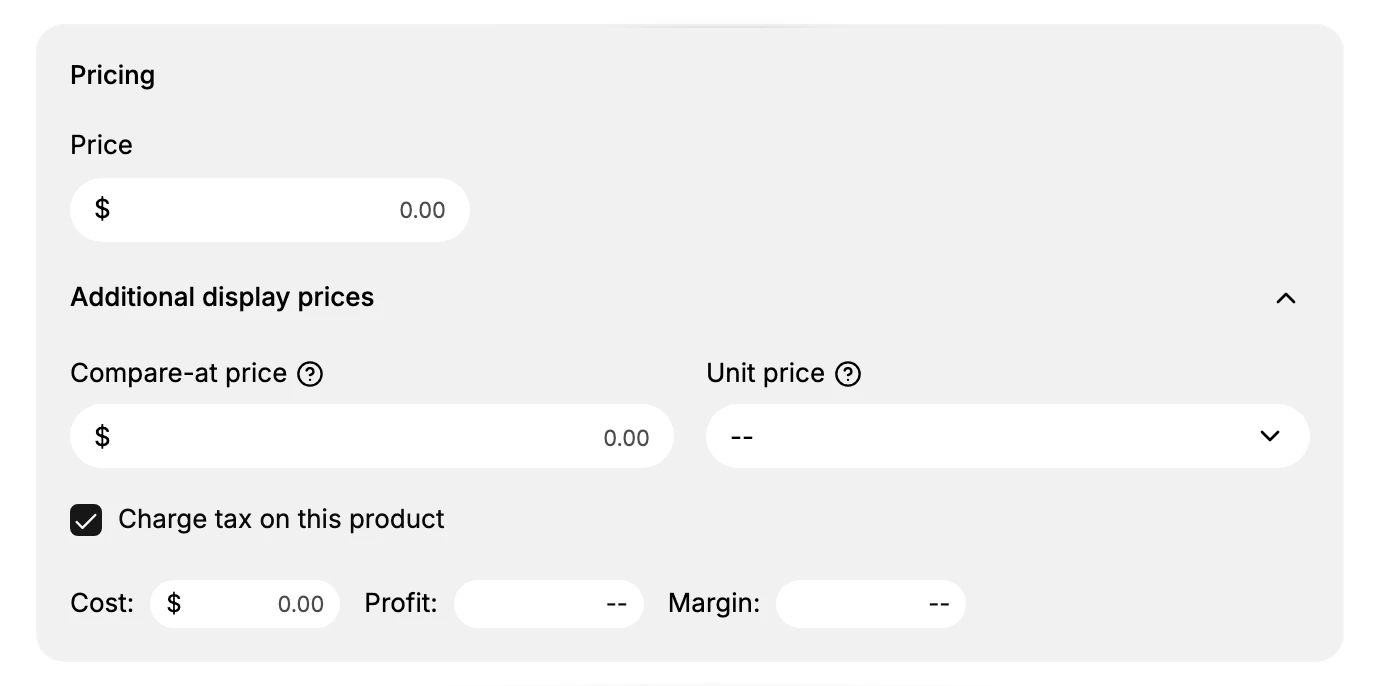
In Pricing, enter the Price that customers pay. Expand Additional display prices to set a Compare-at price (shows a strikethrough on the storefront), a Unit price (for example, per kg or per 100g for groceries), and Charge tax on this product. The Cost field fills in the Profit and Margin figures beside it and is never shown to customers. Setting Product Prices covers compare-at pricing, taxes, and margins in more depth.
6. Set up inventory
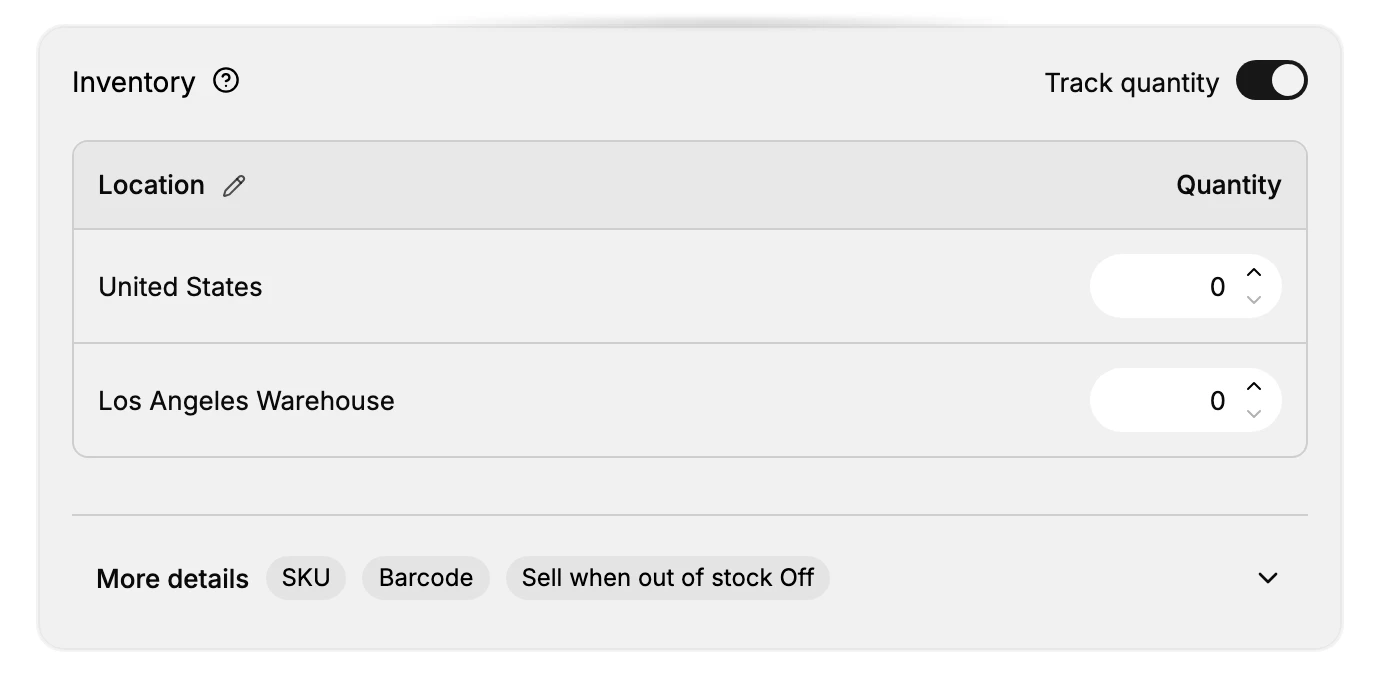
In Inventory, enable Track quantity to let Tanqory count stock down as orders come in. A per-location table appears where you enter the starting quantity for each location (here, United States and Los Angeles Warehouse). Expand More details to add the SKU, Barcode, and the Sell when out of stock setting.
7. Set shipping
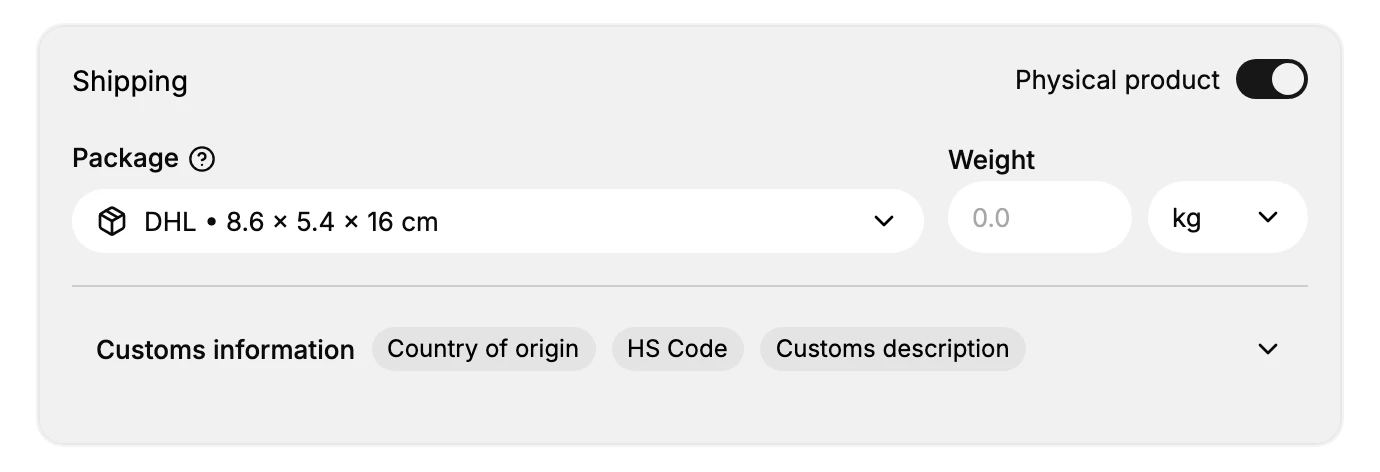
If the product is shipped, keep Physical product on in the Shipping section. Choose a Package and enter the Weight, which carriers use to rate shipping. Expand Customs information to add the Country of origin, the HS Code (the product's customs tariff number), and a customs description for cross-border orders. Turn Physical product off for a digital item that needs no shipping.
8. Add variants (optional)
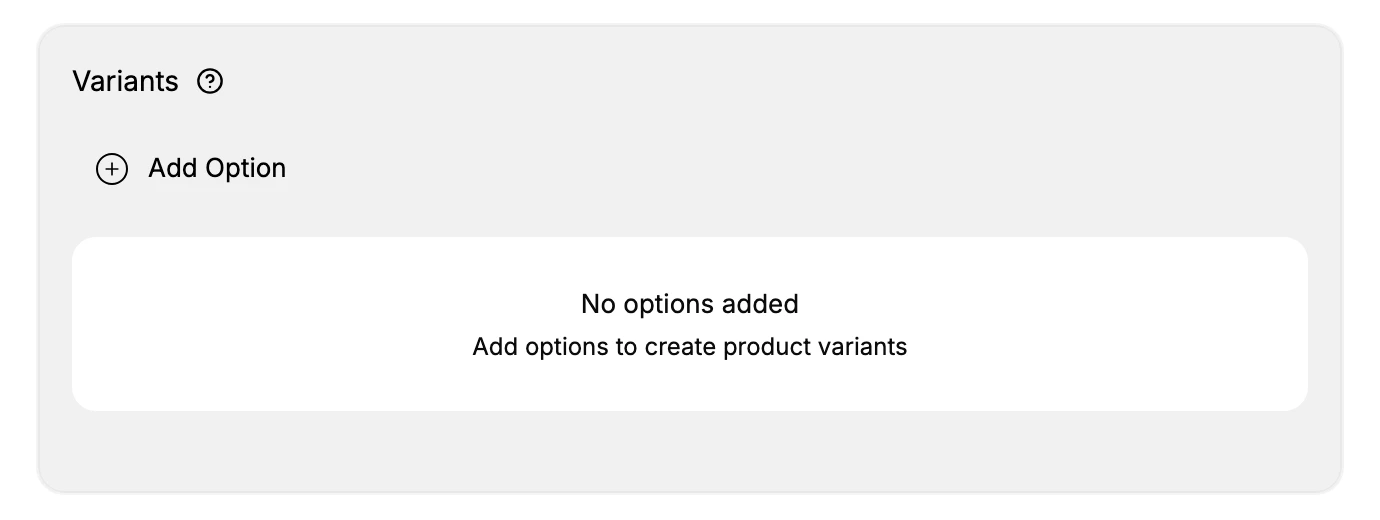
If the product comes in more than one version, select Add Option in Variants to create options such as Size or Color. Each combination becomes a variant with its own price, SKU, and inventory. Skip this section for a product with a single version. Product Variants explains options, per-variant pricing, and variant inventory.
9. Add metafields (optional)
Metafields hold extra custom fields beyond the standard ones, such as a material or a season. Select Add definition to create one; definitions you have already set up appear here ready to fill. Skip this section if you don't use custom fields. Metafields explains how to define and fill them.

10. Check the search engine listing
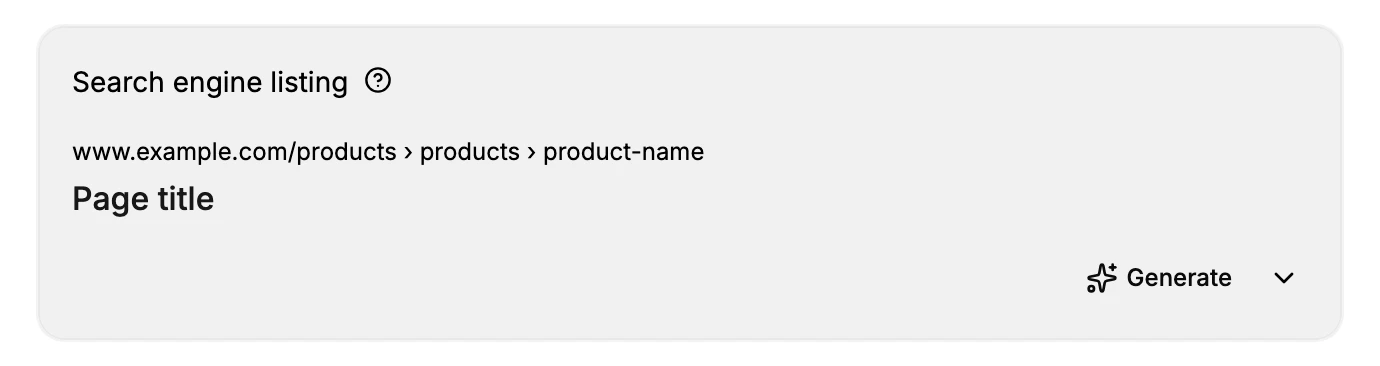
Search engine listing shows how the product will appear in search results. Expand it to edit how the title, description, and URL read in search, or select Generate to have AI draft that text, which you can then edit. Product SEO (Search Engine Listing) covers the page title, description, and URL handle in detail.
11. Set the status and save
In the right panel, set Status to Active to publish the product right away, or Draft to finish it later. The same panel has optional settings you can fill now or later: which sales channels publish the product, and its collections, tags, product type, and vendor. When the required fields are complete, select Save in the top-right header; the "You have unsaved changes" bar appears as soon as you start editing. Manage Product Status (Active, Draft, Unlisted) explains what each status does on your storefront and channels.
Verify the result
Confirm each of the following:
- The product appears in the product list with the status you set.
- No validation errors are highlighted on the product form.
- Opening the product on your storefront shows the latest data.
Best practices
- Use clear, search-friendly product titles that describe what the item is. For example, "Men's Cotton T-shirt, Navy" is better than "Style #4421".
- Add at least one image per variant so the storefront can show color or size differences as the buyer selects.
- Enable inventory tracking so the storefront stops accepting orders when stock runs out.
- Write an SEO title and meta description that match what a buyer would actually type into a search engine.
- Keep the URL handle (the readable words in the product's web address) short and in plain language, not a long internal ID or code.
Examples
Avoid: "Shirt" with no description, one blurry photo, and price set to $0.00 because you meant to fill it in later
Prefer: "Organic Cotton Crew Neck T-Shirt" with material details, size guide, three clear photos showing front/back/detail, and price $28.00 with compare-at price $35.00
Common mistakes
- Using the same SEO title for every product in a collection.
- Saving the product as Draft and wondering why it isn't visible on the storefront.
- Changing the URL handle after publishing without setting up a redirect, which breaks every existing backlink to that product.
- Pricing in the wrong currency for the target market.
- Forgetting to enable inventory tracking after adding a new variant.
What the AI Assistant can help with
The in-admin AI Assistant can help with this area in three ways. It can search and prepare data and take you to the right form, but it never creates, updates, or deletes anything without you confirming the action yourself.
Look up products
Find products by name, SKU, status, vendor, or tag.
Try asking:
- "Find all draft products with the tag "winter"."
- "Show me the top 10 best-selling products this month."
- "How many products are currently out of stock?"
<small>Operations: searchProducts, getProduct, getProductCounts</small>
Prepare a product
Draft product details (title, description, price, variants) for your review before you save.
Try asking:
- "Prepare a new T-shirt at $29 in S, M, and L."
- "Draft an SEO title under 60 characters for the Winter Hoodie."
- "Fill the SKU field for every product missing one."
<small>Operations: prepareProduct, fillProductForm</small>
Open product pages
Take you straight to a specific product, the product list, or the bulk-edit screen.
Try asking:
- "Open the Winter Collection Hoodie."
- "Take me to the bulk-edit screen for all draft products."
- "Show me the create-product page."
<small>Operations: navigateToProduct, navigateToCreateProduct, navigateToProductList, navigateToBulkUpdateProducts</small>
If something goes wrong
If the steps above don't land as expected, the most common causes for this area are documented separately:
Next steps
- Create a Product (Detailed Walkthrough) - field-by-field detail, required fields, and choices that are hard to change later
- How to Edit a Product
Related articles
Still stuck?
- Ask Tanqory AIAsk in your own words. It answers from these articles and links the ones it used.
- Ask in your adminThe assistant in your Tanqory admin answers and makes the change for you once you confirm.
- Contact TanqoryWrite to our privacy, security or legal teams, or talk to sales about a plan or a move.