Product Not Showing on Storefront
A product is in your admin but customers cannot see it on the storefront, and you need to find why. This is a quick reference that maps what you see on the Products page to the reason a product is hidden and how to fix it, from a Draft status or missing sales channel to being out of stock or not in the collection the customer looked in.
On this page
When a product exists in your admin but does not appear on the storefront, it almost always comes down to how the product is set up rather than a fault, and the Products page shows the settings that decide visibility. A product needs to be active, on your online store sales channel, and, if a customer is looking in a specific collection, actually in that collection. The Products list surfaces most of this as columns and tabs, so you can usually match what you see to the reason before opening the product. Use the reference below to do that, then confirm on the storefront.
Before you begin
- Your role includes Edit products.
- You have the storefront open in a private browsing window, so you see the store as a shopper does rather than as a signed-in admin.
- Open Products in the admin sidebar and open the product that is missing from the storefront.
Read the product on the Products page
The Products page shows status tabs, All, Active, Draft, Low stock, Out of stock and Archived, each with a count, and columns for Status, Inventory, Category, Channels, and Product type. Those are the signals that tell you whether a product can appear to customers.
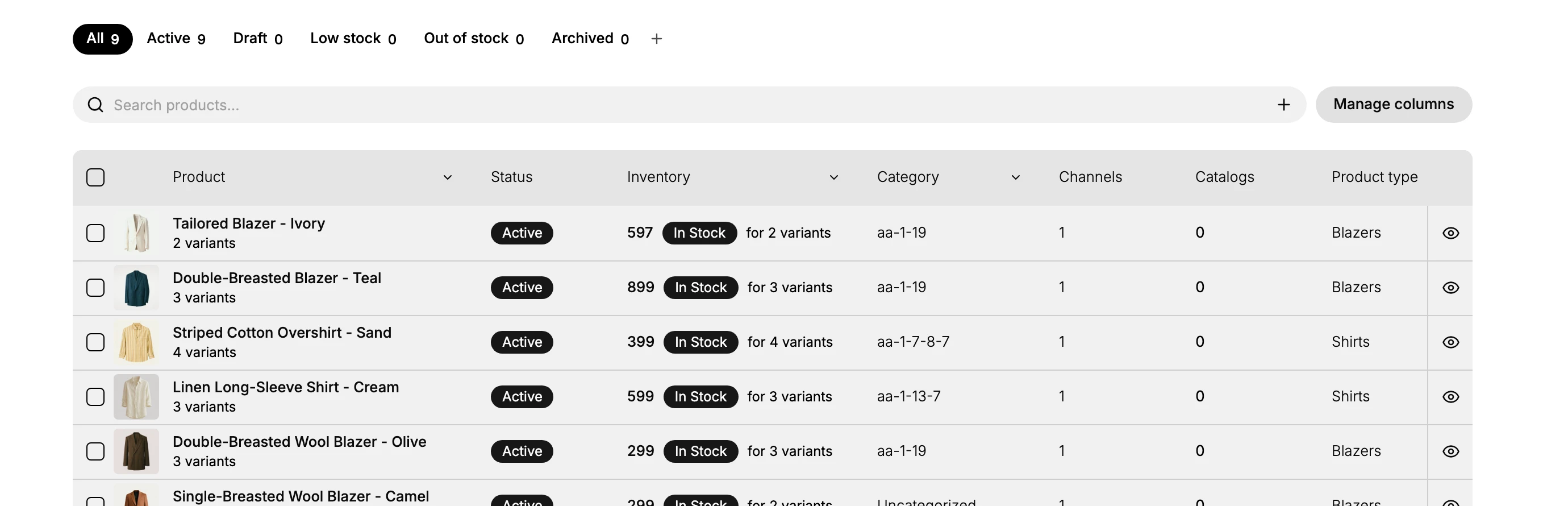
What you see, what it means, and how to fix it
| What you see | What it means | How to fix it |
|---|---|---|
| Status is Draft, or the product is under the Draft tab | It is not published, so no customer can see it | Set the product to Active to publish it |
| Status is Unlisted | It is live and can be bought, but it is kept out of search and collections, so nobody finds it by browsing | Set it to Active if shoppers are meant to come across it, or keep Unlisted and give the customer its direct link |
| Channels shows no channels, or not your online store | It is not on the storefront even while Active | Add the product to your online store sales channel |
| The product is under the Out of stock tab | Its inventory has run to zero, and a product at zero cannot be bought unless you have said otherwise | Restock it, or turn on Sell when out of stock, which sits under Inventory in the product's More details section |
| Status is Active and it is on a channel, but a customer cannot find it in a collection | It is live but not in the collection they browsed | Add the product to that collection |
| Status is Active and everything looks right, but you still do not see it | You may be viewing a cached page | Open the storefront in a private browser window |
Why three of these catch people out
Status and sales channel are separate gates. Status decides whether the product is published at all, and the channel decides which storefront displays it. A product can read Active and still be missing because it was never published to the Online Store channel.
Unlisted is deliberate, not broken. The product is live and buyable but kept out of search and collections, so only someone holding its link reaches it. Nothing about it is misconfigured, which is what makes it hard to spot.
A sold-out product stops being buyable unless you allow it. The product carries a Sell when out of stock switch, under Inventory in its More details section, and it is off to begin with. Left off, a product at zero inventory cannot be bought. Turned on, it keeps selling and you fulfill it once stock arrives, which is how backorders and preorders are handled.
Confirm on the storefront
The columns explain most cases, but confirm the fix by viewing the product as a customer would. Open your storefront in a private browser window and search for the product or open it directly. A private window shows the live storefront rather than a cached view, so what you see matches what a new customer sees.
Note: Check the status and the sales channel first, since a product can be Active and still be invisible when this storefront is not one of its channels. A Draft product, or one not on the online store channel, is invisible to customers no matter what else is set, so those two account for most reports before you look any further.
Where these settings live
Two of the fixes above are managed away from the list. Open the product or its collection to set them.
- The status is a Status field on the product, offering Active (visible in search and collections), Draft (not visible to customers) and Unlisted (only accessible through a direct link). See Product Status.
- The sales channels are in the product's Publishing section, which says it is where you choose which sales channels and apps display this product. Online Store reads either published or Not published there, and Mobile App is listed in the same section as coming soon. See Product Details.
- Collection membership is managed in Collections. See Collections.
- Restocking a sold-out product is done from its inventory rather than the product list. See Adjusting Inventory Quantities.
Verify the result
- The product shows Active and is on your online store channel.
- Opening the storefront in a private window shows the product where you expect it.
- If the customer looked in a collection, the product now appears in that collection.
Best practices
- Publish a product by setting it Active and adding it to the online store channel, rather than assuming saving it is enough.
- Check a new product on the storefront in a private window before you promote it, so you see what customers see.
- Decide deliberately whether out-of-stock products are hidden or shown, since that setting affects visibility.
- Add products to the collections customers browse, so they turn up where shoppers actually look.
Next steps
Related articles
Still stuck?
- Ask Tanqory AIAsk in your own words. It answers from these articles and links the ones it used.
- Ask in your adminThe assistant in your Tanqory admin answers and makes the change for you once you confirm.
- Contact TanqoryWrite to our privacy, security or legal teams, or talk to sales about a plan or a move.