Payment Failed at Checkout
A customer cannot pay, or a payment did not go through, and you need to tell whether the problem is your store setup or the customer's card. This walks the payment provider and capture settings to check on your side, and the customer-side causes to rule out, so checkout can take money reliably.
On this page
When a payment fails at checkout, the cause is on one of two sides: your store's payment setup, or the customer's card and bank. The fastest way to sort out which is to check your side first, because if no payment provider is set up then no customer can pay at all, and that is a store problem you fix once rather than a customer problem you chase repeatedly. Your payment setup lives under Settings, then Payments, where you connect a provider, choose which methods you accept, and decide when payment is captured. This article walks those checks, then the customer-side causes to rule out.
What to check on the Payments page
Everything on your side sits on the Payments settings page.
- Payment providers is where you connect a service that accepts payment. A store with none connected shows No payment providers configured yet, and until one is added every payment fails. A store with one connected lists it here with the rate it charges and what it supports, such as recurring billing, installments, saved cards and refunds.
- Supported payment methods shows which methods checkout can offer once a provider is connected. A method the customer wants may not be enabled.
- Payment capture settings decide when money is taken, such as automatically at checkout. This affects whether an order shows as paid or as pending after checkout.
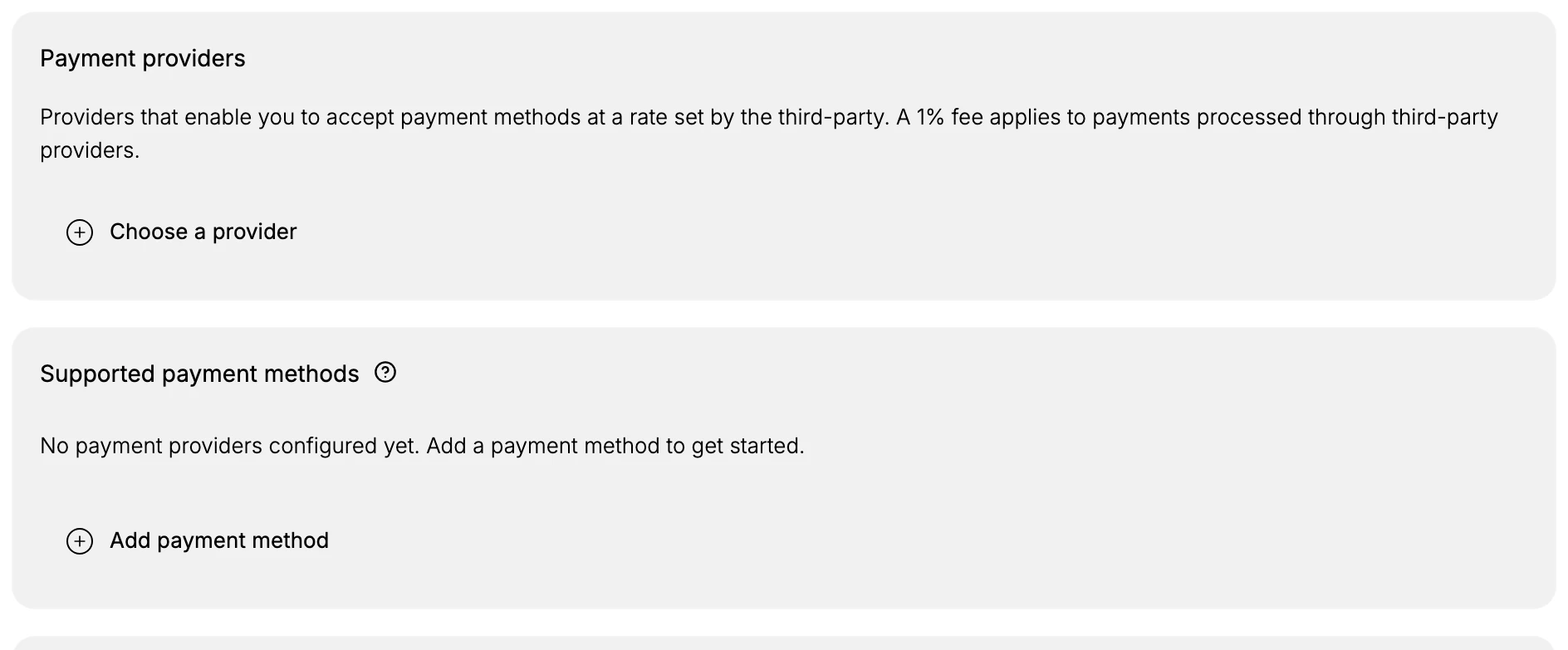
The capture above is a store with no provider connected, which is the state that causes every payment to fail. Once a provider is connected, the same page lists it instead, with the rate it charges and the capabilities it supports.
Before you begin
- Your role includes Payments settings.
- If a single customer is affected, you have their order or the error they saw.
- Open Settings > Payments in the admin sidebar, where the store side of the problem is checked.
Work through the checks
Check your own setup first, then rule out the customer's side:
- Confirm a payment provider is connected. Open Settings, then Payments, and look at Payment providers. If the page reads No payment providers configured yet, that alone explains every failure, and connecting one is the fix. If a provider is listed, read the rate and the capabilities shown beside it, since a method the customer tried may not be among them. See Add a Payment Provider.
- Check the payment methods you offer. Look at Supported payment methods and confirm the methods you intend to accept are enabled. If a customer wants a method you have not turned on, their payment cannot go through by that route. See Payment Methods Overview.
- Rule out test mode. If your provider is still in a test or sandbox mode, real cards will not be charged and live payments can fail or be rejected. Confirm the provider is set to accept live payments before you go live. See Test Mode.
- Check the order's payment status. If only one customer is affected, find their order and read its payment status. A status of Payment pending or a failed capture tells you the attempt reached your store but did not complete, which points toward the customer's card rather than your setup. See Order Timeline.
- Rule out customer-side causes. If your setup is correct and only some customers fail, the cause is usually on their side: an expired or wrong card number, insufficient funds, or a bank declining the charge. Ask the customer to try another card or contact their bank, since these are resolved by the customer, not in your admin.
Note: Check your own setup before you reply to a customer. If no provider is connected, every payment fails, and one fix solves it for everyone. Only once your side is confirmed working does it make sense to treat a failure as a card or bank problem.
If payments still fail
If a provider is connected, the methods you want are enabled, the provider is out of test mode, and payments are still failing for every customer, the cause is no longer in your settings. Contact Tanqory support, and give them these upfront so they can act on the first reply:
- The provider you have connected, and what the Payments page shows beside it.
- The exact message the customer saw at checkout, and roughly when they tried.
- The order number if the attempt reached your store, or a note that no order was created if it did not.
- Whether it fails for every customer or only some, since that separates a store-wide fault from a card problem.
Verify the result
- Payment providers shows at least one connected provider rather than none configured.
- A test order completes payment and the order shows as paid.
- A customer who failed before can complete checkout, or the failure is clearly traced to their card or bank.
Best practices
- Connect and test a payment provider before launch, so checkout can take money from your first order.
- Take a real test order after any change to payment settings, so a broken setup is caught before customers hit it.
- Enable the payment methods your customers actually use, so a preferred method is not the reason a sale is lost.
- When a failure is customer-side, ask them to try another card or their bank rather than changing your working setup.
Next steps
Related articles
Still stuck?
- Ask Tanqory AIAsk in your own words. It answers from these articles and links the ones it used.
- Ask in your adminThe assistant in your Tanqory admin answers and makes the change for you once you confirm.
- Contact TanqoryWrite to our privacy, security or legal teams, or talk to sales about a plan or a move.