Testing Payments
Use test mode to verify payment provider setup without real charges. Always test before launch + before changing payment configuration.
On this page
Payment test mode lets you verify your payment setup without real charges. Each major provider offers a sandbox / test mode. Use it before:
- Launching a new store.
- Switching payment providers.
- Material configuration changes (capture mode, 3DS rules, etc.).
- Post-incident validation.
You'll work at /admin/store/{storeId}/settings/payments for provider-side toggling.
Test mode per provider
Each provider has its own test mode:
| Provider | Test mode toggle | Test card numbers |
|---|---|---|
| Stripe | Stripe dashboard → API → Toggle test/live | Stripe docs |
| PayPal | Sandbox accounts at developer.paypal.com | PayPal sandbox |
| Adyen | Test merchant account | Adyen docs |
| Authorize.net | Sandbox account | Authorize.net docs |
| Local providers | Varies | Provider docs |
Tanqory itself doesn't have a global "test mode" toggle: each provider toggles independently.
Before you begin
- You are signed in to your Tanqory store admin.
- You have Manage payments permission.
- You have your provider in test mode (NOT live).
Steps
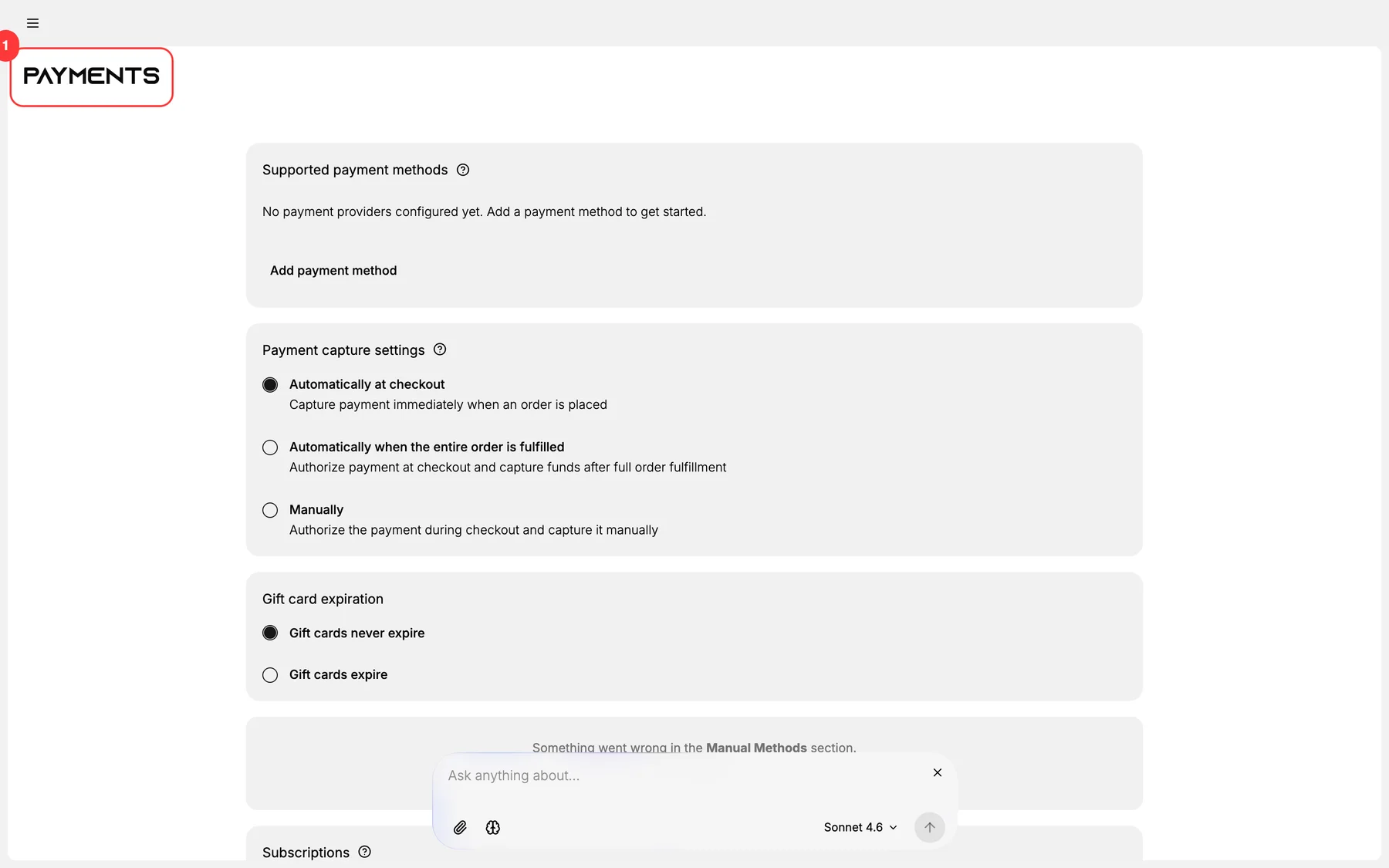
1. Open Settings > Payments
Verify the provider you're testing is in test mode.
2. Place a test order in a private browser
Use the provider's published test card numbers:
- Stripe:
4242 4242 4242 4242(any future expiry, any CVV). - PayPal sandbox: use the sandbox buyer account.
- Adyen: per their test docs.
3. Walk through checkout normally
- Add product.
- Enter test card.
- Submit.
4. Verify the order in Tanqory admin
Should appear as paid (or captured-or-authorized per your capture-mode setting).
5. Verify in the provider dashboard
The transaction should appear in the provider's test transactions.
6. Test various scenarios
Each provider exposes test cards for:
- Successful purchase.
- Declined card.
- 3-D Secure challenge.
- Insufficient funds.
- CVV mismatch.
Test each so you know how your checkout handles them.
7. (Pre-launch) Switch to LIVE mode
Before real customers can pay, switch each provider to live mode at the provider's dashboard.
8. Confirm with a small real transaction
After switching to live: place a real test order with a small amount (e.g., $1) using your own card. Verify settlement.
Verify the result
- Test order completes end-to-end.
- Order shows in Tanqory + provider dashboard.
- Various scenarios (declined, 3DS) handled gracefully.
- After live-mode switch: small real transaction completes.
Best practices
- Always test before launch.
- Test in private browser: your session may cache.
- Test on mobile: checkout UX differs.
- Test all relevant scenarios: declined, 3DS, etc.
- Document the test plan for future reproducibility.
Common mistakes
- Skipping test mode: finding bugs with real customer money.
- Forgetting to switch to live: customers can't pay.
- Testing only happy path: declined-card UX broken in production.
- Not testing 3DS: high-friction checkout for European customers.
- Different test card numbers than your provider expects.
If something goes wrong
- Test transaction fails: verify you're in test mode + using the right test card.
- Test transaction succeeds but production fails: likely a configuration difference.
- 3DS test fails: provider may require specific test card for 3DS scenarios.
- Permission denied: your role lacks Manage payments.
Next steps
Related articles
Still stuck?
- Ask Tanqory AIAsk in your own words. It answers from these articles and links the ones it used.
- Ask in your adminThe assistant in your Tanqory admin answers and makes the change for you once you confirm.
- Contact TanqoryWrite to our privacy, security or legal teams, or talk to sales about a plan or a move.