Payment Processing
How Tanqory authorizes, captures, and refunds transactions across providers. The Payment capture settings section in Settings > Payments is where you set the default.
On this page
Tanqory processes every transaction in two phases: authorize (verify the payment method has funds and place a hold) and capture (actually move the funds). Whether capture is automatic or manual is set in the Payment capture settings section of Settings > Payments.
You'll work at /admin/store/{storeId}/settings/payments: Payment capture settings is the second functional section on the page.
Two-phase model: authorize → capture
| Phase | What happens | Customer impact | Timing |
|---|---|---|---|
| Authorize | Hold placed on funds | Card shows a pending charge | At checkout placement |
| Capture | Funds actually move | Pending charge becomes posted | Auto (immediate) or Manual (operator action) |
| Void | Hold released, no capture | Pending charge disappears | Before capture only |
| Refund | Funds returned post-capture | Refund appears on next statement | Any time after capture |
Before you begin
- You are signed in to your Tanqory store admin.
- You have the Manage payments permission.
- You understand the trade-off: auto-capture is fast but harder to reverse on fraud; manual-capture is slower but reviewable.
Steps
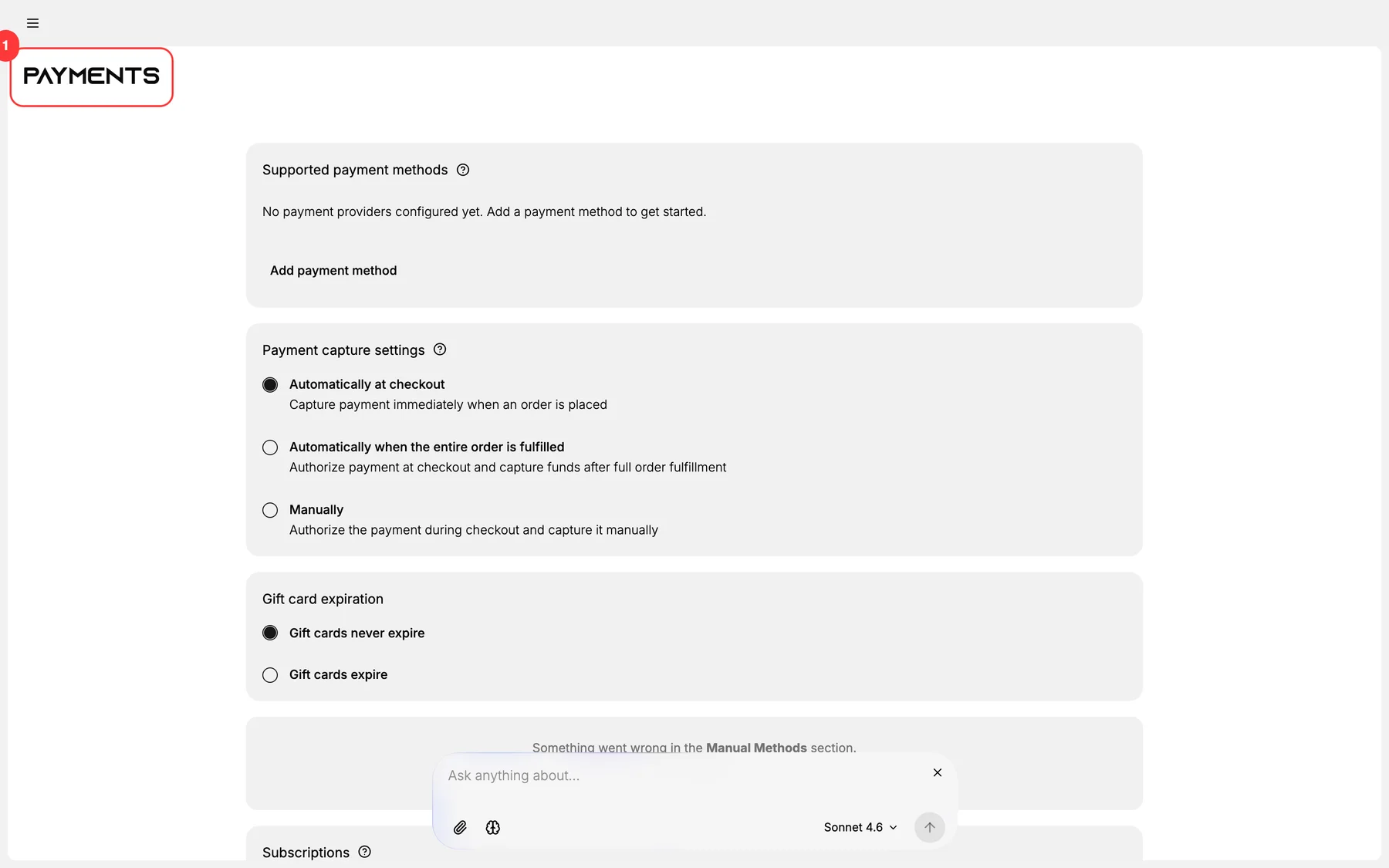
1. Open Settings > Payments
The Payments page renders with 5 sections. Payment capture settings is the second.
2. Open Payment capture settings
The second section configures the global default capture behavior.
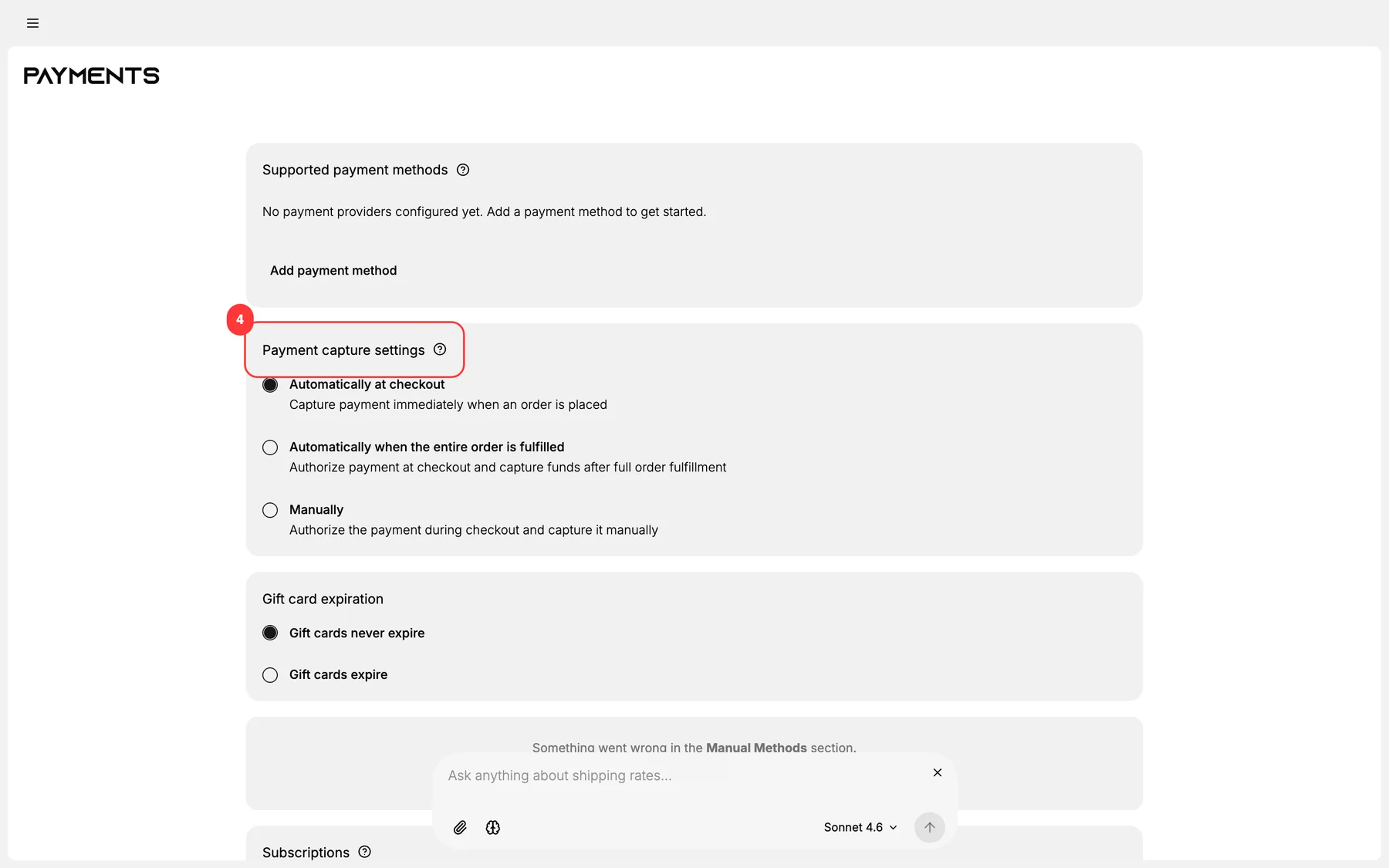
3. Choose Automatic or Manual capture as the default
- Automatic: Tanqory captures immediately on order placement. Best for digital goods, low-fraud categories, and stores with fast cash-flow needs.
- Manual: Tanqory only authorizes; an operator must capture before funds move. Authorizations expire (typically 7 days, varies by PSP).
This setting applies as the default for providers that expose the choice. Individual providers can override the default.
4. Configure per-provider overrides (if any)
Some providers expose their own capture-mode setting. Open each provider under Supported payment methods and verify its capture mode matches your intent. Provider-level settings override the global default.
5. Document the operational implication
Update your ops runbook:
- If automatic: orders are paid-in-full on placement.
- If manual: orders are pending until captured. Capture must happen within the PSP's authorization window.
6. Save the section
After save, the next order placed uses the new default. Existing pending authorizations follow the rules they were created under.
Verify the result
- Save completes without inline validation.
- Test order in private browser behaves per your setting:
- Auto: order status is paid immediately.
- Manual: order status is authorized; explicit capture moves it to paid.
- Refund flow works on a captured order.
Best practices
- Use auto-capture for digital goods. Customer expects immediate fulfillment.
- Use manual-capture for high-fraud categories: buys you time to review before charging.
- Set auth-window reminder: manual-capture authorizations expire; missed capture = lost order.
- Match capture mode to fulfillment SLA. If you ship in 1 day, auto-capture is fine. If you ship in 2 weeks, authorization may expire.
- Document the choice for finance. Auto = revenue recognition at order time; manual = at capture time.
Common mistakes
- Auto-capture for high-fraud orders: money taken before you can review.
- Manual-capture with no capture process: authorizations expire, customers see "charge never happened", orders fail silently.
- Mixing modes across providers without documentation: ops confusion.
- Forgetting the authorization window: PSP-specific (typically 7 days; check yours).
- Refunding before capture: must void, not refund.
If something goes wrong
- Capture fails after authorization window expired: re-authorize via the order action menu (customer may need to re-pay).
- Refund fails: order may not be fully captured yet; check status.
- Provider override conflicts with global default: provider always wins; check provider settings.
- Permission denied: your role lacks Manage payments.
Next steps
Related articles
Still stuck?
- Ask Tanqory AIAsk in your own words. It answers from these articles and links the ones it used.
- Ask in your adminThe assistant in your Tanqory admin answers and makes the change for you once you confirm.
- Contact TanqoryWrite to our privacy, security or legal teams, or talk to sales about a plan or a move.