Payments
The Payments page is where you set up how your store takes payment: payment providers and methods, when payment is captured, gift card expiration, manual payment methods, subscriptions, and Apple Wallet passes.
On this page
The Payments page is where you set up how your store takes money from customers. It brings together the payment providers you connect and the methods they enable, the setting for when a payment is captured, gift card expiration, manual payment methods, subscriptions, and Apple Wallet passes. Getting this right is what lets customers actually pay you at checkout. You reach the page from Settings, then Payments. This article maps each section so you know what it controls and where to go next.
What's on the page
| Section | What it covers |
|---|---|
| Payment providers | The third-party providers that let you accept payment methods |
| Supported payment methods | The methods your connected providers accept |
| Payment capture settings | When a customer's payment is captured |
| Gift card expiration | Whether gift cards expire |
| Manual payment methods | Methods you handle outside an automatic provider |
| Subscriptions | Recurring billing, managed through the Subscriptions app |
| Apple Wallet passes | Customizing your Apple Wallet passes |
Before you begin
- You are signed in to your Tanqory store admin.
- You can manage settings for your store.
Steps
1. Open Payments
From the admin, open Settings, then Payments. The page opens with its sections down the page, starting with the payment providers you connect and ending with Apple Wallet passes.
2. Connect a provider and payment methods
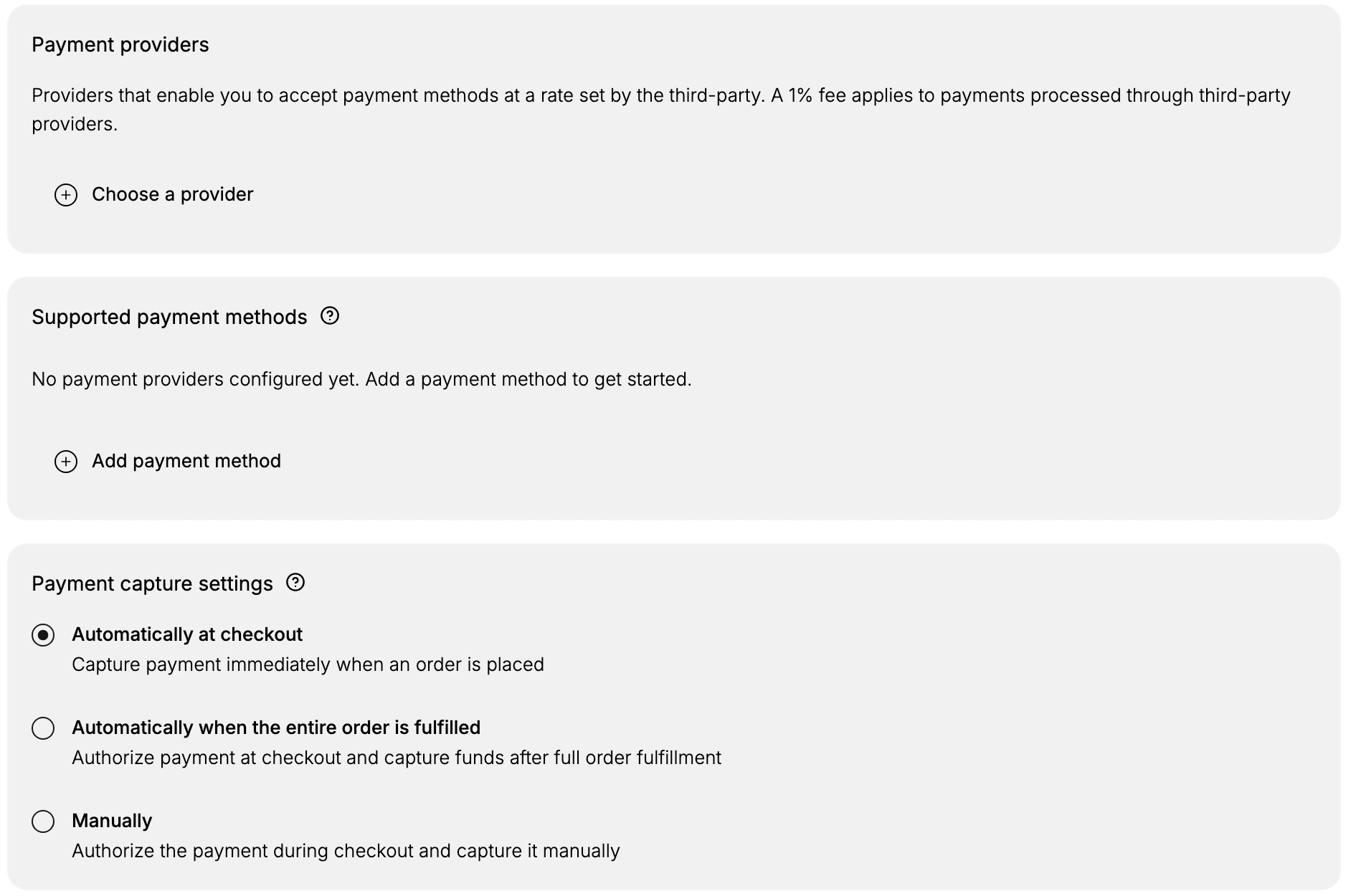
The Payment providers section is where you connect the services that process payments. As it notes, providers accept payment methods at a rate set by the third party, and a stated fee applies to payments processed through them. Select Choose a provider to connect one. Below, Supported payment methods shows the methods your providers accept; here it reads that no payment providers are configured yet, with Add payment method to get started. Connect a provider first, since that is what lets customers pay.
3. Choose when payment is captured
The Payment capture settings section decides when a customer's payment is taken, with three choices. Automatically at checkout captures payment immediately when an order is placed. Automatically when the entire order is fulfilled authorizes payment at checkout and captures the funds after the full order is fulfilled. Manually authorizes the payment at checkout and lets you capture it yourself. Automatically at checkout is selected here. Pick the one that fits how you fulfill orders.
4. Set gift card expiration
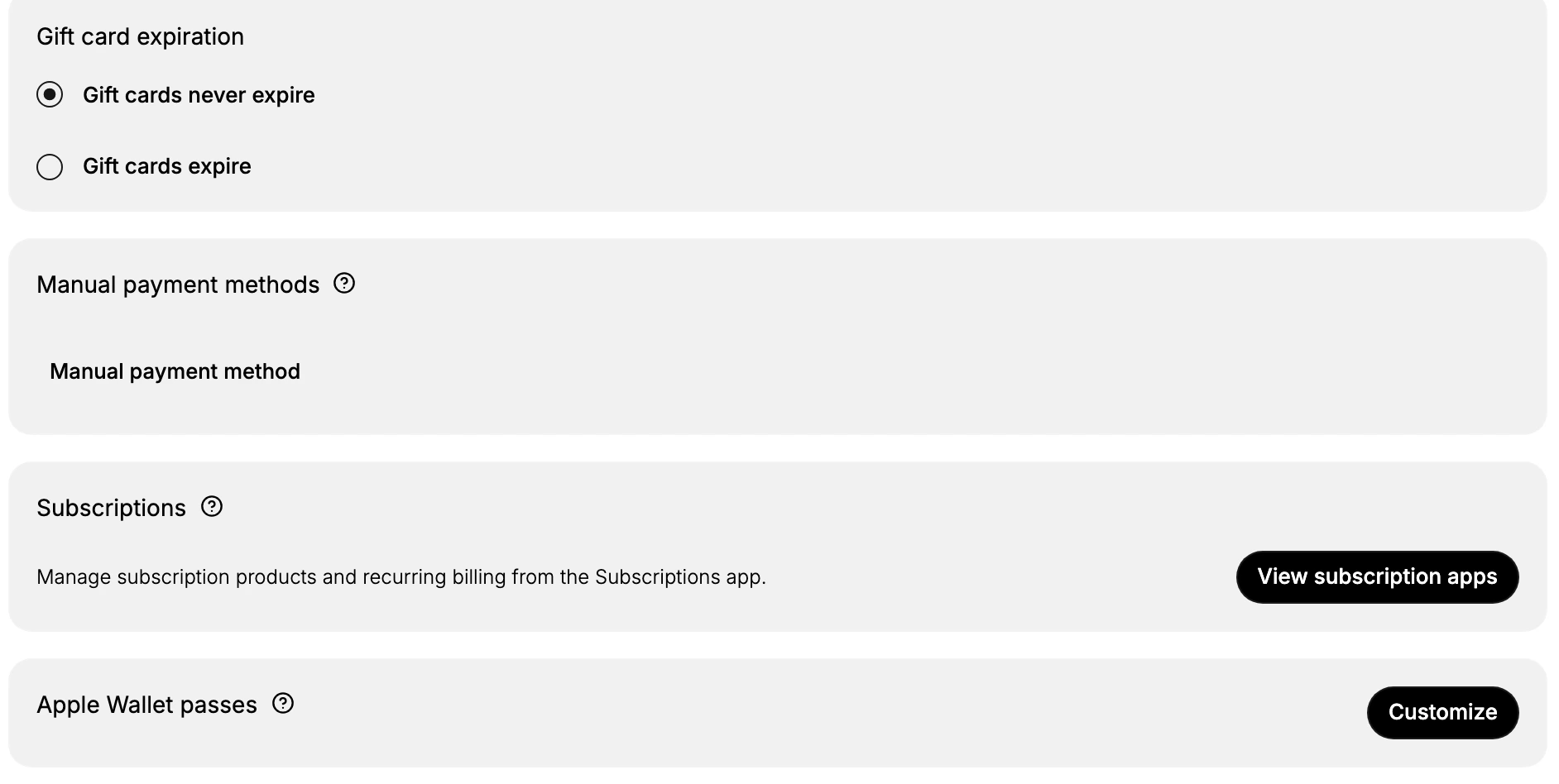
The Gift card expiration section has two choices: Gift cards never expire and Gift cards expire. Gift cards never expire is selected here. Choose based on your policy and the rules where you sell, since some places limit whether gift cards can expire.
5. Add a manual payment method
The Manual payment methods section is for payments you handle yourself, outside an automatic provider, such as a bank transfer or payment on delivery. Add a Manual payment method here when you want to offer a method your providers do not process automatically. With a manual method, you confirm the payment yourself before fulfilling.
6. Review subscriptions and Apple Wallet passes
The Subscriptions section explains that subscription products and recurring billing are managed through the Subscriptions app, with View subscription apps to find one. The Apple Wallet passes section has a Customize control for tailoring your passes. Use these if your store sells subscriptions or offers Apple Wallet passes.
Best practices
- Connect a provider before launch. Without a configured provider, customers cannot pay, so set this up first.
- Match capture timing to fulfillment. Capture at checkout for instant fulfillment, or on fulfillment when you ship later, so you only take funds when appropriate.
- Set gift card expiration to your rules. Some regions restrict expiring gift cards, so choose the option that fits where you sell.
- Use manual methods deliberately. They require you to confirm payment yourself, so add them only for methods you can reconcile.
If something goes wrong
- Customers cannot pay at checkout. Check the Payment providers section; if no provider is configured, connect one with Choose a provider.
- A payment was authorized but not captured. With manual or on-fulfillment capture, you capture the funds yourself; check your capture setting.
- You cannot change a payment setting. Your role may not allow managing settings. Ask an owner or admin.
Next steps
Related articles
Still stuck?
- Ask Tanqory AIAsk in your own words. It answers from these articles and links the ones it used.
- Ask in your adminThe assistant in your Tanqory admin answers and makes the change for you once you confirm.
- Contact TanqoryWrite to our privacy, security or legal teams, or talk to sales about a plan or a move.