Manual Payment Methods
Manual methods (bank transfer, COD, PromptPay, money order) live alongside automated providers in Supported payment methods. Orders stay pending until manually marked as paid.
On this page
Manual payment methods are payments that Tanqory cannot auto-confirm at the moment of checkout. The customer commits at checkout (order created in Pending payment), then your finance / operations team confirms the actual money arrived and marks the order Paid. The category covers bank transfer, cash on delivery (COD), money order, and certain QR-based local rails.
Enabled alongside automated providers under Supported payment methods in Settings > Payments.
How manual methods differ from automated PSPs
| Aspect | Automated PSP (Stripe, etc.) | Manual method |
|---|---|---|
| Customer pays at checkout | Yes, card charged | No, instructions provided |
| Order initial status | Paid (or Authorized) | Pending payment |
| Funds movement | Real-time | Asynchronous (operator confirms) |
| Refund flow | API call to provider | Manual outside Tanqory |
| Audit trail | Provider-side ledger | Your bank statement + manual notes |
Before you begin
- You are signed in to your Tanqory store admin.
- You have the Manage payments permission.
- You have a finance / operations workflow to verify and mark orders paid.
- For each manual method: appropriate operational setup (bank account for transfers, courier agreement for COD, etc.).
Steps
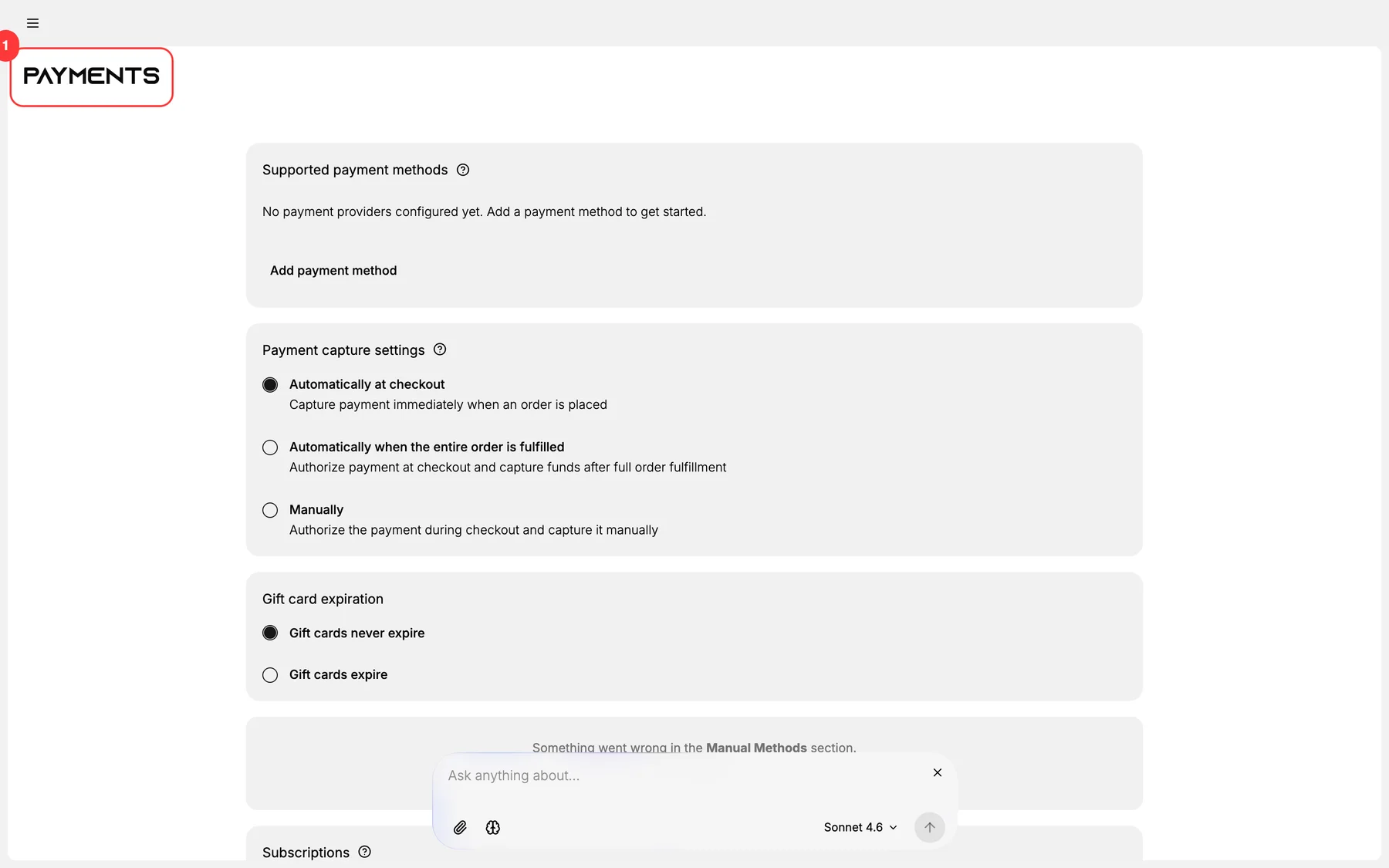
1. Open Settings > Payments
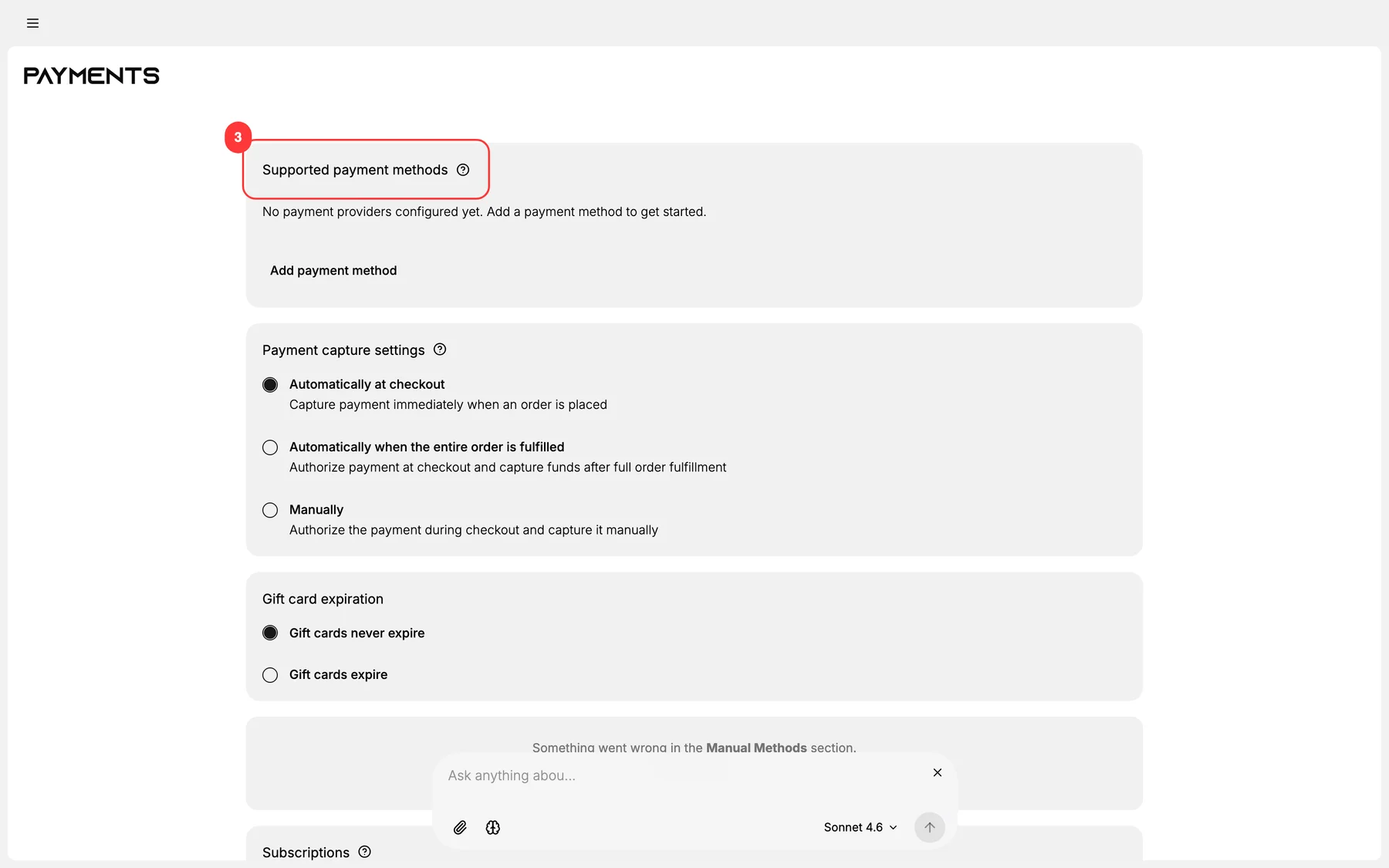
2. Add manual methods under Supported payment methods
The first functional section. Each manual method is added separately with its own configuration.
3. Configure each manual method individually
Each method has its own setup. Detailed how-to articles:
- Bank Transfer Payments: wire / IBAN / ACH details + reference number.
- Cash on Delivery (COD): geo eligibility + threshold rules.
- PromptPay QR Payment: Thailand mobile rail.
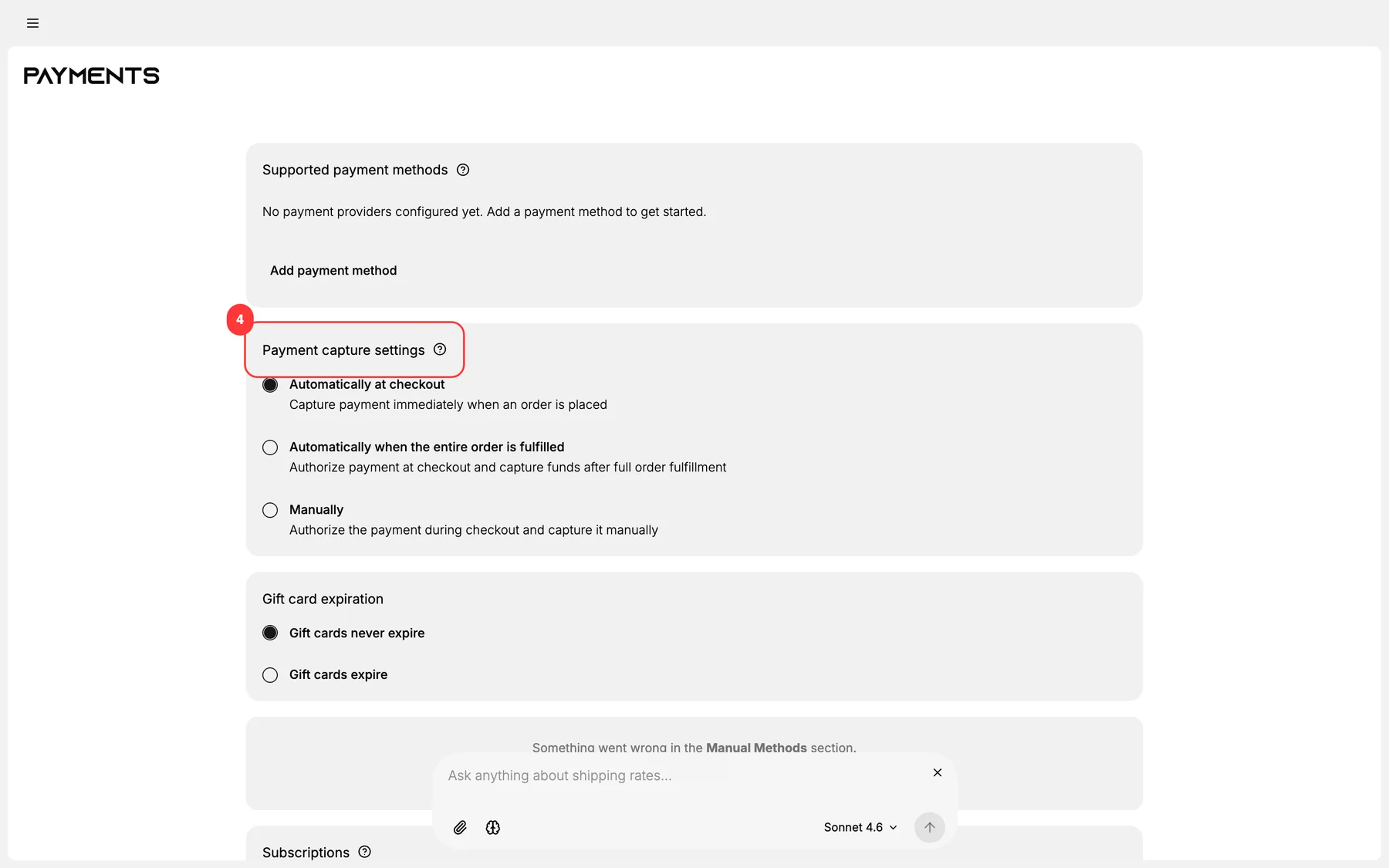
4. Set the Payment capture settings
Manual methods are inherently manual-capture. The global default still applies for any provider-level reference.
5. Build the Mark-as-paid workflow
Manual orders need an operator action to advance. Workflow:
- Finance verifies money arrived (bank statement, courier confirmation, etc.).
- Operator opens the order in admin.
- Clicks Mark as paid in the order actions menu.
- Order advances to Paid with audit trail.
Document the SLA: how soon after money arrives does it get marked paid? Define and monitor.
6. Set auto-cancel rules for stale pending orders
Pending-forever orders eat inventory + clutter the dashboard. Set auto-cancel after N business days of no payment received.
7. Save and test
Place a test order for each manual method. Confirm:
- Order is created in Pending payment.
- Customer receives instructions in confirmation email.
- Mark-as-paid moves the order to Paid.
- Auto-cancel triggers if not paid within window.
Verify the result
- Each manual method appears at checkout in eligible geos.
- Pending orders display correctly in Orders Overview.
- Mark-as-paid action available in the order actions menu.
- Audit trail records who marked paid and when.
Best practices
- Document the verify-pay workflow: finance + ops should know exactly what to do.
- Set auto-cancel rules to prevent pending-order accumulation.
- Use clear reference numbers for bank transfers: finance can't match without them.
- Train finance on the order actions menu: they're the ones marking paid.
- Monitor average time-to-paid: drift indicates workflow issues.
Common mistakes
- No auto-cancel rule: pending orders accumulate forever.
- No clear verify-pay SLA: orders sit in pending for days.
- Marking paid before bank verification: risk of fraud / NSF.
- No audit trail: when disputes happen there's nothing to reference.
- Generic confirmation emails: customers can't pay because instructions are unclear.
If something goes wrong
- Customer paid but order still pending: verify finance workflow; manually mark paid if needed.
- Auto-cancelled customer paid late: re-instate the order and credit the payment.
- Wrong reference / wrong amount: manual matching by customer name + close amount.
- Permission denied: your role lacks Manage payments.
Next steps
Related articles
Still stuck?
- Ask Tanqory AIAsk in your own words. It answers from these articles and links the ones it used.
- Ask in your adminThe assistant in your Tanqory admin answers and makes the change for you once you confirm.
- Contact TanqoryWrite to our privacy, security or legal teams, or talk to sales about a plan or a move.