Credit Card Payments
Accept card payments via a configured provider: Stripe, Adyen, etc. Configured under Supported payment methods in Settings > Payments.
On this page
Credit and debit card payments are not a Tanqory-native feature: they are provided by your active card processing provider (Stripe, Adyen, Authorize.net, etc.). Tanqory orchestrates the customer-facing checkout and routes the transaction to your provider; the provider handles authorization, capture, and settlement.
You'll configure under /admin/store/{storeId}/settings/payments: Supported payment methods section.
Before you begin
- You are signed in to your Tanqory store admin.
- You have the Manage payments permission. OAuth-style providers may require Owner.
- You have a merchant account with a supported provider (Stripe, Adyen, Authorize.net, Worldpay, etc.).
- Your business is KYC-approved with the provider (check your provider dashboard if unclear).
Steps
1. Open Settings > Payments
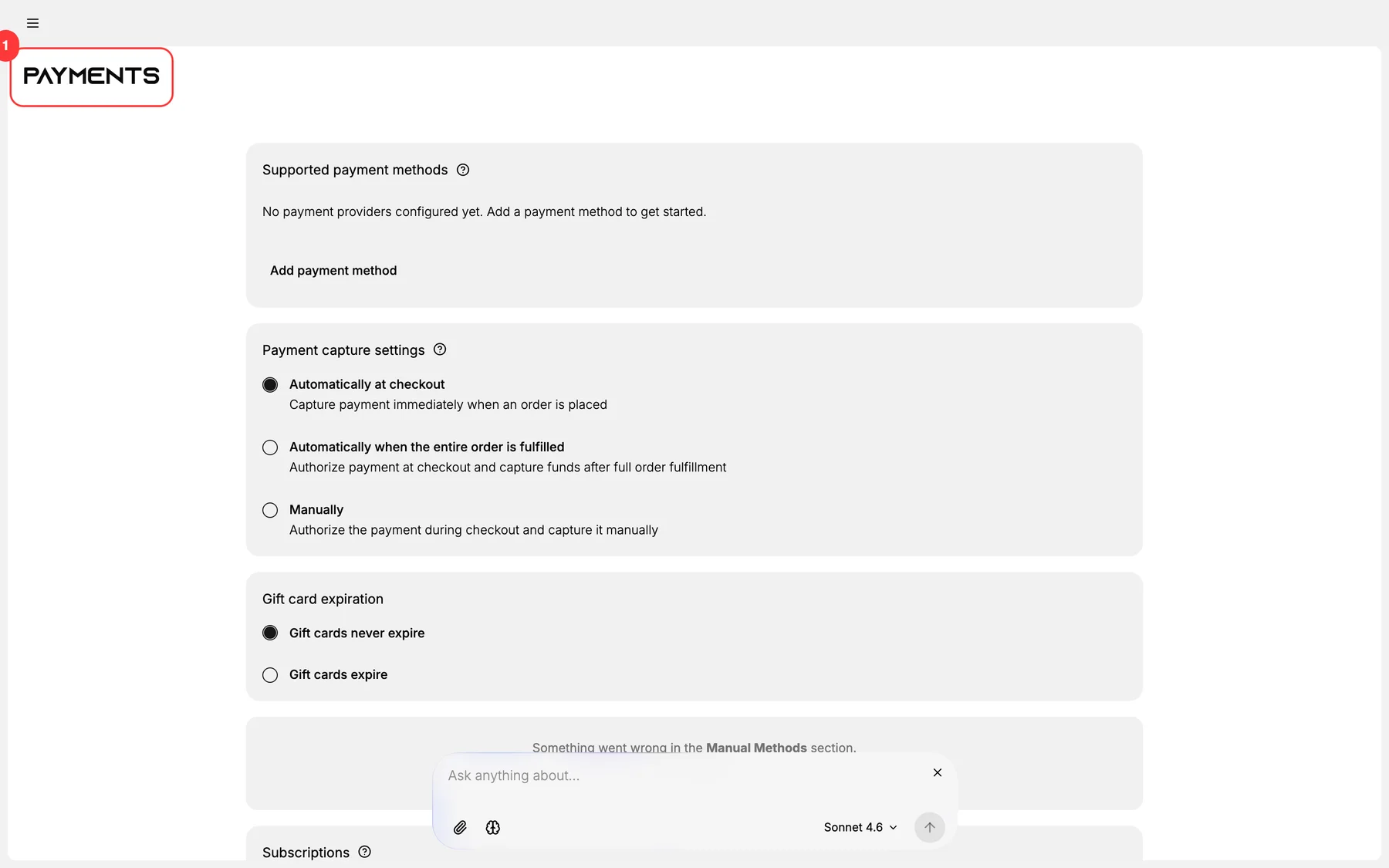
2. Open the Supported payment methods section
The first functional section on the page lists every provider currently activated. Click Add provider or the relevant category to begin.
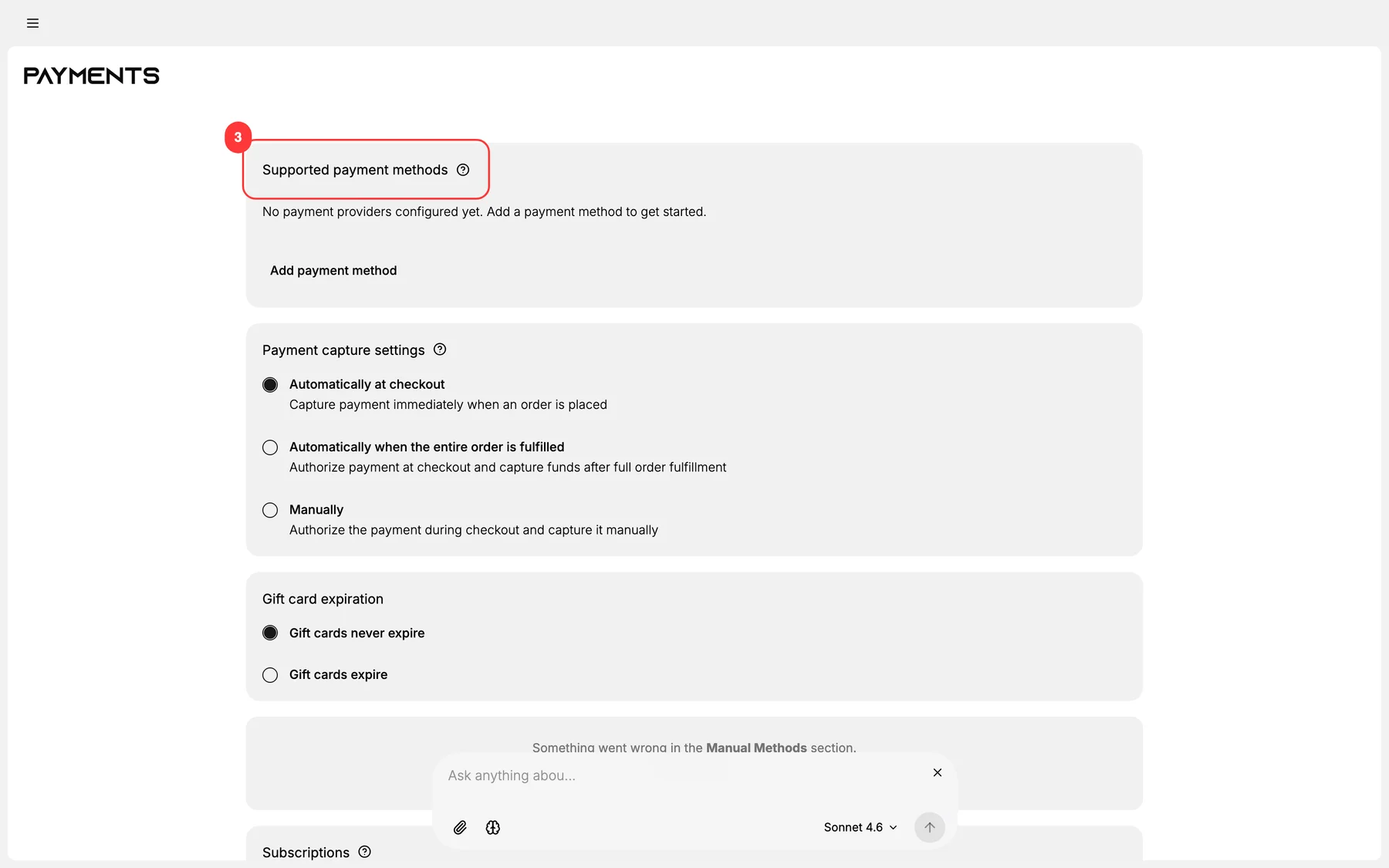
3. Pick a card provider
Tanqory supports multiple card processors. Common choices:
- Stripe: global coverage, modern API, OAuth onboarding.
- Adyen: enterprise scale, strong fraud tools.
- Authorize.net: long-standing US provider.
- Worldpay: global, strong UK / EU presence.
- Local providers: varies by region.
Pick based on your geo, fee structure, and existing accounts.
4. Complete the provider onboarding
Onboarding varies:
- OAuth flow (Stripe, PayPal): Tanqory redirects you to the provider, you sign in + grant scopes, you redirect back. Tanqory stores the connection.
- API-key flow (Authorize.net, some Adyen tiers): paste publishable key + secret key into Tanqory's form.
5. Configure card-specific settings on the provider page
After connection, each provider exposes its own settings page (linked from the Supported payment methods list). Common configurations:
- Accepted card brands (Visa / MC / Amex / Discover / JCB).
- 3-D Secure trigger rules (always / risk-based / never).
- Statement descriptor (what appears on the customer's card statement).
- Capture mode (overrides global Payment capture settings).
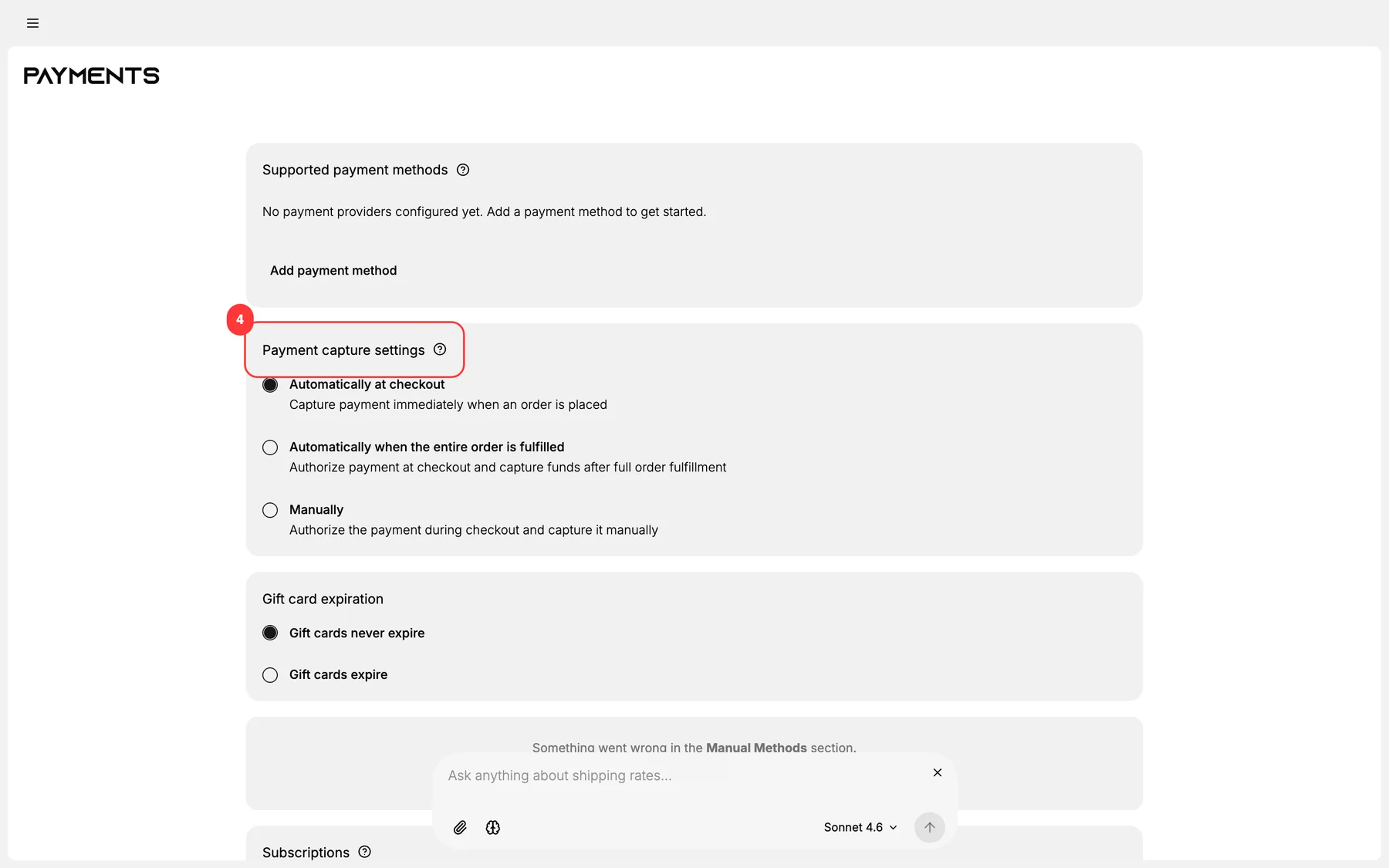
6. Set the Payment capture settings
The second section on Settings > Payments controls the global default. Most card providers honor the global default unless explicitly overridden.
7. Run a test transaction in provider sandbox
Switch the provider to test/sandbox mode. Run a transaction end-to-end. Verify settlement in the provider dashboard.
8. Switch to production + verify with a small real transaction
After successful sandbox, switch the provider to live mode and run a real transaction (smallest allowed, e.g., $1). Verify it settles to your bank.
Verify the result
- Provider shows Connected / Live in Supported payment methods.
- Test card flow at checkout completes; order shows Paid.
- Statement descriptor appears correctly on customer's card statement.
- Funds appear in provider settlement on the next cycle.
Best practices
- Activate at least two card providers for failover.
- Enable 3-D Secure on risk-based rules: friction-free for low-risk; protective for high-risk.
- Choose a clear statement descriptor matching your brand: reduces chargebacks from "what's this charge?".
- Match capture mode to fulfillment SLA. Auto for digital; manual for slow physical.
- Audit provider fees annually: rates change; renegotiate if you're a big volume.
Common mistakes
- Single-PSP setups: no failover when the PSP has outages.
- Generic statement descriptor: drives chargebacks.
- 3-D Secure always-on: adds friction on every low-risk transaction.
- Forgetting to switch out of test mode: customers can't actually pay.
- Ignoring fee structure: high-volume stores save significantly with negotiated rates.
If something goes wrong
- OAuth redirect fails: verify the OAuth callback URL is registered with the provider.
- Test transaction errors: usually test card mismatch; provider docs canonical.
- Production transaction fails: KYC may be incomplete; provider often holds funds until close.
- Statement descriptor not appearing: provider settlement metadata may not be configured.
- Permission denied: Owner may be required for the OAuth handshake.
Next steps
Related articles
Still stuck?
- Ask Tanqory AIAsk in your own words. It answers from these articles and links the ones it used.
- Ask in your adminThe assistant in your Tanqory admin answers and makes the change for you once you confirm.
- Contact TanqoryWrite to our privacy, security or legal teams, or talk to sales about a plan or a move.